I had a read through this brief and it seemed fairly straight forward and not intimidating or overwhelming, however! by the time I had finished this brief I was so fed up of it! I did not realise that having a black and white restriction in place would actually prove quite challenging! There is also a lot of text to fit into a small space which was also a challenging aspect to this brief.
I decided I would start off and design the A3 poster first and then when I have a design and layout for that I would take that forward into the A6 flyer.
I started off as I usually do by researching what is already out there in the wide world. I searched Pinterest for singing posters and noticed that practically every single one was the same style and format.
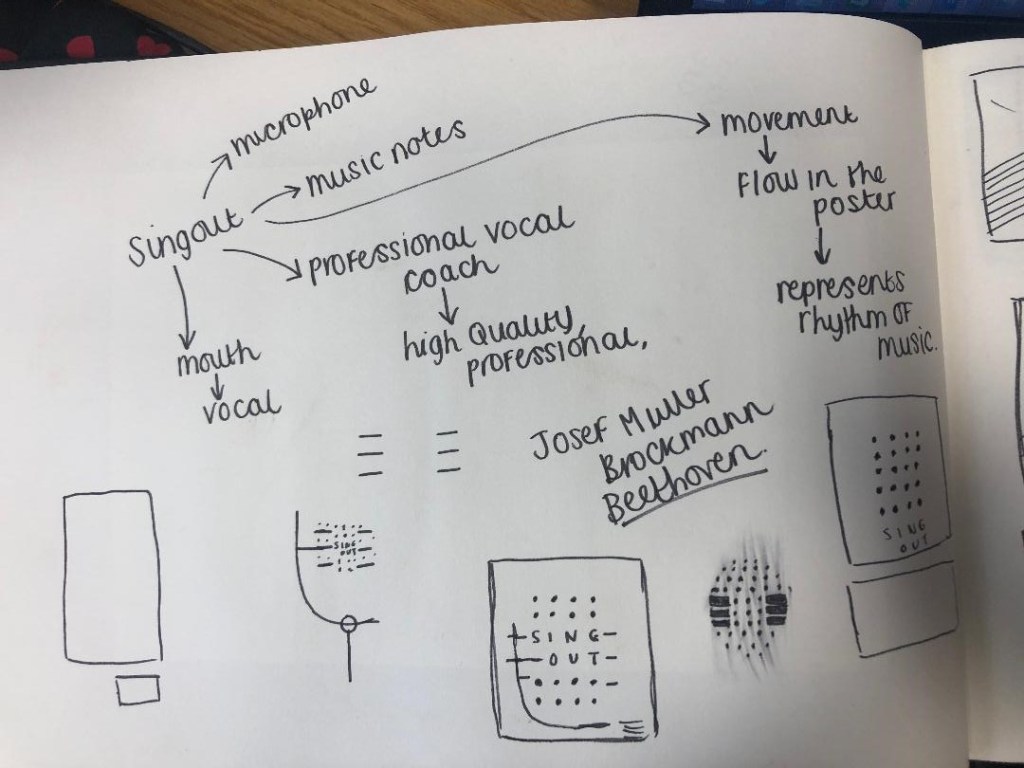
All the posters I found featured images of microphones, people singing, musical notes… I wanted to do something slightly different though. With such a small space and the limited colour palette, whatever design I decided to go with needed to be simple and clever. I instantly had the idea to try and do something similar to a poster that I know by Josef Muller Brockmann. It was a poster for Beethoven and it cleverly uses negative space and simple shapes.
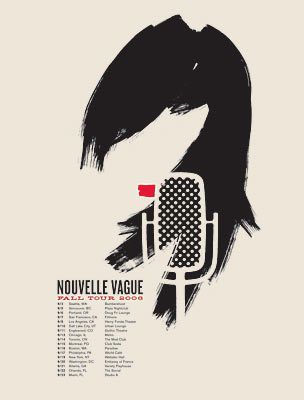
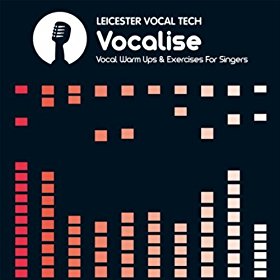
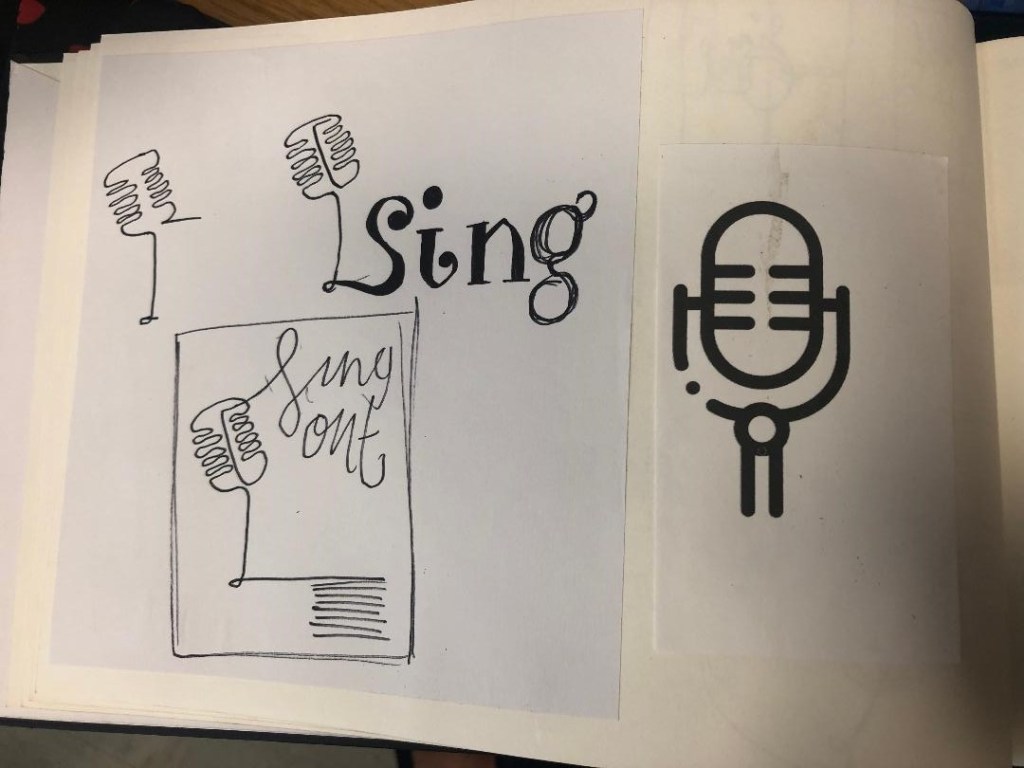
There were some images that I found that gave me ideas or inspiration the most. They are these:
I liked the layout of this design, the text coming out of the microphone
Vintage Retro Microphone Device For Singing Vector Icon Thin Line. Microphone And Headphones, Concert And Theater, Opera And Karaoke Concept Linear Pictogram. Black And White Contour Illustration
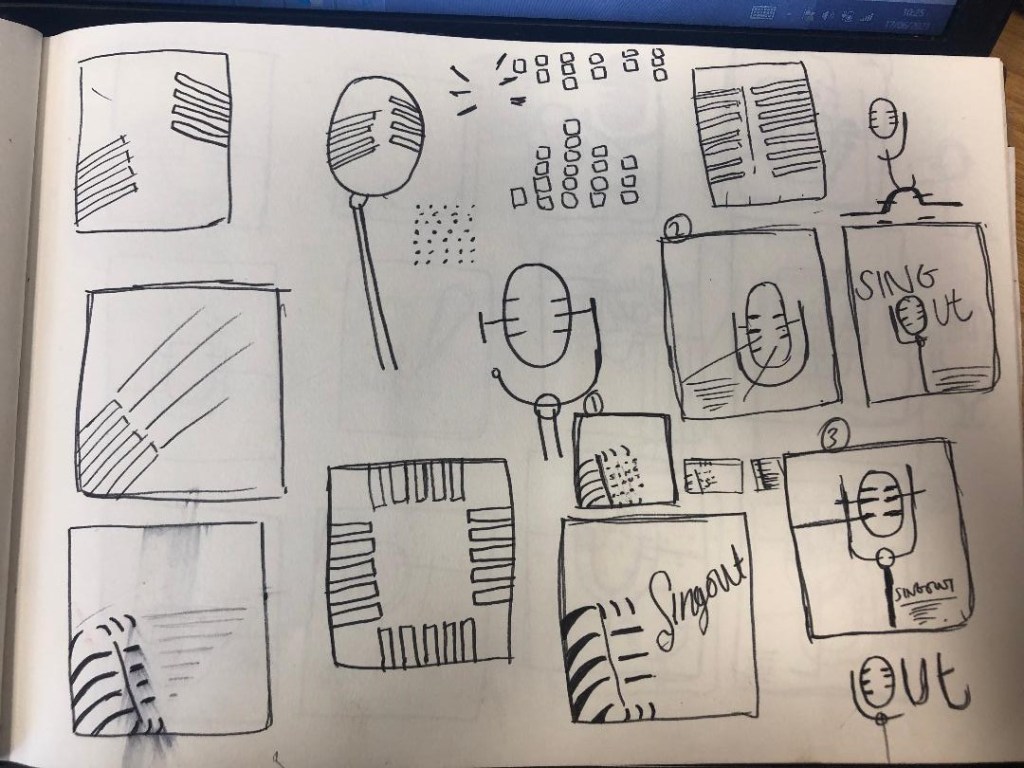
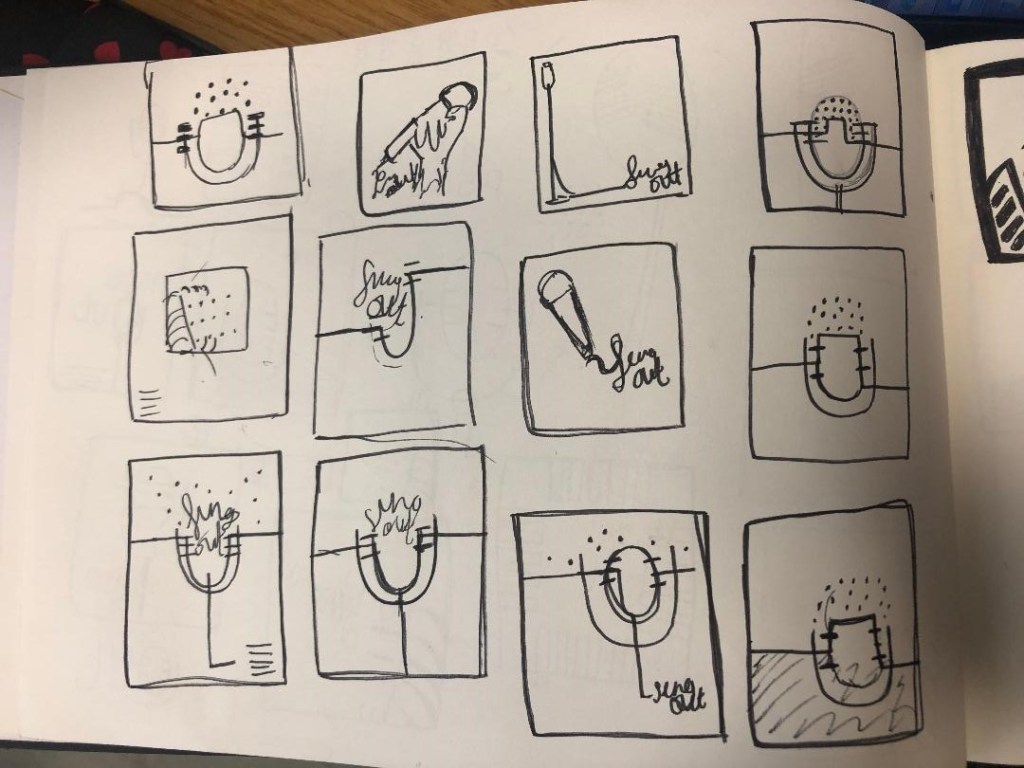
I started to sketch up ideas very similar to this poster in my sketchbook. I used a microphone as the main image and tried to simplify it down to its basic form to create a similar effect to what is seen in Josef Muller Brockmann’s posters. I was trying to find clever ways of making negative space the main design instead of using actual images, illustrations or photographs.
I wanted to go with this design below:
Trying to create it proved too difficult though, I was only using a section of the microphone and because of this I struggled to get the design to still look like a microphone. I also struggled to make the text a part of the design because it would have looked too small and not stood out at all. I went back to the drawing board and started with new ideas…
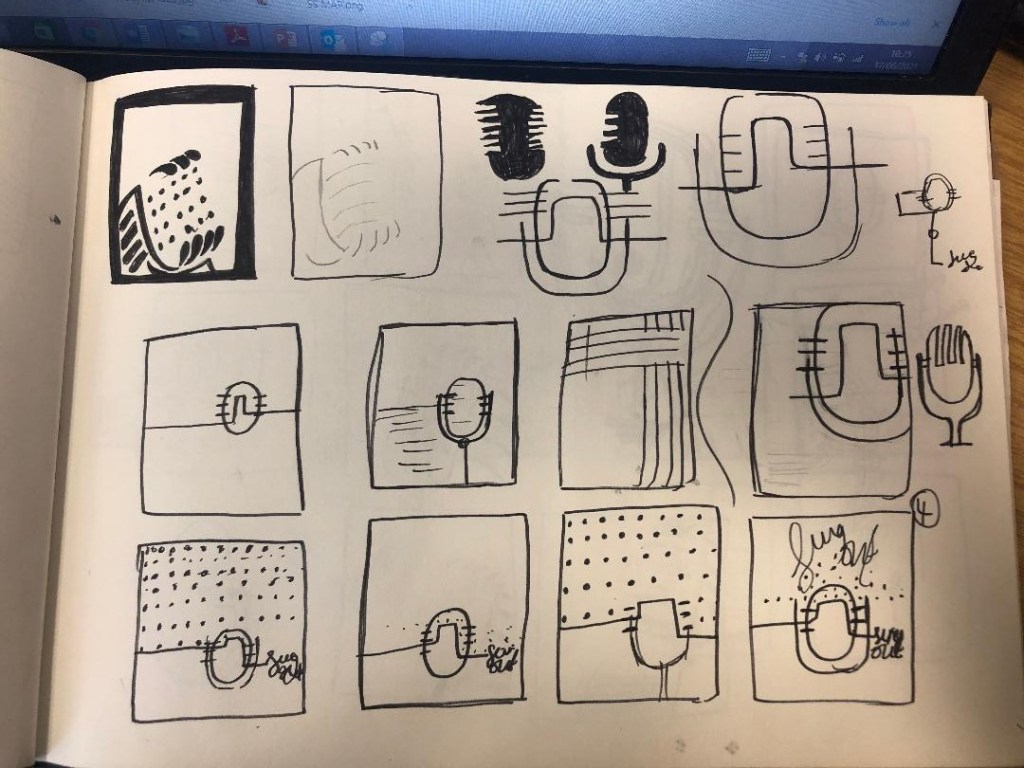
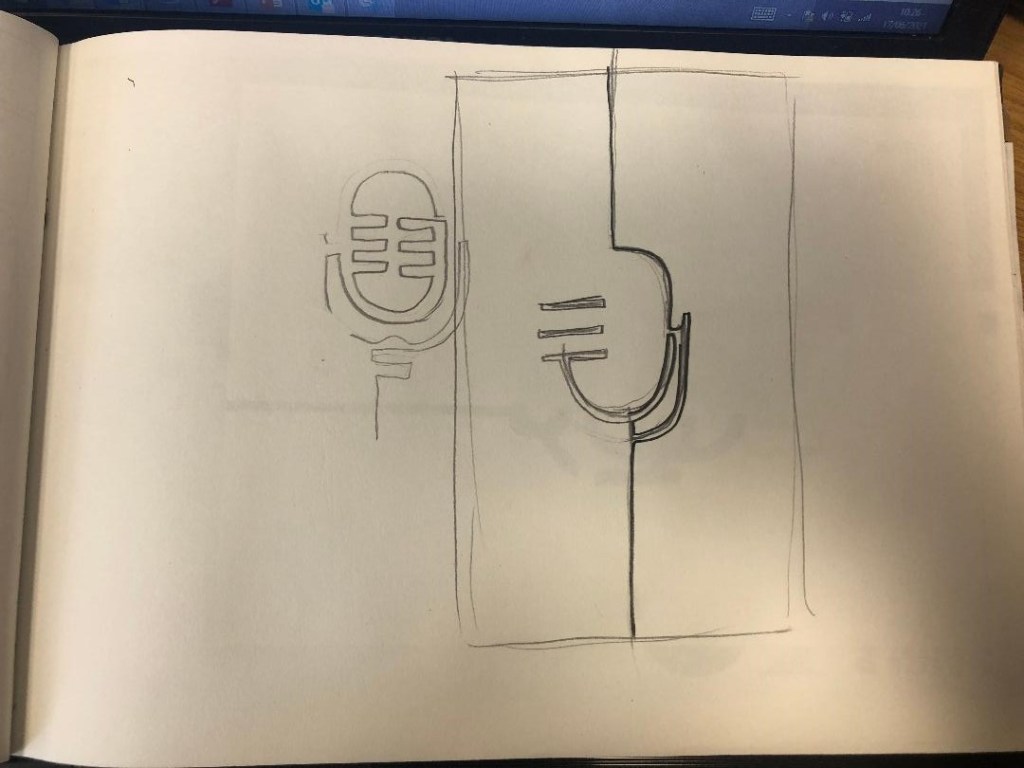
I started to feel frustrated that I couldn’t crack this brief in the way I originally wanted.. My thought process now was “Right! What is black and white, how can I make it negative space?!” BOOM! A 90s throwback of the Ying and Yang symbol appeared in my brain! What if I created half of the microphone in the white and half in the black….
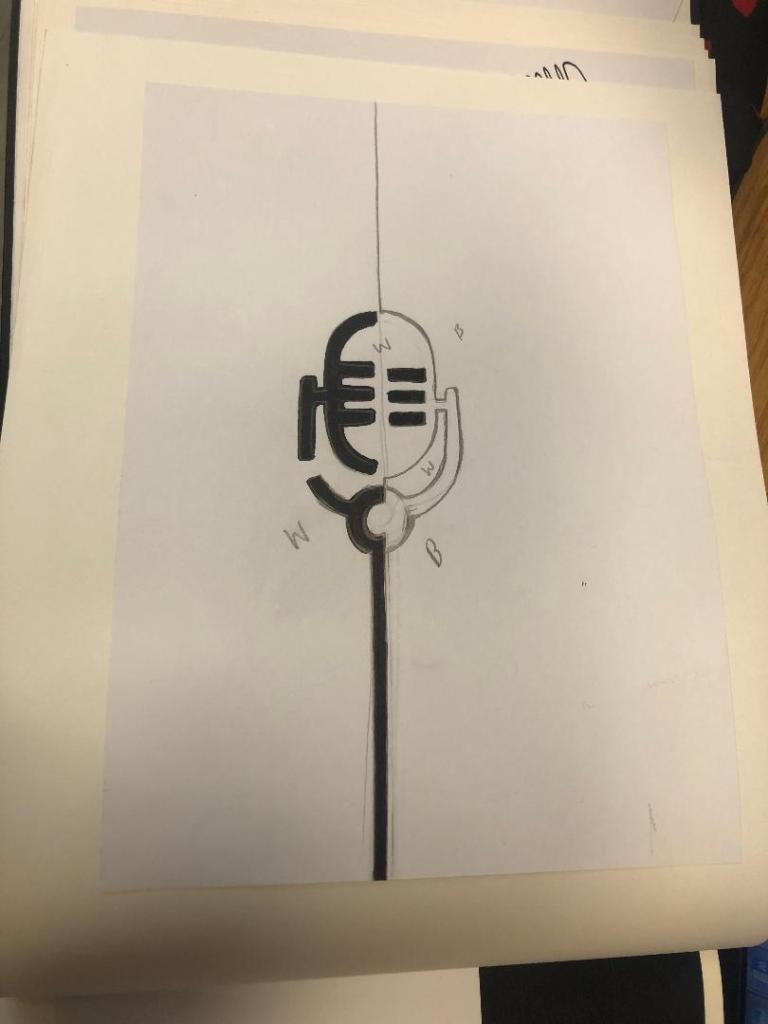
I started to draw ideas:
This could work! It looked like a microphone and it played on its negative space as part of the design!
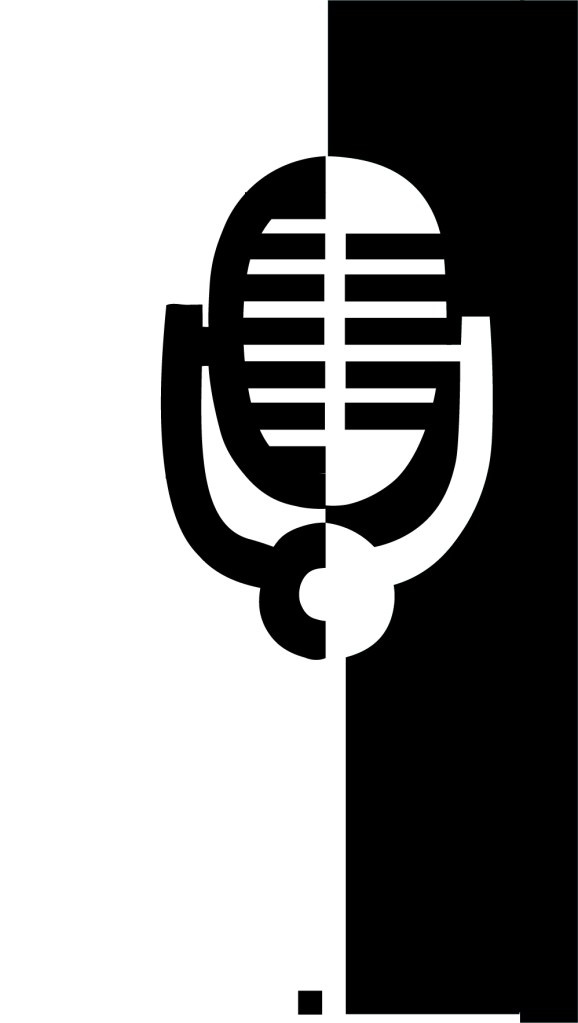
I imported my drawing into Illustrator and started the process of drawing around it. This is what I ended up with:
It stood out, it still looked like a microphone and it used negative space in the design! I decided to move forward and develop it further!
The next step as to figure out what typeface I wanted to use in my design, the one I chose to go with was Abril Display. I like it because the Black display is very bold and it stands out but also looks very ornamental and decorative too. The serifs look like the ends of music notes.
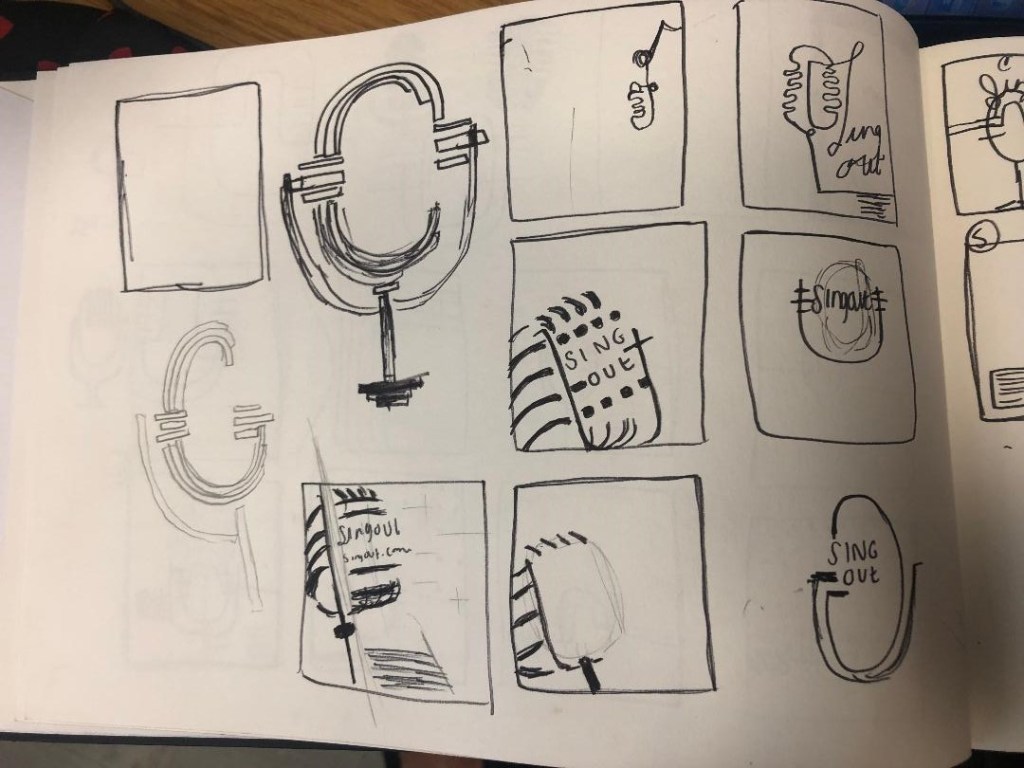
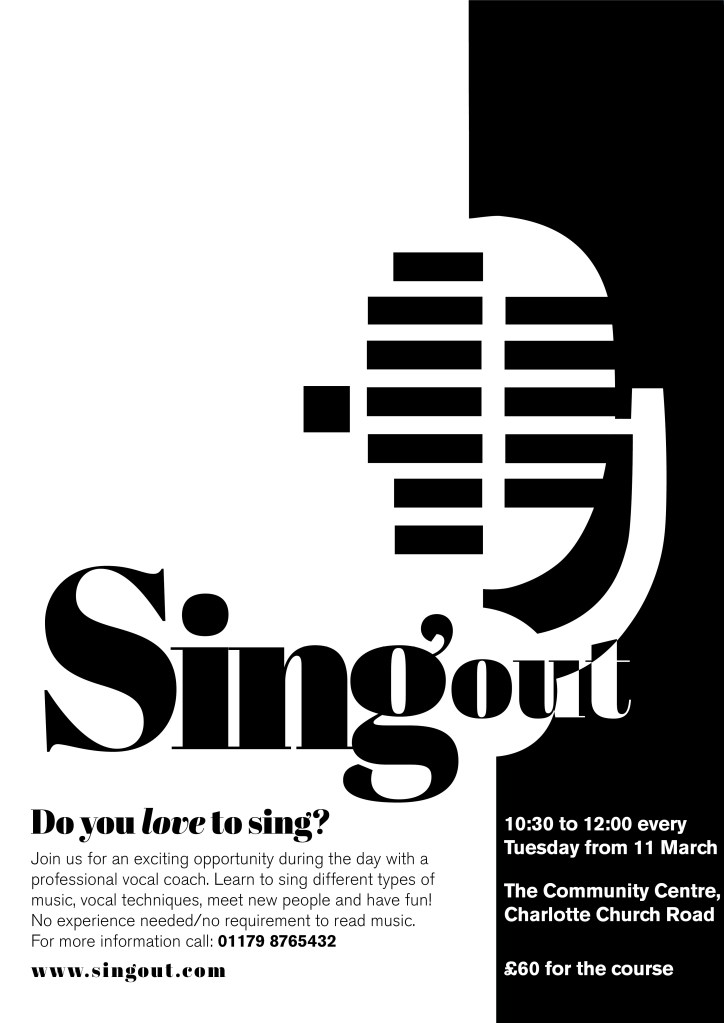
I then played around with the layout of my poster:
I messed around the most with how to display “Singout” – all one word! This was a challenge also! I decided to make”Singout” 2 different sizes but still one word for 2 reasons; 1) for contrast 2) to separate the word up but still keep it as one word. I placed the “o” in “out” in the centre of the microphone on some of the layouts as I felt it would make it look part of the design, however it changing the colours in “out” looked too confusing and was not legible at all.
At this stage I did also experiment with different coloured backgrounds just to see how it might look if the design was printed or photocopied onto coloured paper.
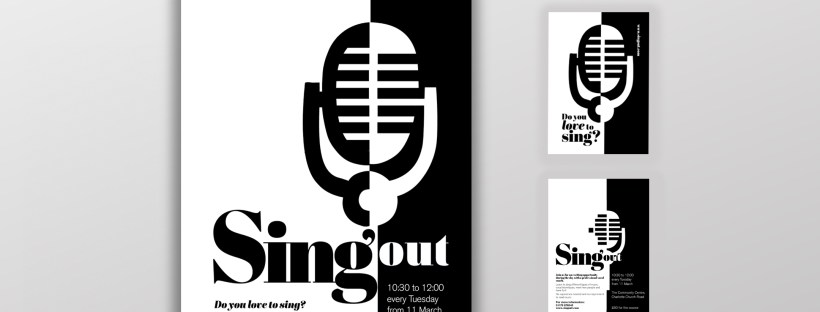
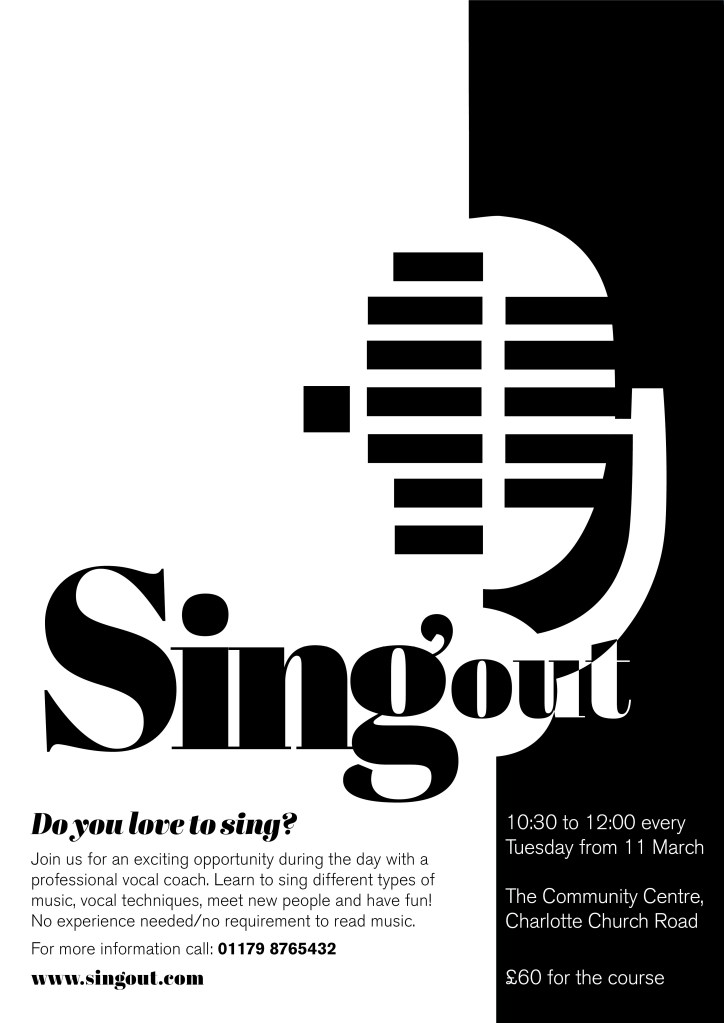
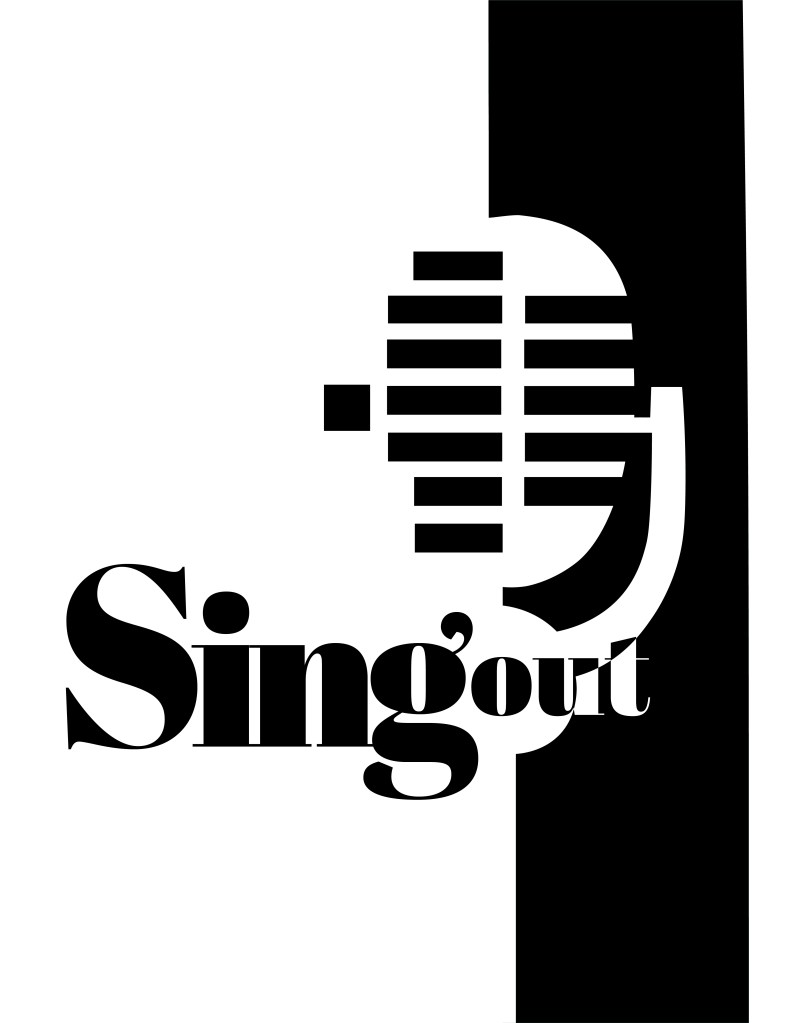
I decided to go with this poster design below in the end:
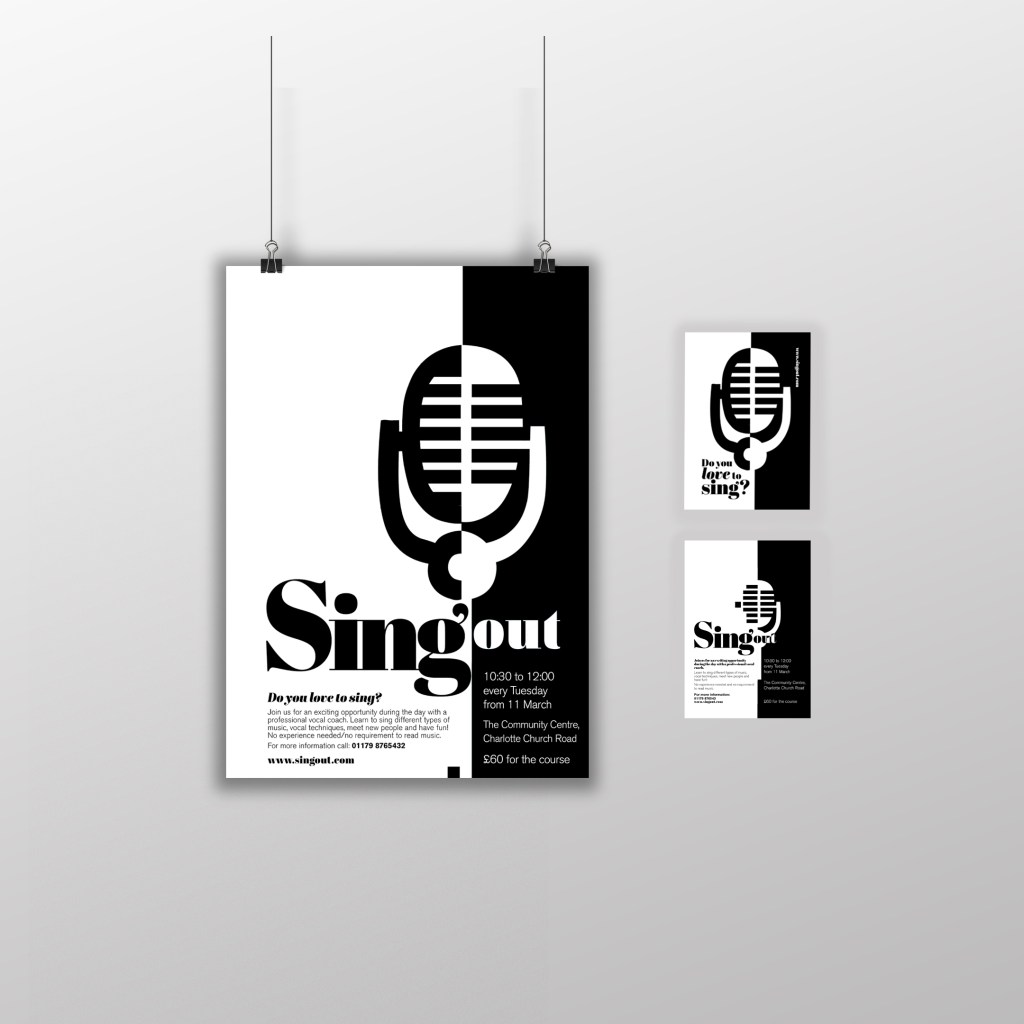
Singout as 2 different sizes for contrast an legibility. “Sing” is seen first as the vital information and then “out”. It could also represent being smaller for being “on its way out”. I used the same typeface for the sub heading of the poster and also for the website. This typeface is a serif which does not make it an ideal typeface for body text. The rest of the information I used Berthold Akzidenz Grotesk. It is a Sans-Serif typeface which makes it ideal for important information that needs to be read as it is clear and legible.
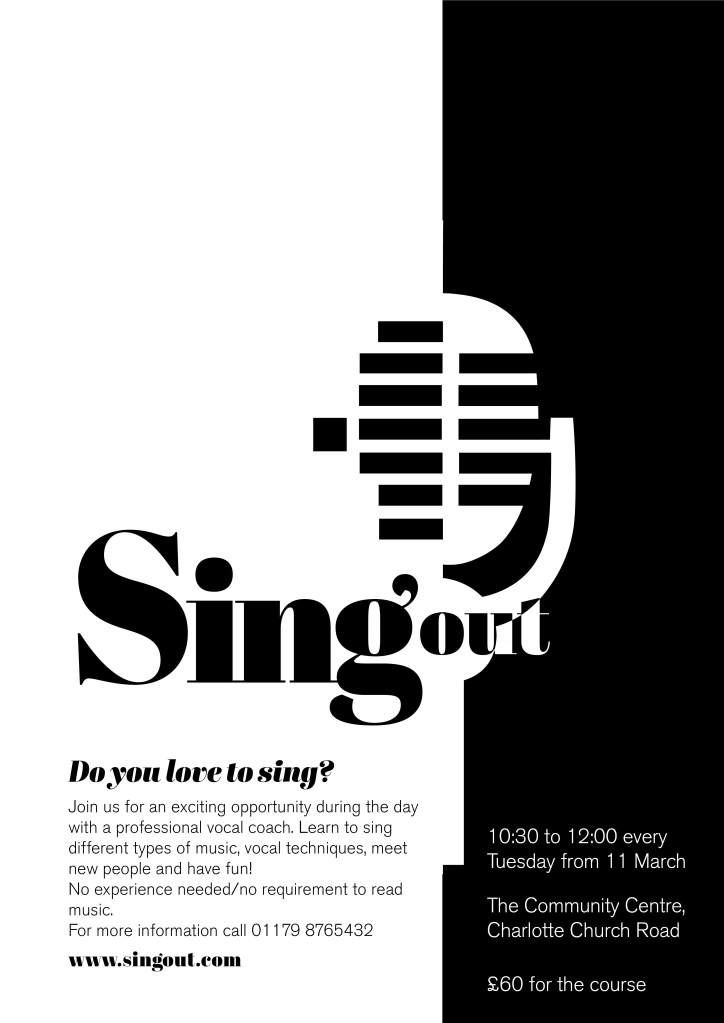
The final poster mockup
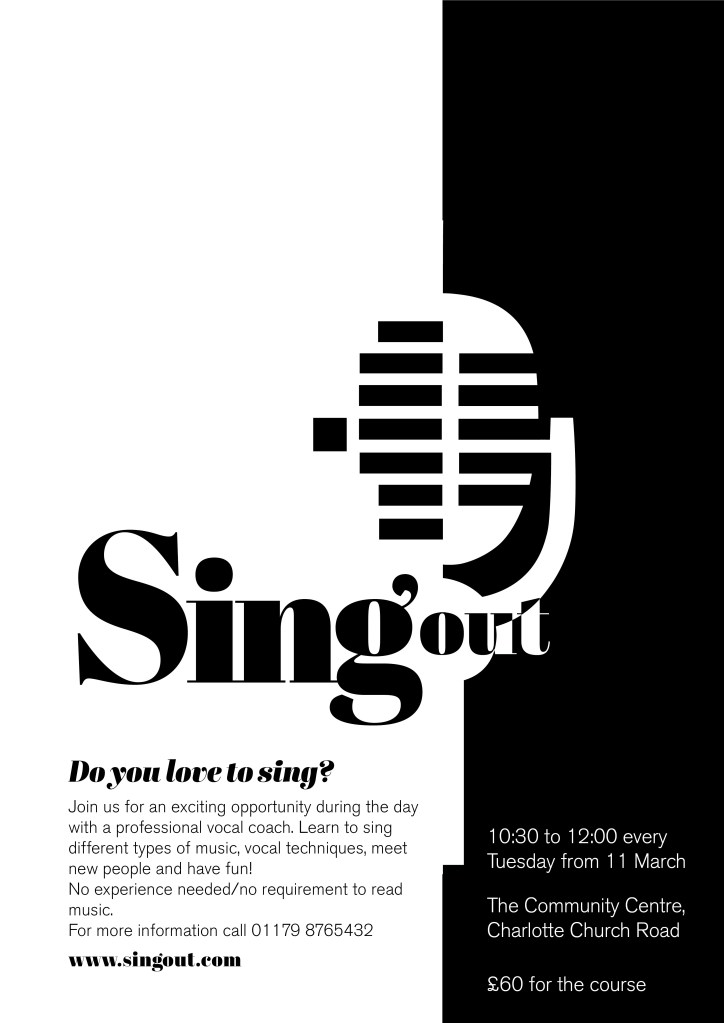
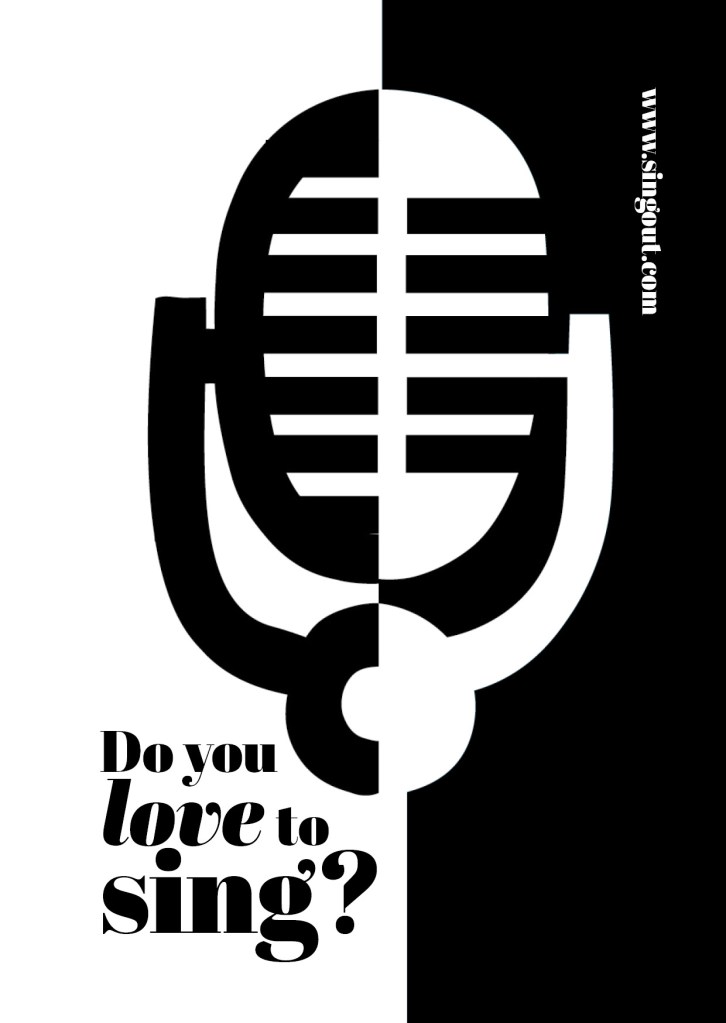
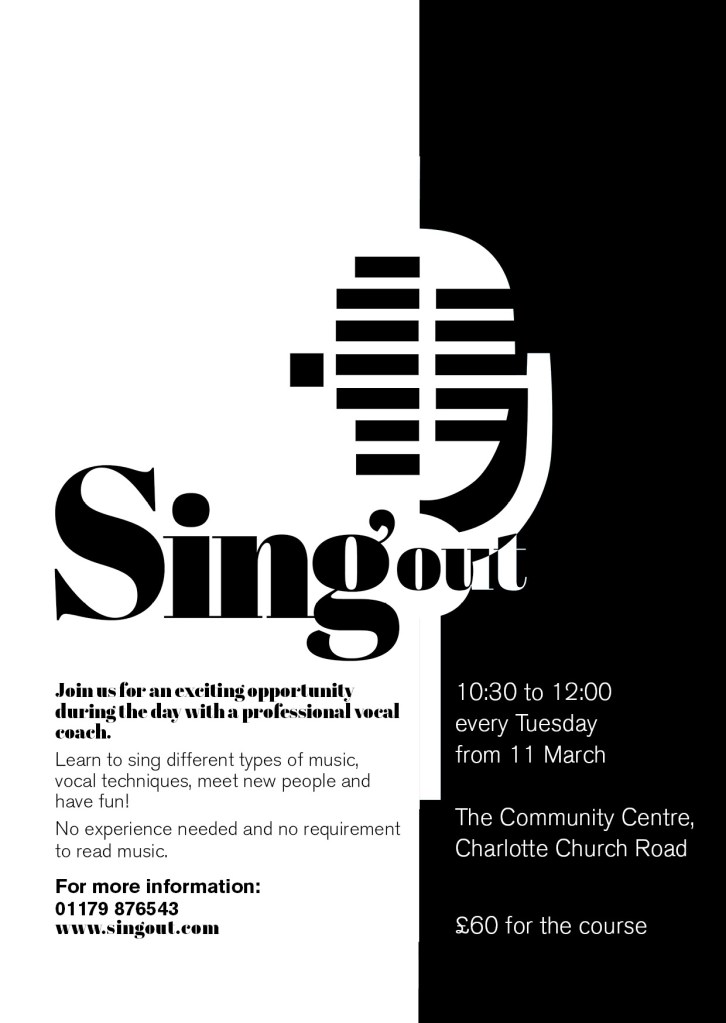
The A6 flyer
I used exactly the same format and layout for the flyer except that for the back of the flyer I used one of the ideas for the microphone that I did not use for the poster (I did not want to repeat the exact same image over 2 sides) Working in a small space was a challenge but I chose to use the first side of the flyer to draw people in first; the first thing people would see is the catch line “Do you love to sing” and the website. If someone who was a singer saw the front of this flyer they would be interested in finding out more information and turn the flyer over, some people might just see the flyer and remember the website to browse later on or some people would see the front and know it’s not of any interest and instantly discard it. Either way, the first side of the flyer is to get the attention of the reader.
The second side of the flyer is for the information that is wanted to be read. I have kept it in the sae layout as the poster so that it is easily understood and read. This side does not have to fight for attention as it is information that the person as been willing to read after being drawn in by the first side.
I think these designs work well. I am pleased with the outcome of this brief, I have met what was required of me and have produced material that can be cheaply distributed and photocopied to a high quality. The design stands out and grabs the attention of the client.
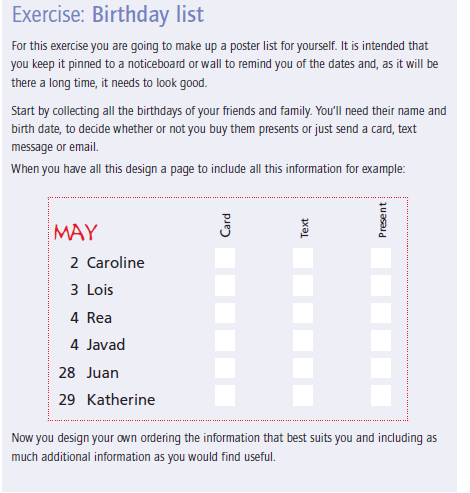
This brief seemed like a fairly simple brief from first glance, it is basically a poster of names and their birthdays but in a cleverly designed way. This brief came in handy because in our house my boyfriend used to have a list of everyones birthdays but I accidentally destroyed it – I told him that I could design this for the course and also for our house!
I started thinking about different ways that I could design this. I did not want to create a “simple” design. It is all too easy to list names and birthdays. The example that was given in the Core Concepts book was NOT what I wanted to achieve at the end of it.
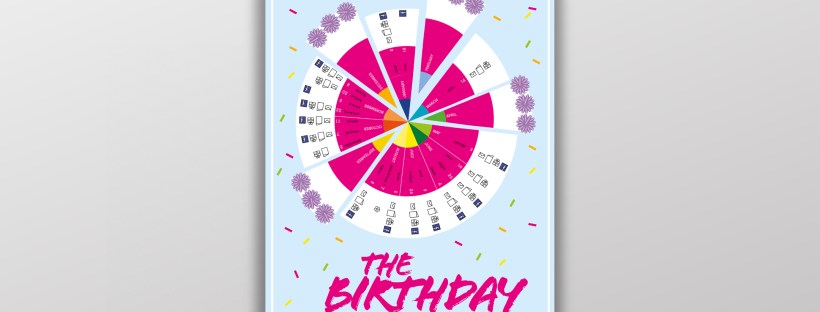
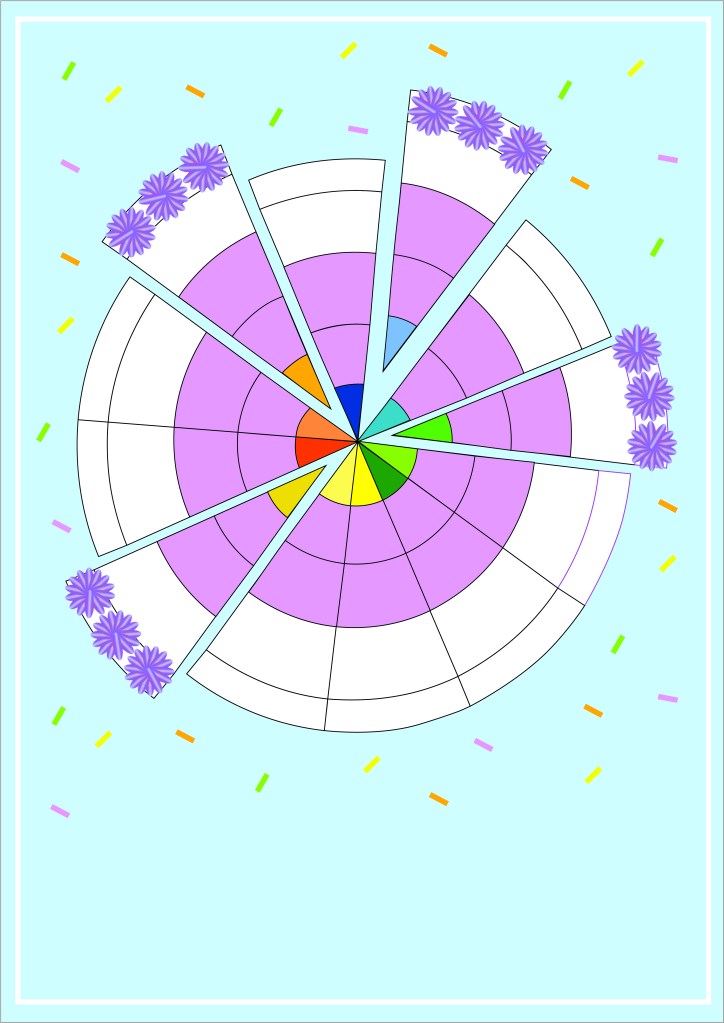
I had the idea of a pie chart but split into 12 segments for the 12 months. I could record the information around the pie chart. I then had the further idea of creating the pie chart into a birthday cake! I knew I would have to draw my pie chart first and measure out accurately the size of each section and then import it into Illustrator to draw in actual size and add decoration etc..
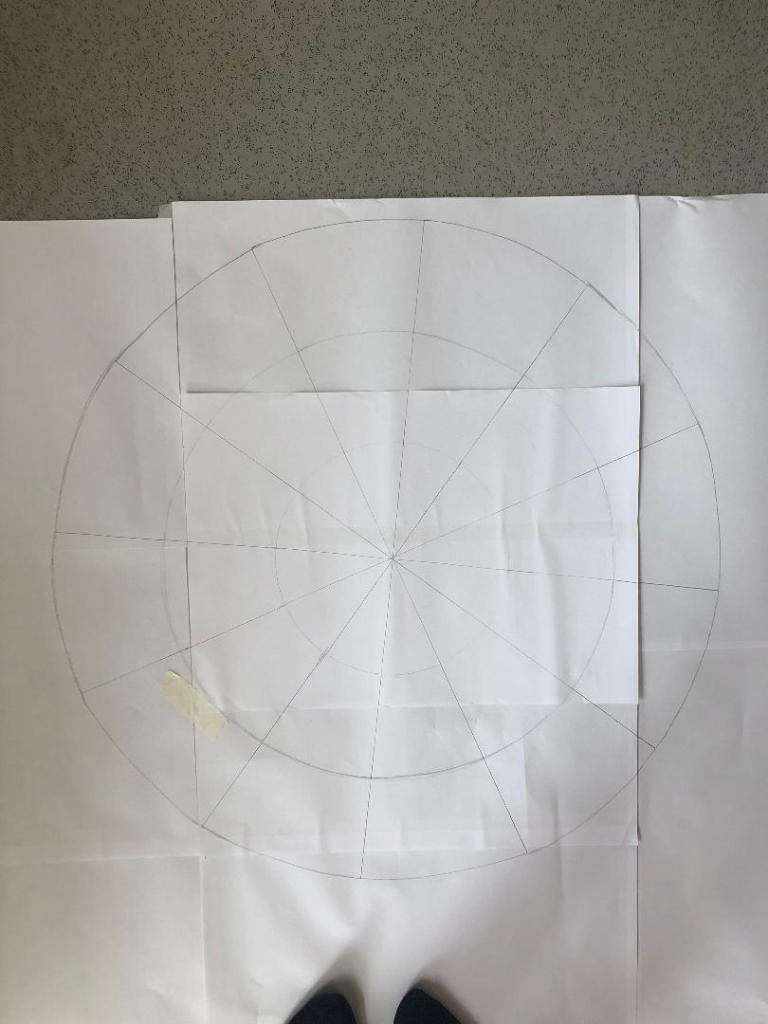
I drew out the circle first (rather quite big actually!) I am rubbish at maths and working out measurements etc so it took me a while to master the art of a compass and a protractor and measure it all out!
The circle was quite big! They are my shoes at the bottom! I am so rubbish at working measurements out that I just kept it simple for me by making it large scale!!
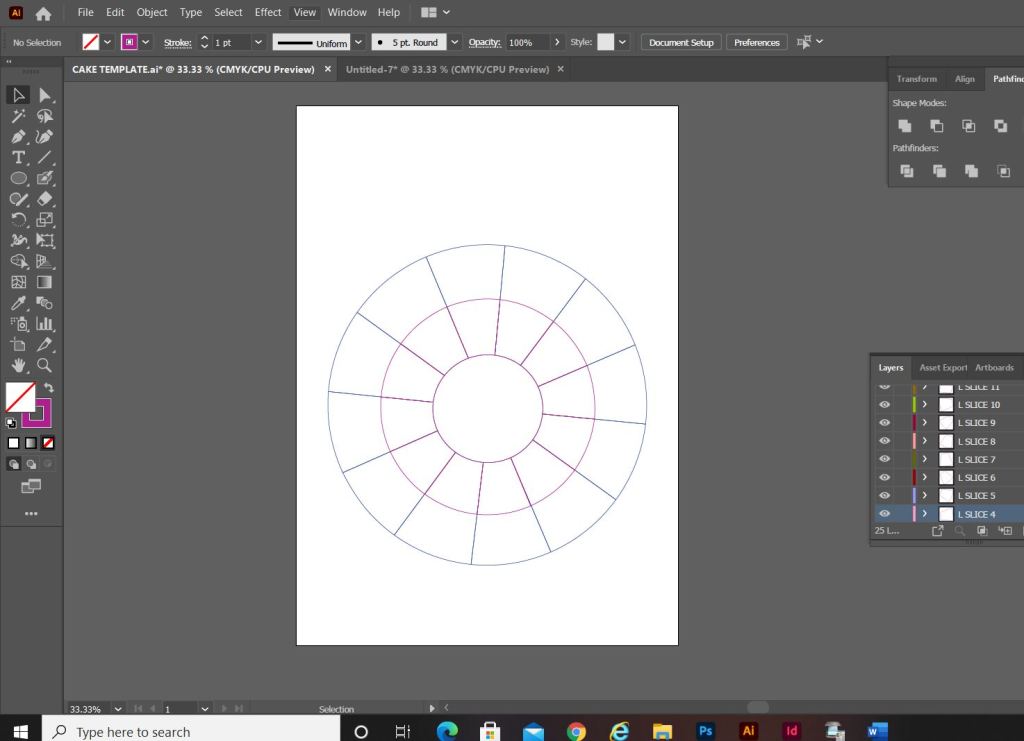
Once I had the circle drawn out I took a photograph of it and imported it into Illustrator to draw around and start producing my final design.
I decided to set up my document in Illustrator and to create my final design in A3 size. I did not want to make it too big to display on a wall (you can still buy pretty looking A3 frames to cater for this size for on the wall of a house) and I did not want to make it too small so that the information would be illegible.
I imported my photograph in and lowered the opacity so that I could barely see it and locked the layer so that It could not be moved. I then created a new layer and started to trace around my pie chart drawing using the pen tool. I created new layers for each section of the pie chart.
My only issue when I finished drawing around the circle was that it looked more like a mosaic aerial view of a patio in a new build house! How could I make it look more like a birthday cake to make it look more attractive as a wall chart?… The circle in the middle really took away the “look” of a birthday cake. I decided to get rid of it and have the segments meet in the middle like they would if it were a real cake.
I started to research into aerial views of birthday cakes just to see how I could make mine look more “cakey” and less “patio”.
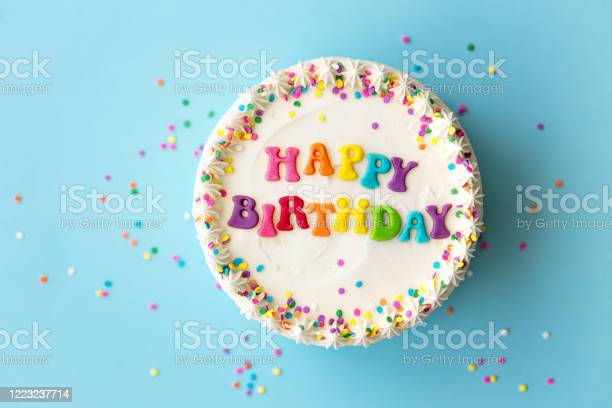
Happy birthday cake with rainbow lettering
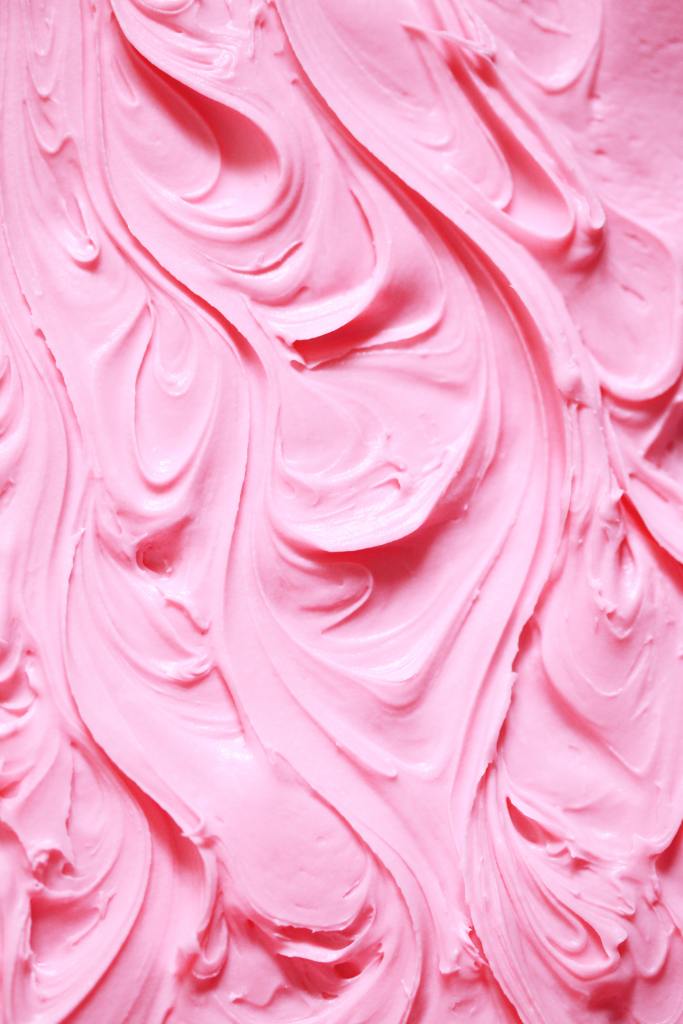
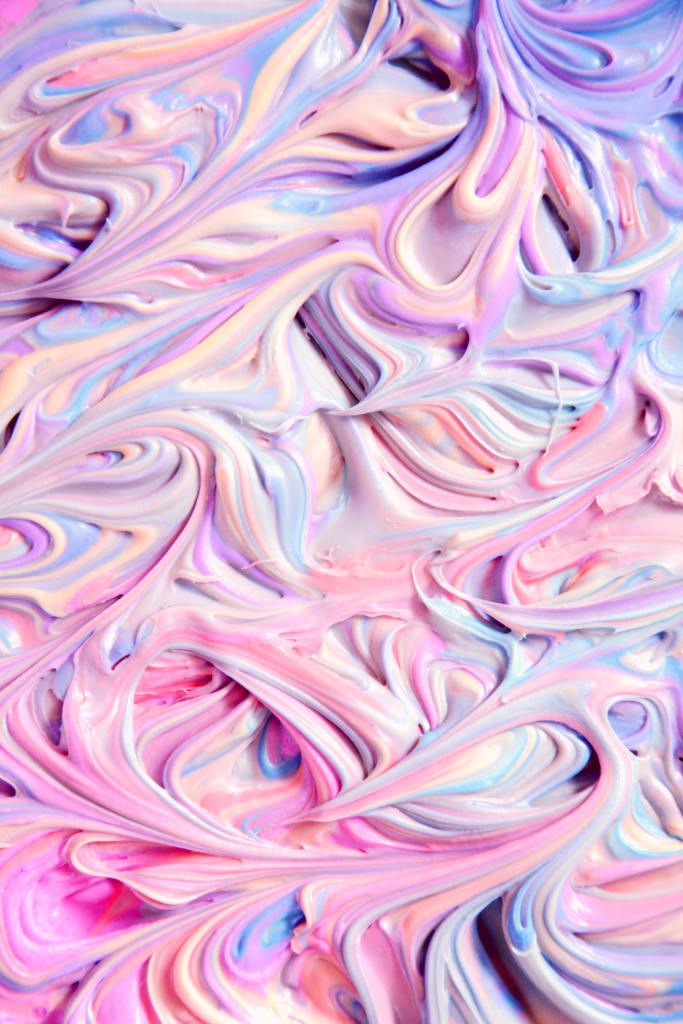
This photo gave me the most inspiration.. I could also imagine squirty icing around the slices of the cake. I had a look at icing photo too for some inspiration and also found an online tutorial on how to create an icing effect using a mixer brush.
I had a look at how I could create this effect online:
This video shows you how to create mixer brushes for Photoshop that look like swirly, squirty icing. I followed this tutorial but it took me a good few hours to figure out how to do it myself! I did create a mixer brush to use in my design though. This is how it turned out:
When I changed the middle of the cake and the sections met in the middle, it created me another issue of how I would make the months legible as they are supposed to be in the centre middle circle section of the cake that I deleted. The sections now were too skinny to fit the month names. I came up with the idea to make each section a colour. I would match the colours to the seasons and use different shades for each month: Blues for Winter, Greens for Spring, Yellow for summer and oranges for Autumn. For the months where there are no birthdays I decided to pull the slices out as if they were about to be eaten. These are also the only slices that I would put the icing on because if I put icing on the other 9 slices the information would be lost. I also made the background a blue colour and added sprinkles just to make it look more appealing and like a birthday. I mapped out on each slice where each piece of information would go and it was starting to look more like a birthday cake now, although it still looked too mathematical with the lines on the sections and the colours did not contrast against the blue background very well. The colours were too much alike. I needed a pop of colour!
For anyone that knows me well enough the colour I chose to make the “pop” wouldn’t surprise! I used a nice bright Pink! I think it works really well against the cool blue background and the coolness of the lilac icing. It looks far more celebratory, cheerful and happy!
Although I said during my Typography unit that I did not like quirky and gimmicky fonts, I find myself experimenting and using them more now. The typeface that I used for this is called “Flood” I found it on Adobe Fonts and it reminded me of cake being smeared in the form of type. It has that modern, fun feel to it also! It really works in the hot Pink colour too!
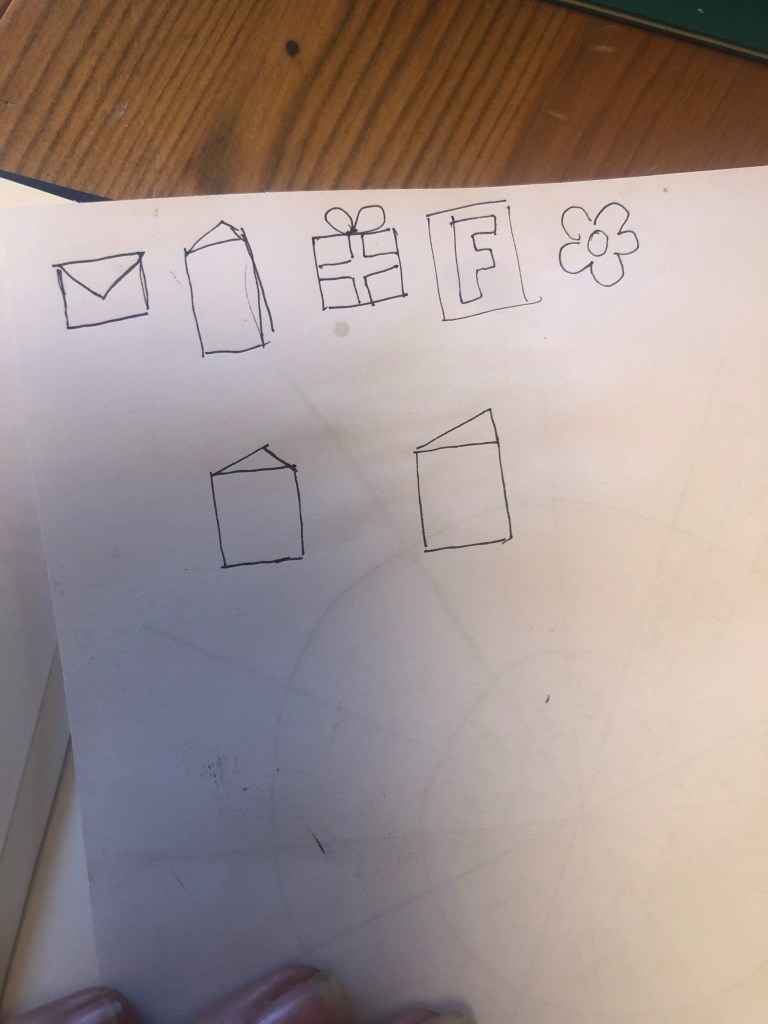
I now just needed to add all of the relevant information and the symbols for the chart:
**** INSERT PHOTO OF SYMBOLS
I then took my sketch and imported it into Illustrator to draw around each symbol to place on my chart. I added a key to the bottom of the chart so that people would know what each one means.
The bottom symbol menu added on.
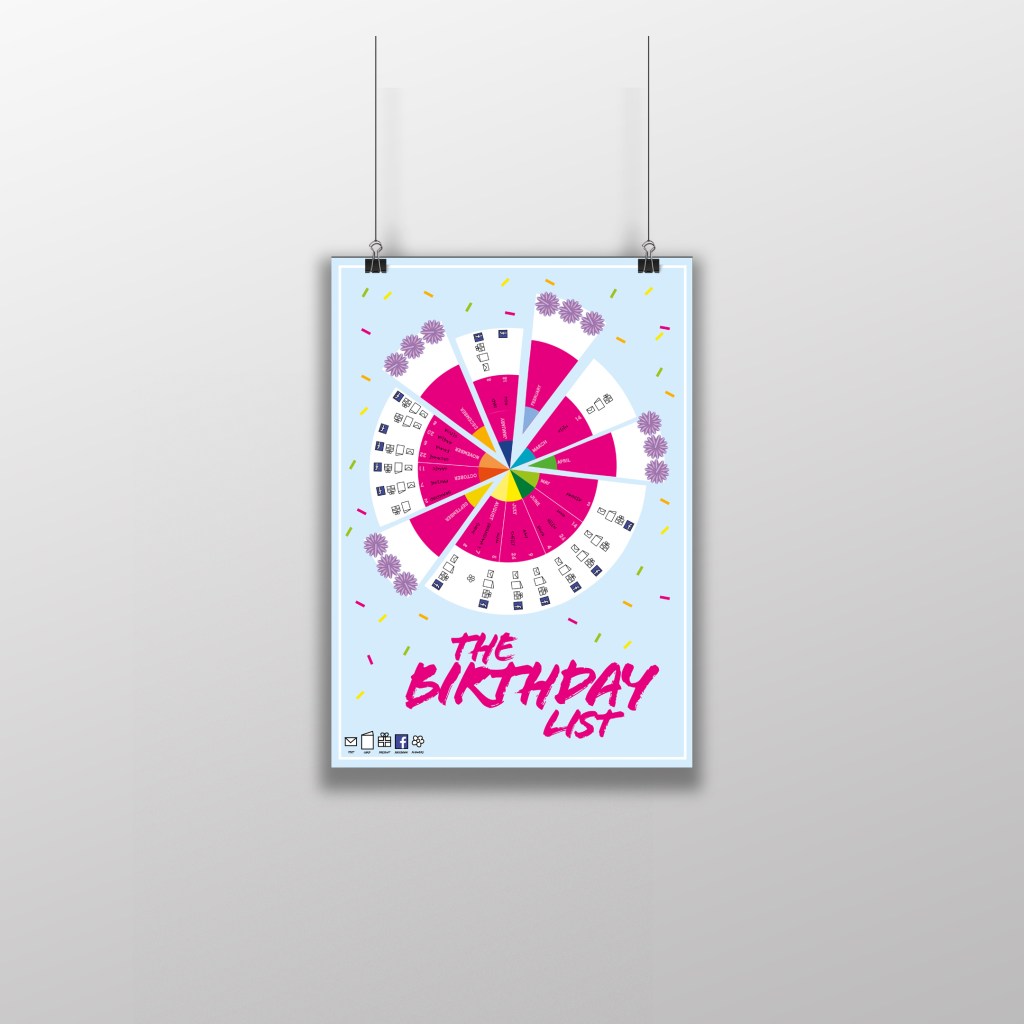
This is how the final chart turned out! I am pleased with the result! I think I have met the brief; I have created a chart that records everybody’s birthdays and what they are to be sent for their birthday as well as making it look attractive and appealing to want to put on the wall.
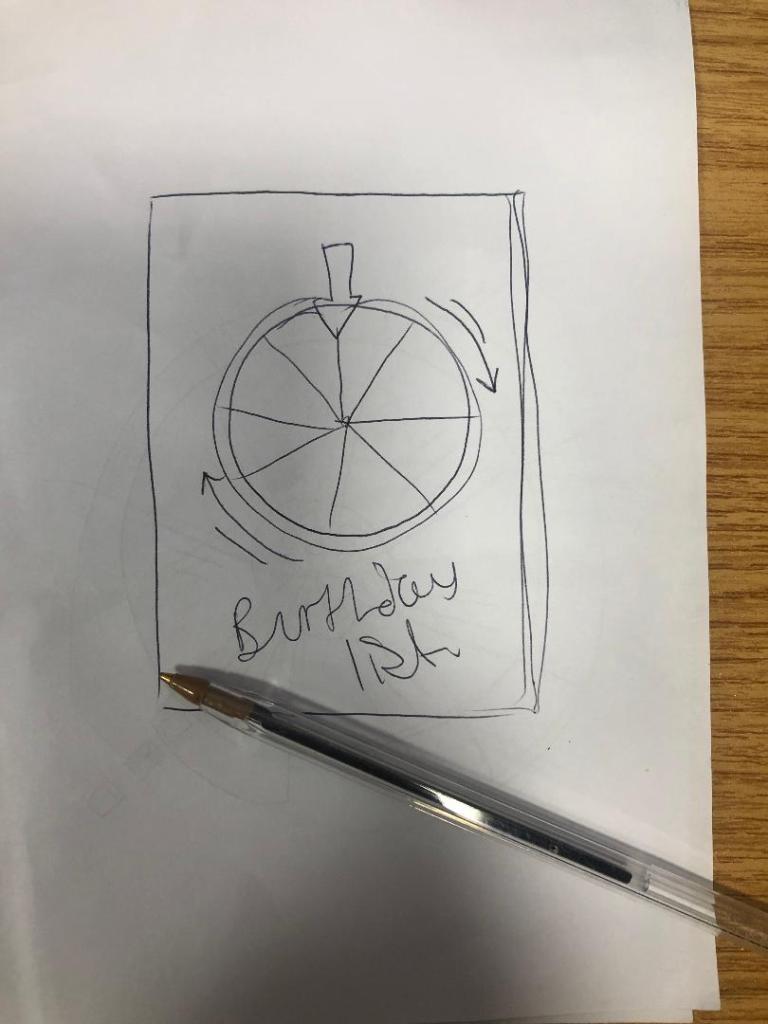
The only other thing I really questioned was the position of the text going around the wheel. I did wonder whether to flip the text to go the other way when I reached July but then decided against it because there was room to further develop the chart… If the chart were to be manufactured in industry there is room for the wheel to be actually made into a functional, turning wheel. The text would then be positioned just right to flow around the moving wheel. There could even be an arrow made for the top of the wheel to point to the correct month!
The typefaces that I used for my chart were Ayra for the names of the months; It is a fun, thick width typeface that stands out and looks great in white! I used Flood again for the names of everyone on the chart to keep repetition with the design and also because it works really well and it legible.
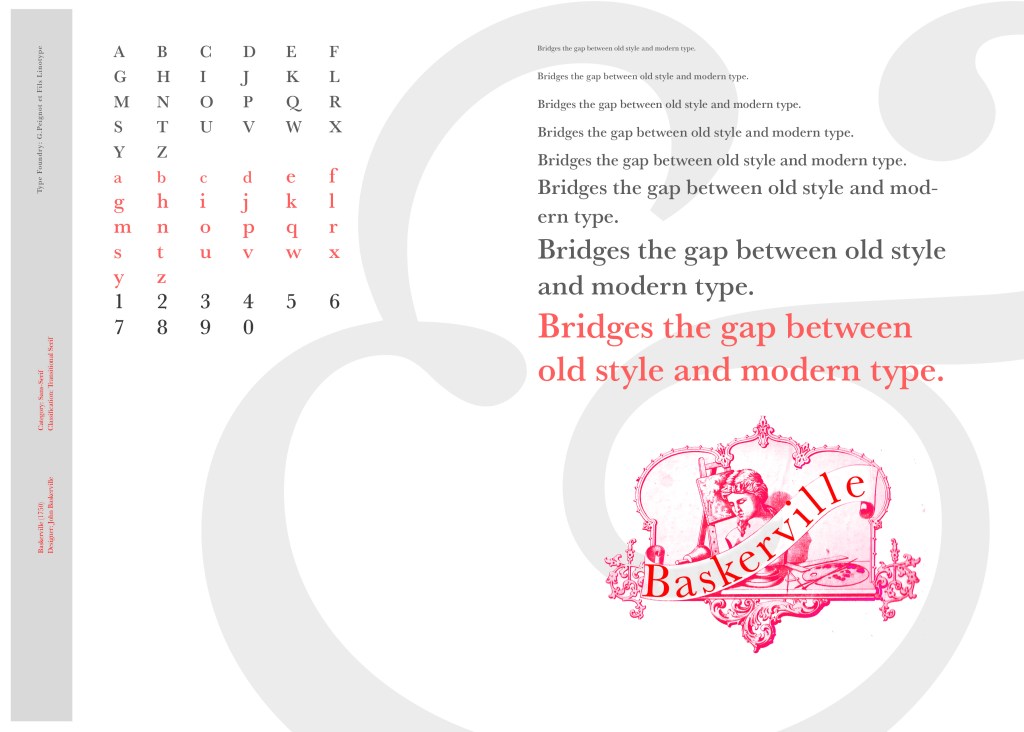
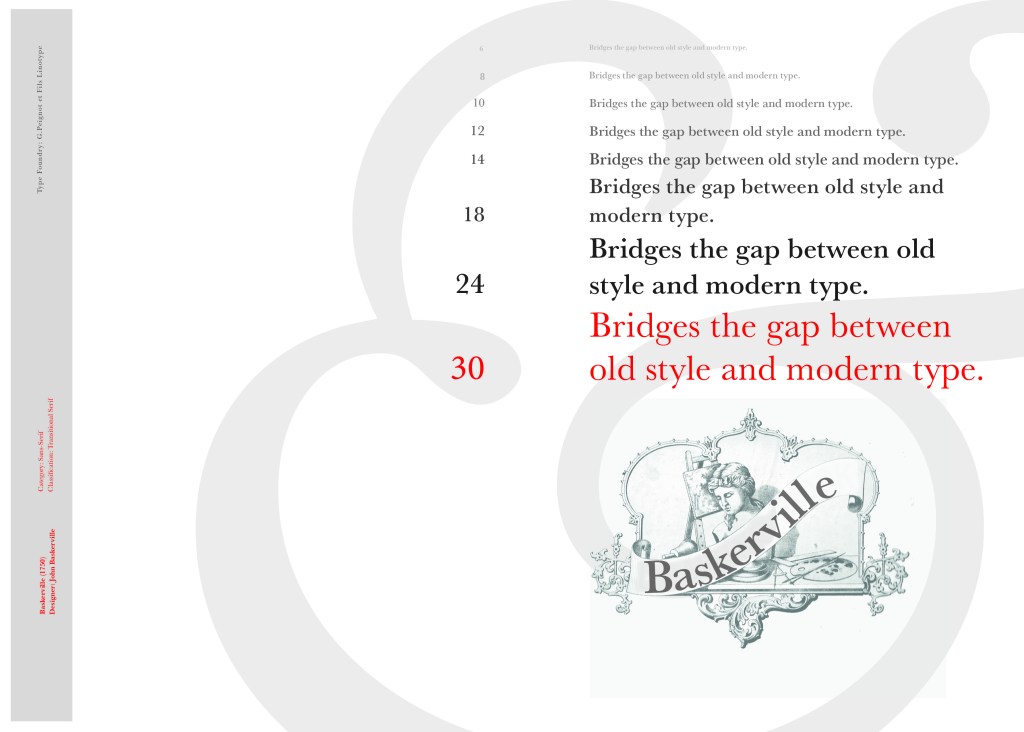
I started off my Serif typefaces with Baskerville. Baskerville was designed in the 1750s by John Baskerville in Birmingham, UK. Baskerville typeface showed contrast between thick and thin strokes and making serifs sharper and more tapered. Baskerville was inspired by Calligraphy and the typeface was and still is very popular in book design. John Baskerville wanted to create books of the greatest possible quality and his typeface certainly made this happen.
My idea for this design was to create a layout representing book design. My original idea was to create an old book and then incorporate Baskerville typeface and the characters into it.
I feel like I spent ages doing this design because I messed around with one idea trying to perfect it all day and then decided in the evening that the simplified version would be much better! I wanted to keep the old fashioned style but still try and bring in a modern vibe!
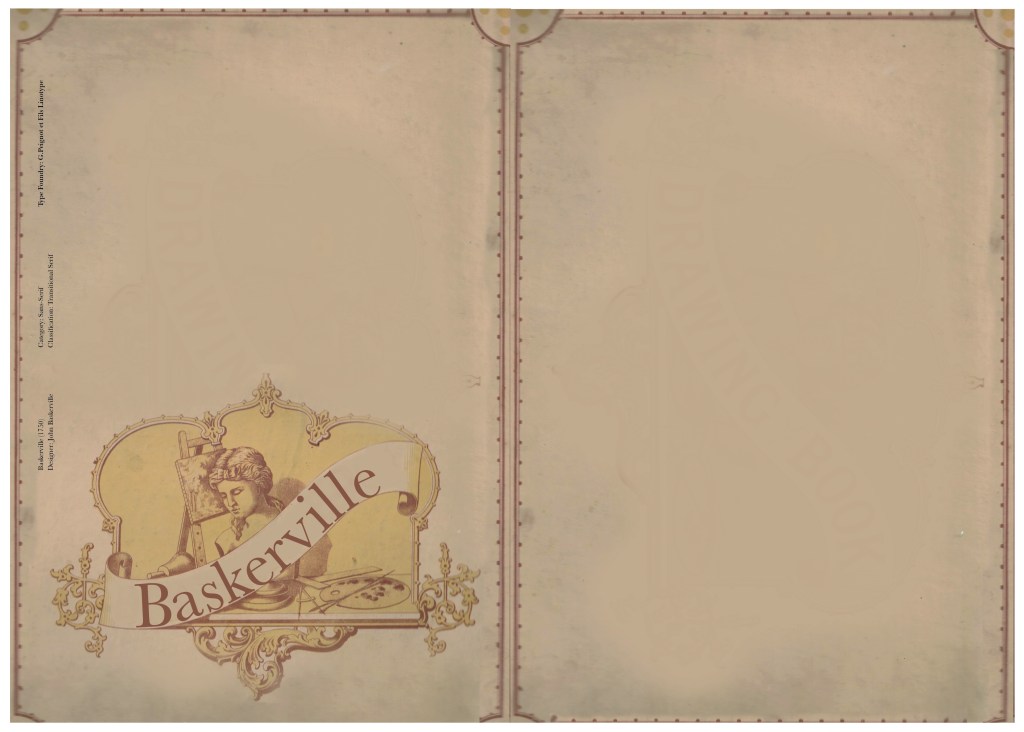
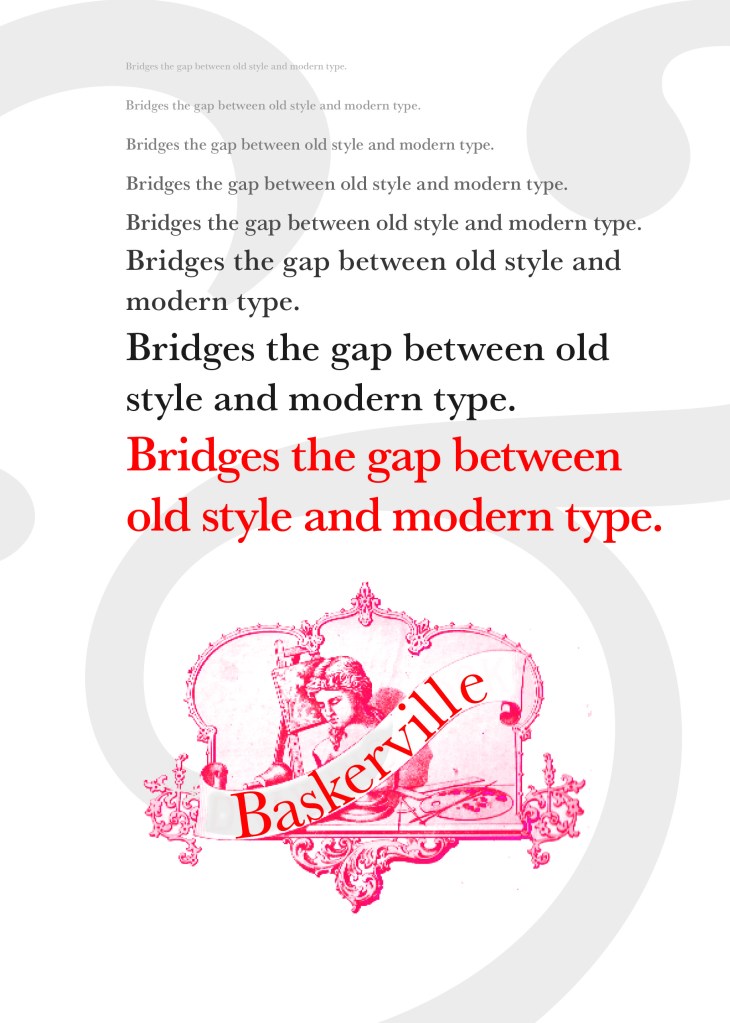
At home I have some old sketchbooks from 1905.. inside are all clothing patterns that have been drawn, there are blank pages that appear in the book though which are quite yellow and mottled with age and my initial idea was to scan these pages in to use as textures for my design. However, when I was scanning them in, the cover of one of the sketchbooks fell apart (they had been covered in brown paper) and underneath the brown paper was an old Edwardian/Victorian Cherub image with the words “Drawing book” I thought that would be a good idea to bring into my design but change the words “Drawing book” to “Baskerville”
**INSERT IMAGES OF DRAWING BOOK
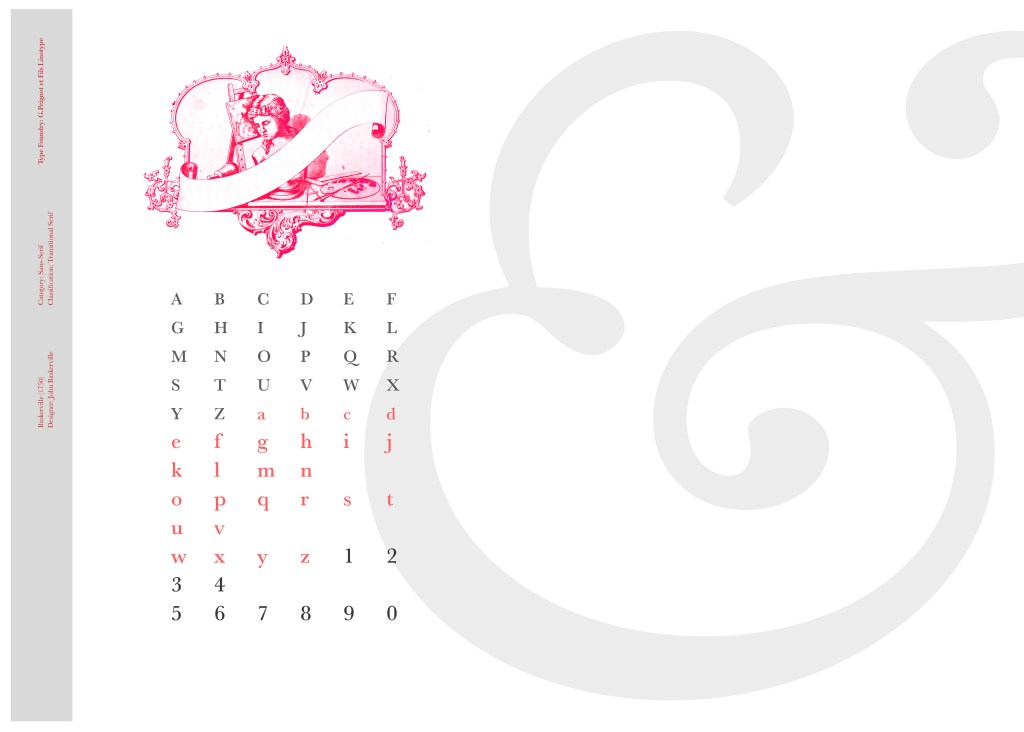
I changed the colour of the Cherub image to try and make it look more modern.. I wasn’t convinced though. I also changed the name “Drawing book” to “Baskerville” in Photoshop. When I did my research on Baskerville, it is well known for its glamourous looking ampersand which I instantly recognised from the V&A logo. I decided to use that in the design as it adds that old traditional feel but with a modern twist.
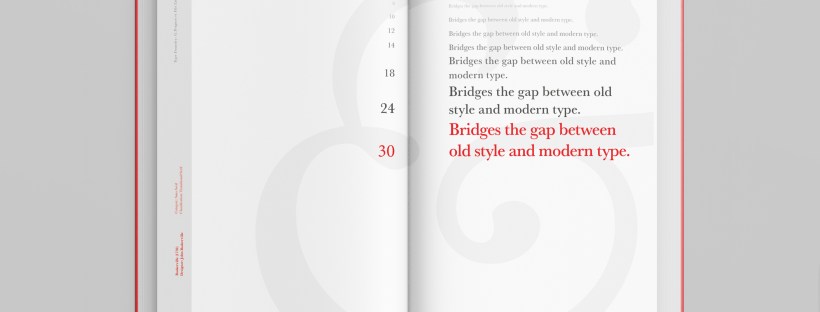
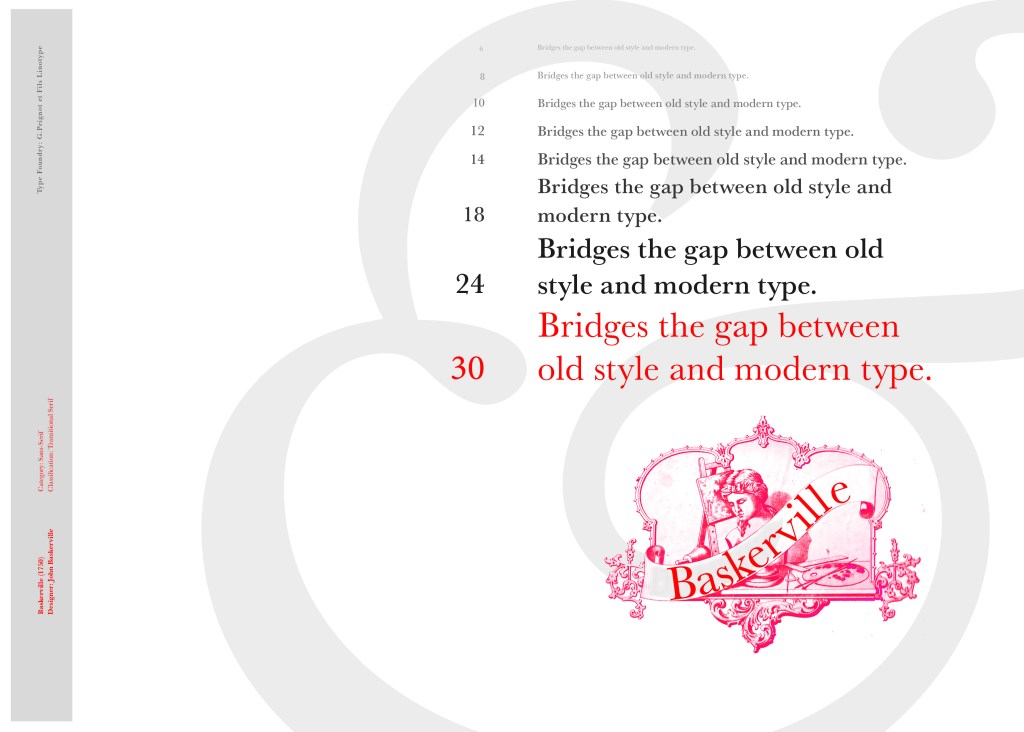
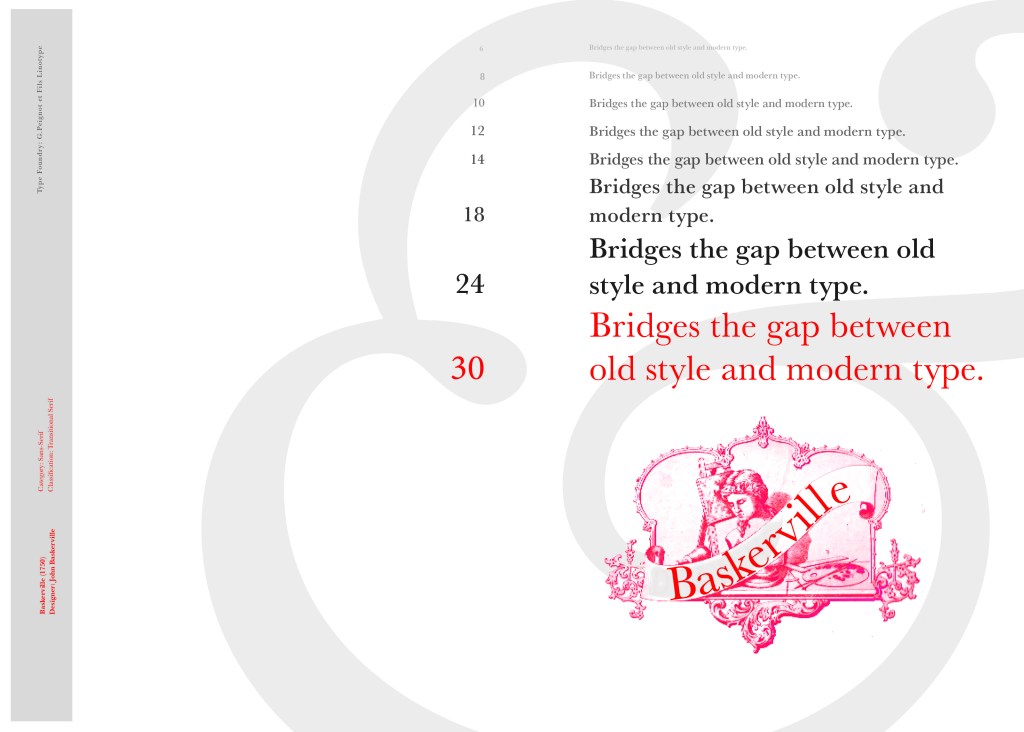
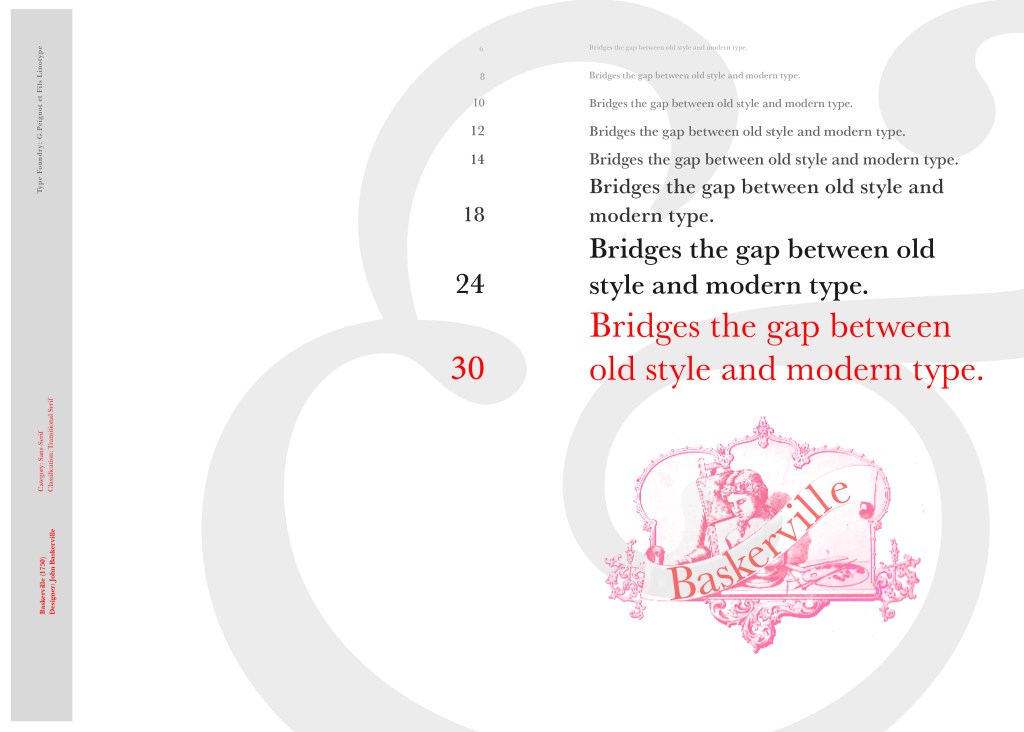
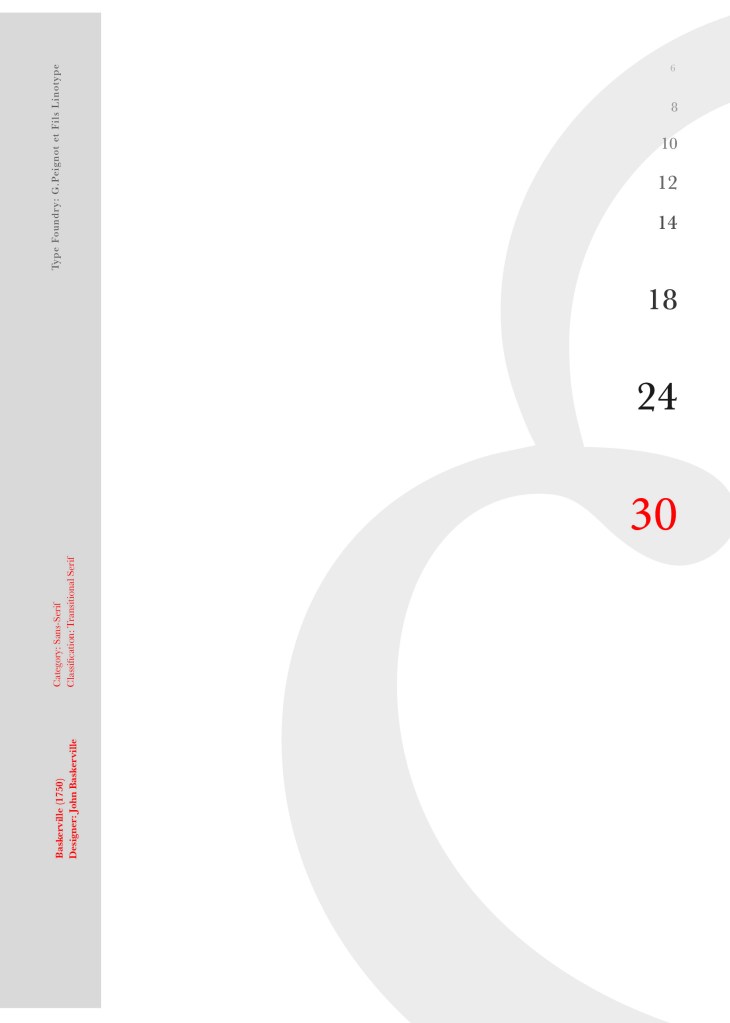
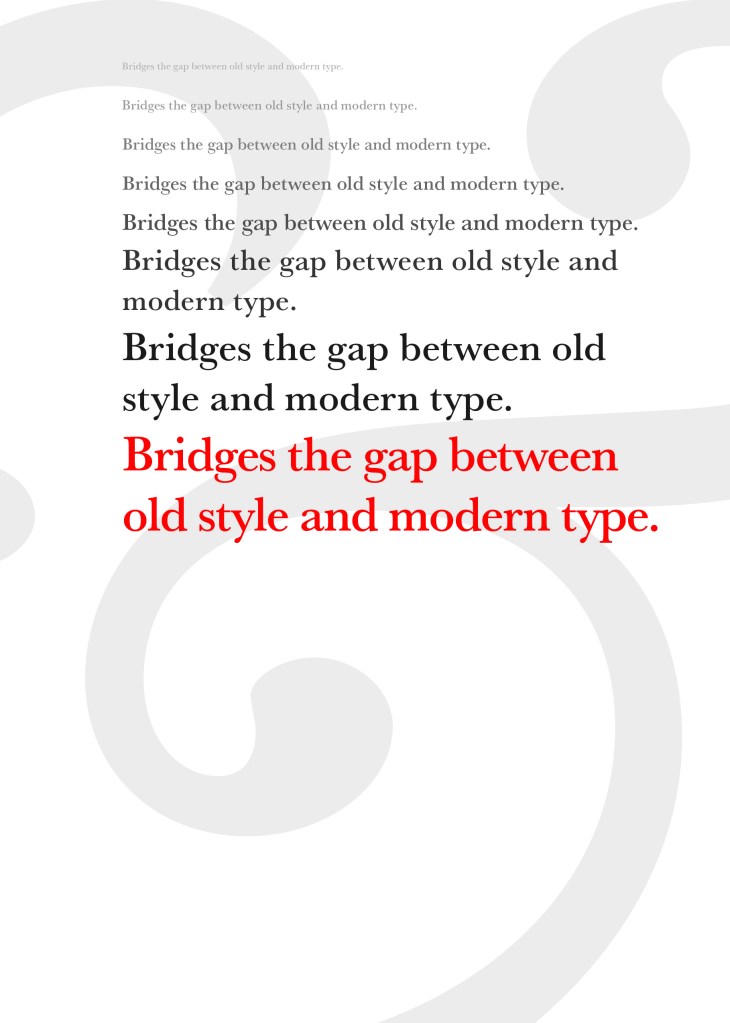
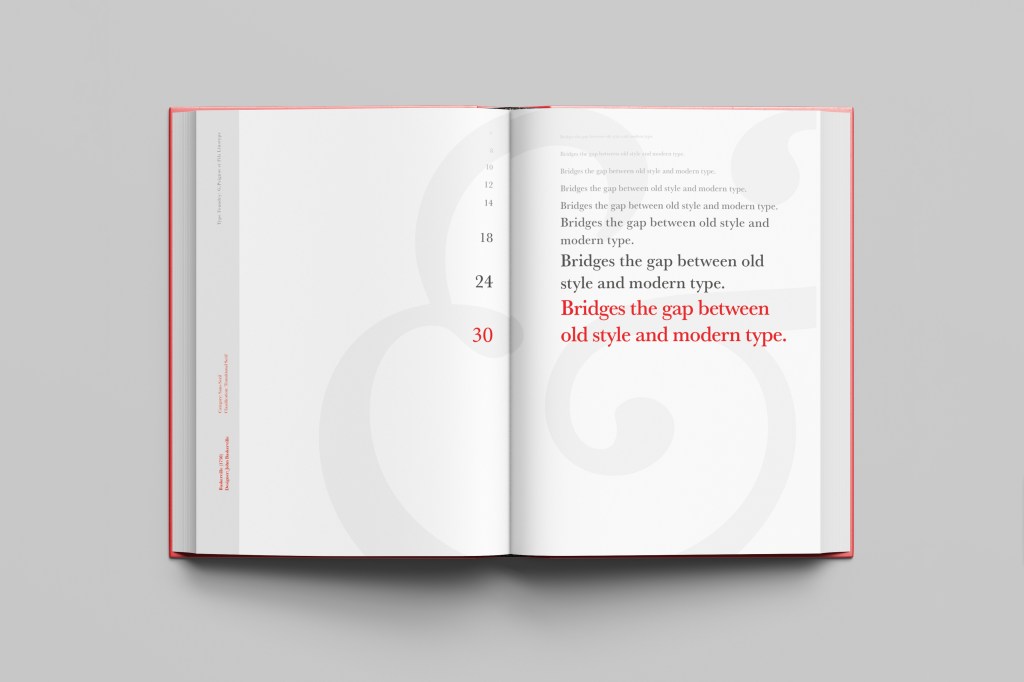
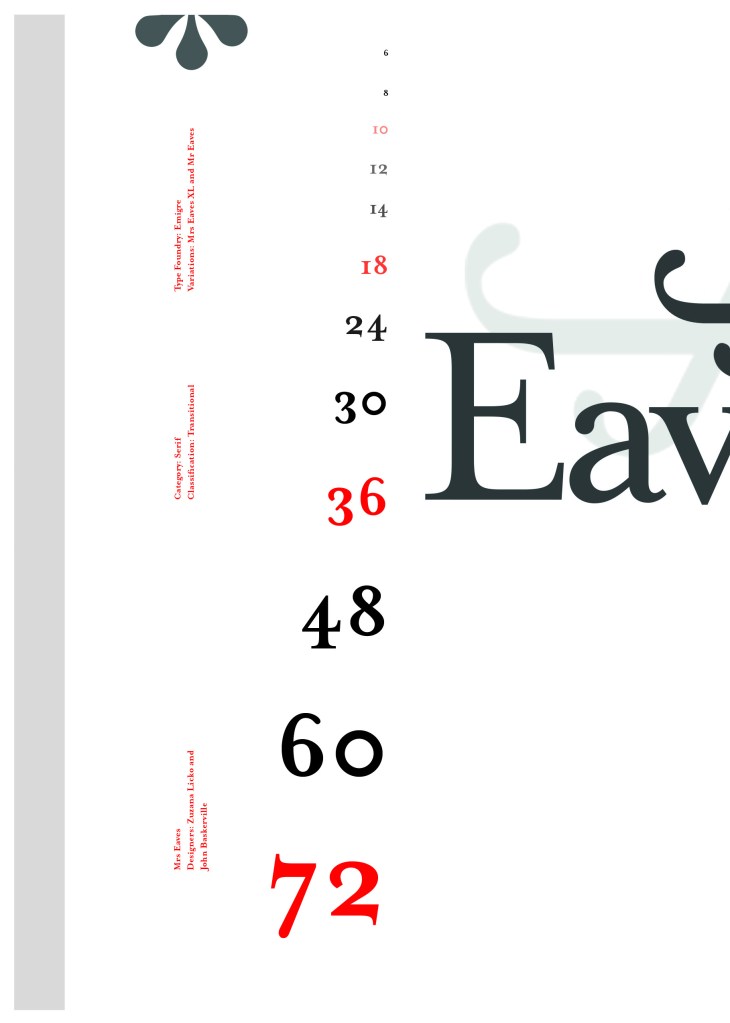
“Bridging the gap between old style and modern type” was a quote I found that summarises Baskerville and that was the same feel that I wanted to carry through my design. I also used the quote to show off the different weights, variations and pt. sizes of Baskerville.
Digital Development
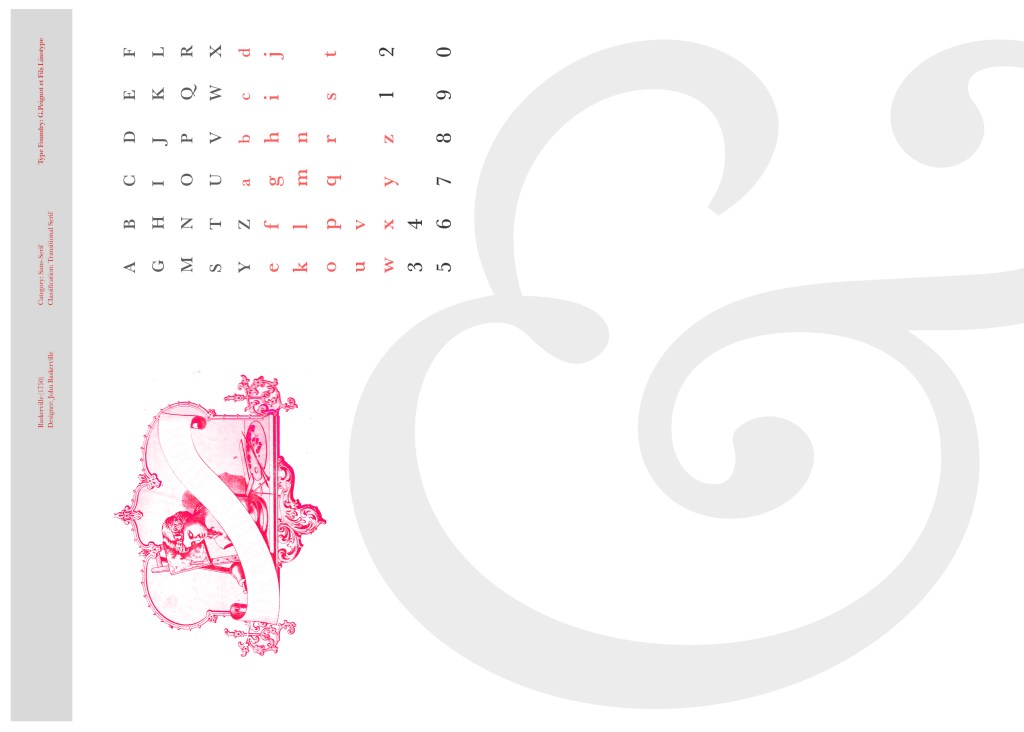
After doing much digital design development I realised (many hours later!) that the layout looked far better with just the ampersand. Let that ampersand do the talking!
The final mockup
The final design and layout is very simplistic and minimalist but I think it keeps an old fashioned traditional feel with a much more modern look.
When I first had a look at the brief it did look like it was out of my comfort zone! I am familiar with Harry Beck and the Underground design but drawing maps and working out distances to scale slightly overwhelmed me! I also had no idea what I would design or map out! – my first ideas were of our house, the kitchen, my dressing table or dressing room or my route to work – none of them particularly inspired me and I really didn’t want to design a boring kitchen or house plan that looks like it belongs in a B&Q showroom!!
Research
The next step to take was to research into existing information graphics to see what inspiration I could pull from them!
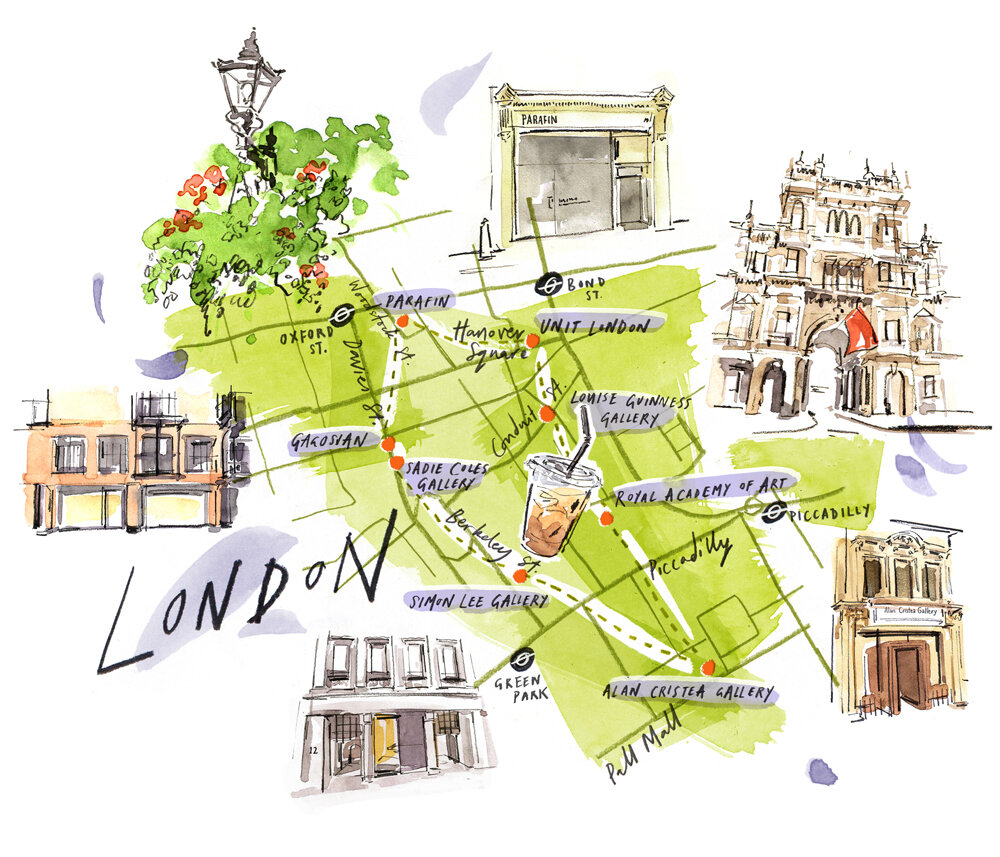
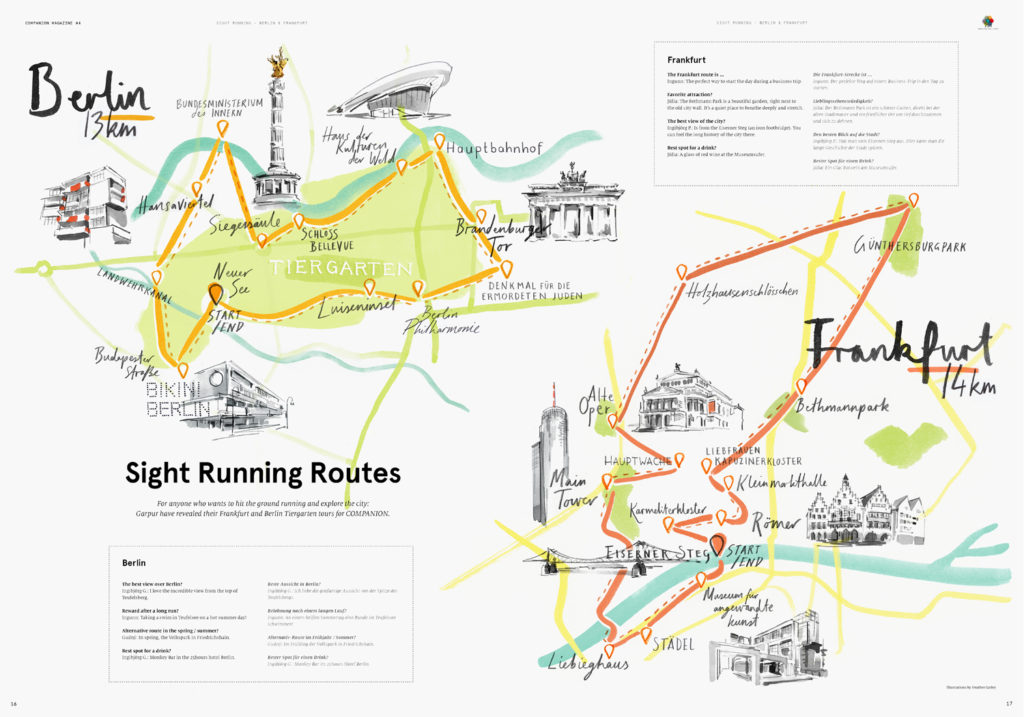
I was particularly interested in the maps I found by Illustrator Heather Gatley. I am fond of using mixed media in my designs and in her designs she draws, she uses watercolour paints and there is really modern, fun, pretty type that runs throughout the maps!
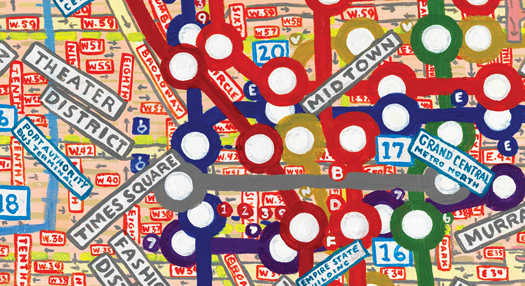
Another designer I remembered who drew maps is Paula Scher. I watched a documentary on Netflix called “Abstract” where she tells the viewers how she paints maps for fun! Again, she uses mixed media in her designs – Gouache paint I think from how they look! Her style is very bright, bold, fun and very detailed!
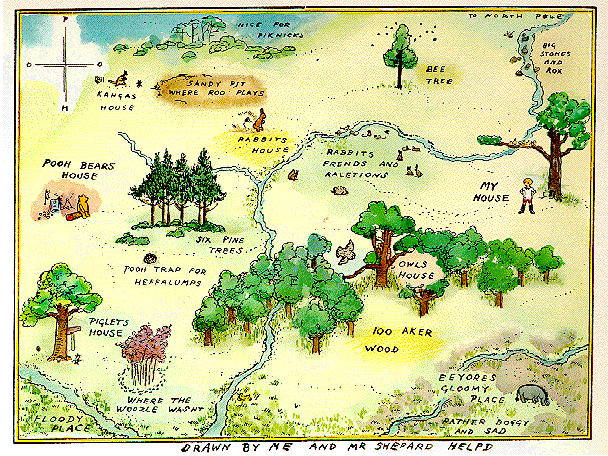
I also had a look at one of the most famous maps in childhood! – Winnie the Poohs Hundred Acre Woods! This is an iconic map which beautifully illustrates where all the characters houses are in the woods. From looking at these designs I knew I wanted to create an illustrated piece more than creating a more uniformed design like Harry Becks Underground maps. I am quite arty in my approach and the illustrated style would suit my designs more.
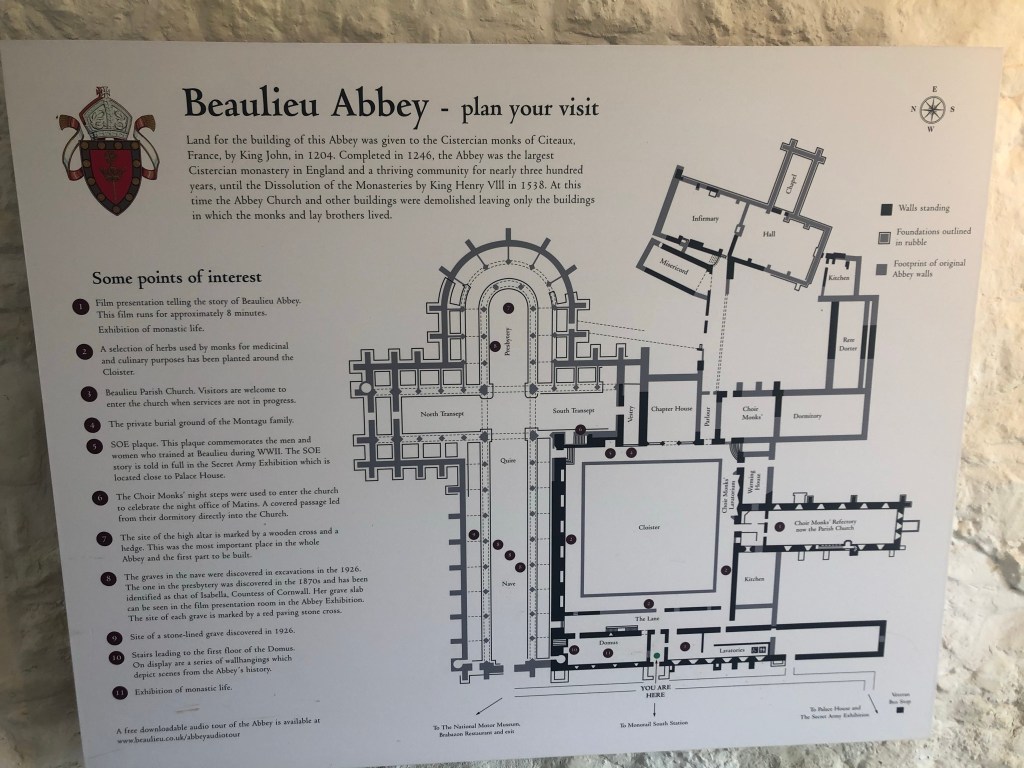
I did though have a visit to Beaulieu Estate and I took photographs of some of the information graphic maps around there to take inspiration from.
The examples that I found were very mixed! – Some were in an illustrative style, some were 3D vector art and some were in the style of Harry Beck; very informative and simplistic.
I still preferred the idea of the Illustrative style; I could make my Information Graphics look beautiful whilst being informative at the same time!
Design Ideas
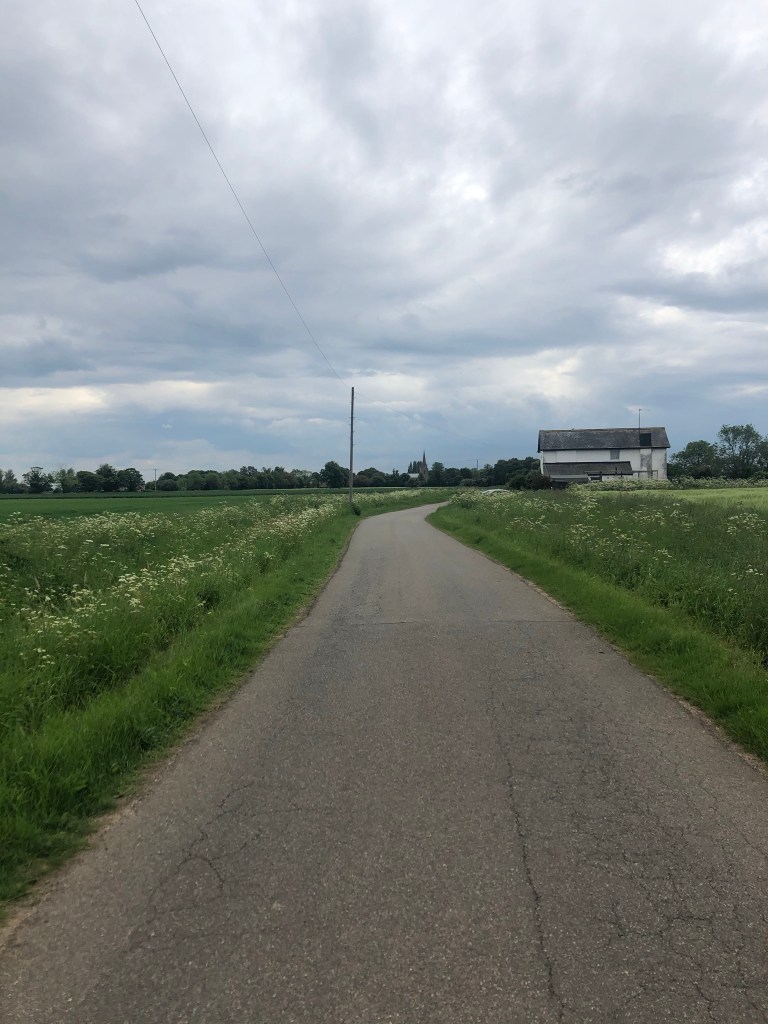
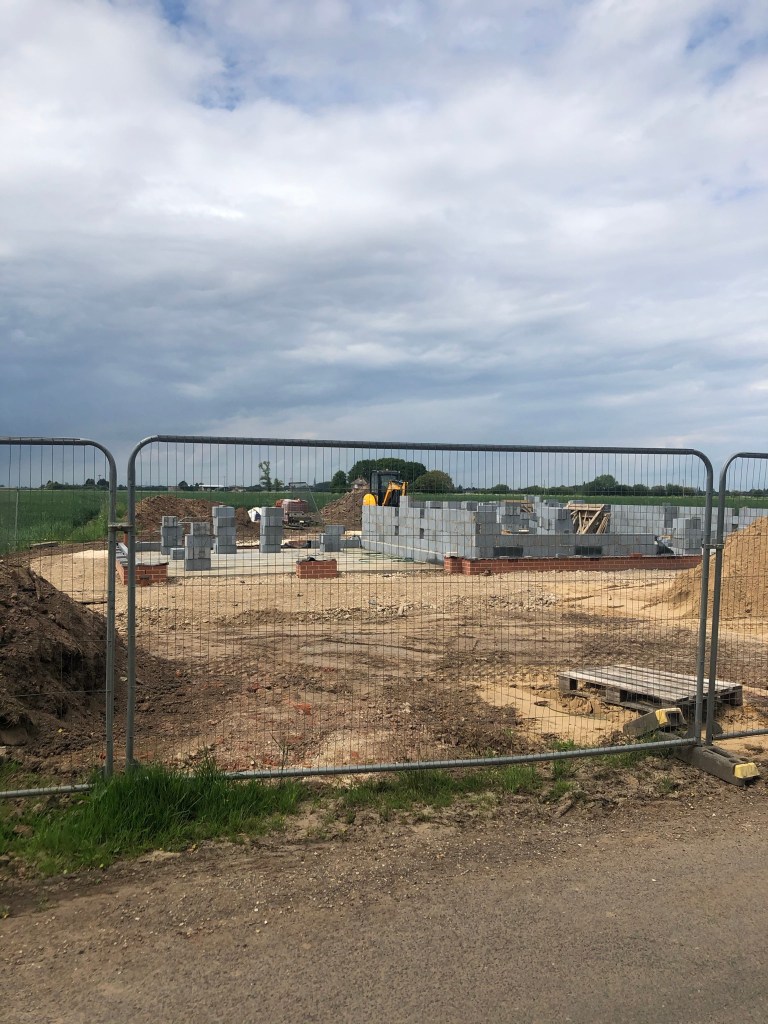
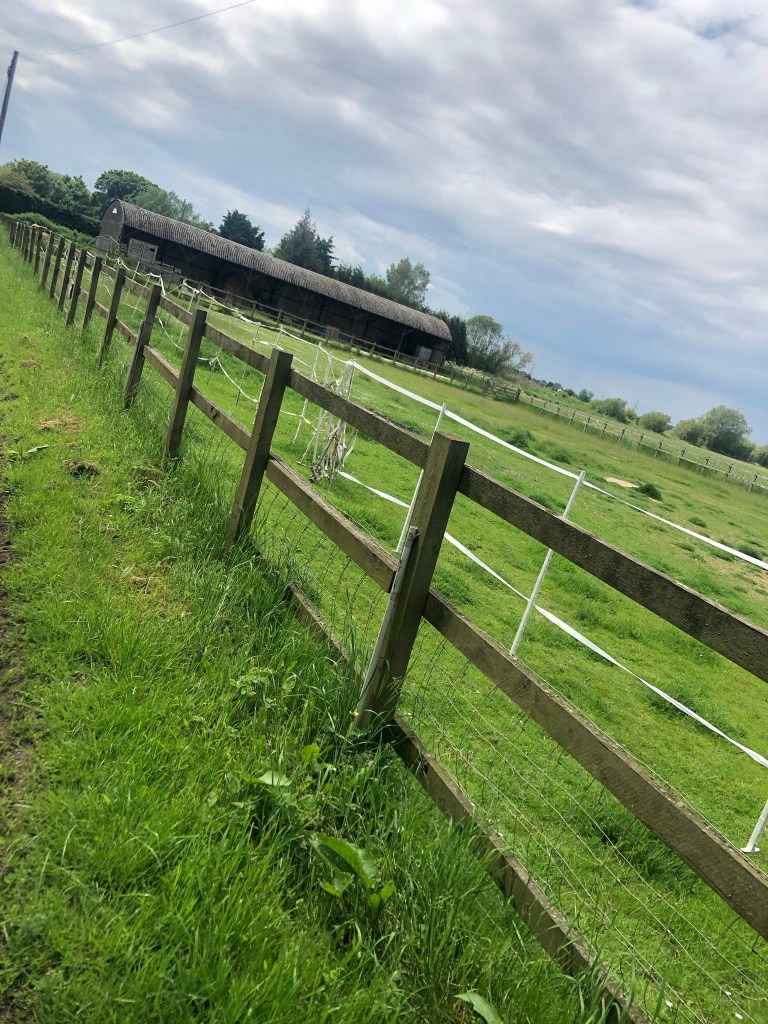
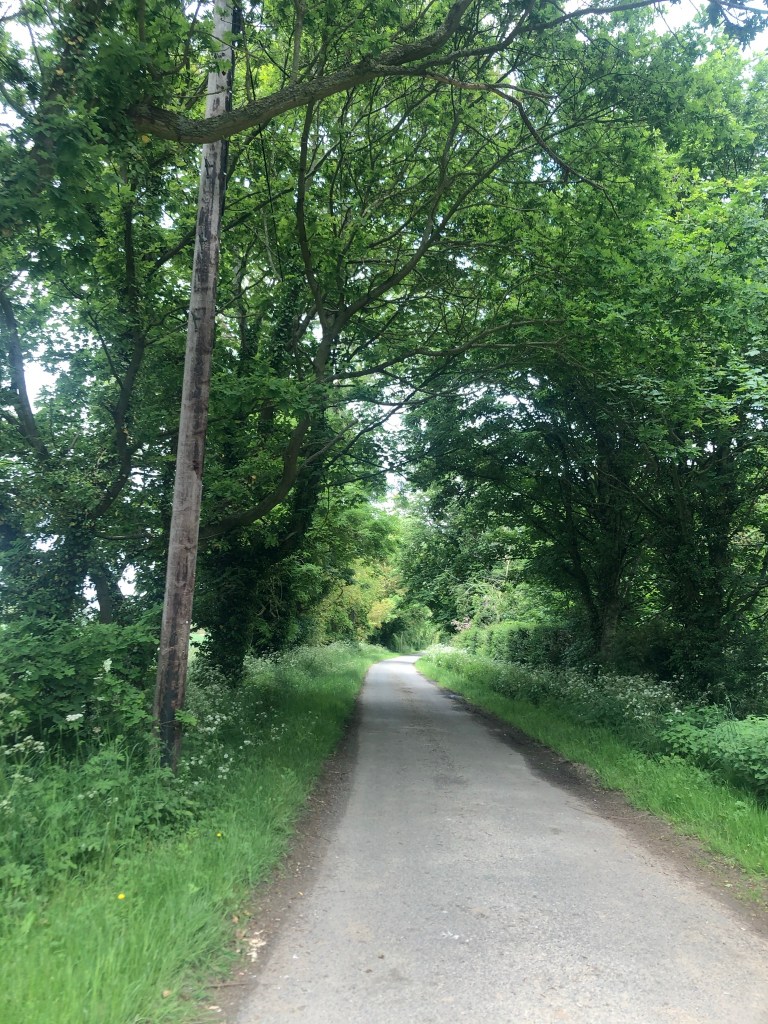
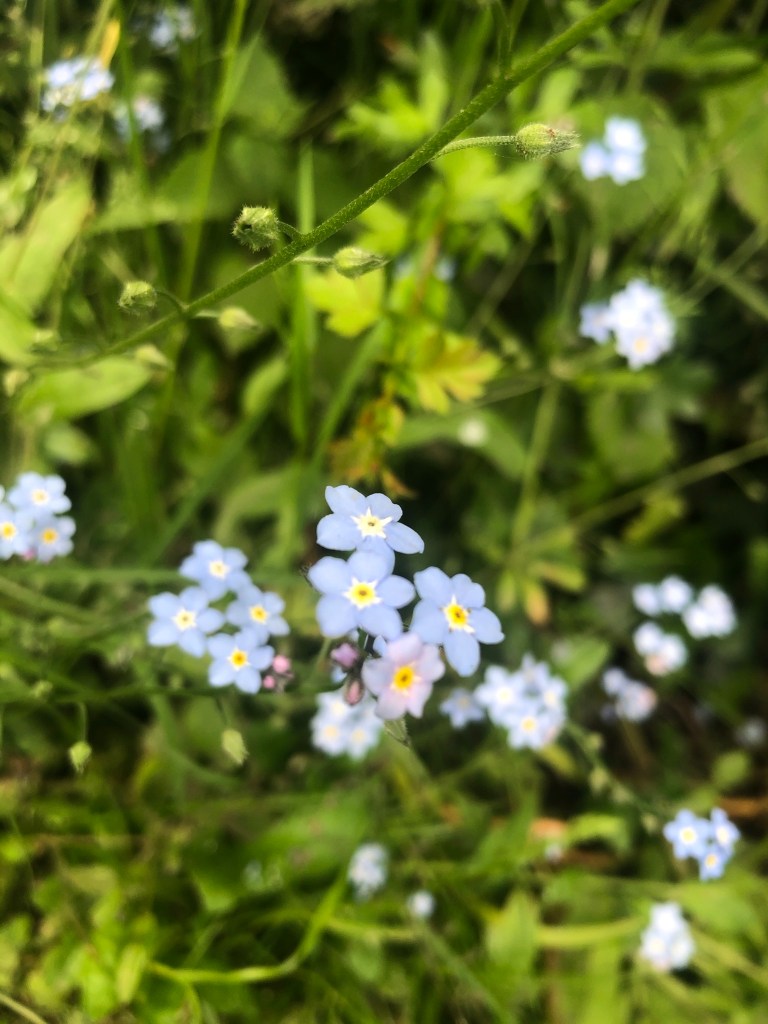
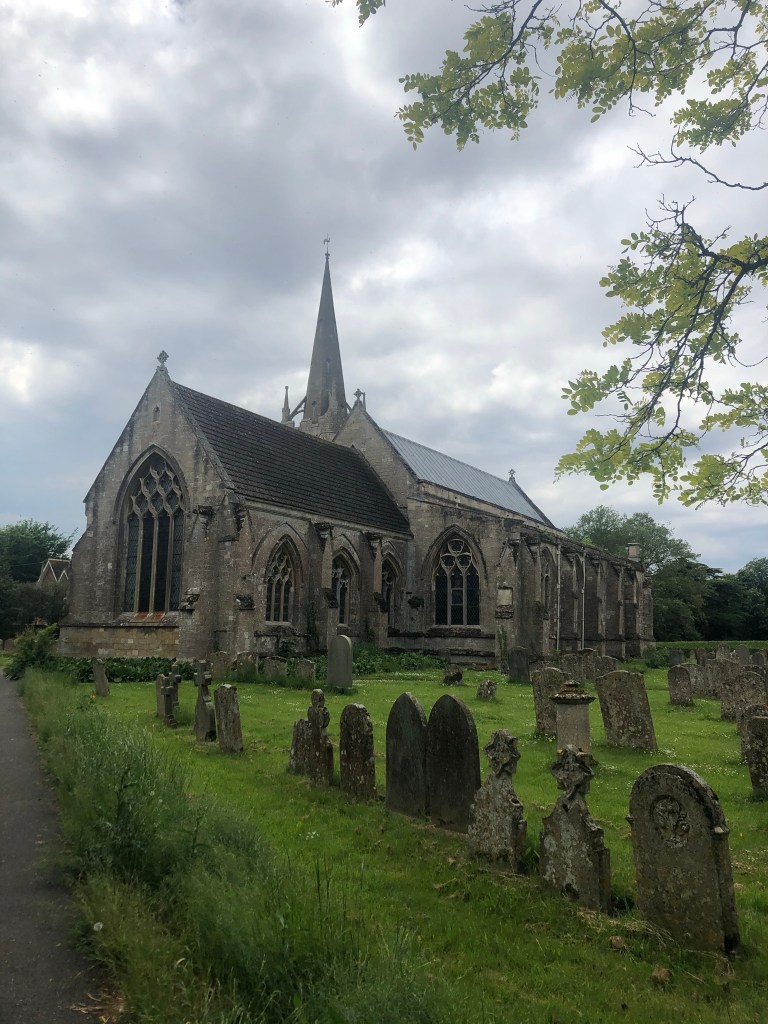
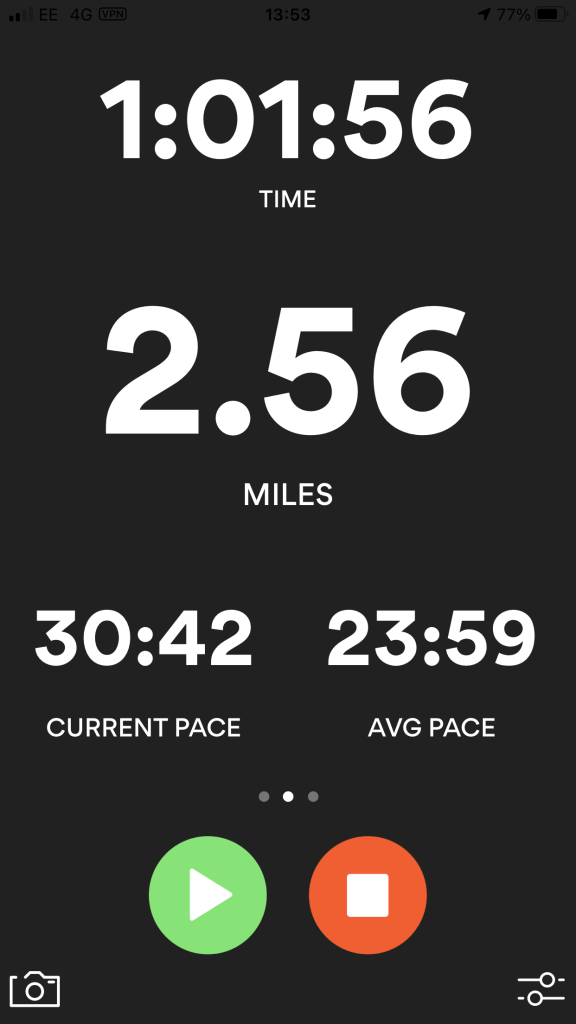
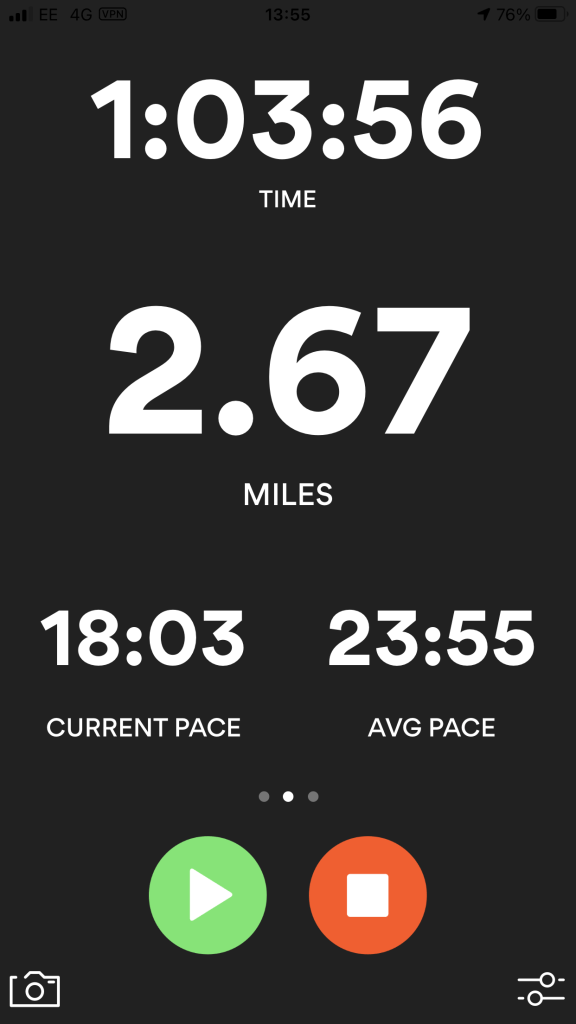
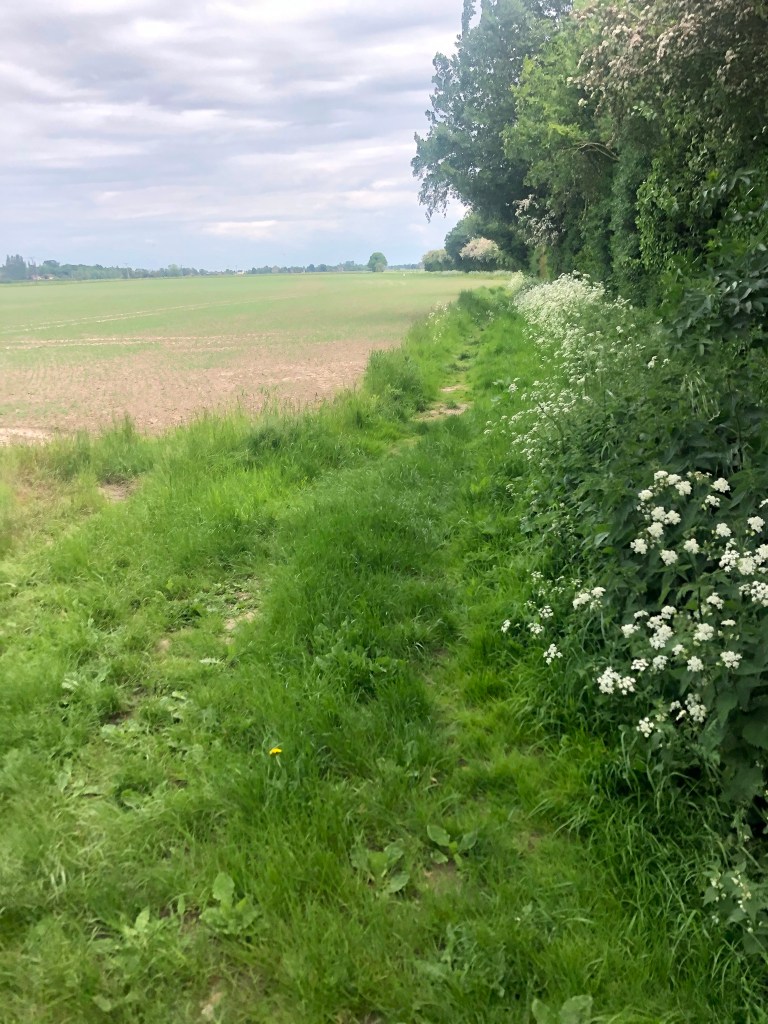
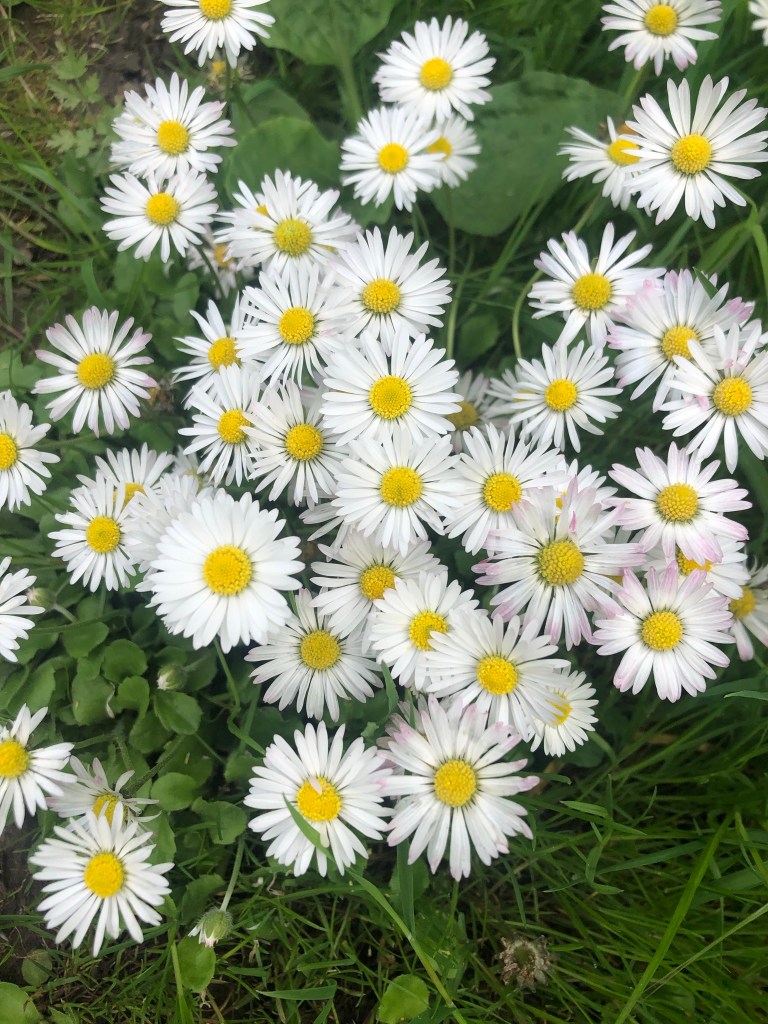
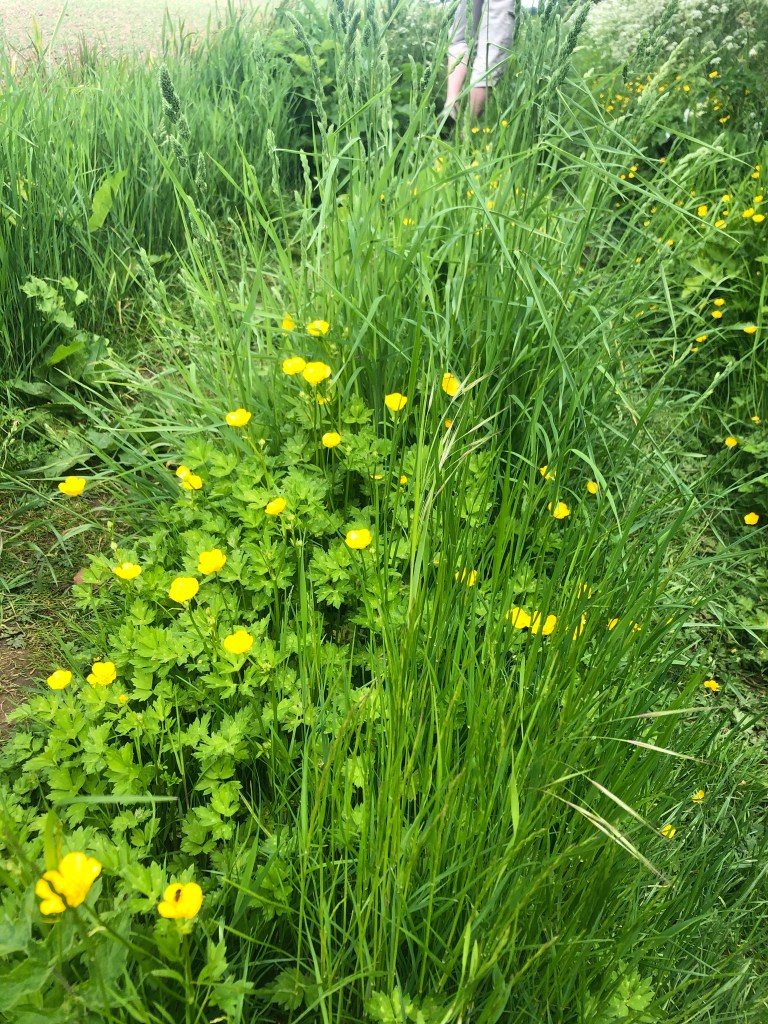
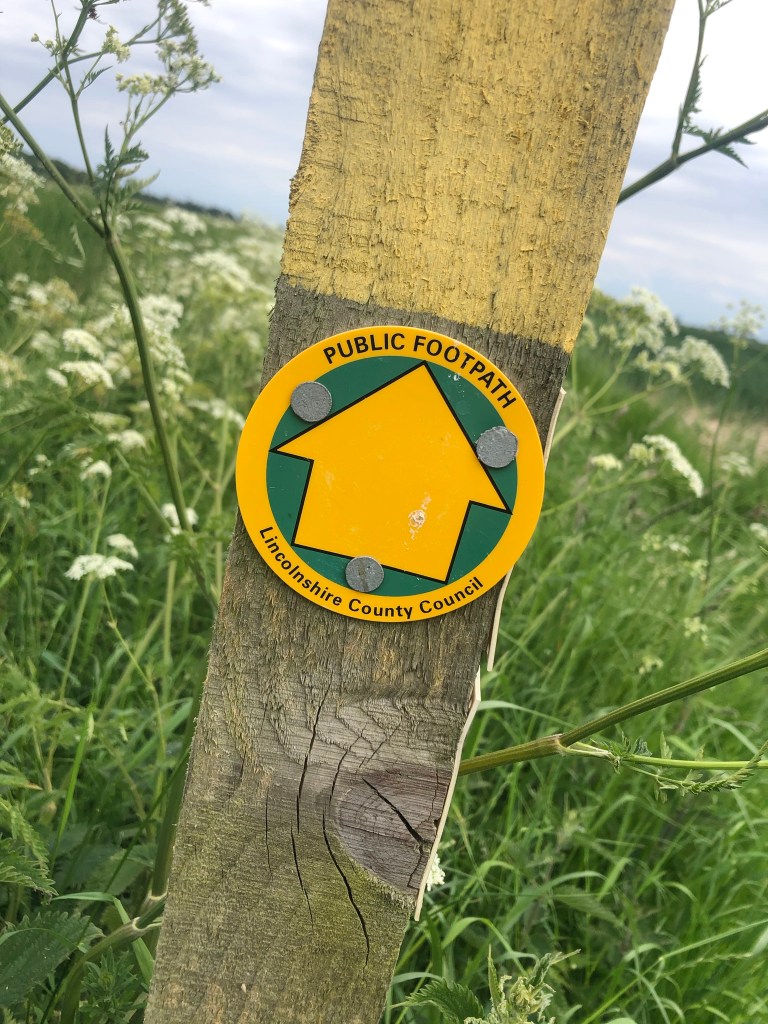
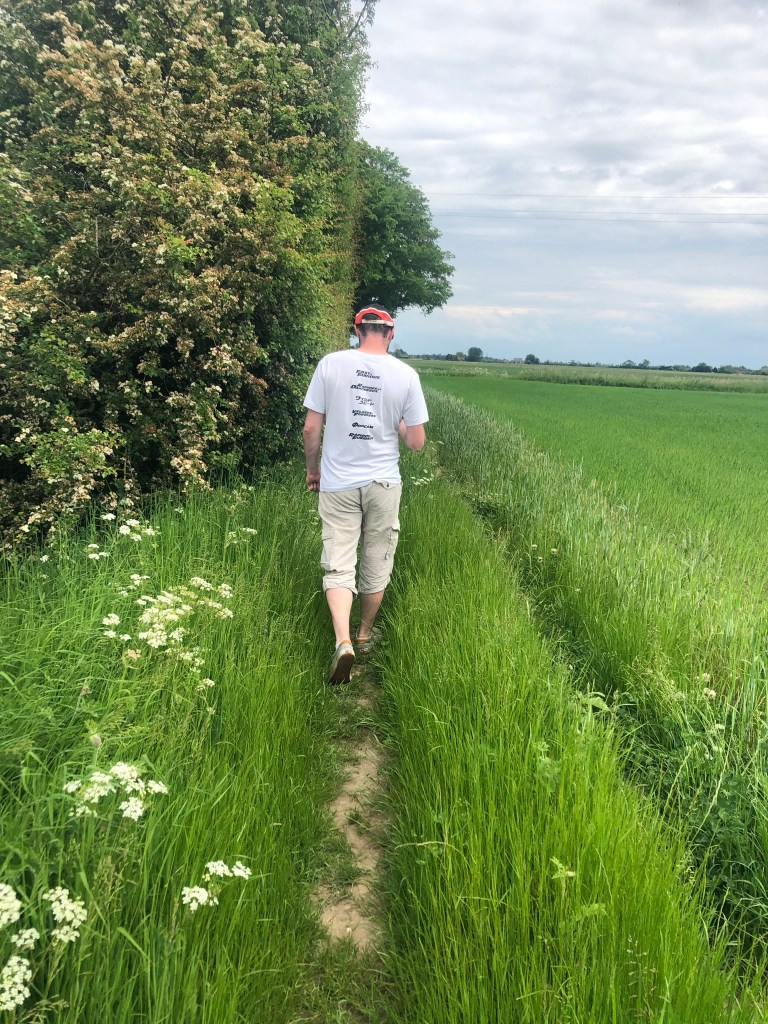
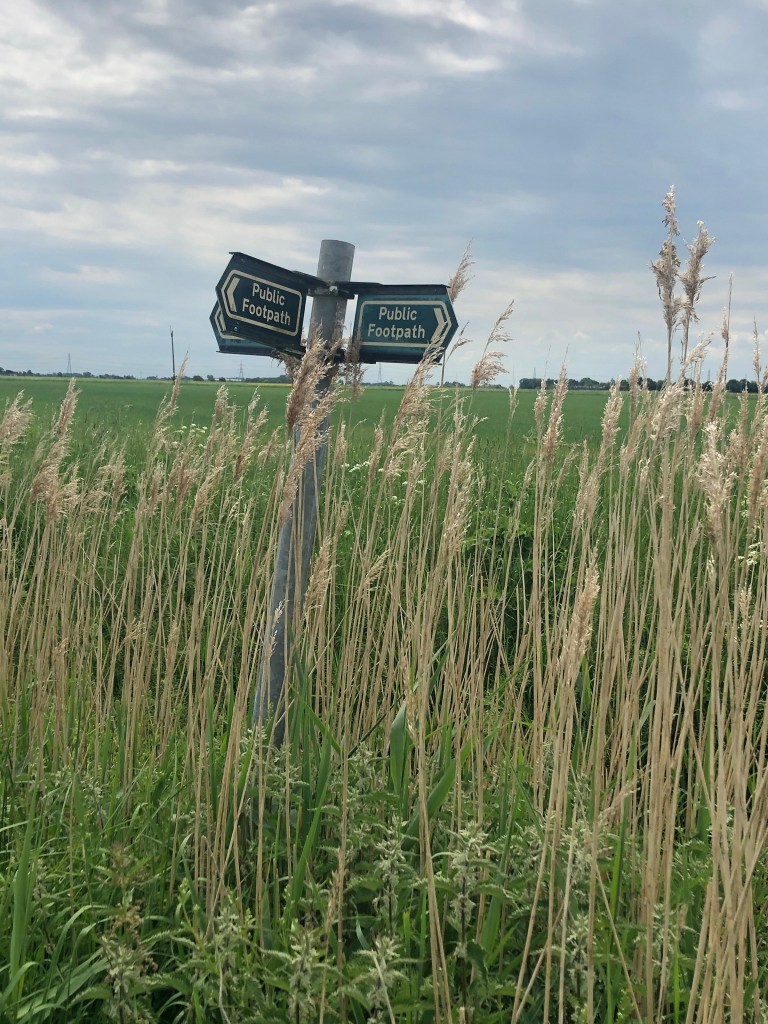
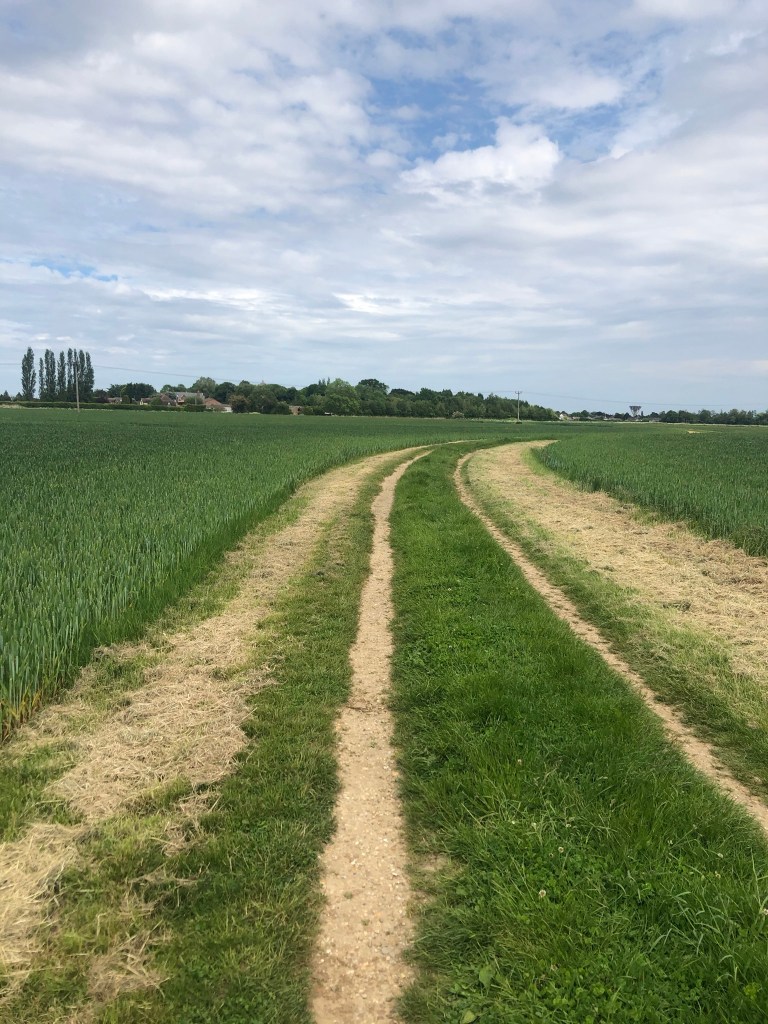
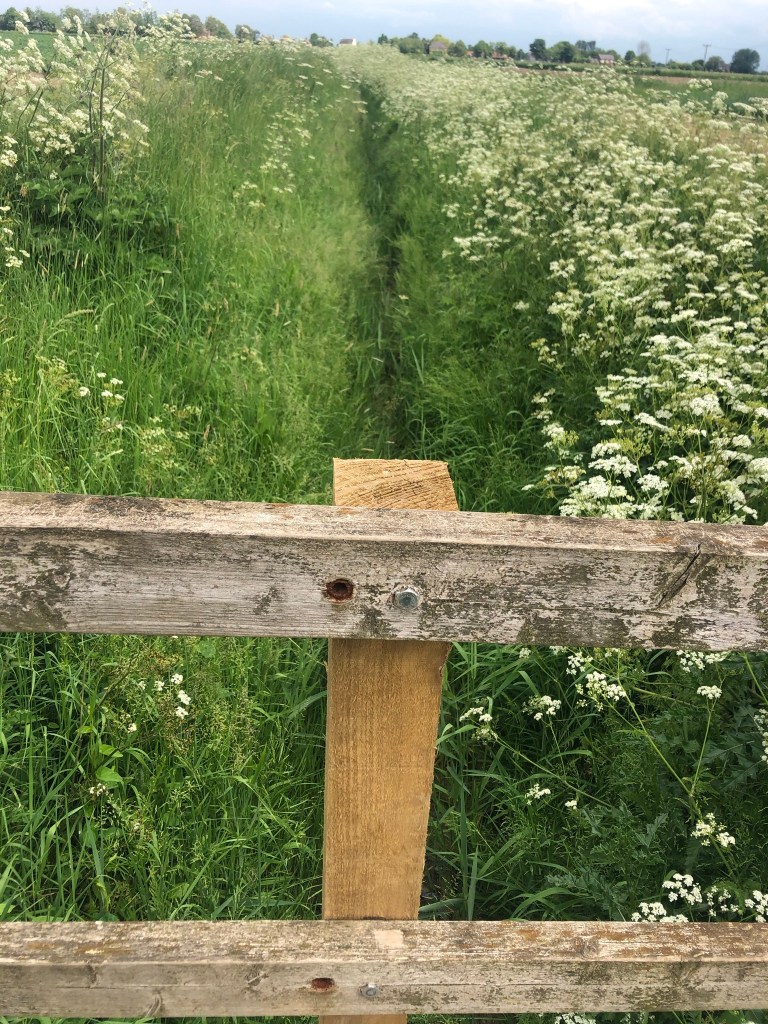
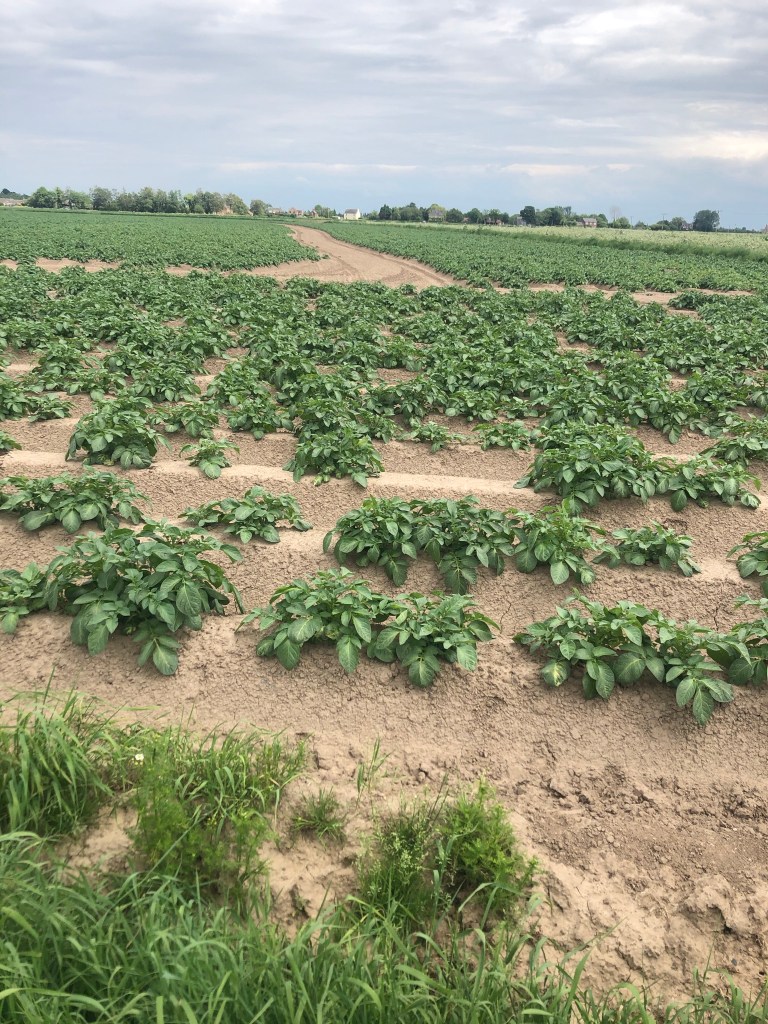
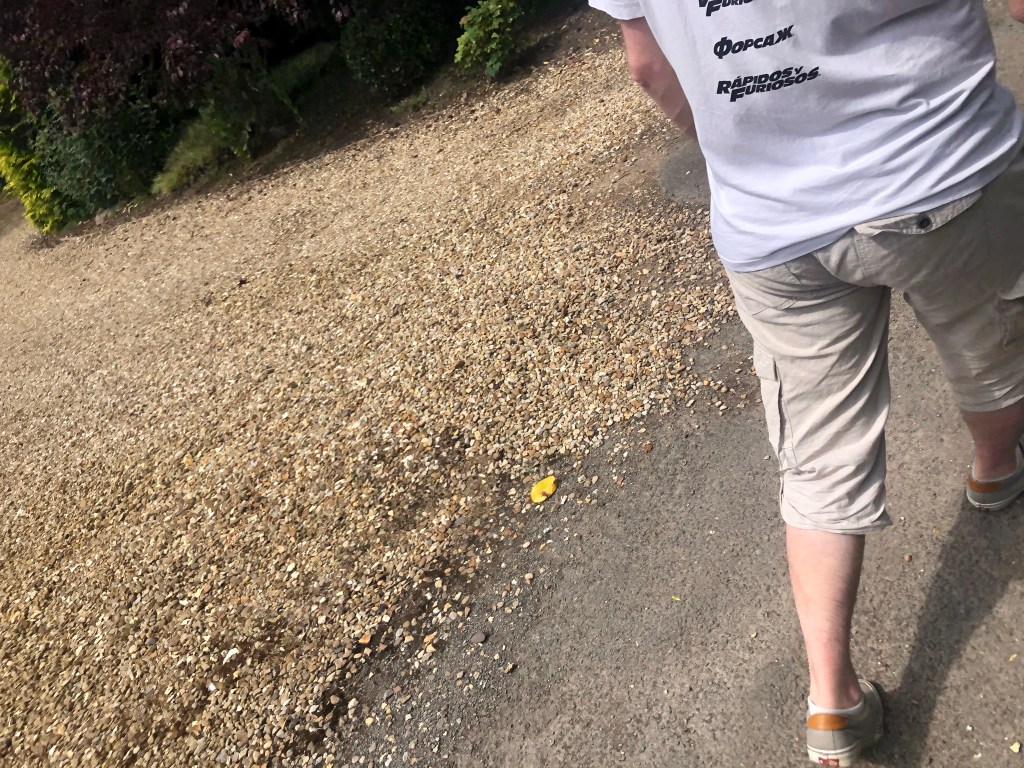
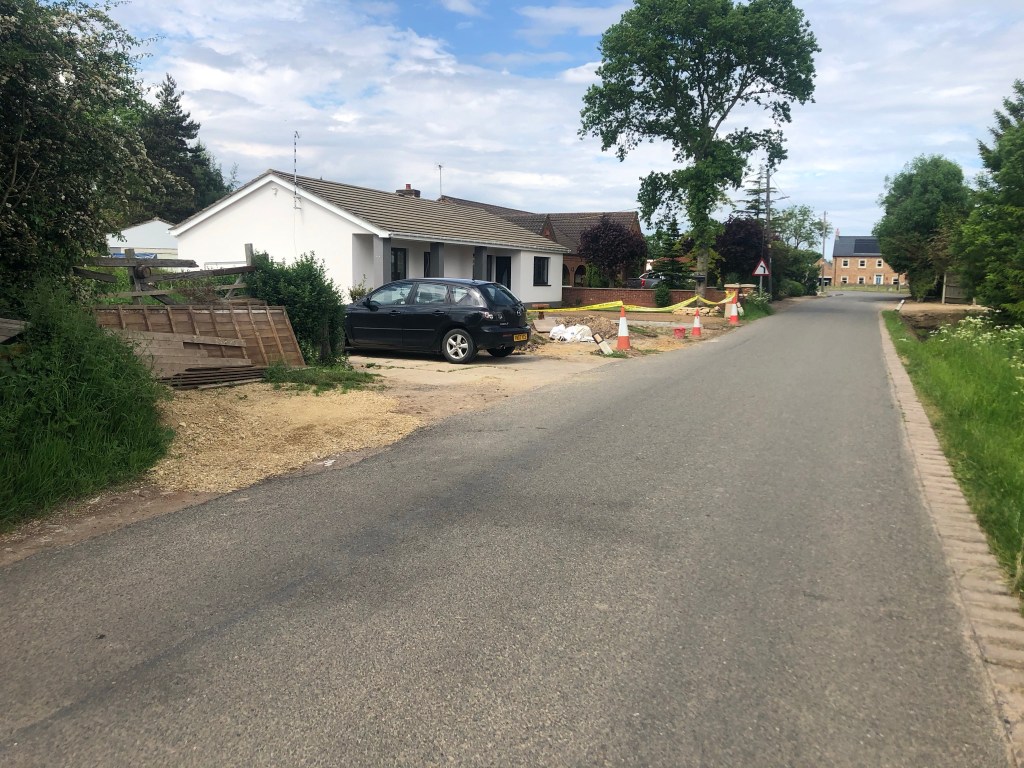
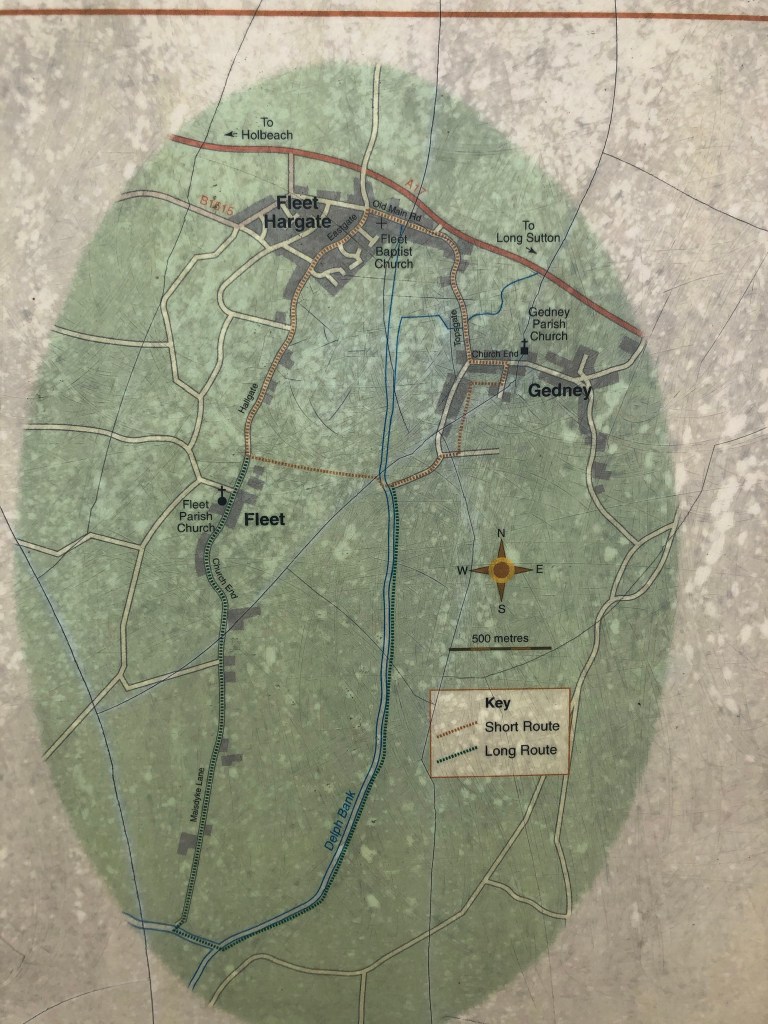
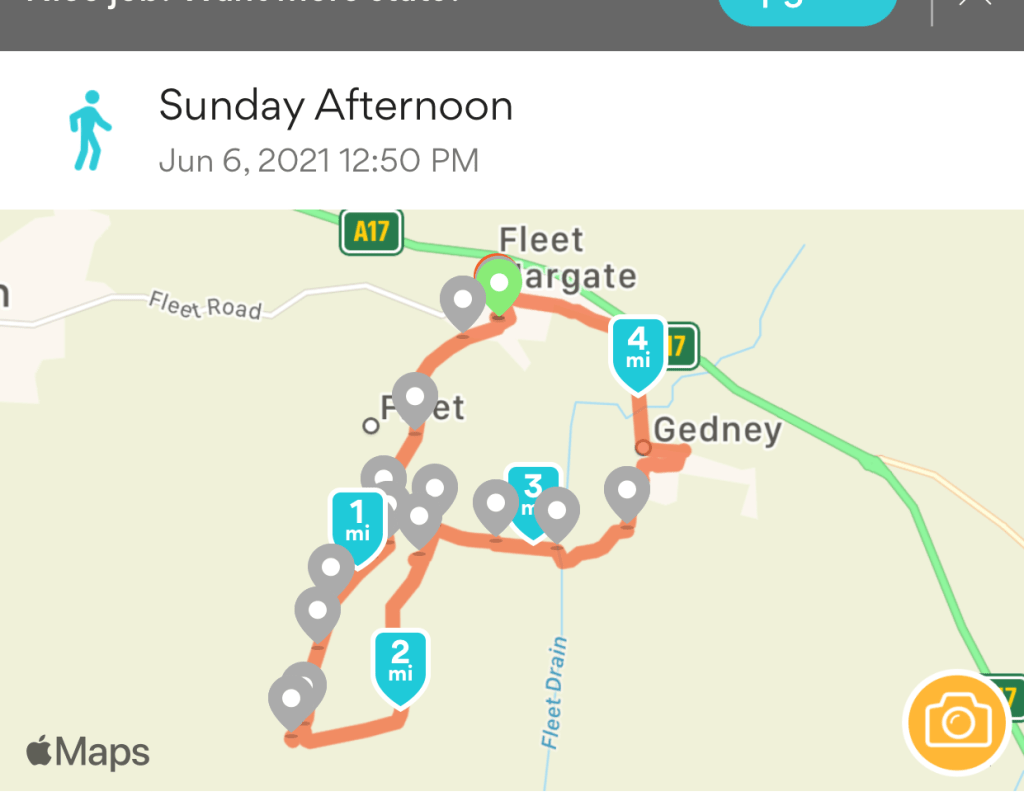
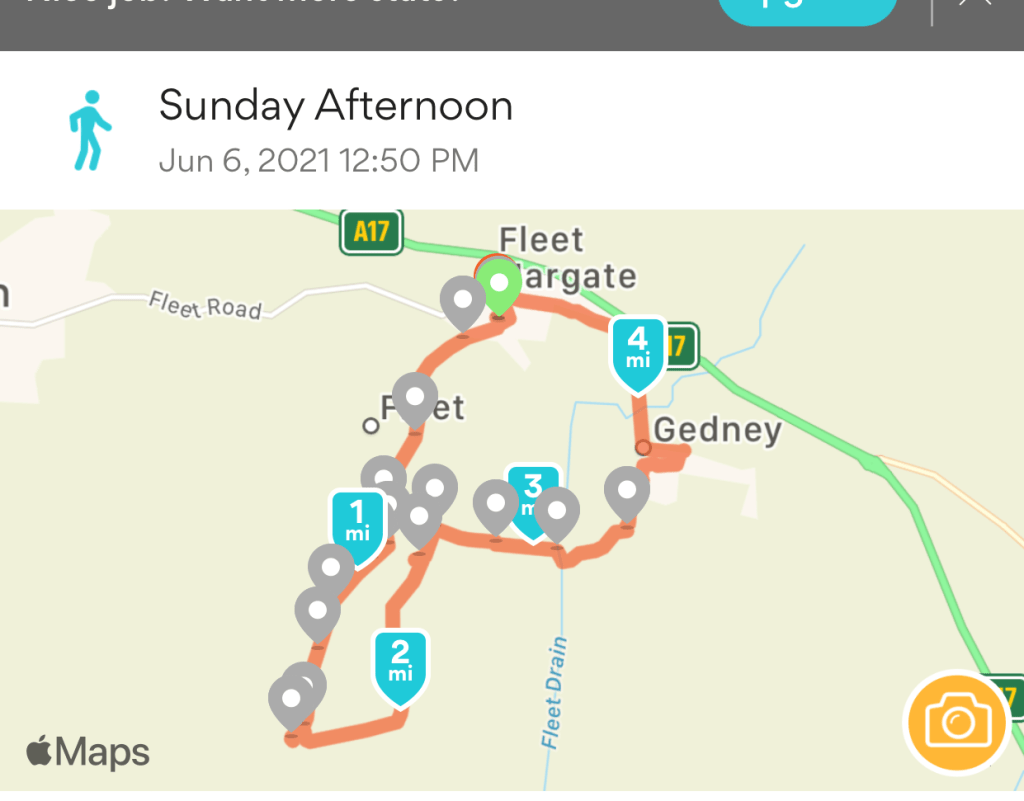
I had the idea to route a walking route around my village. I have only lived in the village I live in for 6 months now but it is the home of my Boyfriend who has been there all his life! I moved from the middle of a busy little town right in the middle of nowhere and I really struggled to navigate through all the fields that looked the same when I first moved there! When I first moved in and whilst it was still Winter me and Chris used to go for afternoon walks around the village for exercise and also so I would become more acquainted with the place! Now it is warm months and everywhere is green and pretty it really is a beautiful place to document! Last weekend I dragged Chris away from his F1 on TV to go for another long walk around the village to take photographs, document mileage and record any of the wildlife/plants etc that I could include on my map to really give a sense of what the walk is like to those who have never walked it.
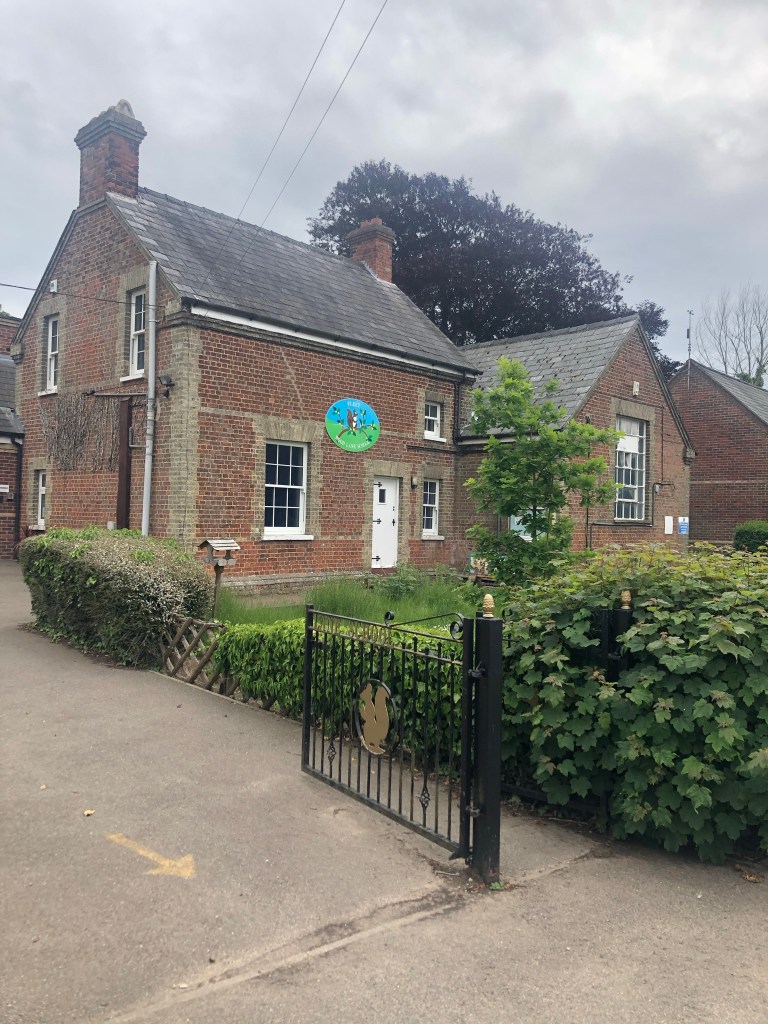
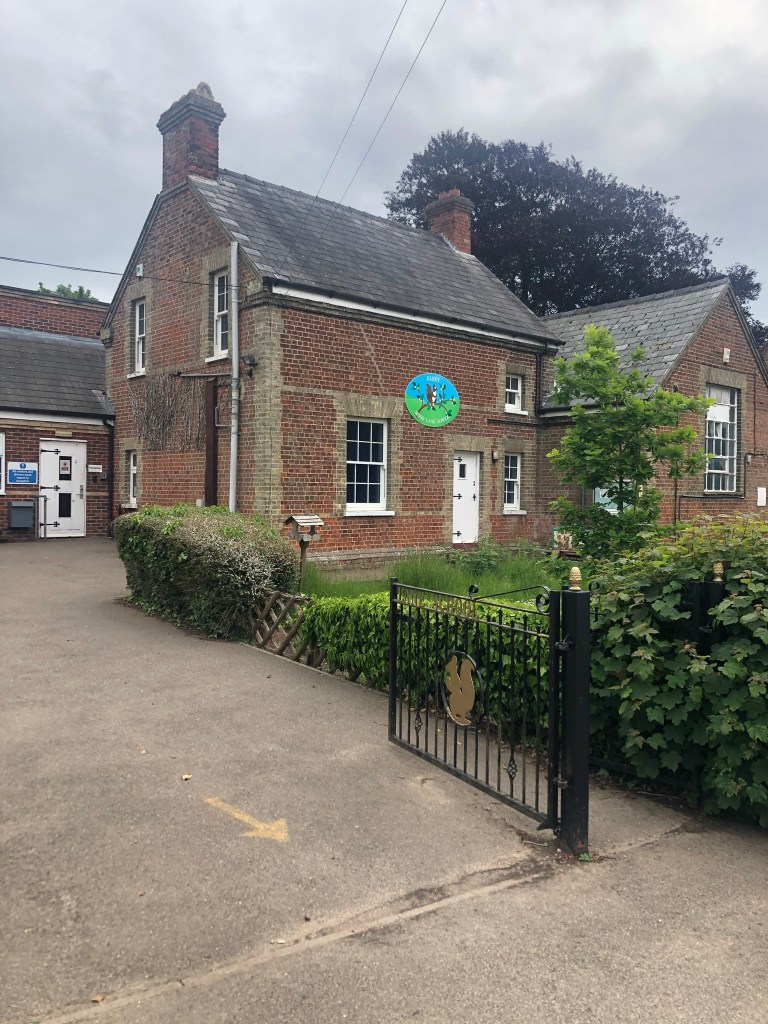
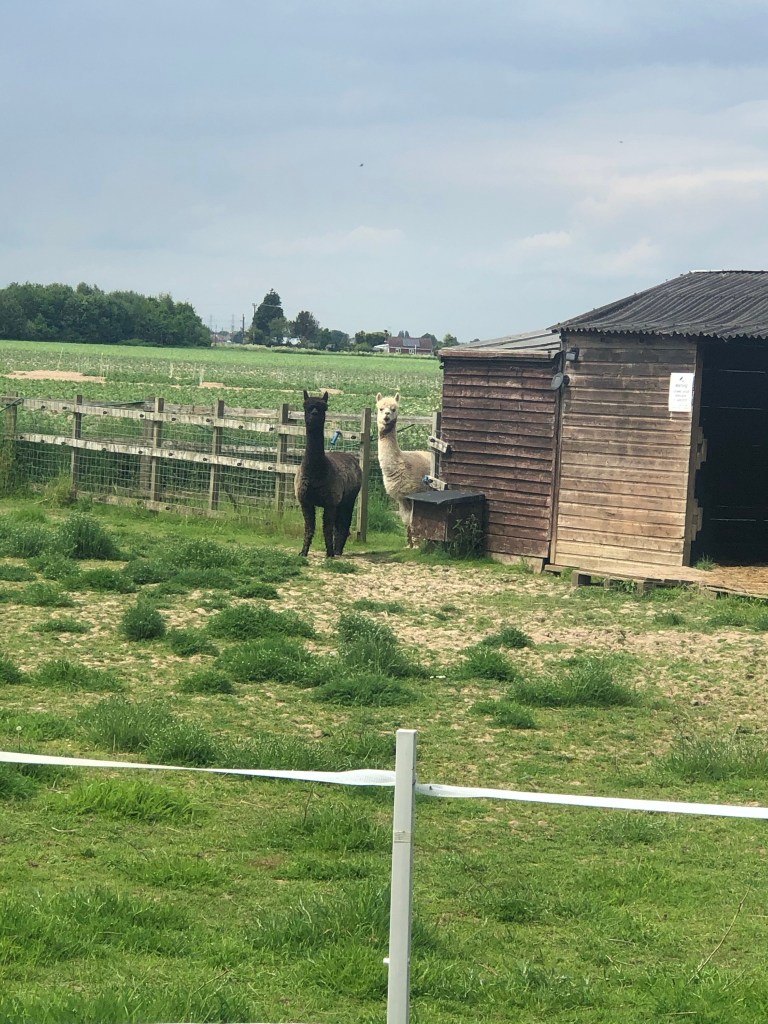
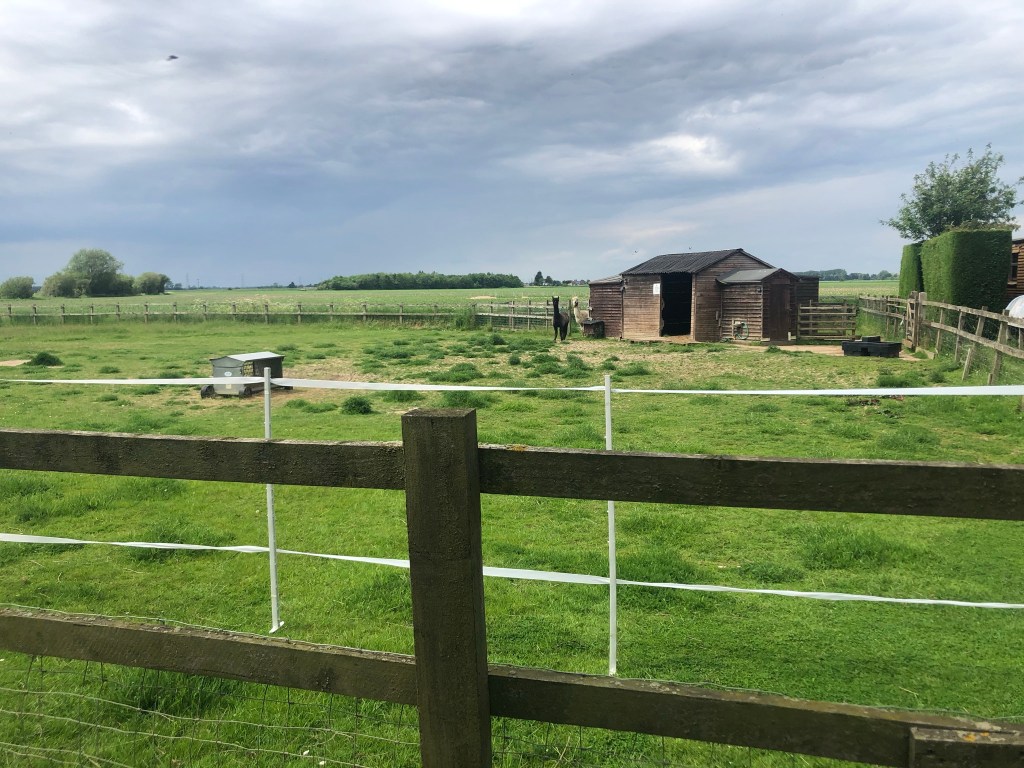
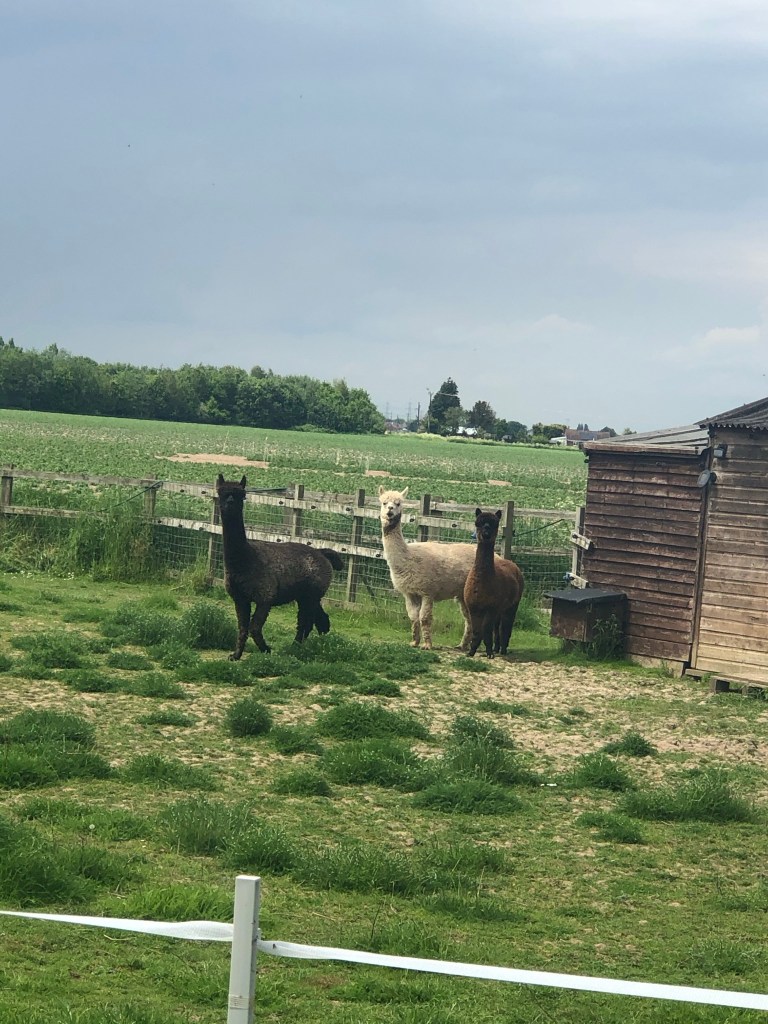
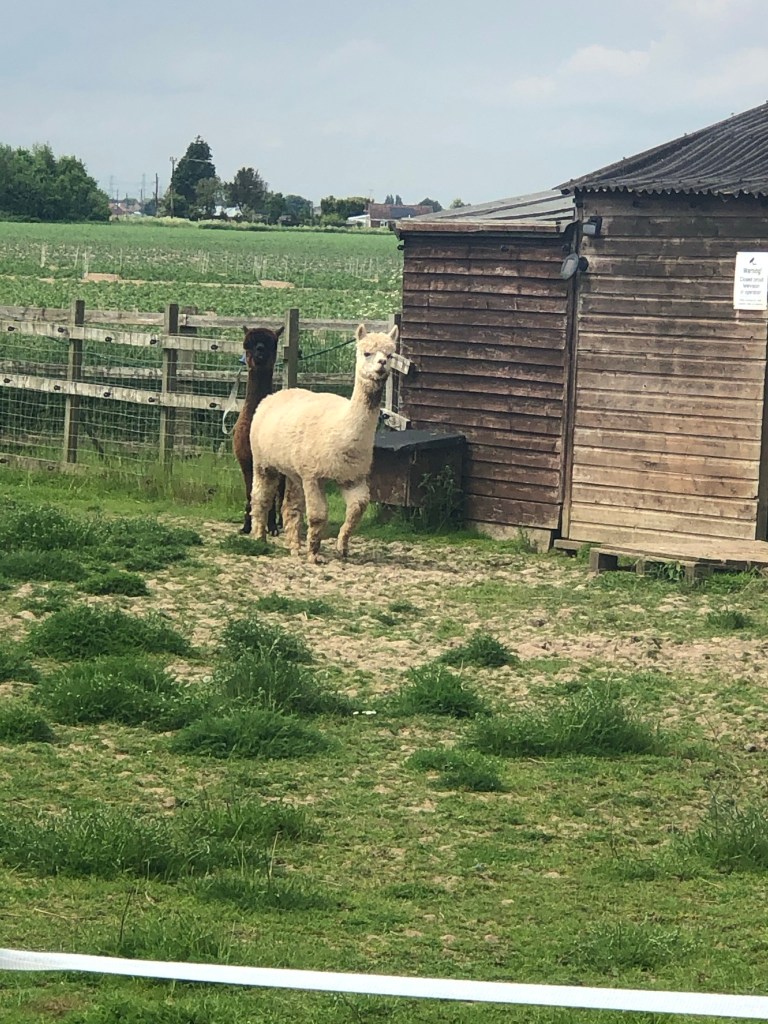
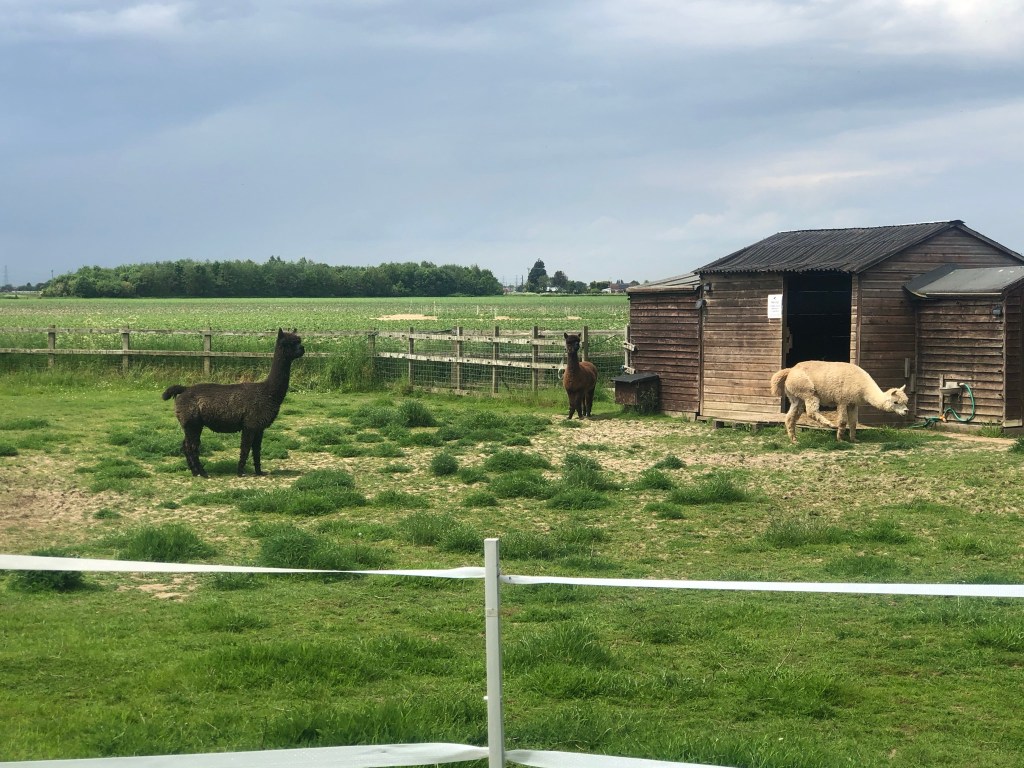
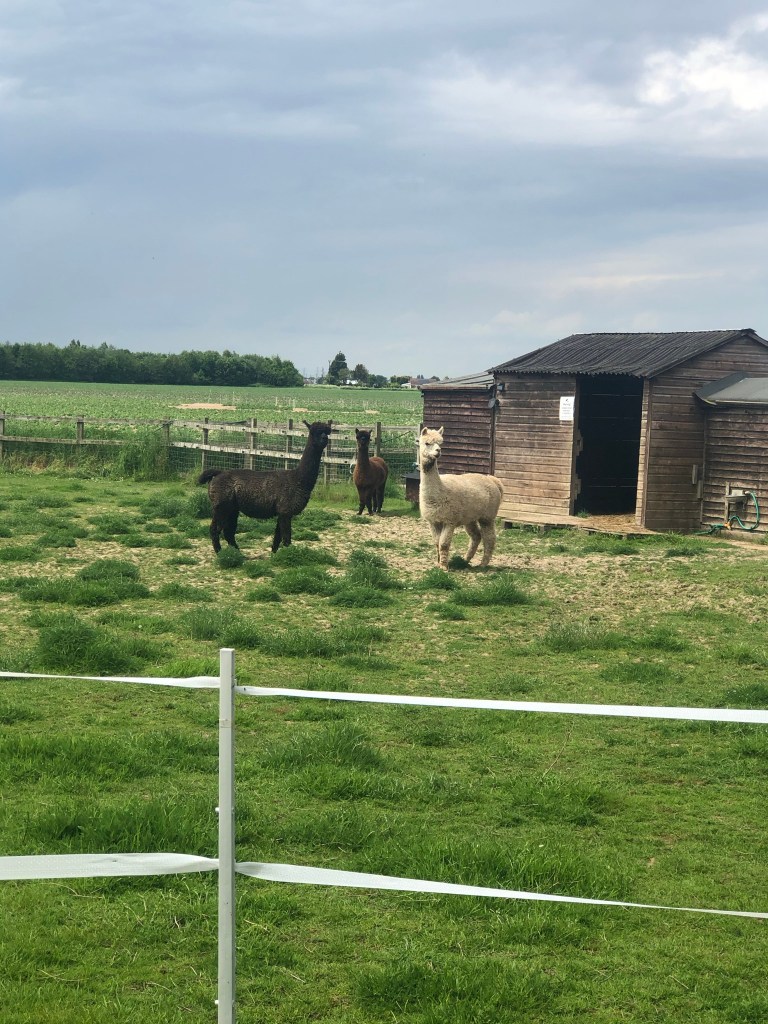
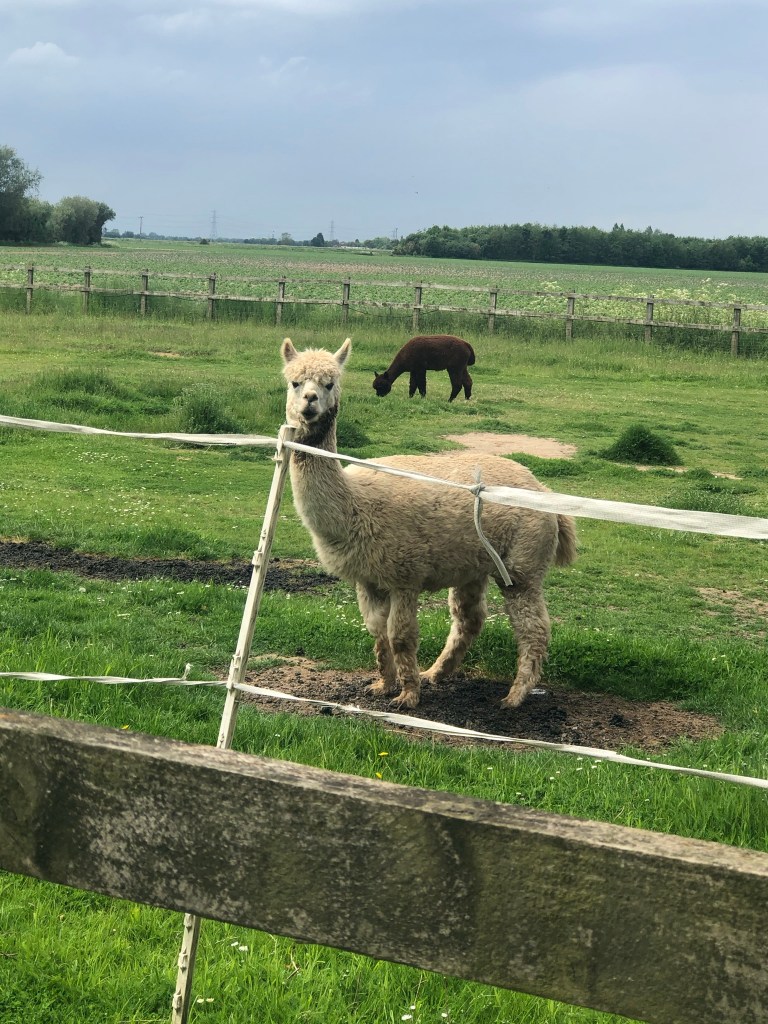
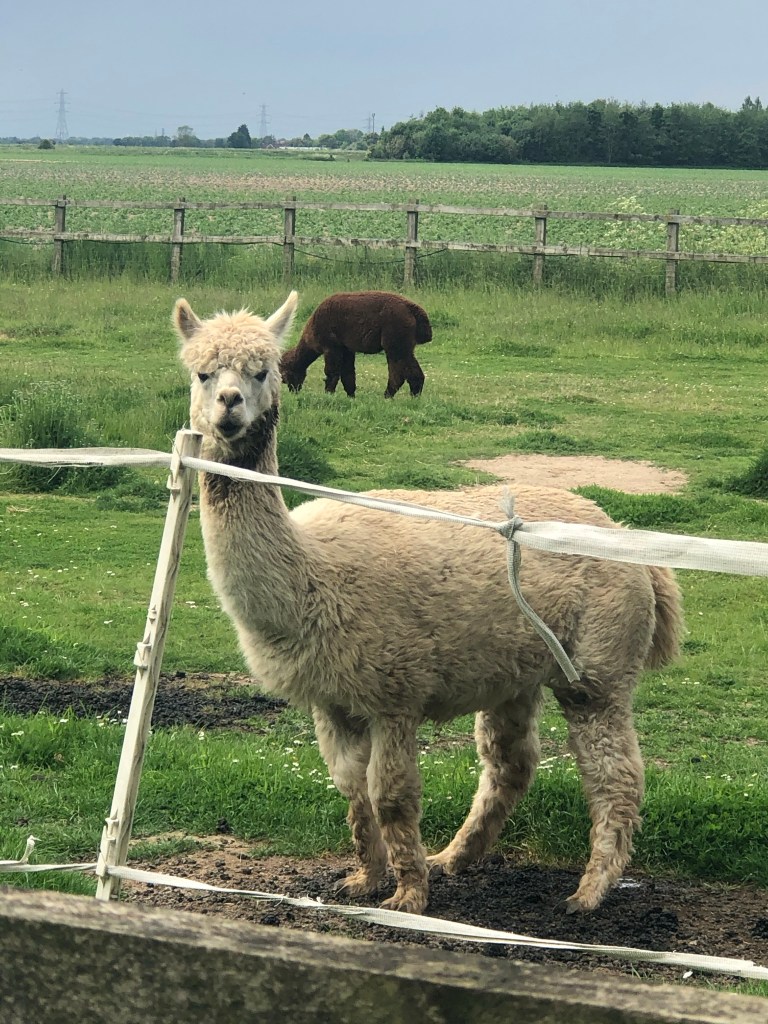
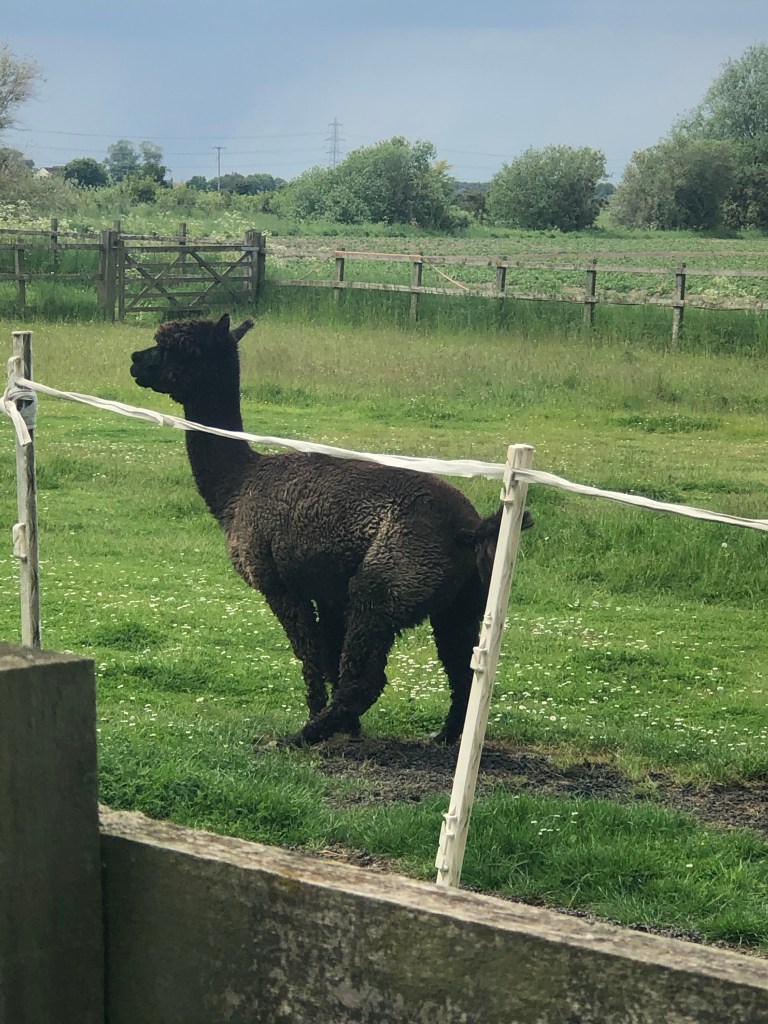
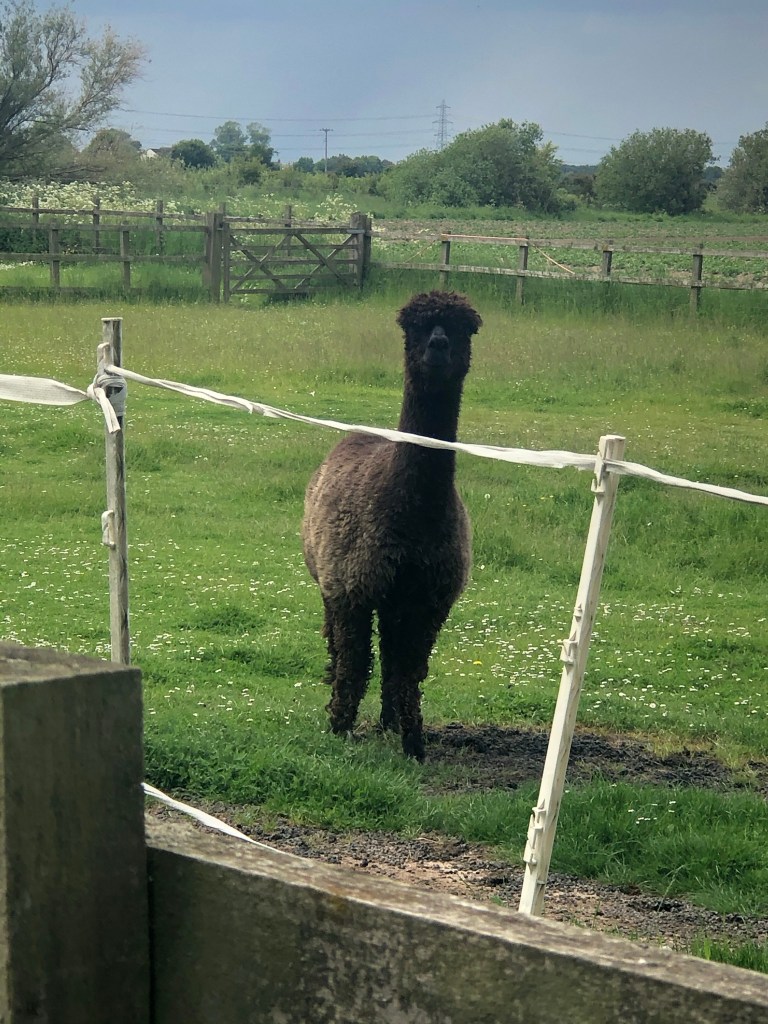
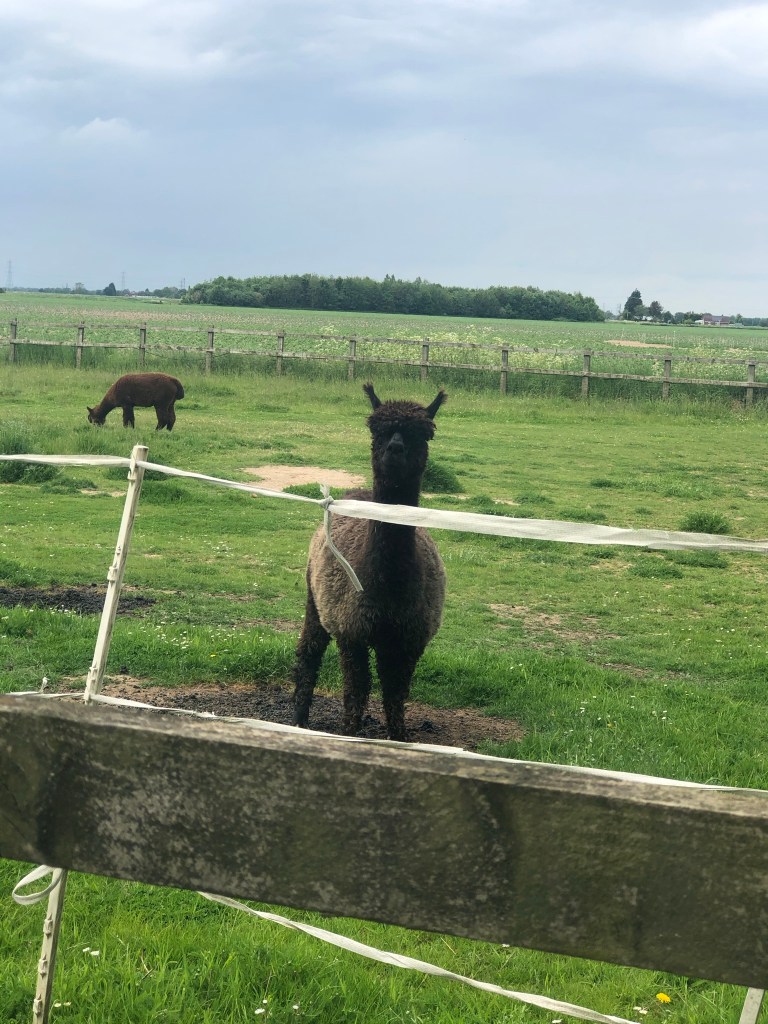
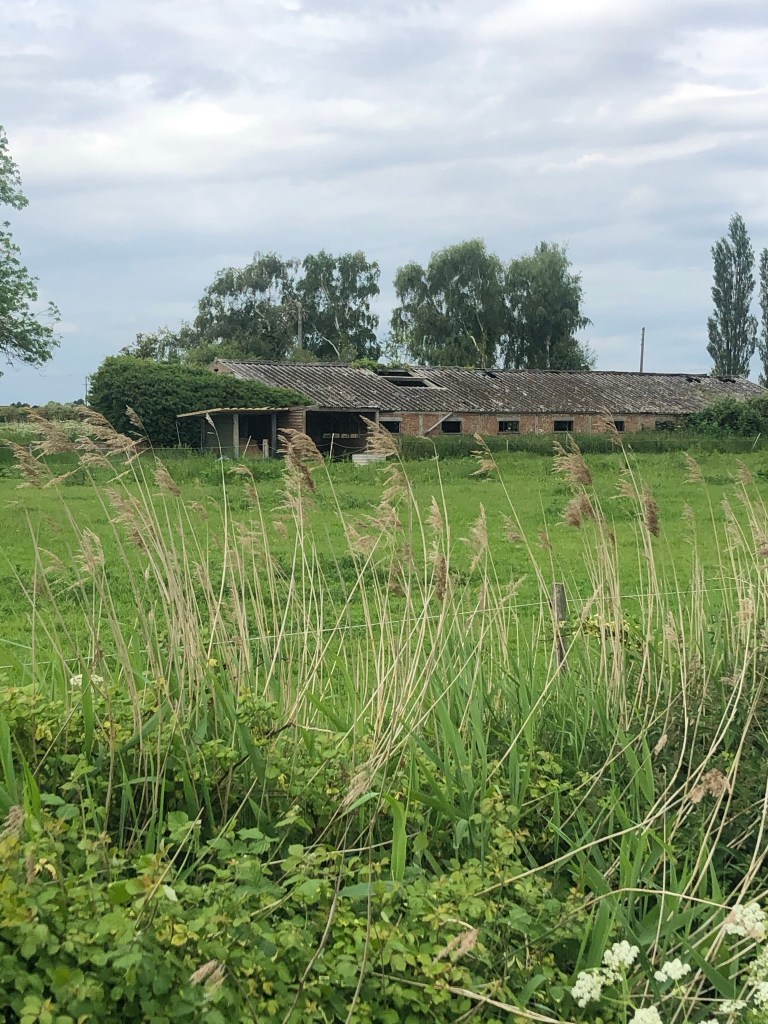
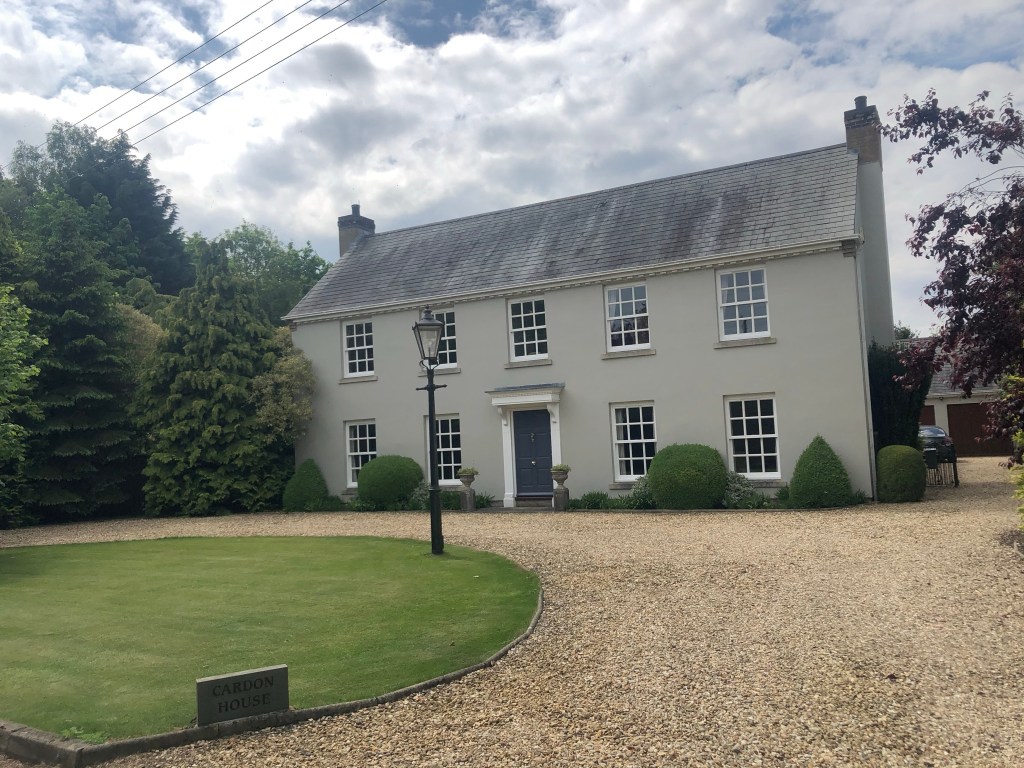
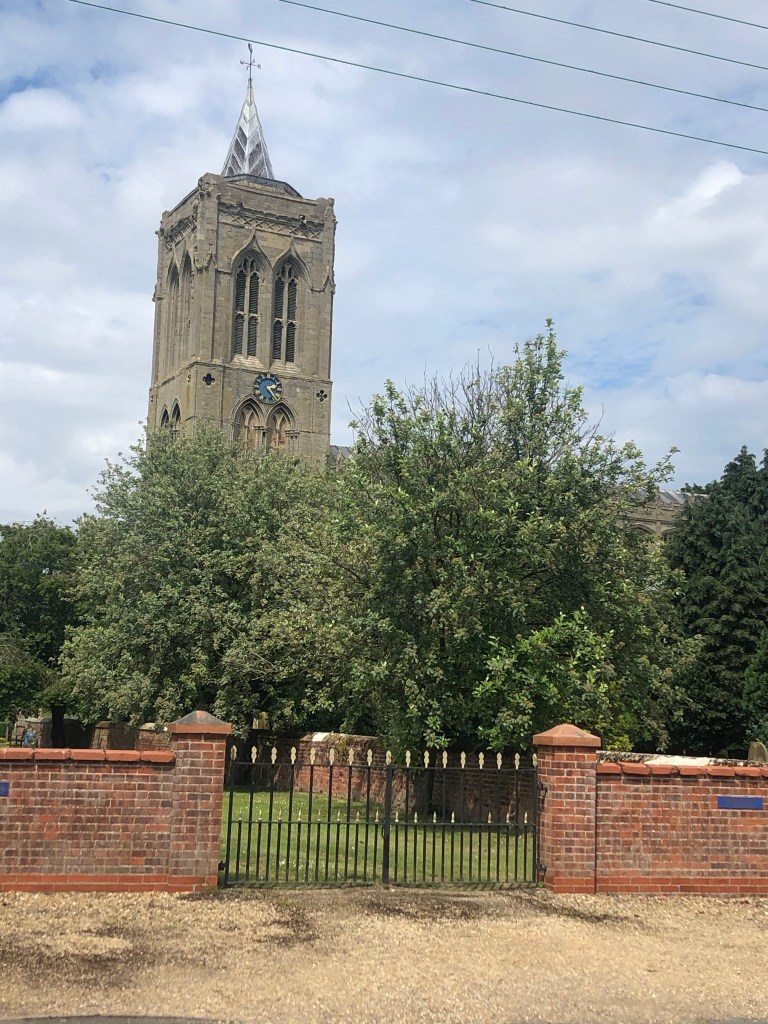
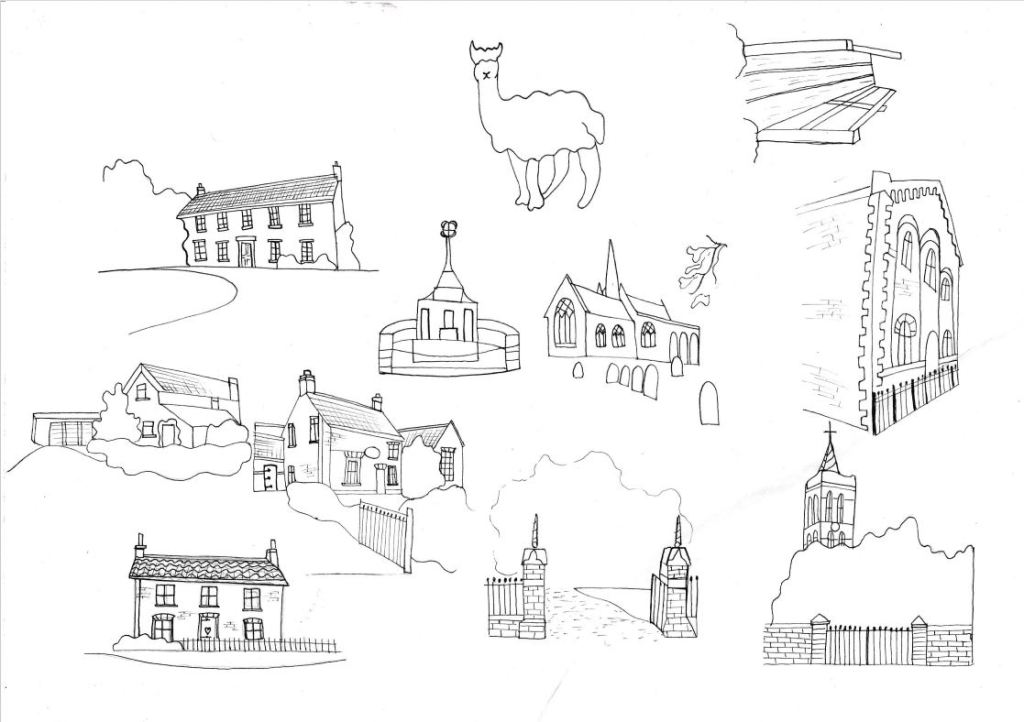
It is a 5 mile round walk, starting from our house; we document many building on the way round – some are completely irrelevant to everyone else but are significant to us as well as some of the local wildlife like the 3 friendly Alpacas we go to see!
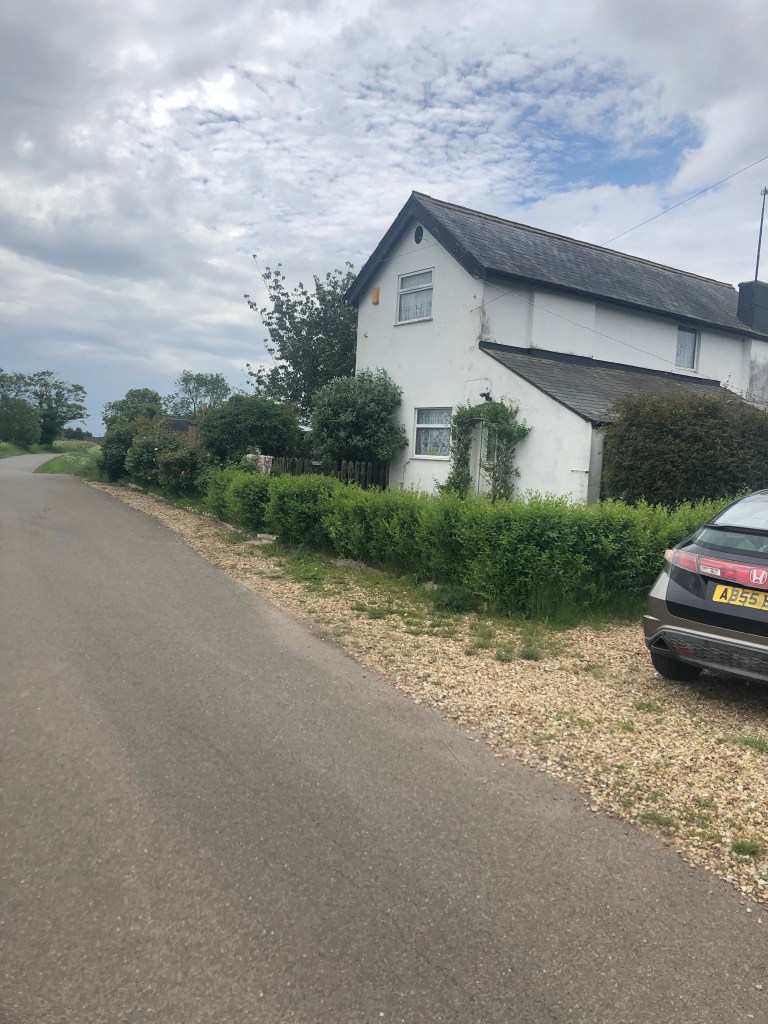
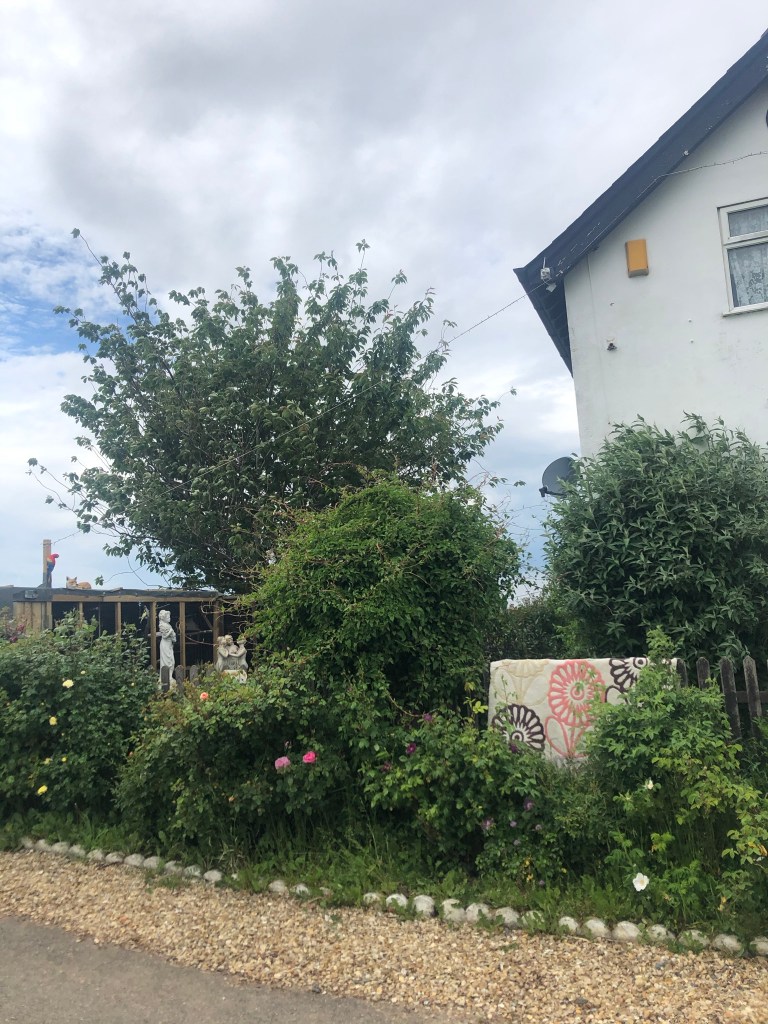
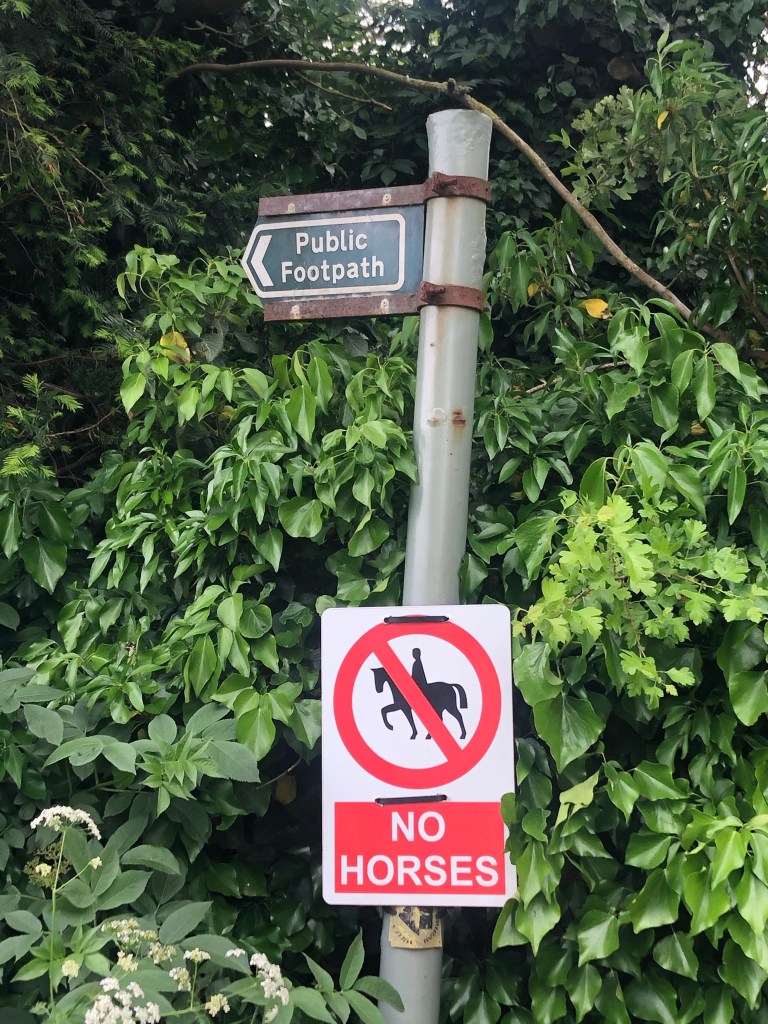
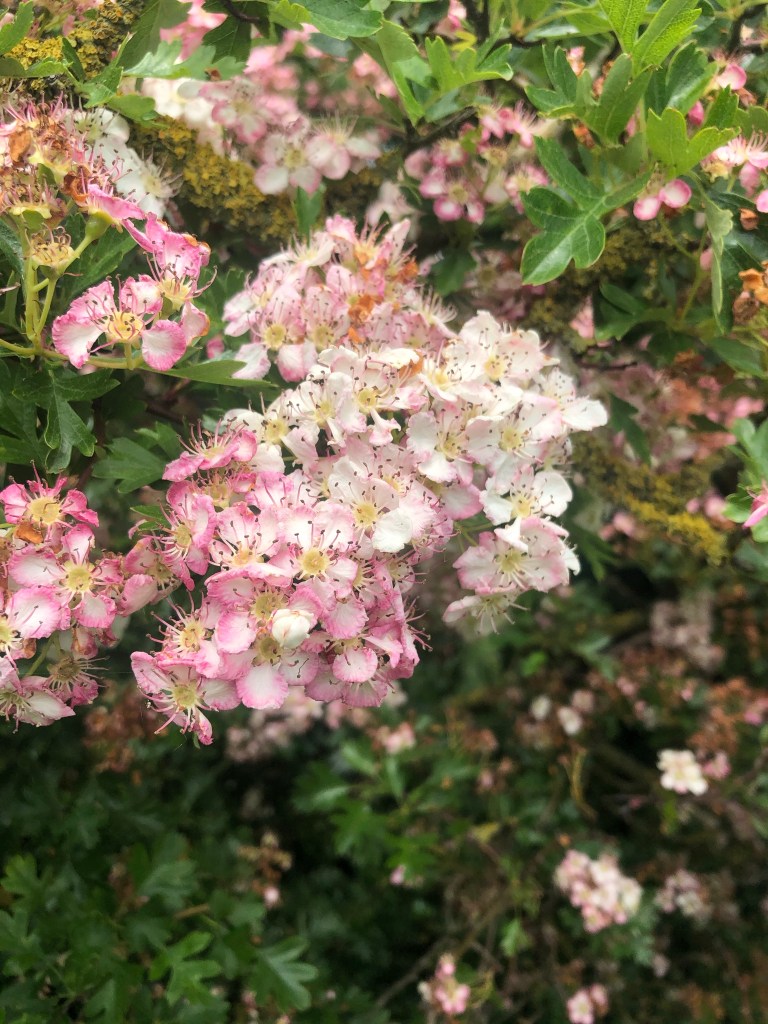
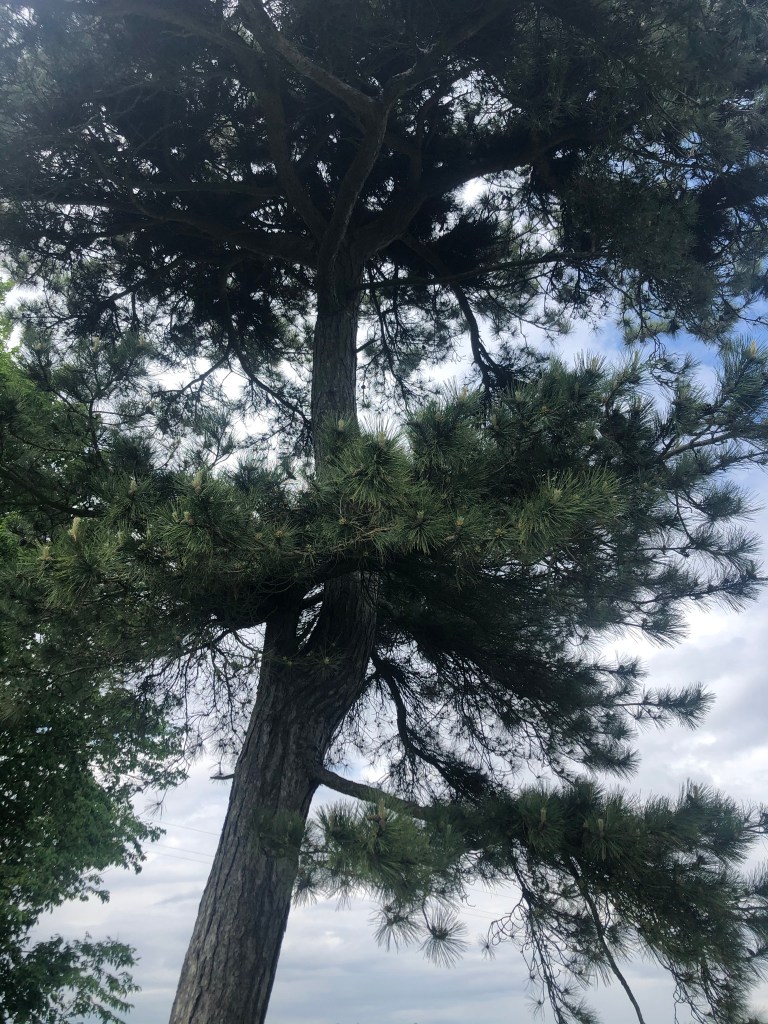
I took many, many photographs documenting everything! –
Once we had done the walk and taken all the photographs, I needed to write the route down and figure out what I needed to include on my map.
Drawing and painting Development
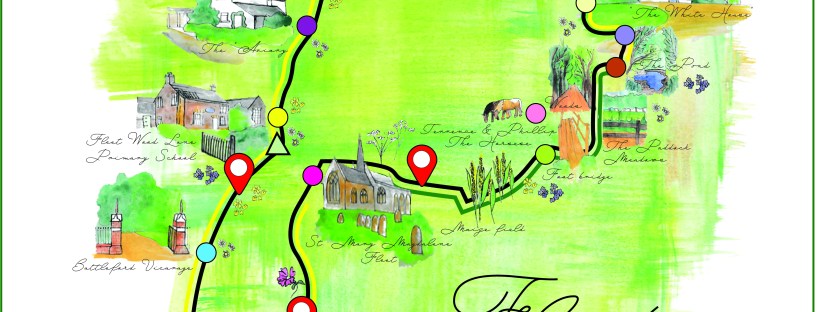
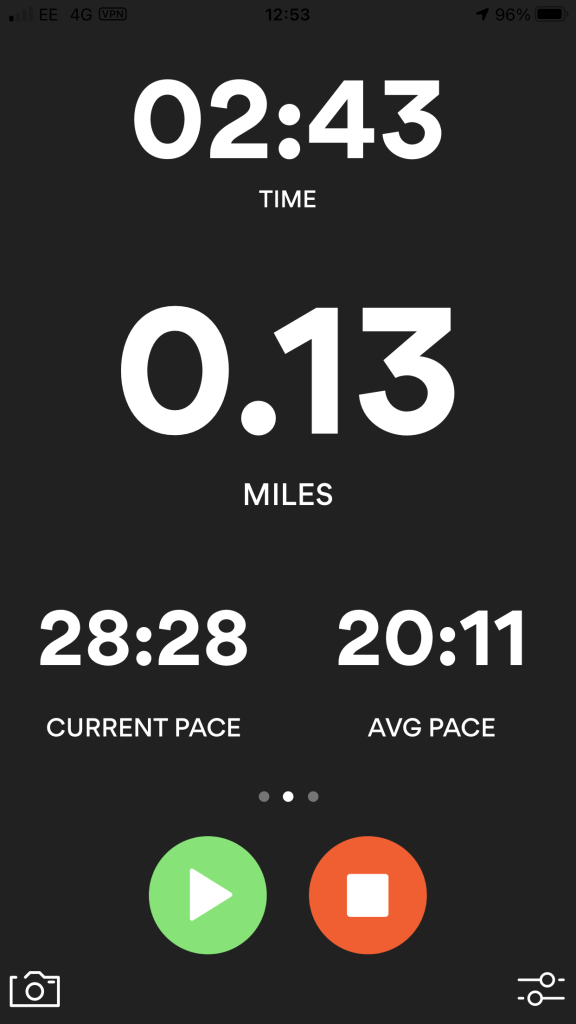
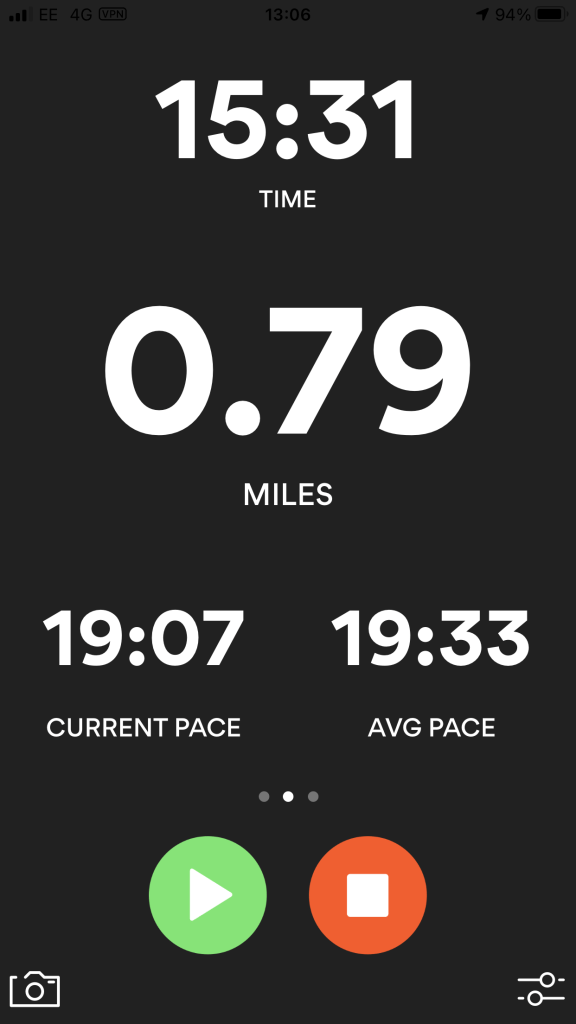
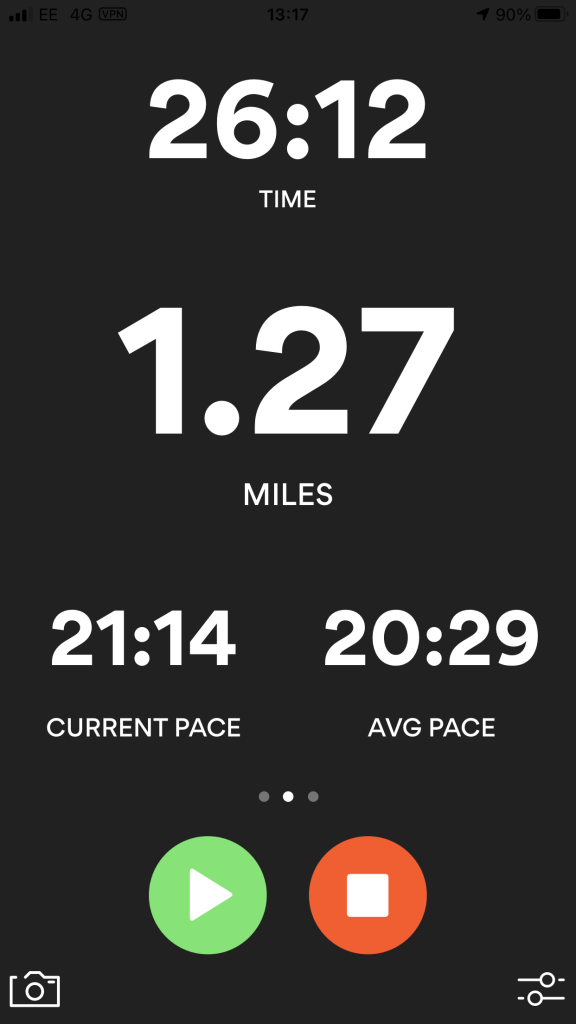
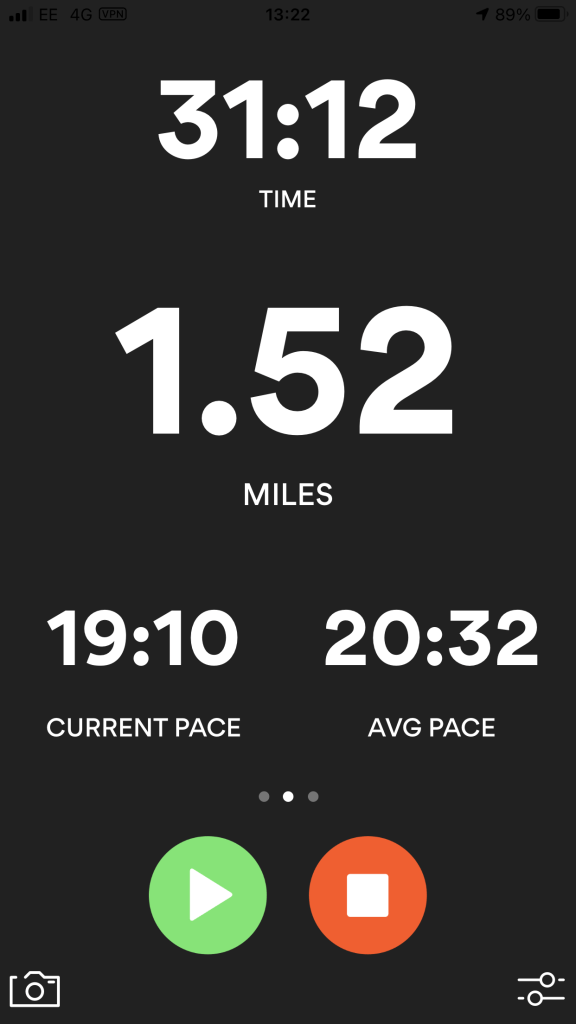
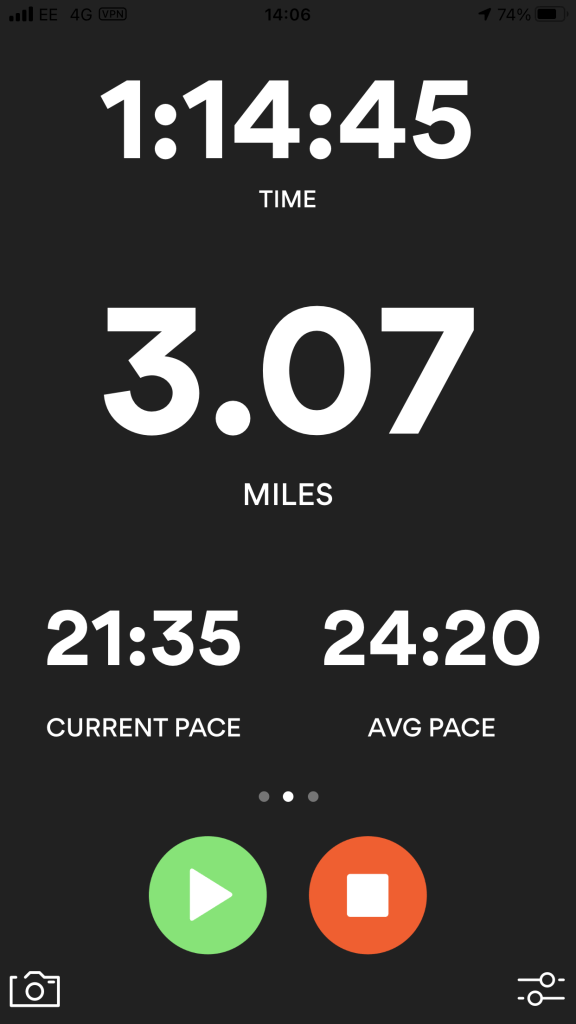
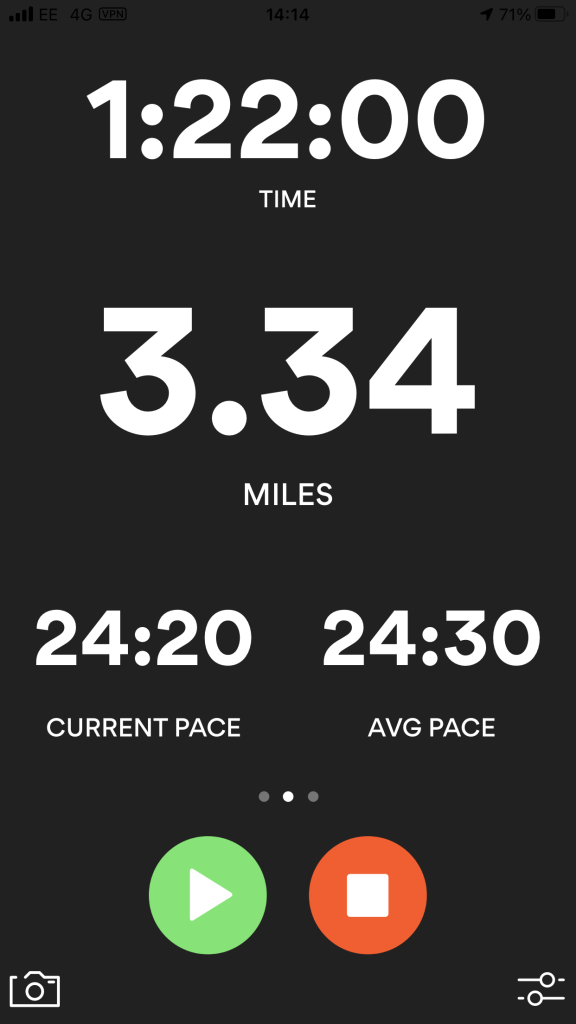
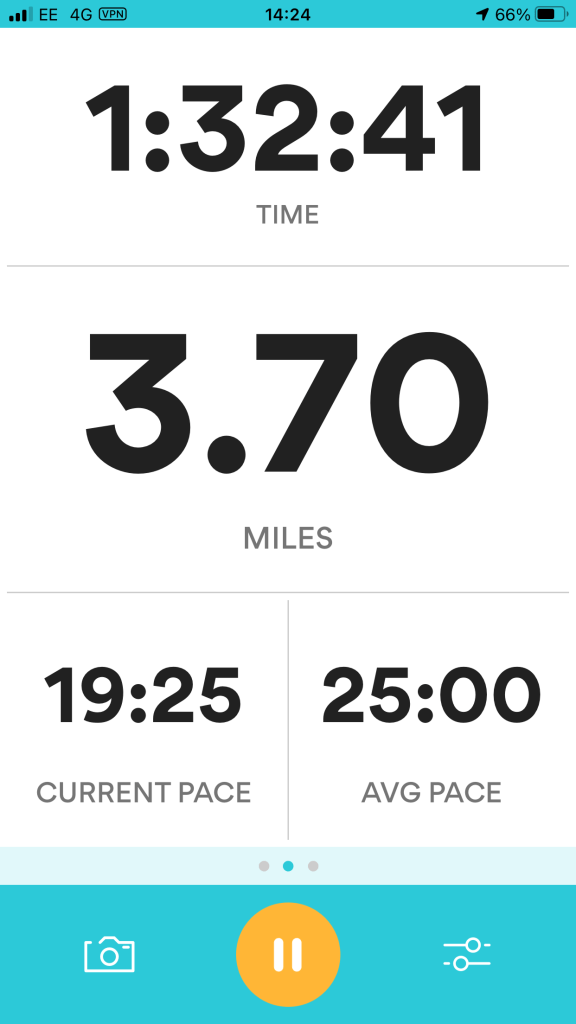
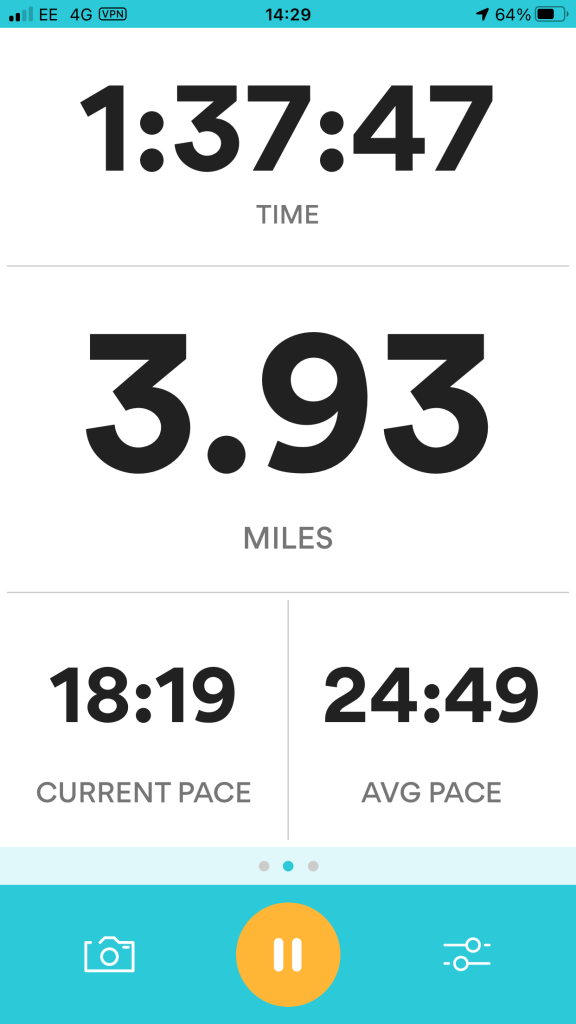
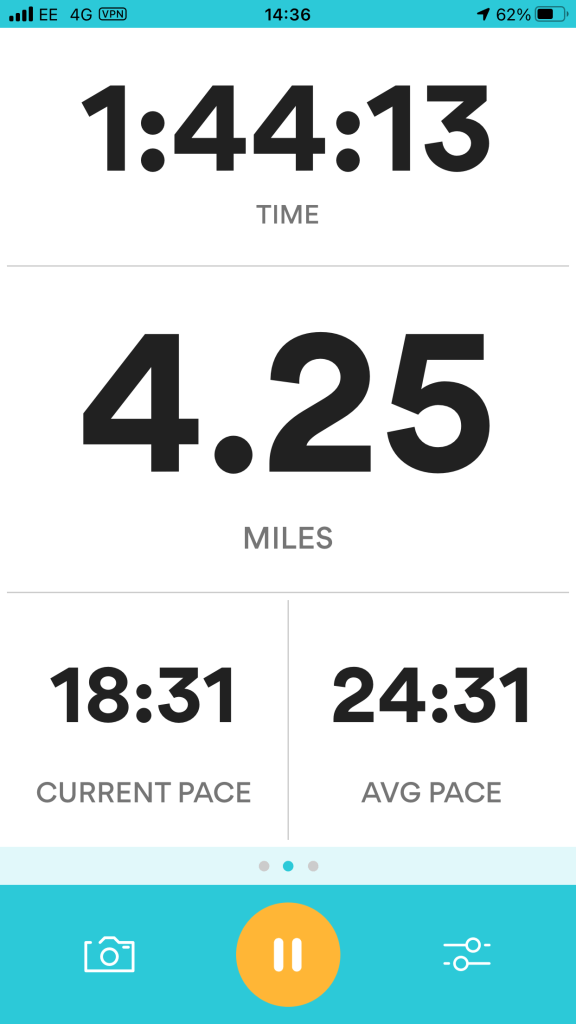
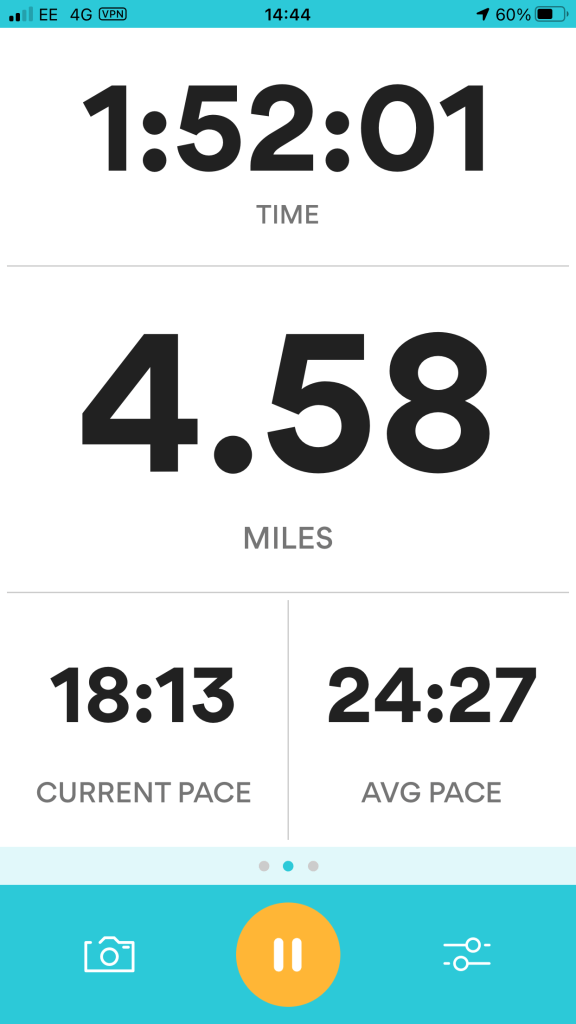
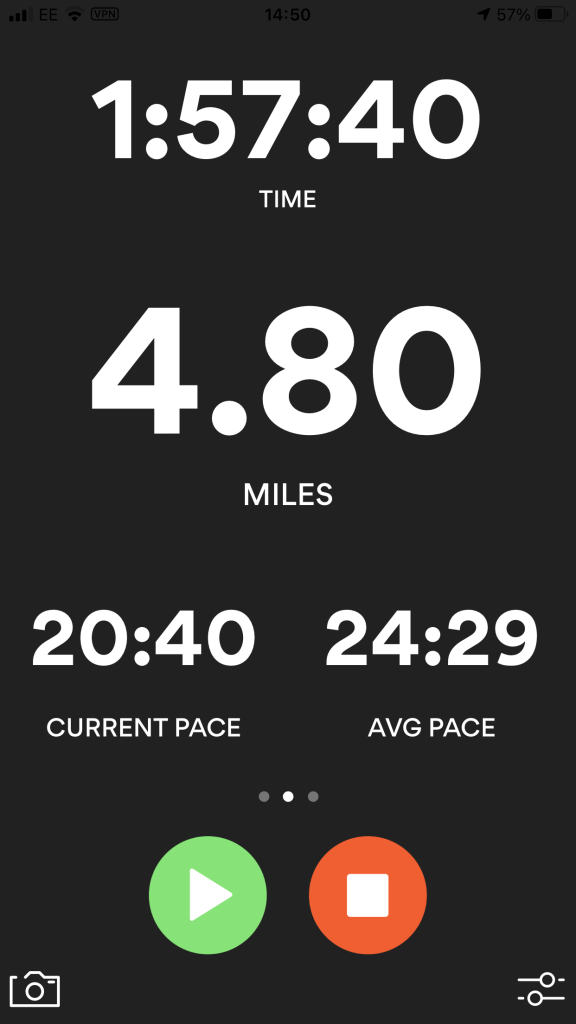
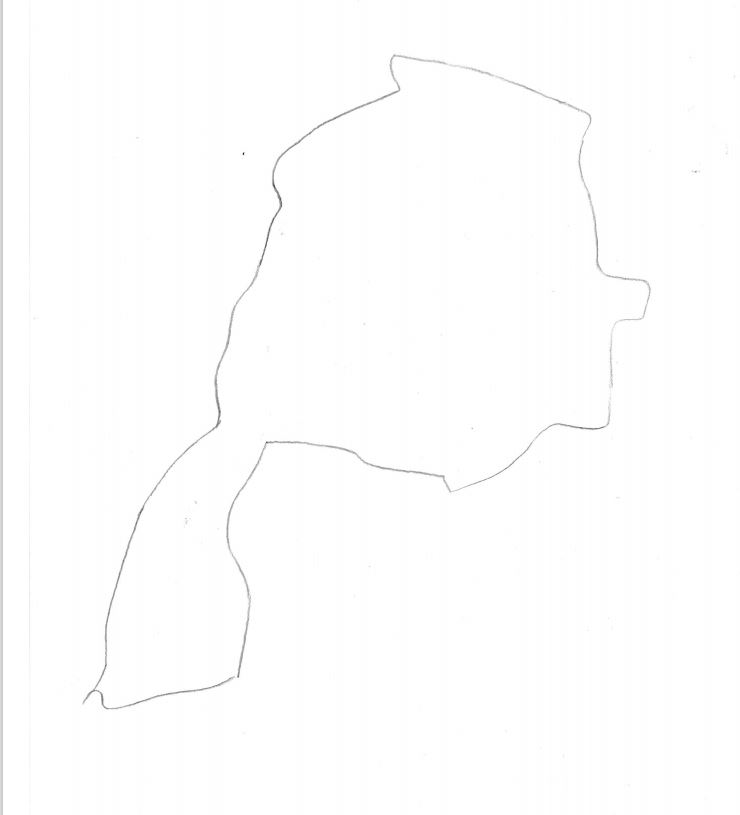
I wanted to do my design in the style of Heather Gatley and knew that I wanted to draw and paint some of the POI of the route and dot them around the outside of the map. I had the Runkeeper app playing in the background of our walk to map the miles and this also gave me the idea for the outline shape of my map, I also looked on Google aerial view to see what colours all the fields were looking down at the route;
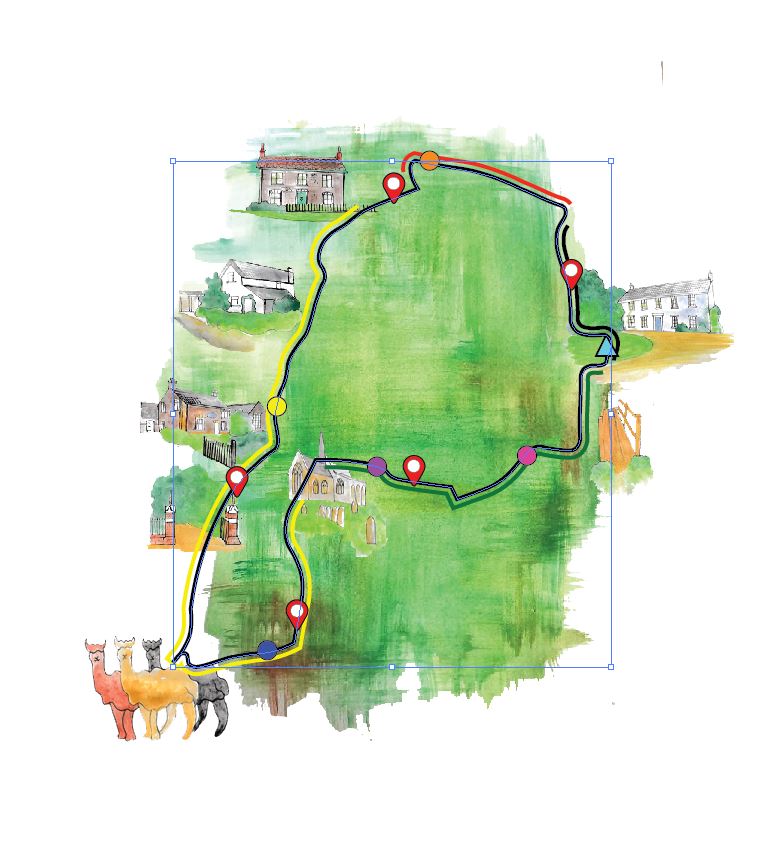
I found a map on Google and mapped out the route and all the points I wanted to include on it.
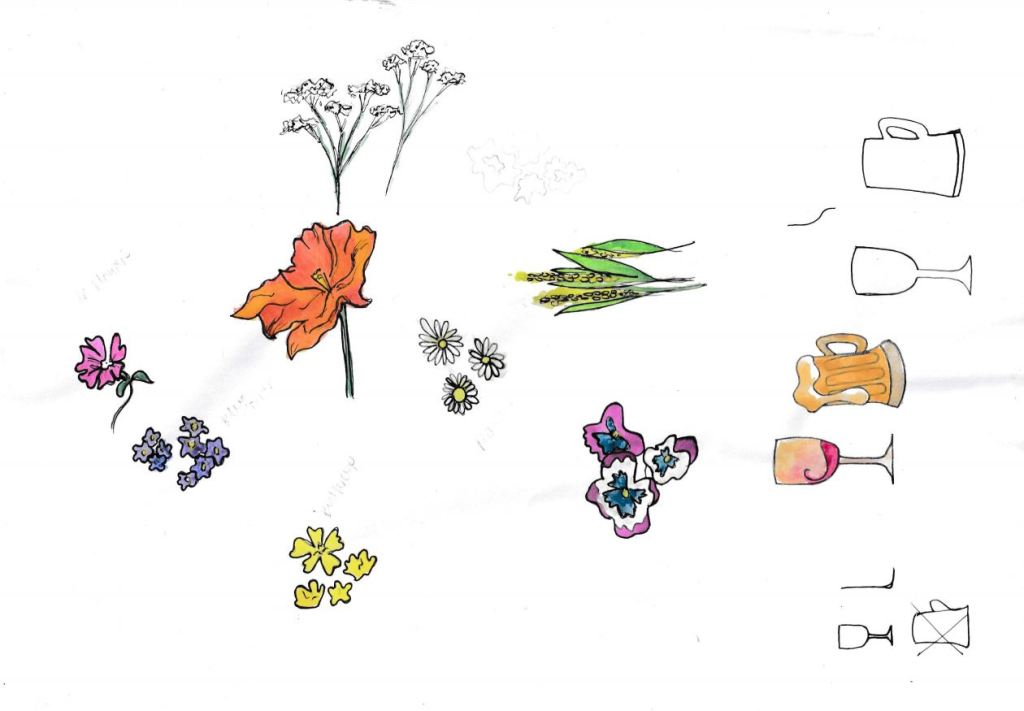
To represent the green on her maps, Heather Gatley uses rough Green brush stokes. I wanted to do a similar thing so water coloured a sketchbook page to scan in and use for the colour of the land in my map.
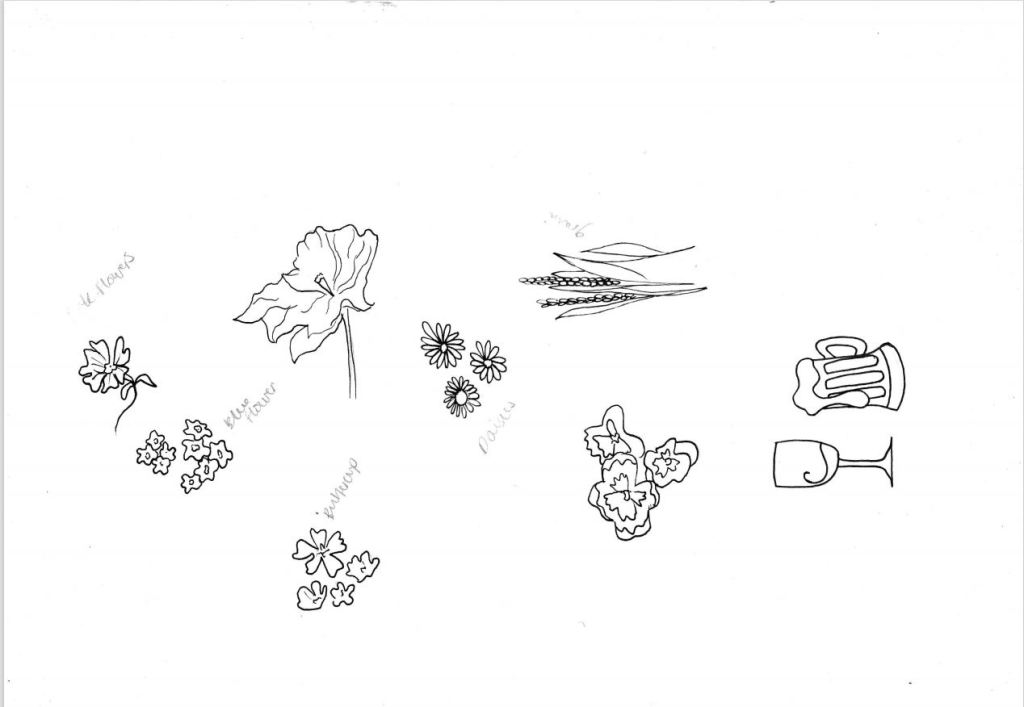
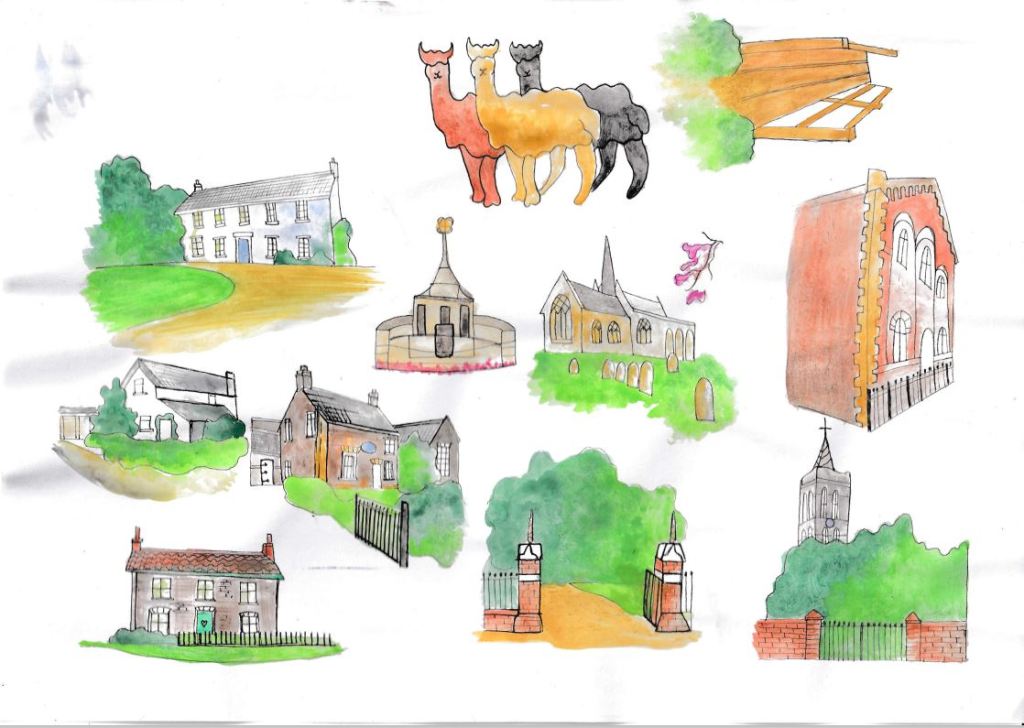
The next step now was to also draw and paint all the POI from the route. After I had drawn and painted them I imported them into Photoshop and deleted the background from them, saved them as a PNG file with a transparent background so that I could put them over the top of the map without them having a white background!
I drew all these paintings very small from my photographs as I was very aware I was on a very strict time deadline; because of this some of them look very pixelated when they are enlarged. On the final map though I think they look absolutely fine because they are kept small in size.
Digital Development
I started off by roughly placing the drawings on my map to see how they would. The first problem that I encountered was that my green background was very dark and my little drawings blended straight into the darkness of it and could not be seen well at all! I tried a digital green background to see if that would work any better but that just didn’t match the feel of the painted illustrations. After rescanning the background in and lightening it up in Photoshop it worked a lot better.
I then carried on placing all of the paintings in the correct areas on the map, I had to leave out some buildings and POI that I originally wanted to include because it would have just looked too crammed.
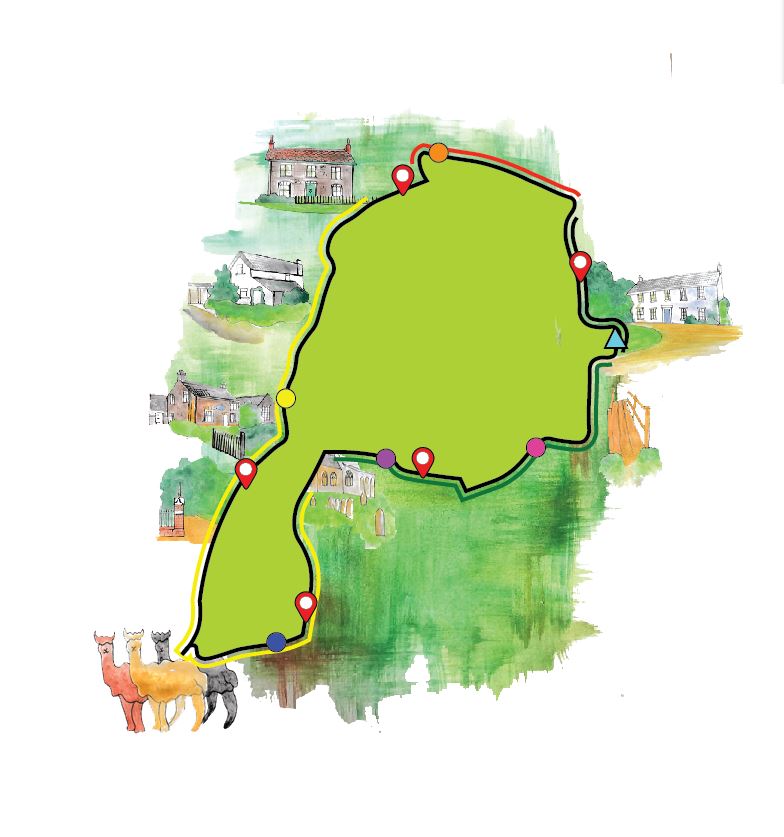
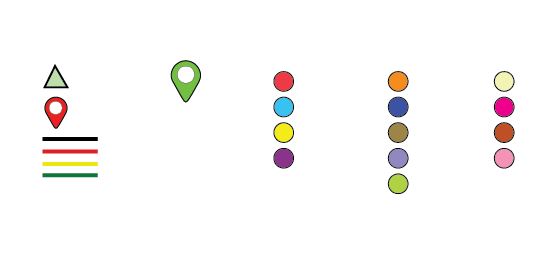
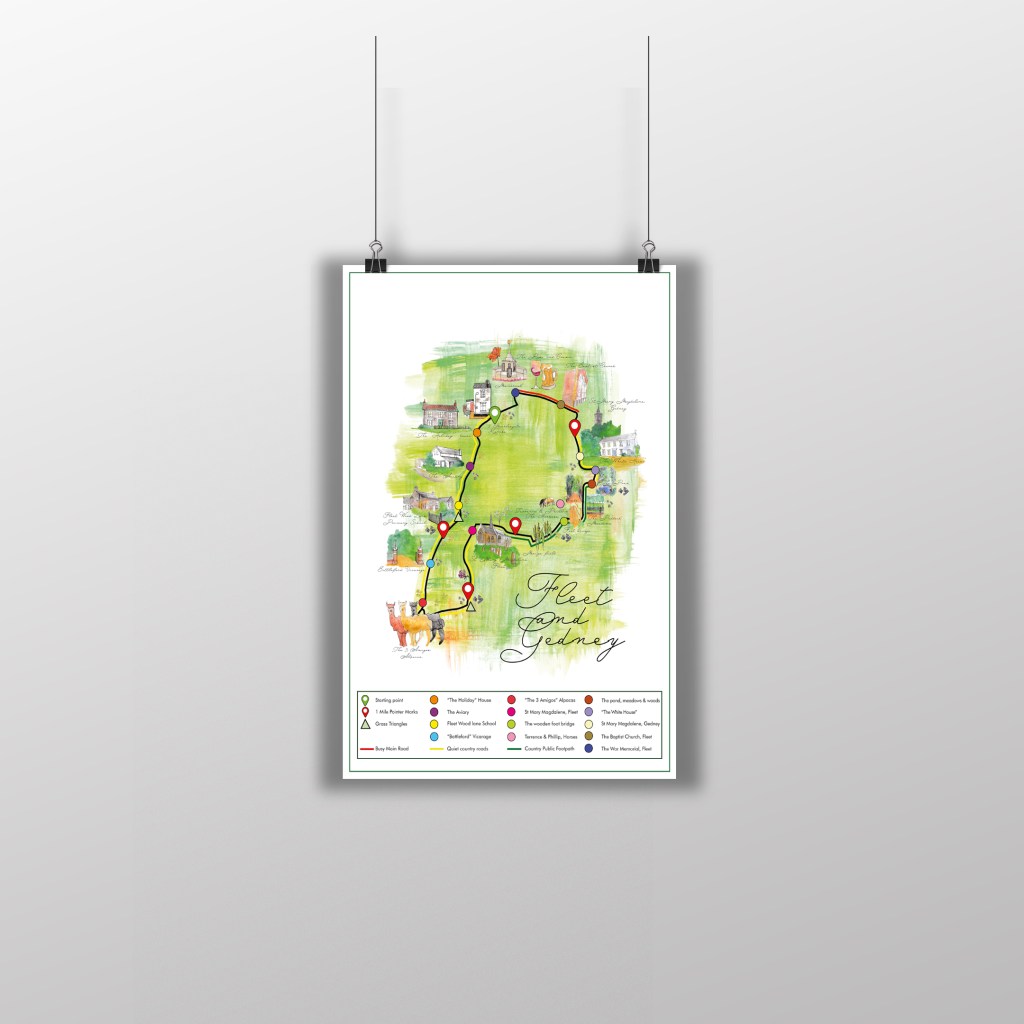
The symbols I chose to use were very similar to a normal map. I wanted to make it as clear and simple to understand as much as possible.
The green triangle – represents exactly that! The green triangles in the village where the roads meet
A red location dot – I used these as 1 mile markers around the route
A green location dot – I used this as the starting point of the map
The red line represents a busy main road
The yellow line represents country roads used by card but which are quiet
The green lines represent public footpaths
I used a different coloured dot for each POI location point
I wanted to use a handwritten typeface for the text on the map; I knew it would not be very legible to read but I knew I would be including the key at the bottom so I could get away with using a fancy typeface which would appear on the map as purely just for aesthetics. I also wanted a typeface that looked like handwriting because it matches the appearance of my “hand made painted” design.
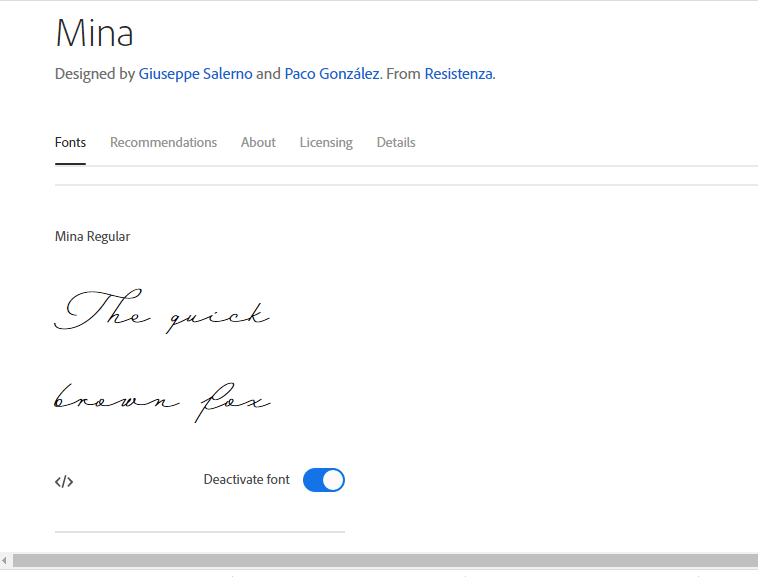
The typeface that I chose to use for my design was Mina. I found this on Adobe fonts by searching under the handwritten fonts. It is a modern typeface but on the map it gives an “old” countryside feel. It looks like the old fashioned town maps.
The typeface I used for the key at the bottom was Futura. The key needed to be legible and clear. Futura is a Sans-Serif font that I used in my previous exercise – If the face fits. It is an old typeface but still feels very modern. I just like the rounded, light feel of it. I wanted something soft looking yet legible and Futura suited what I wanted exactly.
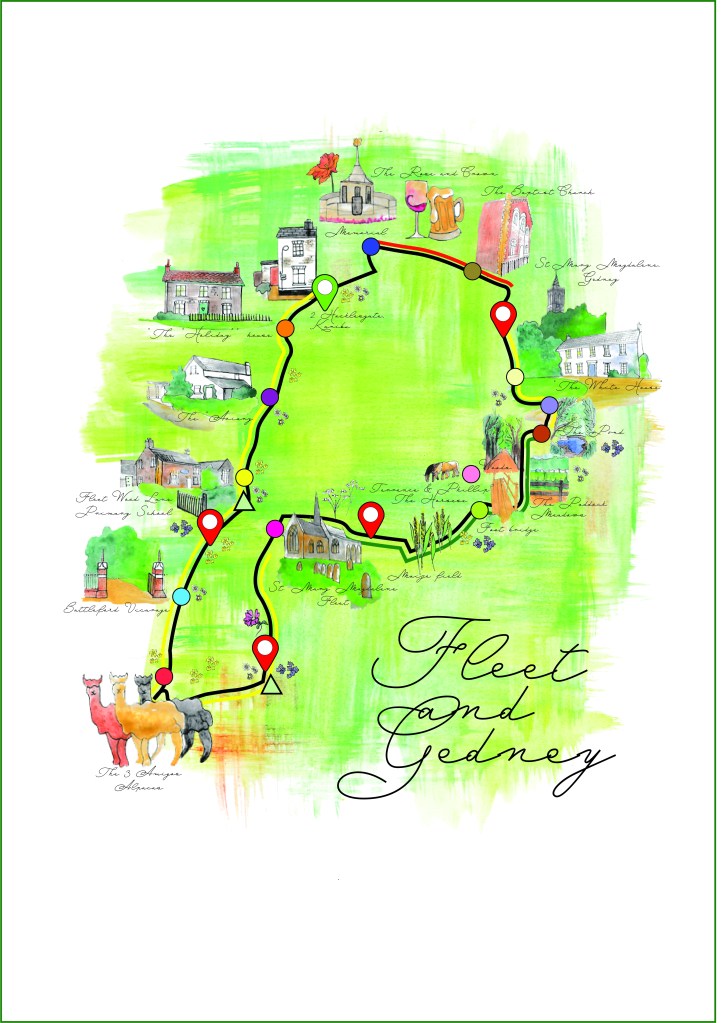
Below is the final artwork for my map.
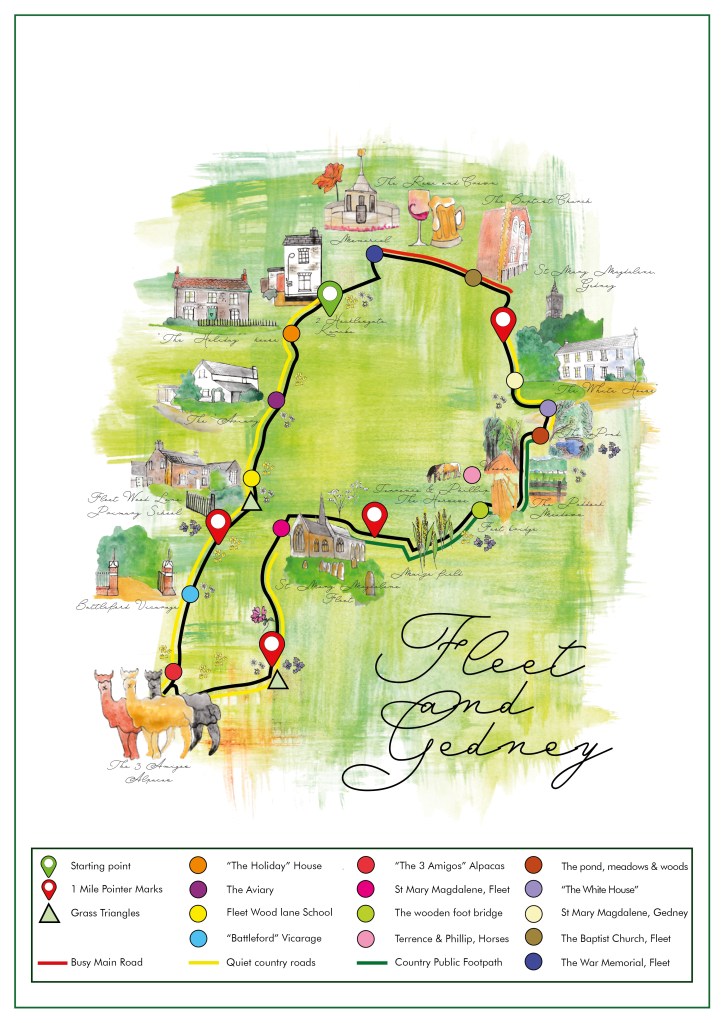
Below is the final finished map with the key included.
The Final Mock up!
I started this brief in a panic about what I was going to produce for it. Even when I started drawing and painting I didn’t think i would be able to pull it off! I thought the paintings would all blend in to each other and it would look too busy. I have ended this brief feeling very pleased with the outcome!
When I first read this brief I knew I would enjoy it because magazine and book design is an area in design that I particularly enjoy. From reading the brief it seemed to be a continuation of the exercise “If the face fits” where it is based around type specimen books and type foundries. I had already researched into type foundries in the previous exercise (If the face fits) so I already had some background knowledge as to what I would be designing. From my understanding of the brief it was asking me to design a typeface to use for the magazine but to also design the magazine in a similar way to which a publication would be released by a type foundry to promote their typefaces.
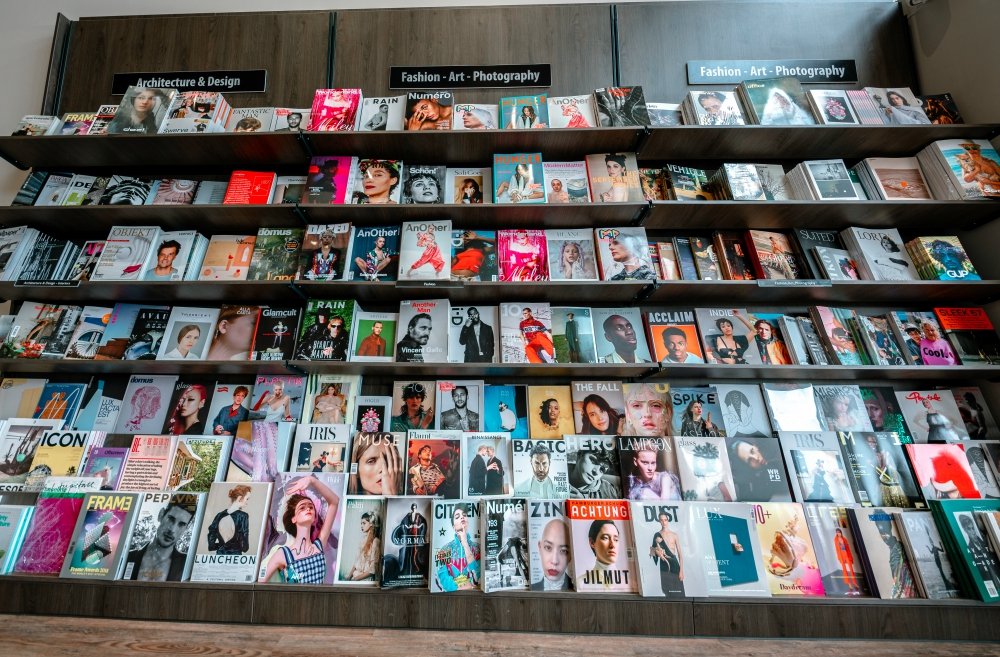
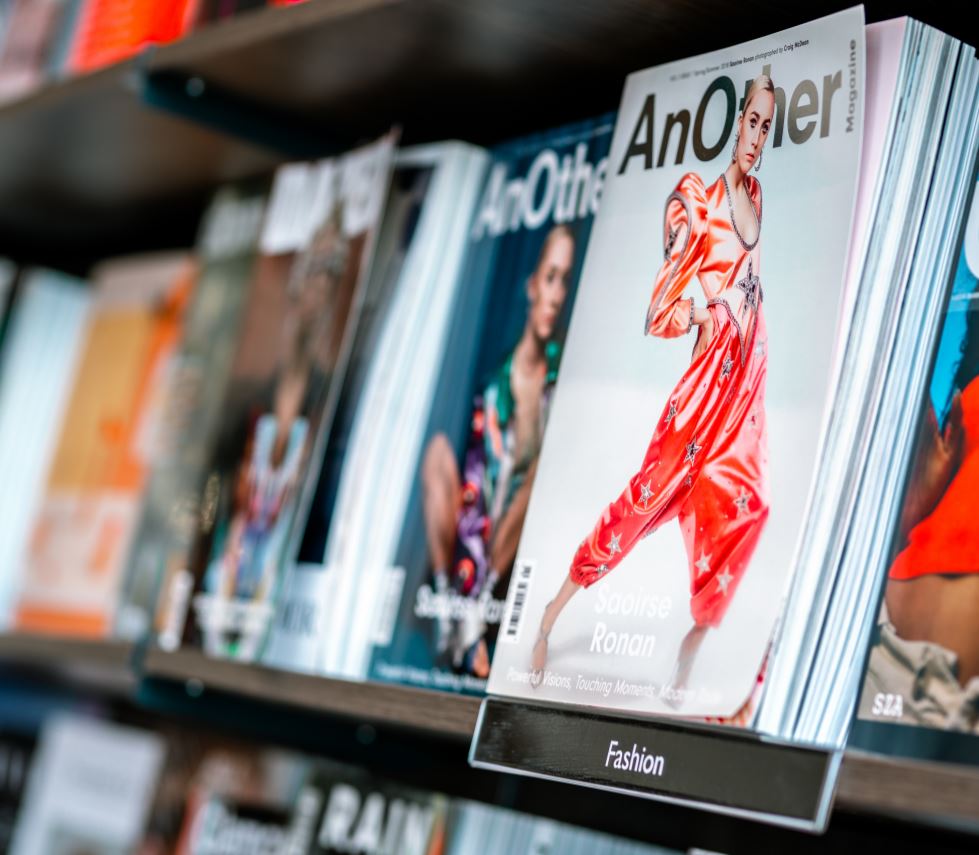
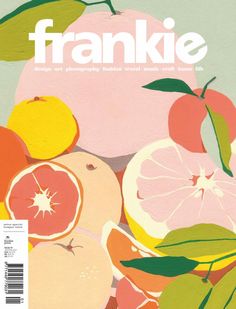
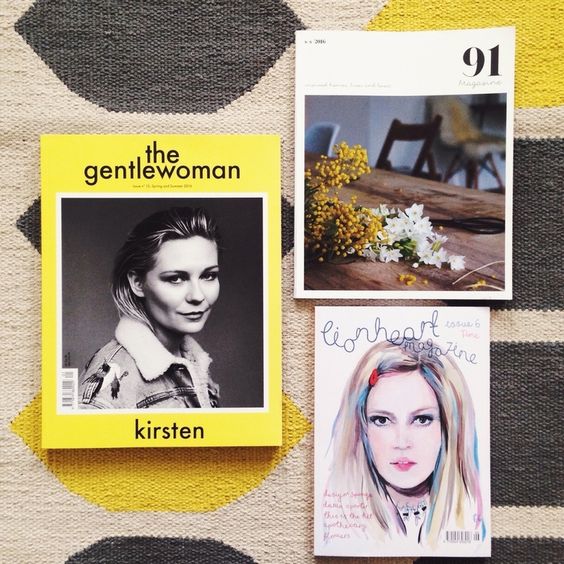
I knew I wanted my Type Magazine to be one of the high quality Matte or glossy magazines that cost a small fortune in the shops! ;p One of my favourite magazine venues is Magazine Heaven with my nearest being based at Rushden Lakes and inside there they have a whole host of Art and Design magazines which range anywhere from £6-£15.
Magazine Heaven at Rushden Lakes
The next step for me in this assignment was to see what magazines were already on the market and how I could make my magazine look similar to what already exist out there. I also needed to research into type foundry publications and typefaces that I could create for my own publication.
Research
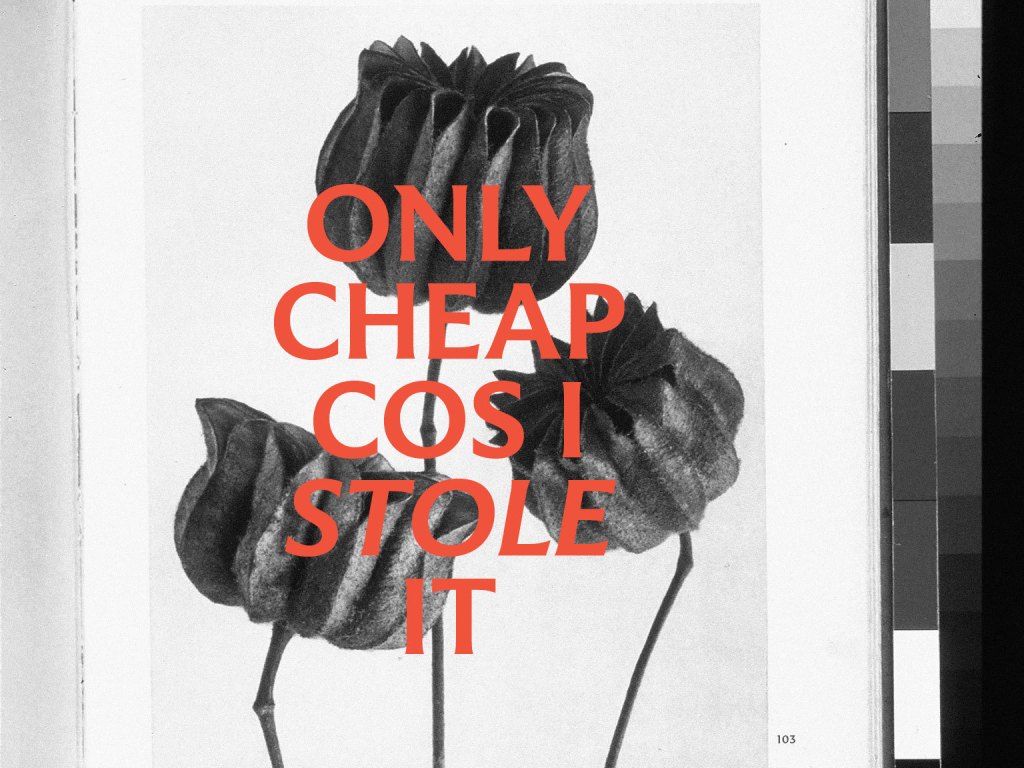
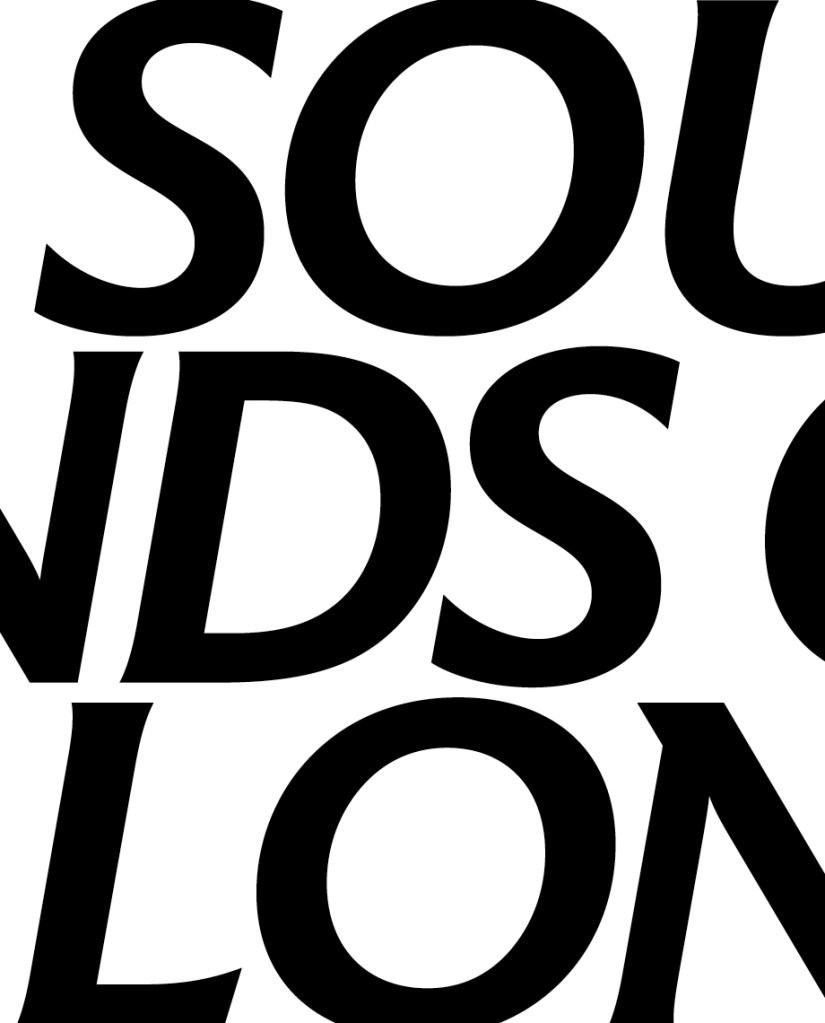
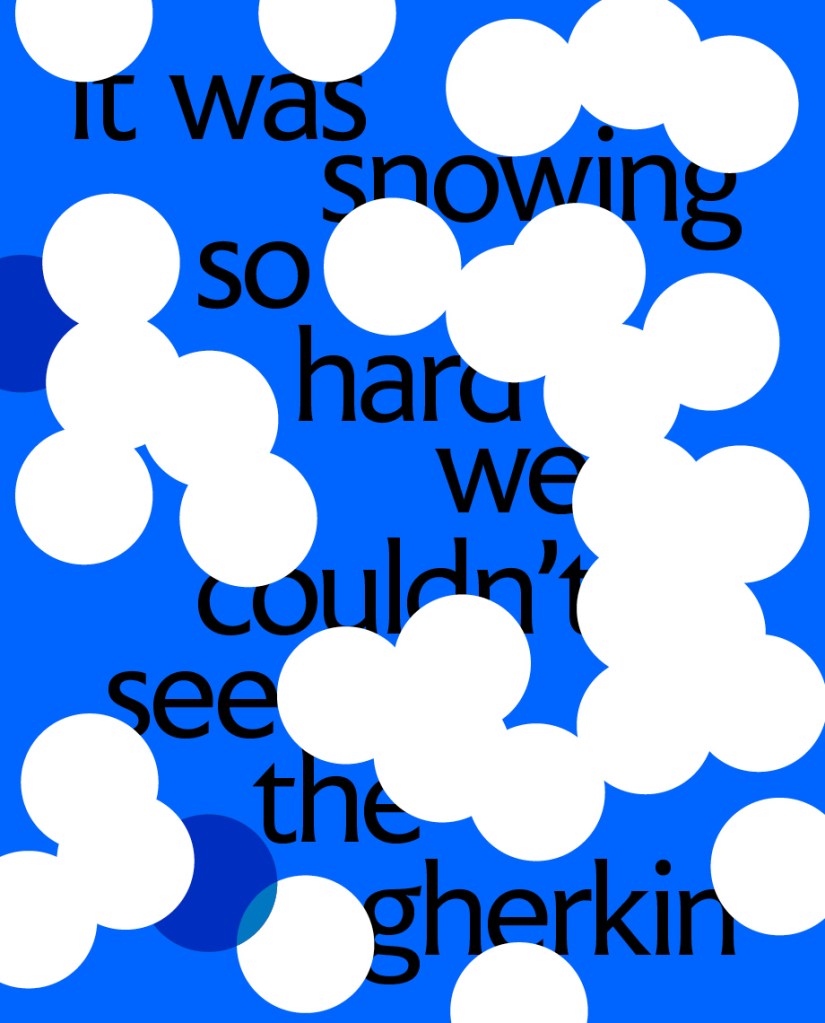
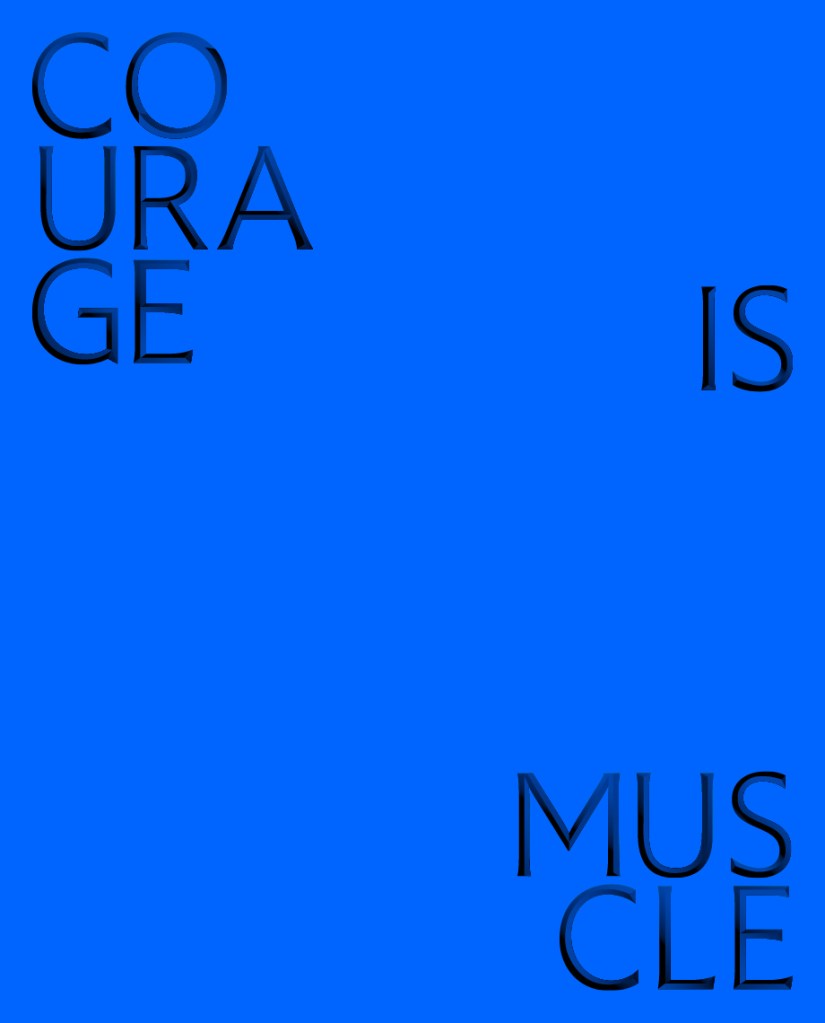
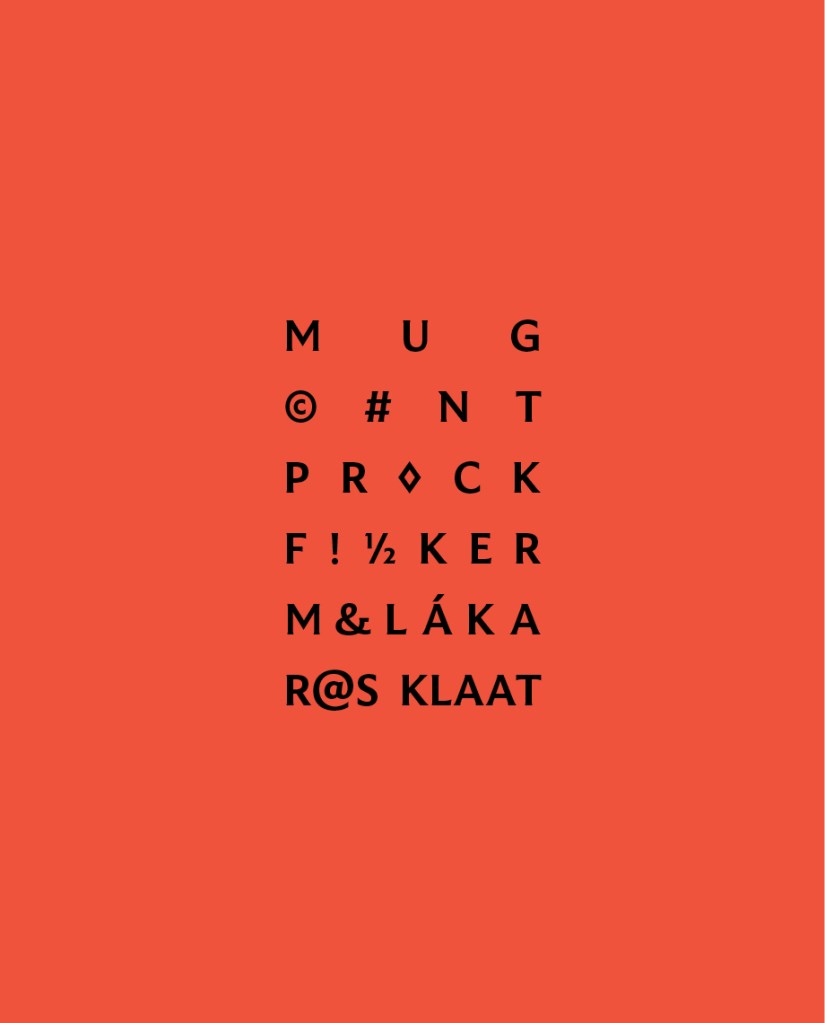
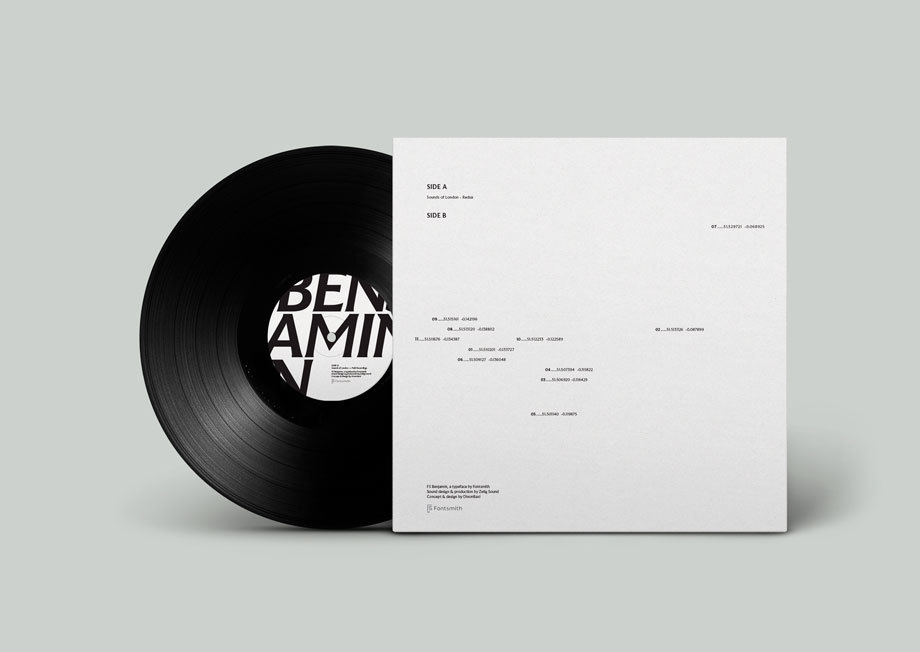
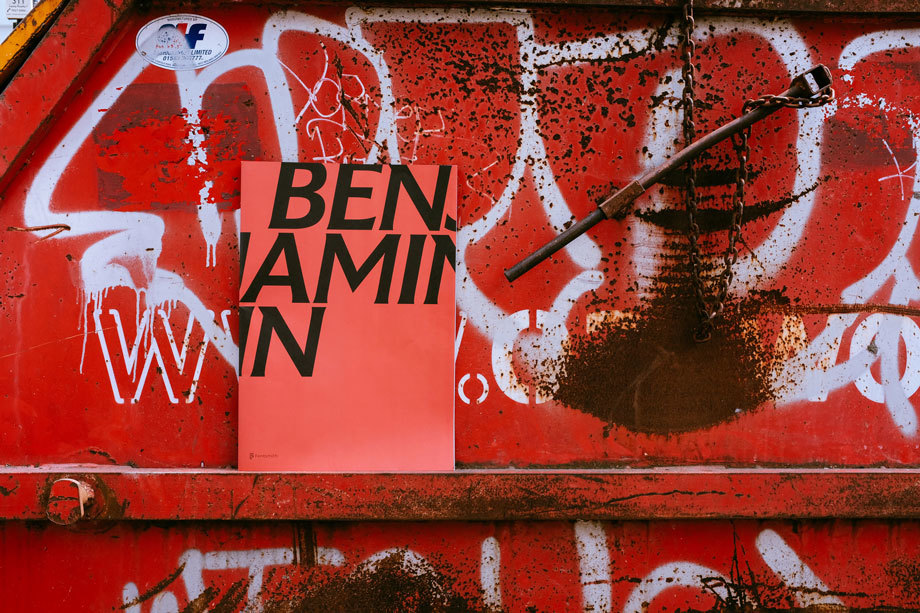
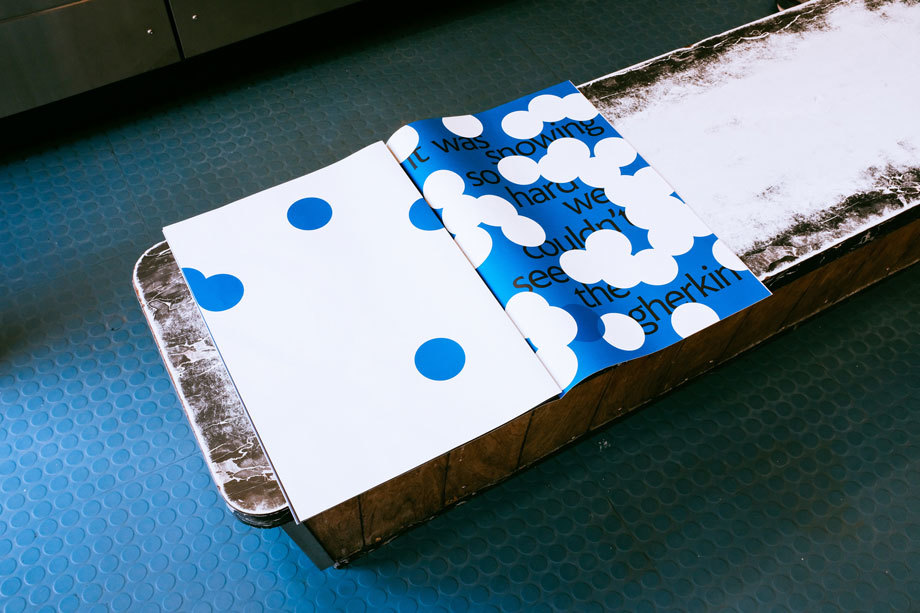
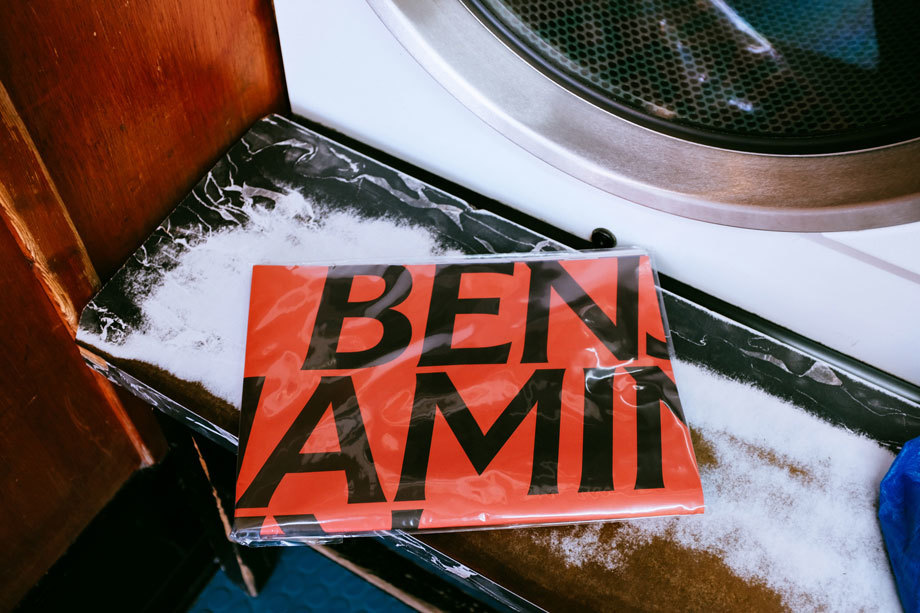
As always I did some intense research for this assignment; some of which I did before I started this assignment as part of the exercise “If the face fits”. I came across a magazine publication for a typeface called FS Benjamin that I really liked and enquired with the type foundry to see if they had any of the print copies left to send me; unfortunately they didn’t but they sent me a link to their blog to their typeface to have a look at the content on there. It was then that I researched into who Fontsmith were as I had no idea really as to what type foundries did. Here is the content they sent me for the typeface:
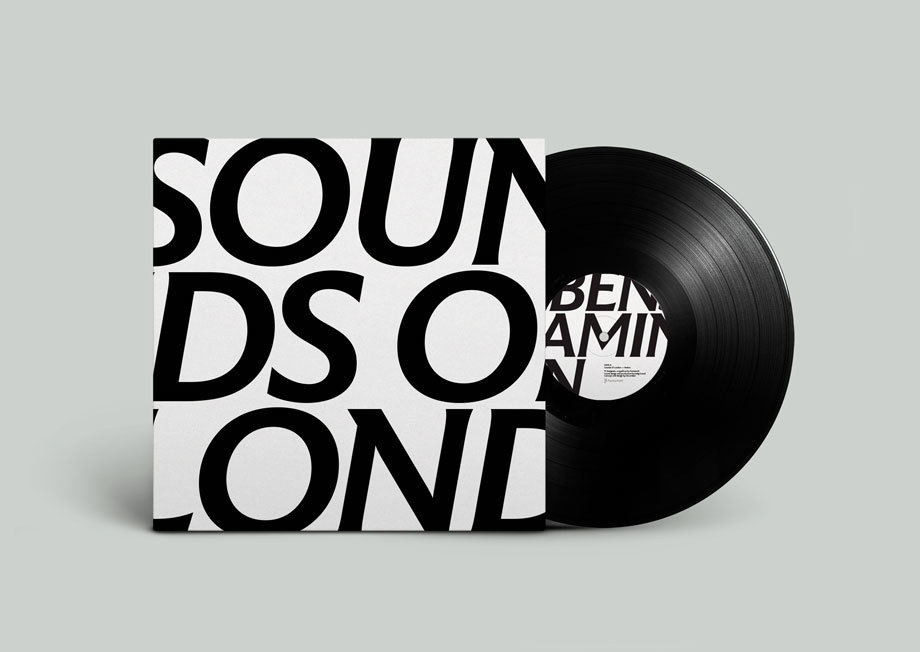
I really liked the modern, simplistic, catchy and witty way that they advertised their typeface in their print publication. FS Benjamin was designed around the theme of London. It was inspired by the noises, the smells, the atmosphere, the buildings and the people. The name Benjamin FS originates from the real full name of “Big Ben”. It was inspired by the contrast that there is in and around London; the old signs and old buildings juxtaposed against the modern glass architecture that now surrounds the city. I liked the idea that they had designed a typeface around something and thought that I could do similar in my own design. I started to think of things that inspired me lately or what I have a passion for.
As well as producing a print publication in the form of a magazine to promote their typeface they also collaborated with Dixon Baxi a branding company to host an evening to promote the typeface and create a playlist of sounds and music on Vinyl as part of the print publication that match the mood and feel of FS Benjamin and London. I really liked this idea; it is taking the idea further than just selling a typeface as a typeface, they are making it into an atmosphere, a mood and vibes. It is not just selling the typeface it is also selling what the typeface represents, the idea behind the type and the city behind it.
I had a lot of ideas and inspiration to draw from this!
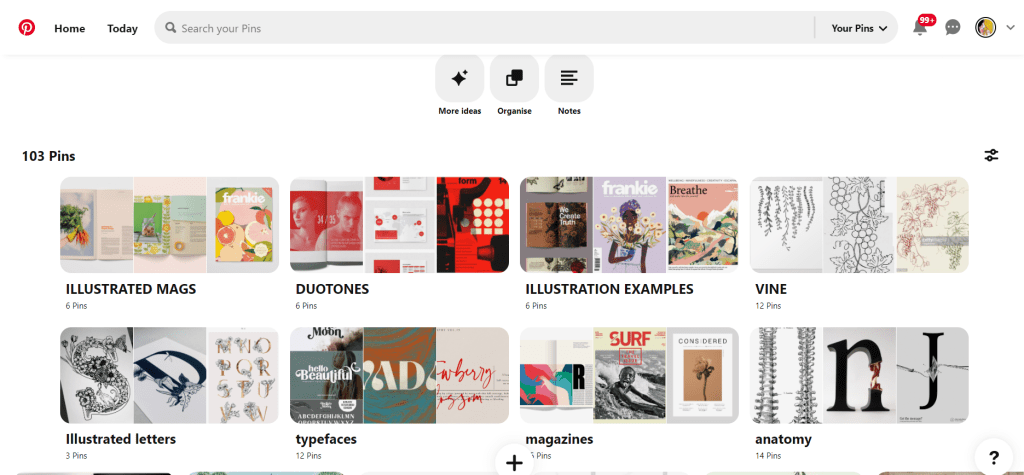
My other research came in the form of researching Pinterest. I always find Pinterest a great way to find inspiration and to be able to organise pins into sections that are easy for me to refer back to or to find. I created a new board for this assignment and then added sub sections to the board and researched into;
A lot of these sub sections shall be explained further into my post.
Now was the time to research into existing Art and Design magazines that already grace the shelves of fancy newsagents.
I wanted my magazine to be very simple and minimalist. I wanted it to look high quality and to be a high end magazine that would feature in a magazine shop such as Magazine Heaven. I wanted to have one main eye catching, attractive image on the cover to draw peoples attention to the magazine. In my head I could imagine it to be produced out of high quality recycled heavy weight gsm paper (ideally with a matte finish!) so these are the sort of magazines that I was researching into. My only thoughts were now how to create a magazine and a look around a typeface that I was to design…
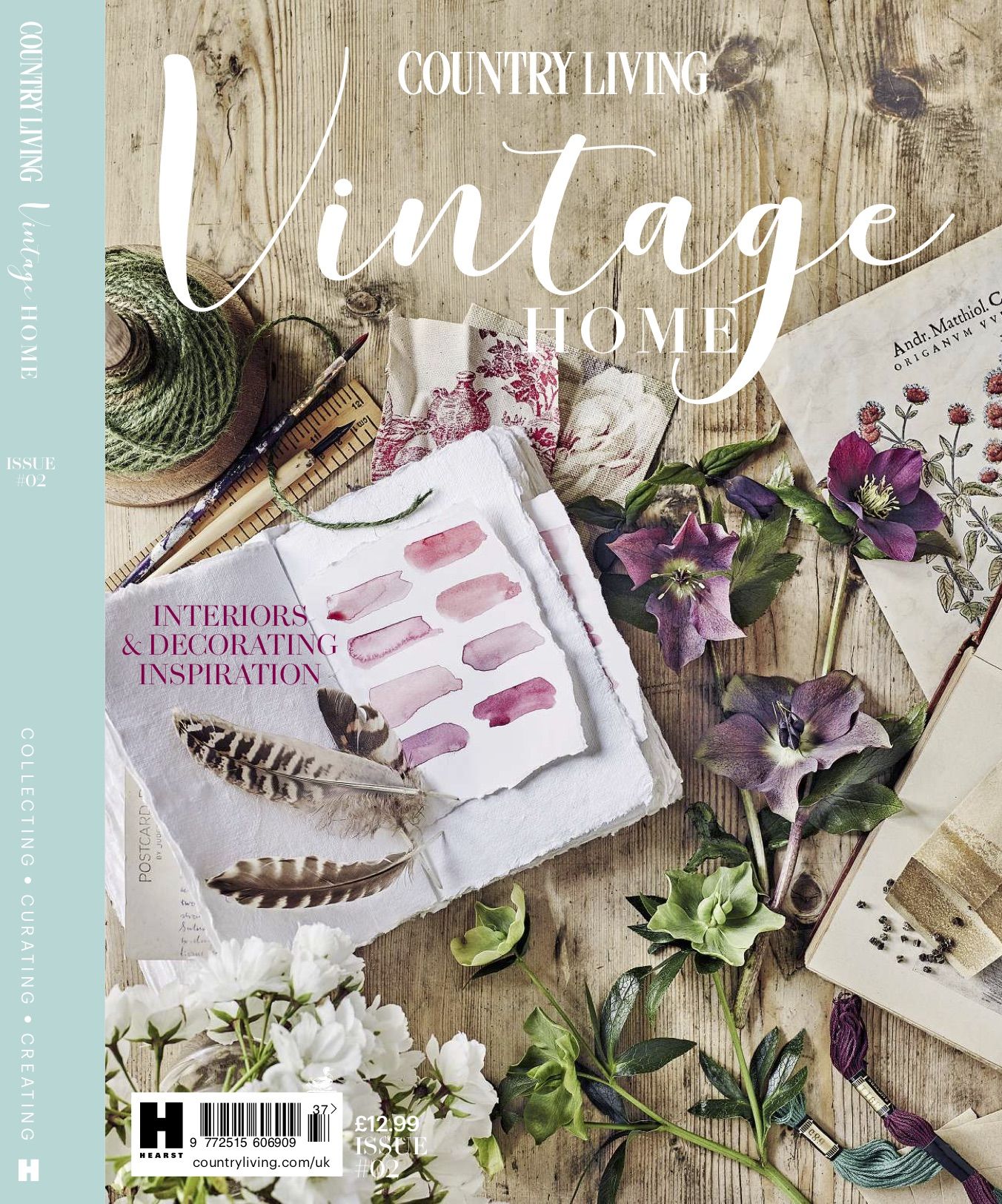
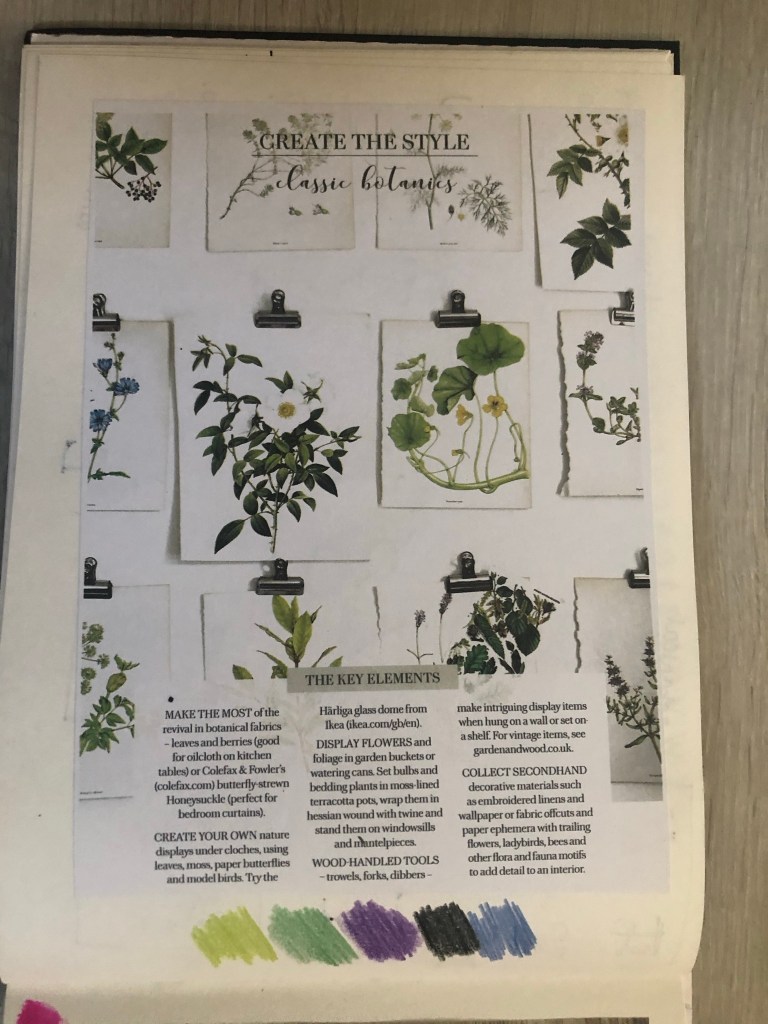
Another one of my favourite magazines of the moment is a Country Living Vintage Home magazine that I bought on a whim (for a really pricey buy of £13!!) I saw it in WHSmiths a few months ago and just really loved the look of the front cover and the Botanical section that was in there and all of the vintage drawings and finds!
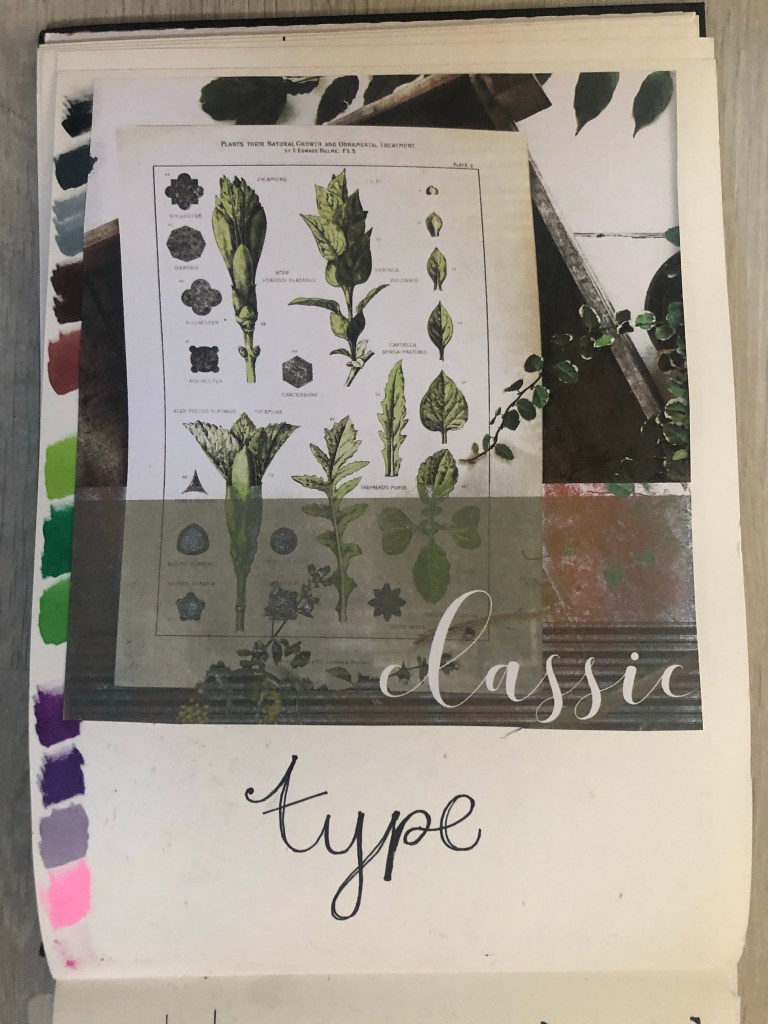
For some reason at the moment I really like the Botanical trend. I like the old vintage books, the cartridge paper that some of the old botanical drawings are drawn on, I like the colours and the ink drawn drawings and I like the feminine, old fashioned book typefaces that are used in the vintage plant specimen books. I had to buy this magazine just to draw inspiration from or just to look at every time I feel uninspired! – That is exactly what I did when I started ideas for this assignment. I looked at the book and knew I wanted to create a typeface based around the botanical influence whilst taking inspiration from timeless, old fashioned typefaces that appear on those old plant specimen books.
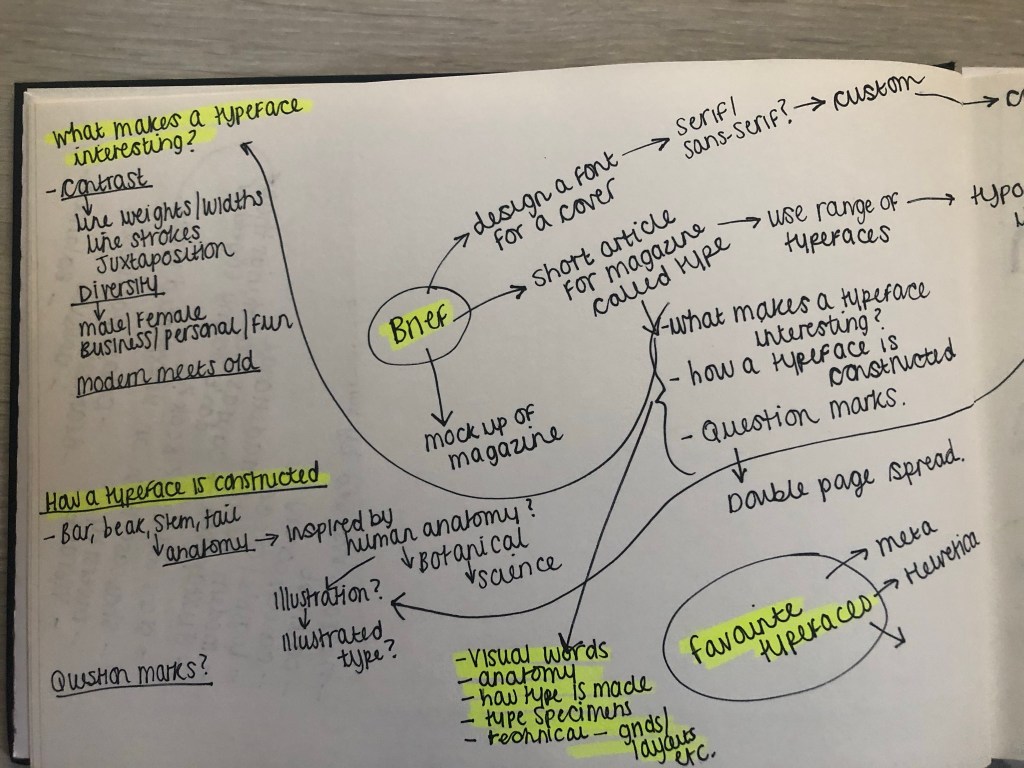
Another factor which makes the botanical theme perfect to use in my designs and type is that my article in my magazine has to be based on the anatomy of type; anatomy relates to plant anatomy and also human anatomy. I could use the type anatomy as a simile for plant or human anatomy. I did some dark, anatomy style art for my Time Machine book designs and had the idea that I could do similar for this.
I felt like Baskerville or Mrs Eaves was the ideal typeface to match the botanical theme I was aiming for. Even though Mrs Eaves is not a vintage typeface it is based around Baskerville which is. It was also designed for use in book design. I also really love the intricate, ornate ligatures of Mrs Eaves, I wanted to try and recreate that with my own typeface. I have a pretty style of hand lettering so I figured I would use that but add in inspiration from Mrs Eaves and Baskerville.
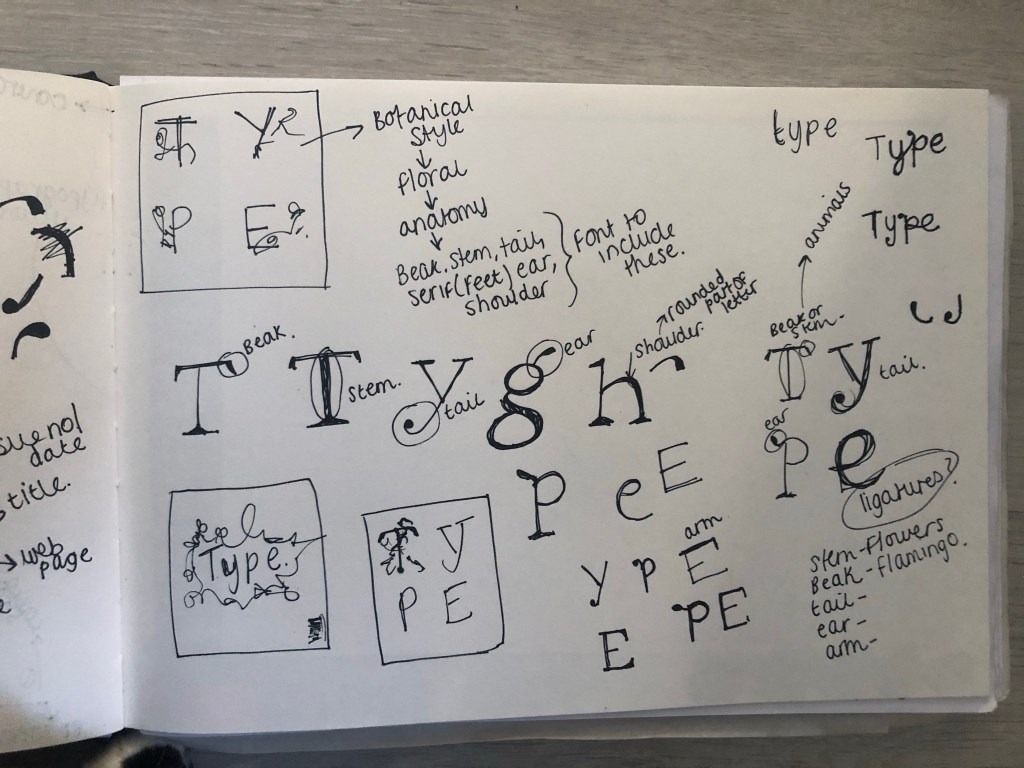
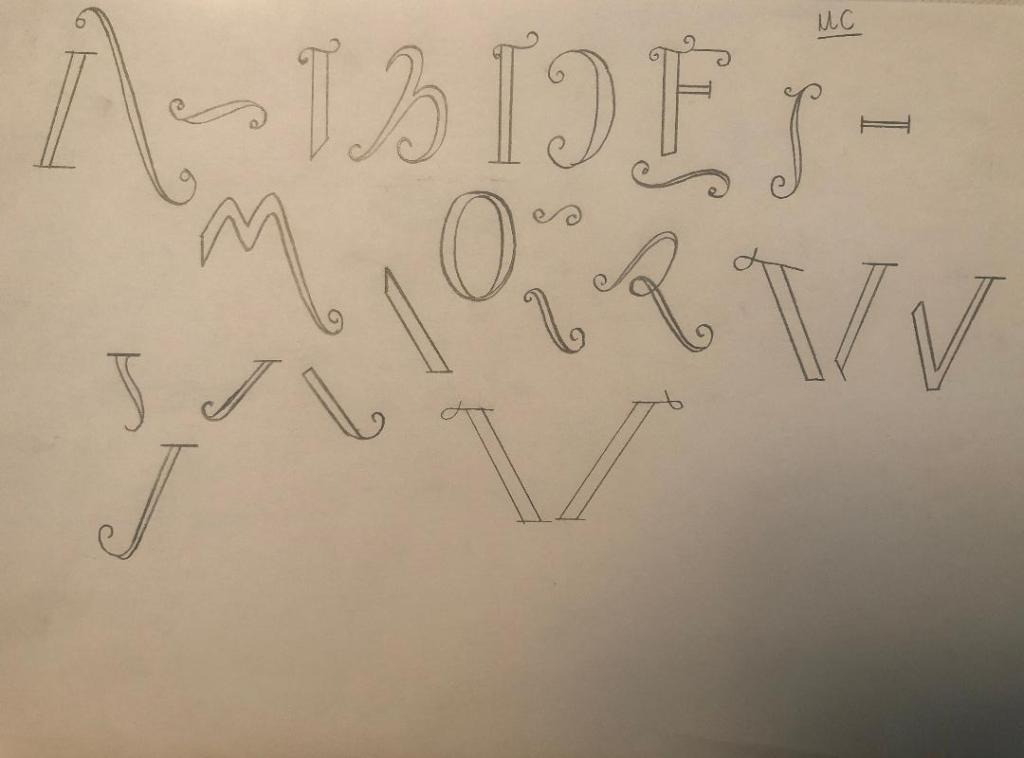
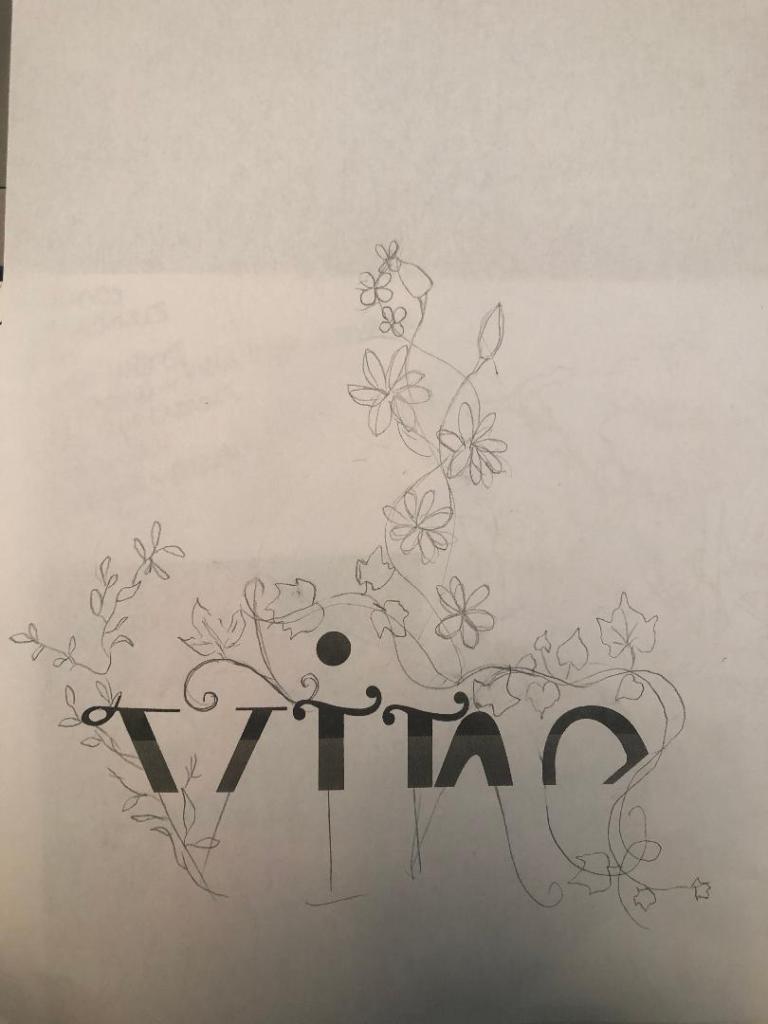
I started off with drawing some rough sketches of the different parts of a typeface and some different styles that I could explore. I particularly liked the PE ligature that I sketched. This gave me ideas for the rest of the typeface.
I used a specimen sheet of Baskerville from a previous exercise (A typographic jigsaw puzzle) where the typeface was dissected into all its parts to piece back together again. I figured that I could use this as a base to design my own typeface from. It gave me ideas of how to design my typeface, I knew I would have to design it all as completely separate parts (dissected) and then piece the letters together from the parts. Once I designed certain parts of the letters; such as the stem, I realised I could then use them again in other letters, e.g. I could use the stem I designed on all lowercase letters such as b,d,h,l but also use it again on the uppercase characters like D,T,H,F,E etc.. The bowl on the b could also be used on the d.
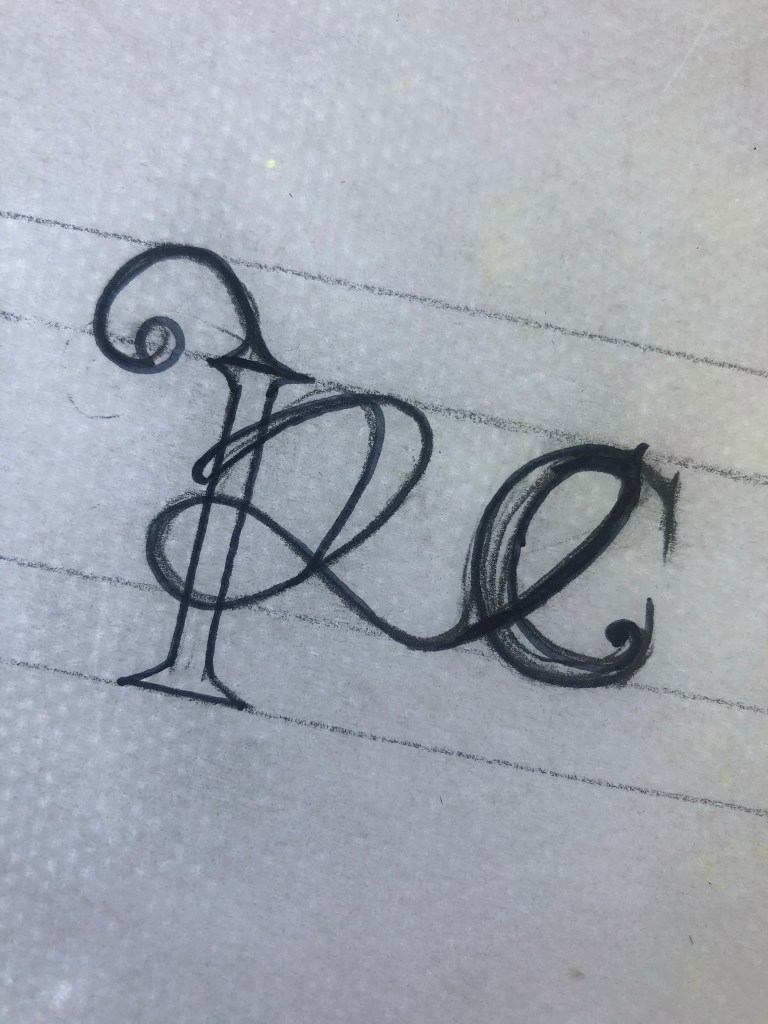
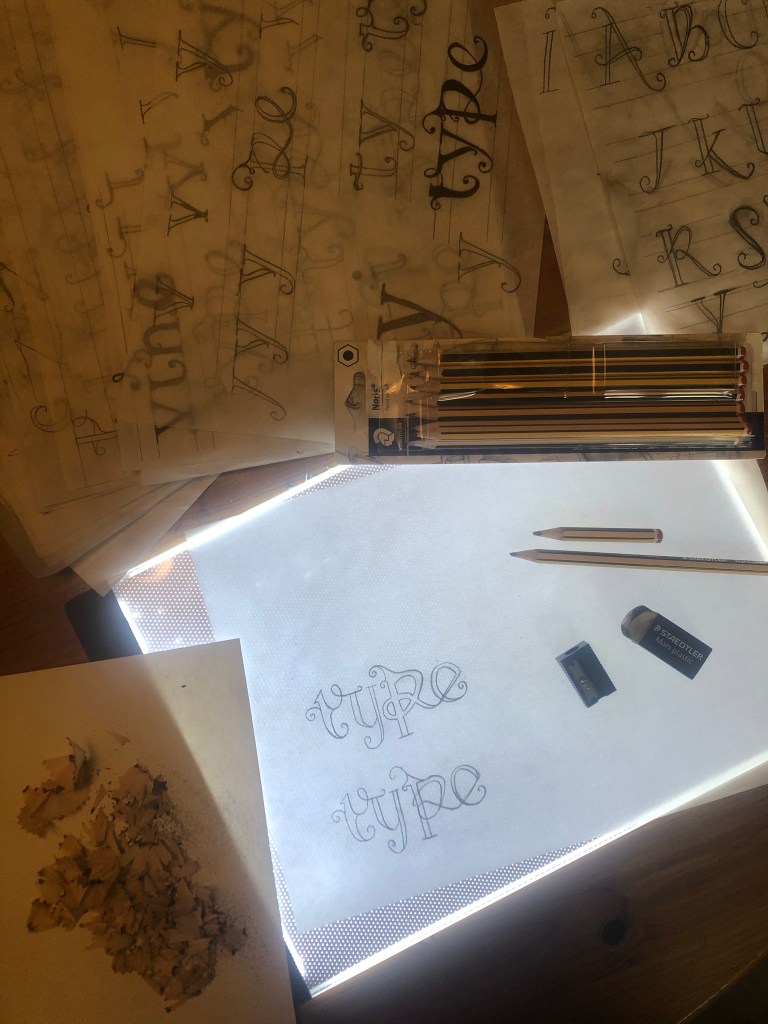
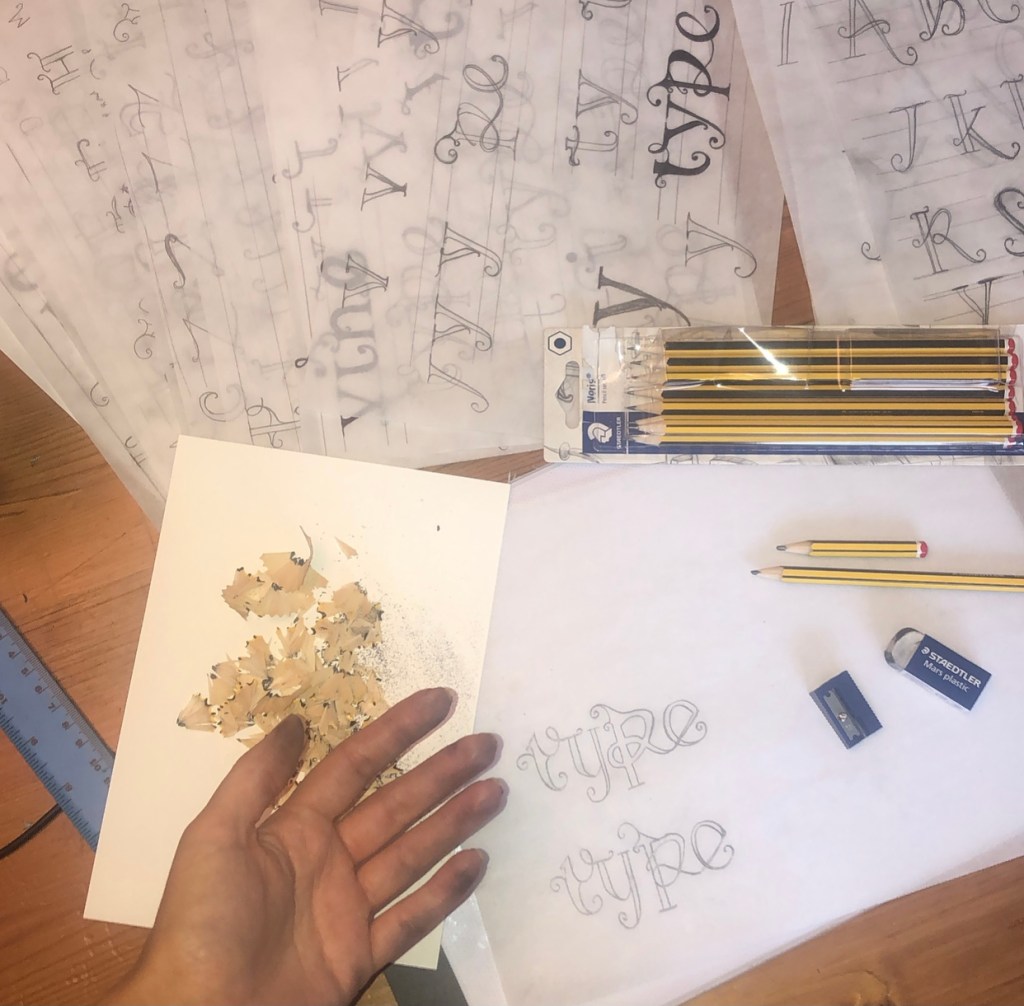
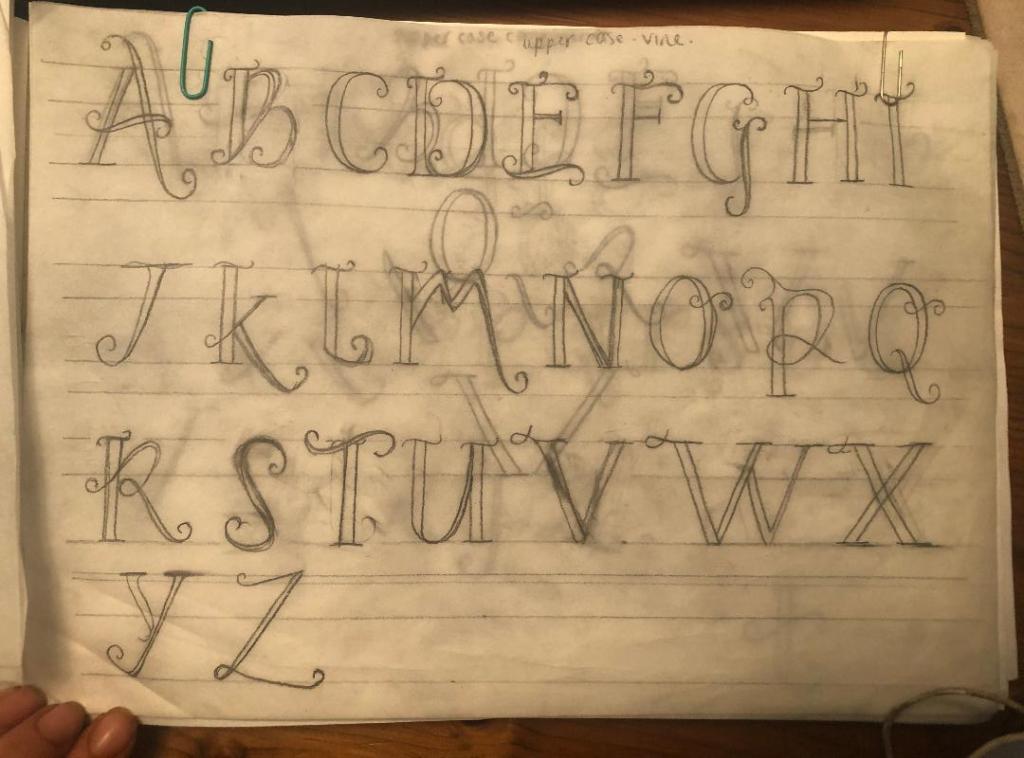
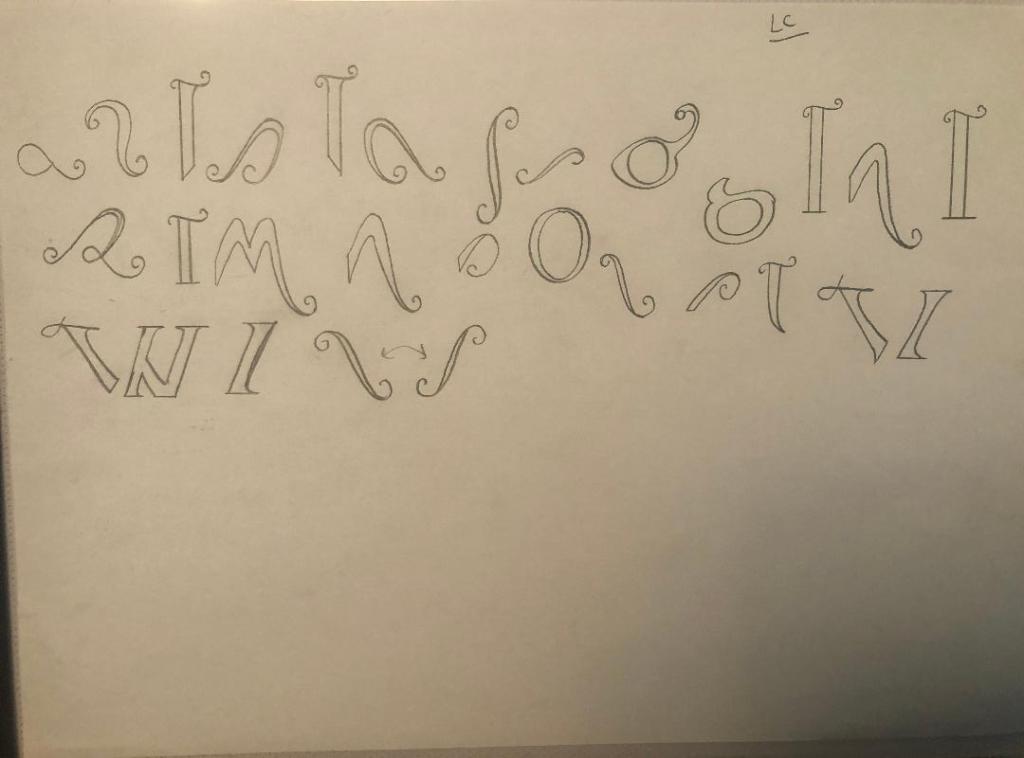
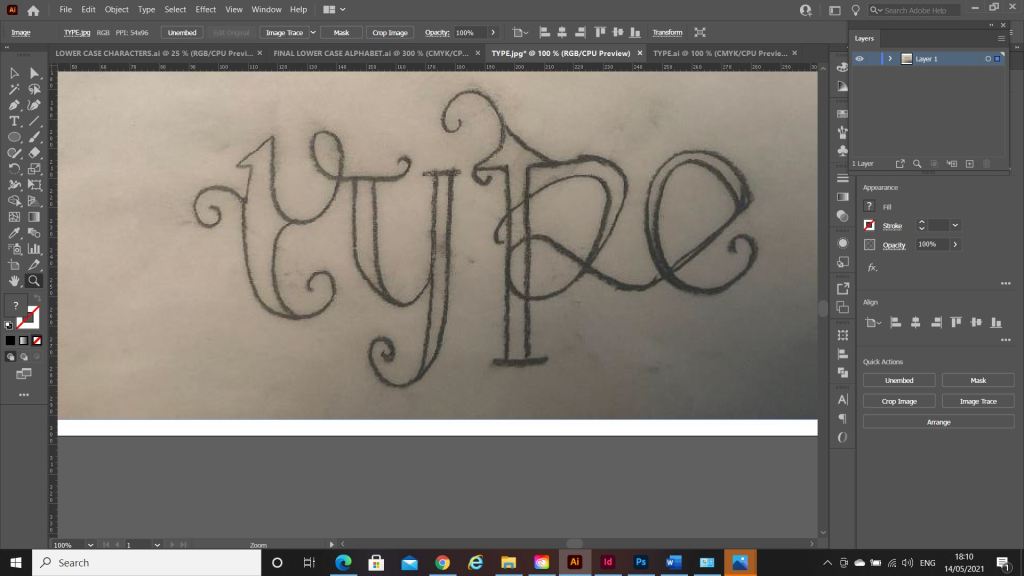
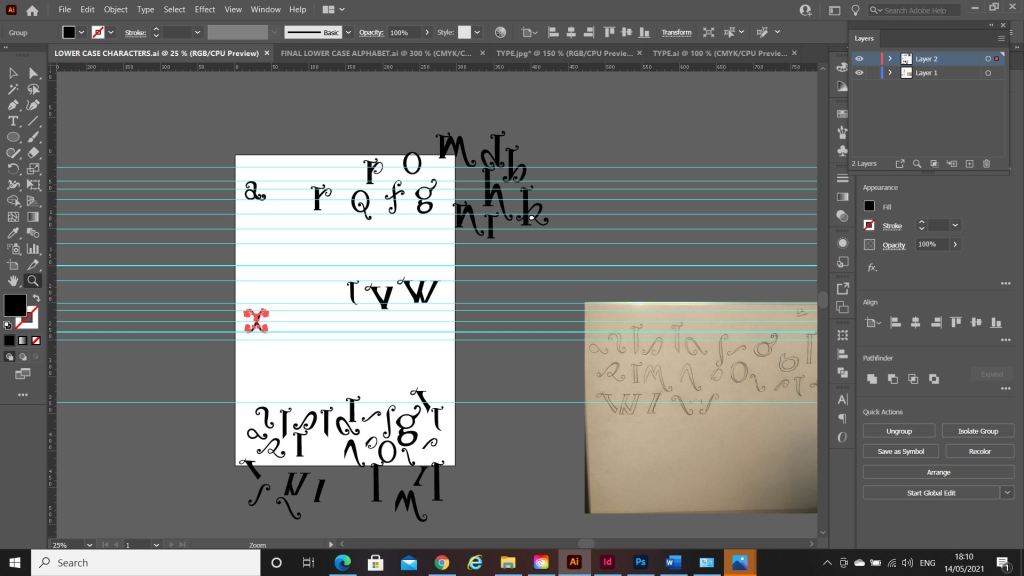
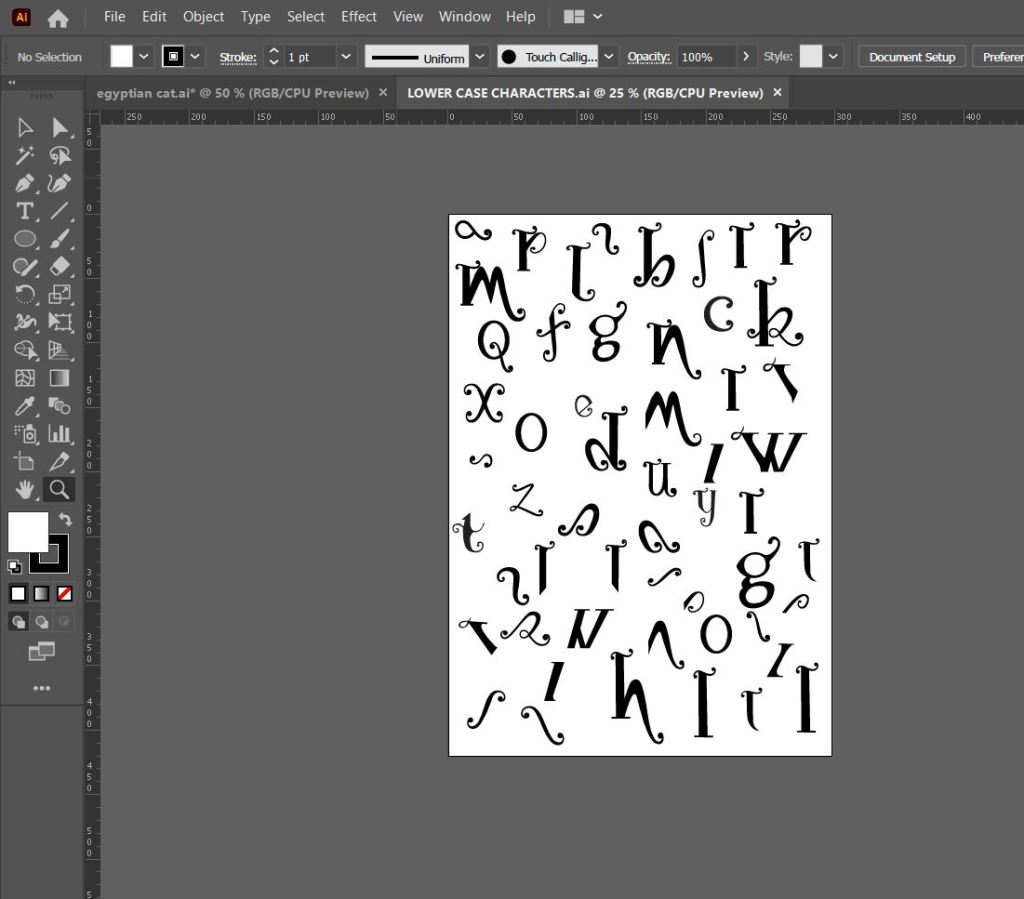
What happened next was that I spent endless hours with a pack of tracing paper, armed with erasers and a whole pack of HB pencils and I sketched out my upper and lower case alphabet for my typeface. Before I mastered the full alphabet though, I drew out “Type” first as this needed to be perfect as this is the focal point of my whole magazine.
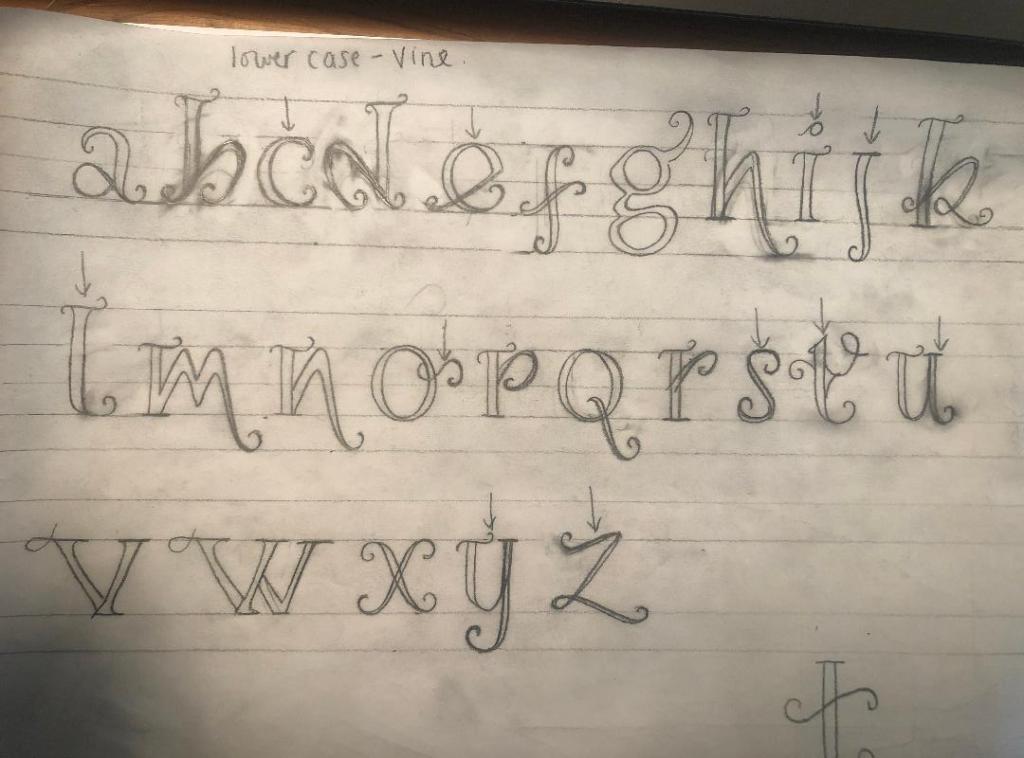
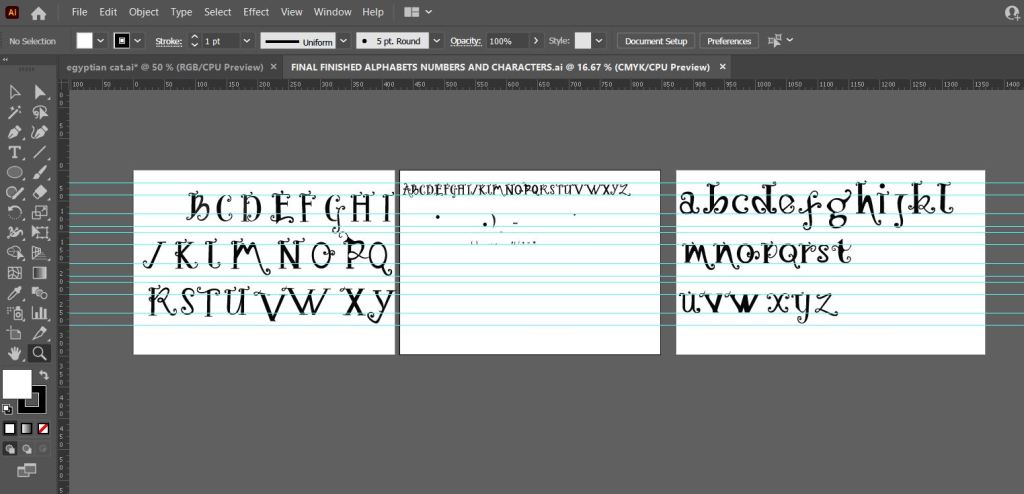
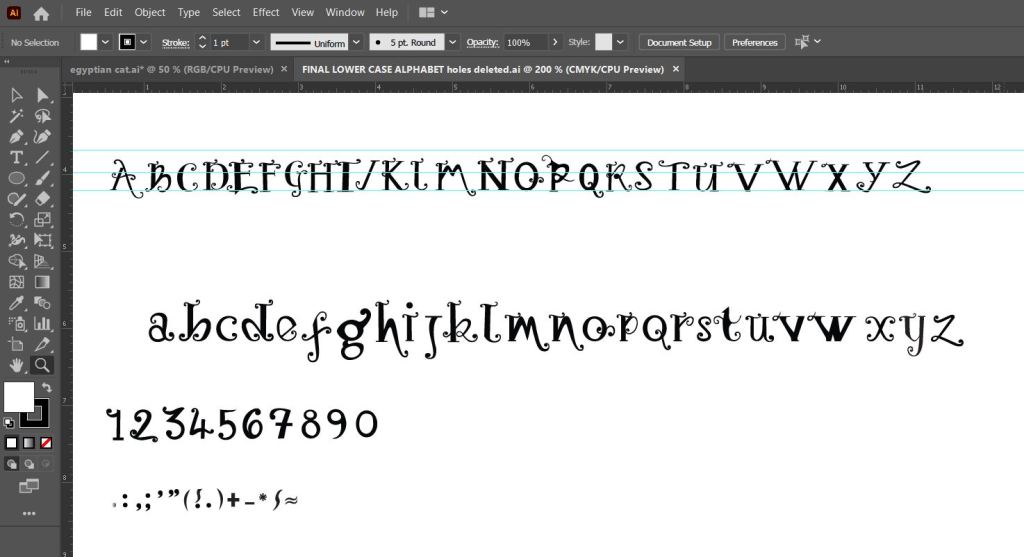
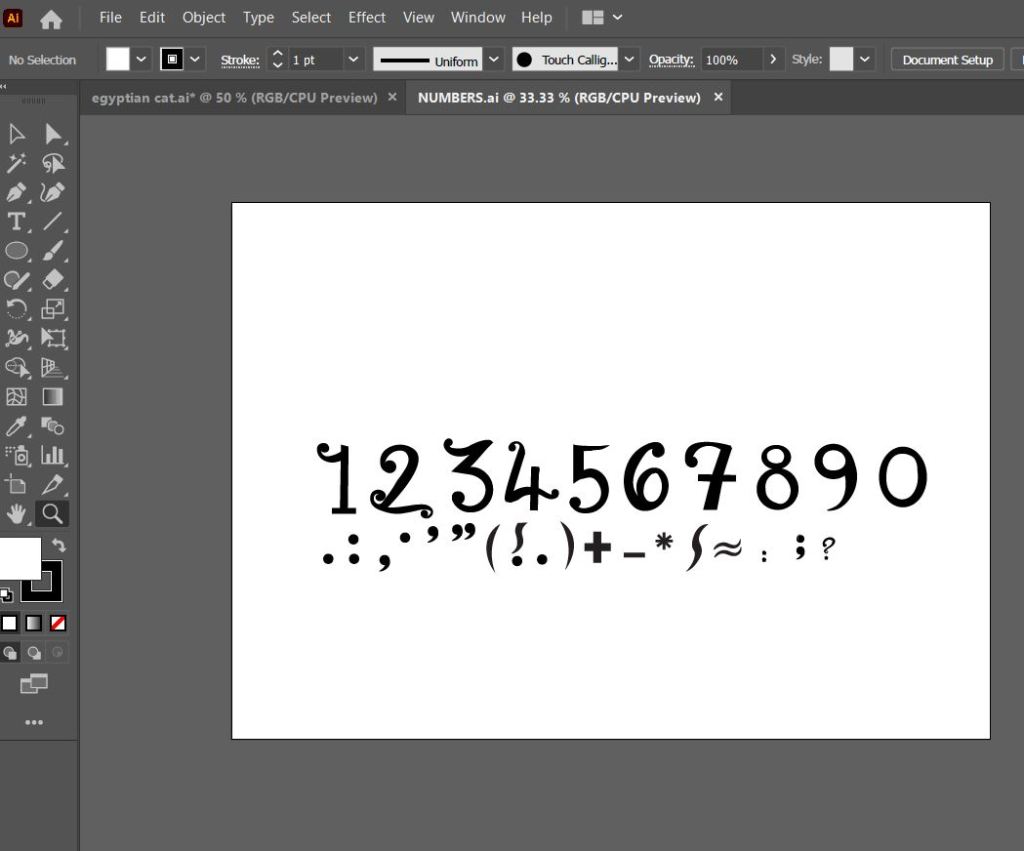
Once I perfected “Type” I then created the rest of the alphabet- lowercase, uppercase, numbers and symbols.
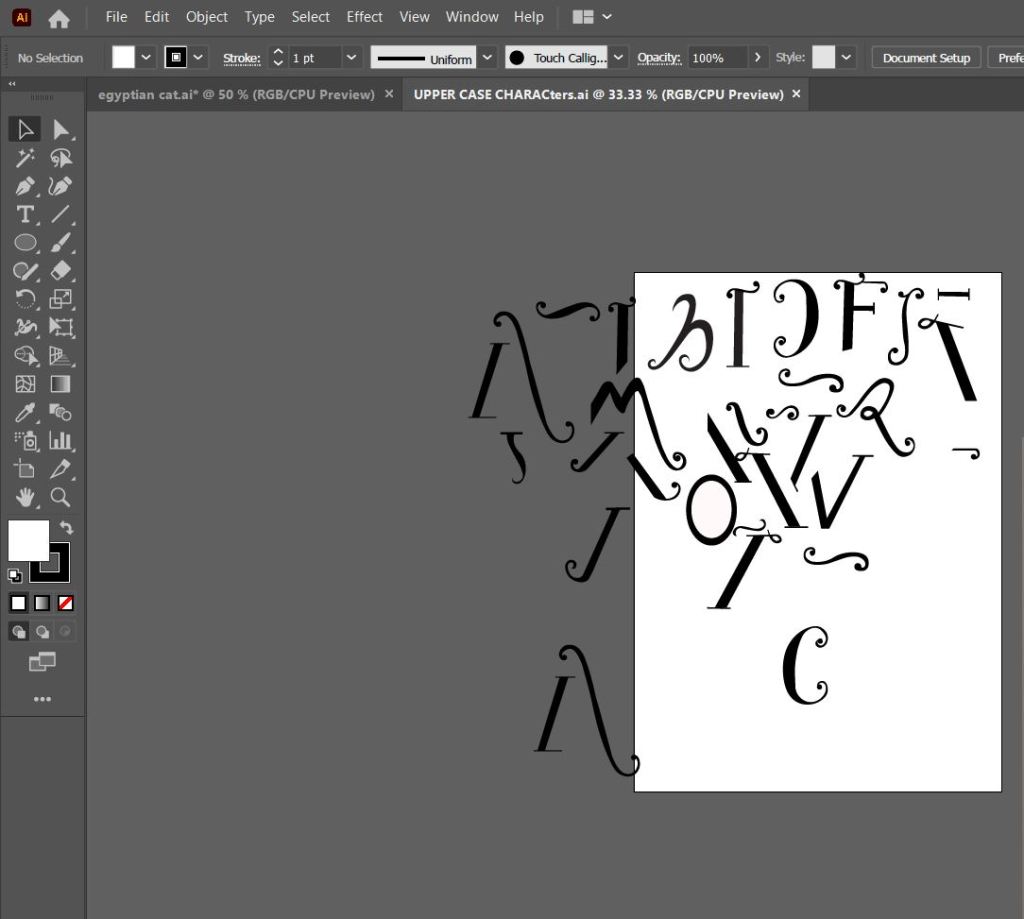
The sheet above are the parts I created that would make up all of the uppercase letters and alphabet.
This is how my letters turned out. It looks very Avante Garde and reminds me of Biba! It also looks like a Led Zeppelin Stairway to Heaven poster I used to have in my house. Clearly without knowing it I have some 1970s influences!
The sheet above are the parts that make up the lowercase letters and eventual lower case alphabet.
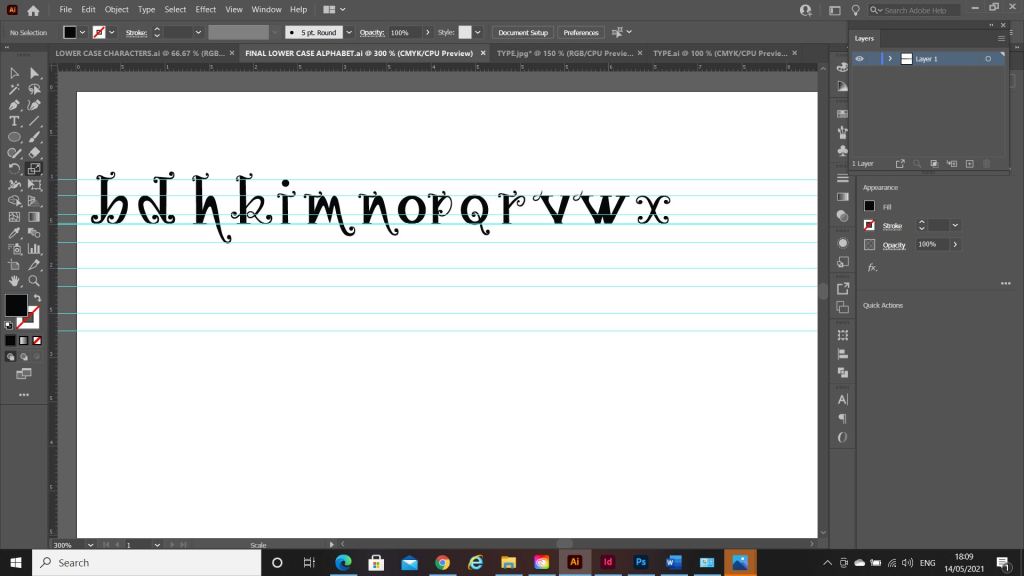
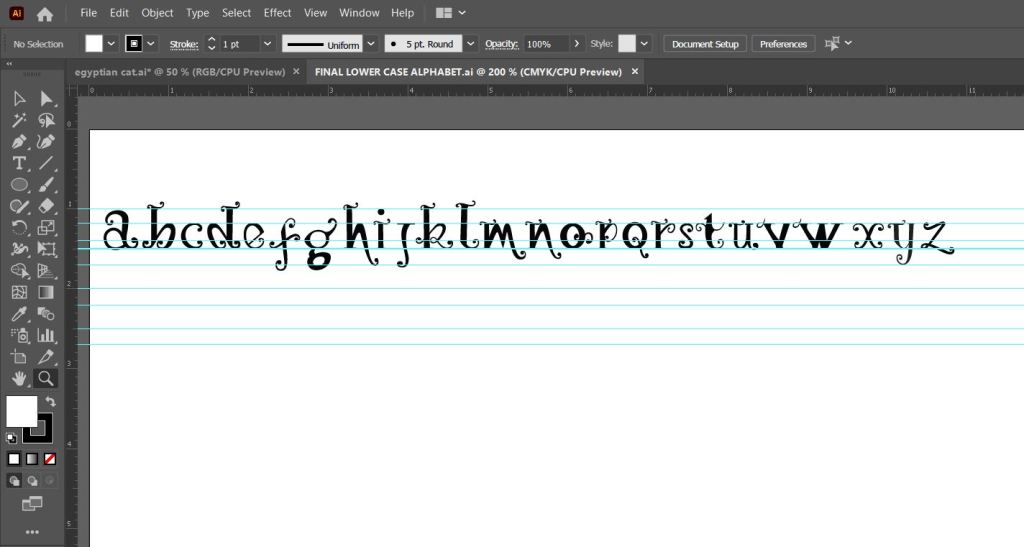
Above is the final lowercase alphabet! I actually quite like the b and d. Again, I am feeling a 1970’s vibe with this!
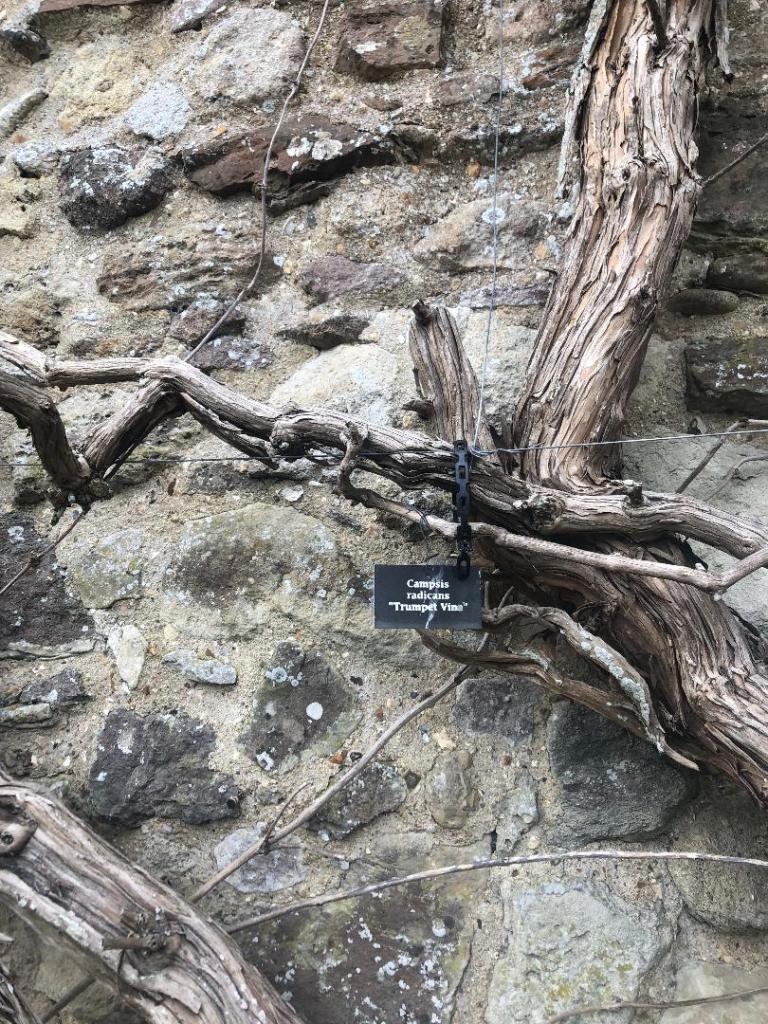
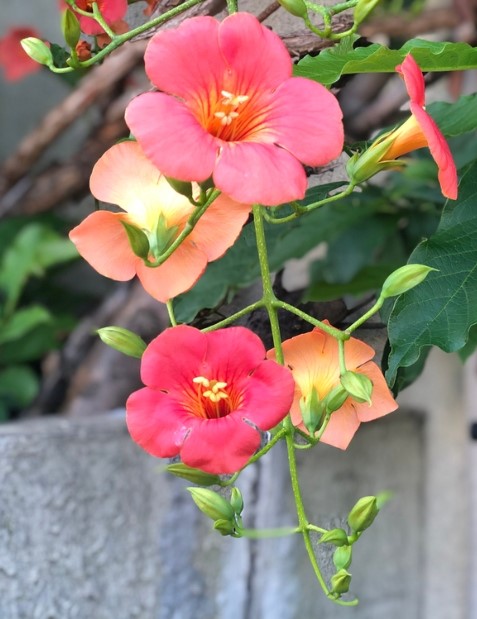
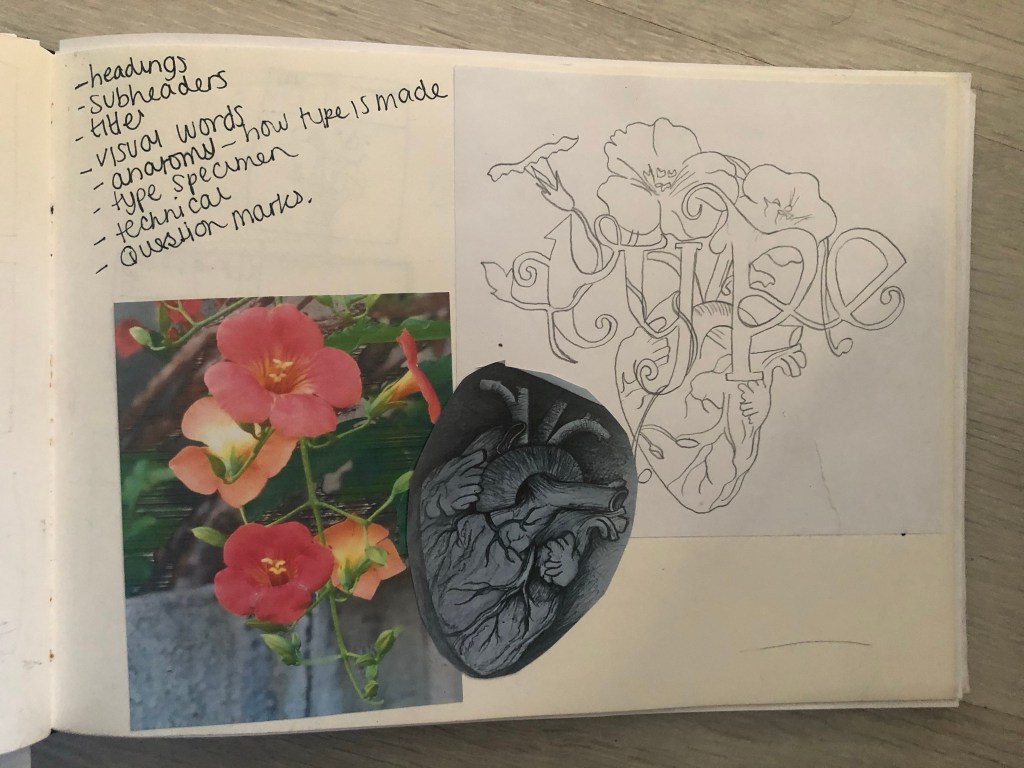
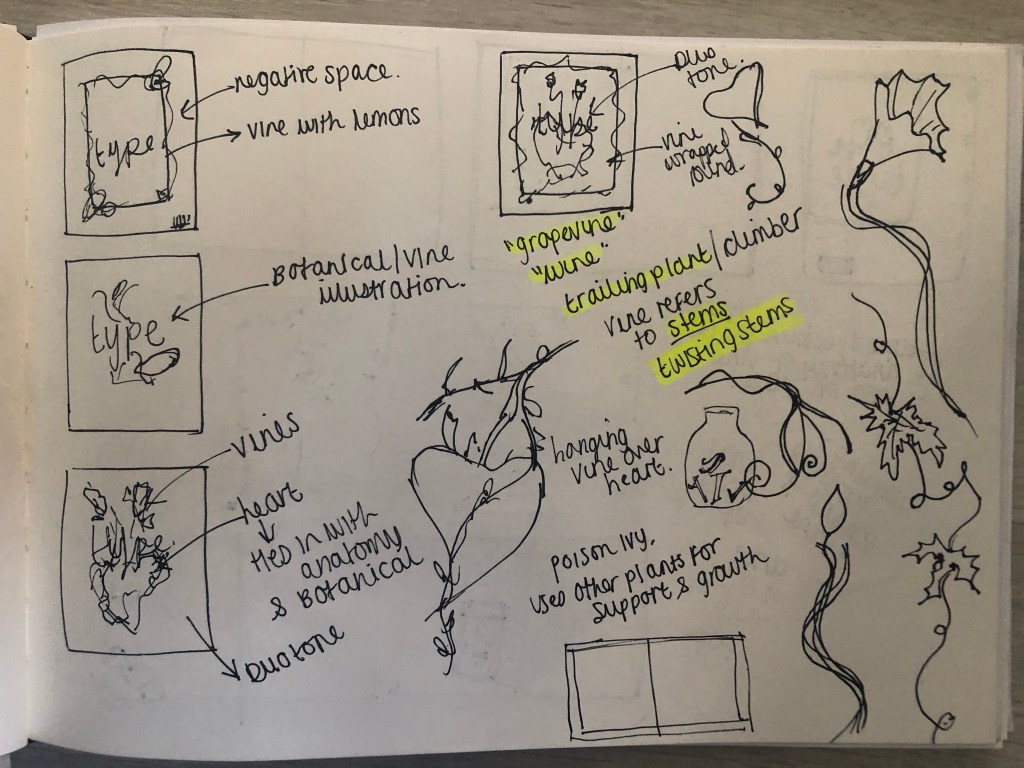
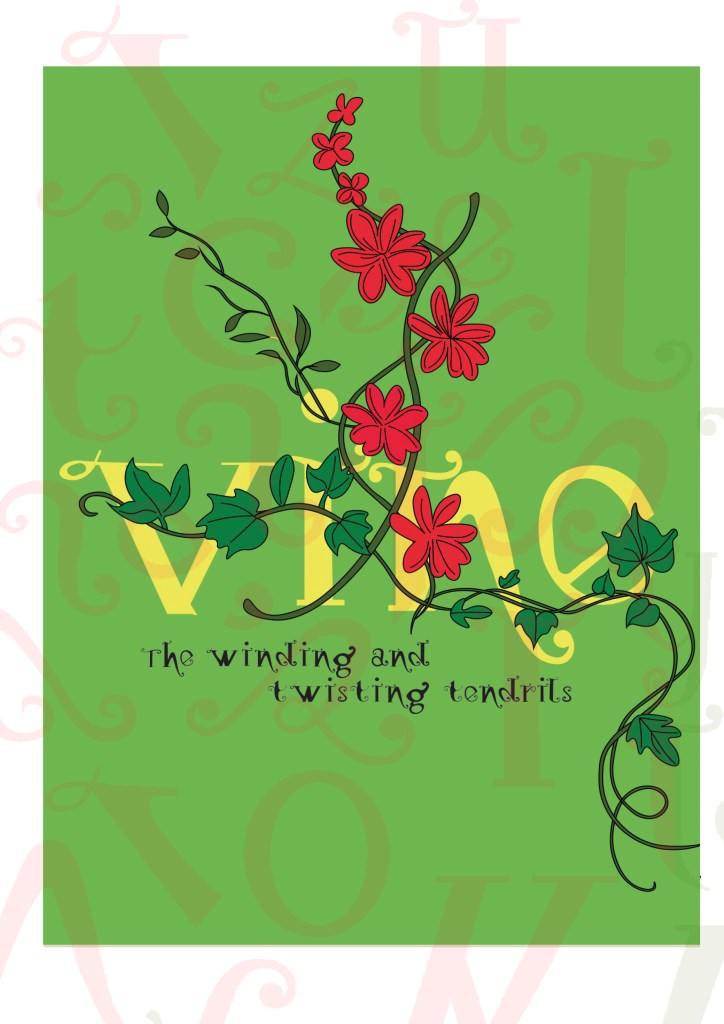
I needed a name for my typeface and asked my boyfriend Chris for any ideas, he actually came up with the name I used for it – Vine! In his opinion it looks like a vine with all the twists and twirls and to be honest it tied in perfectly with the plant botanical influence I wanted to use. I had also visited Beaulieu Estate whilst doing this assignment and there was a trumpet Vine there that I took a photo of as inspiration and to potentially use in my magazine design.
The trumpet Vine at Beaulieu
Digital Development
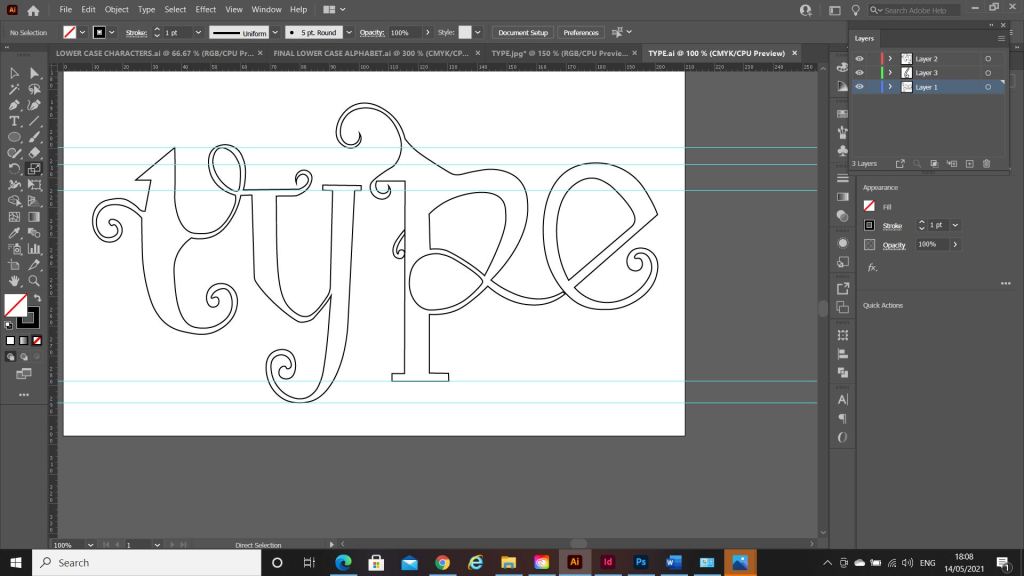
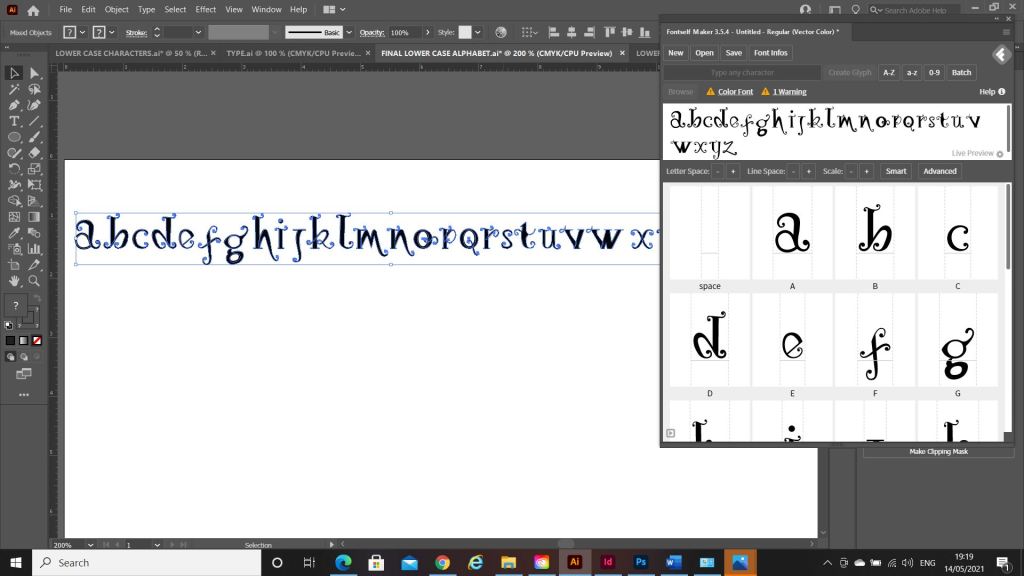
The next stage was a painstakingly long one! I had to take my drawings of Vine and draw them in Illustrator and turn it into Vector lettering to eventually import into a programme I bought called Fontself which turns your vector lettering into an actual font! How exciting!!
Eventually I drew out all the parts of the letters and pieced them together to form my letters. I then imported them into Photoshop to measure them out on a baseline and to an X-height and Cap height etc..
I mentioned earlier that I bought and used Fontself to create my typeface. I downloaded it from their website and then it is opened up in Photoshop where you can drag your letters into the programme directly from Photoshop to create your font!
When the typeface has been made by Fontself it can then be downloaded as an actual font!
The only downside to my font is that it actually looks like the gimmicky, tacky font called Jokerman! I did watch a YouTube video on how to use Fontself though by Chris Do and he did seem to design a version of Comic Sans so it could always be worse! Also, because I did not spend as much time as I would have liked creating the typeface the sizes all came out wrong from my hand drawn baseline. That is why letters such as the J sit way too high. It takes years and years to perfect a typeface though so I am pretty pleased with the one I have created and also it has given me an idea of how type is created! Even if I have done it in an amateur way, I have gone through the correct process of designing a typeface. I did read about optical illusions after I had created this though and wished I had created the X differently. Where a thin line is obstructed by thicker lines they seem to continue on a different path; i.e the X. To balance this illusion the thin diagonal strokes must be placed at different angles parallel to each other. The greater the contrast, the more this illusion happens. It can also be visible in Q, W and ampersands. I would definitely have another go at designing a typeface however, maybe when I have more time though and deadlines are not looming!
My next step was to figure out how to turn my title into a beautiful magazine cover!
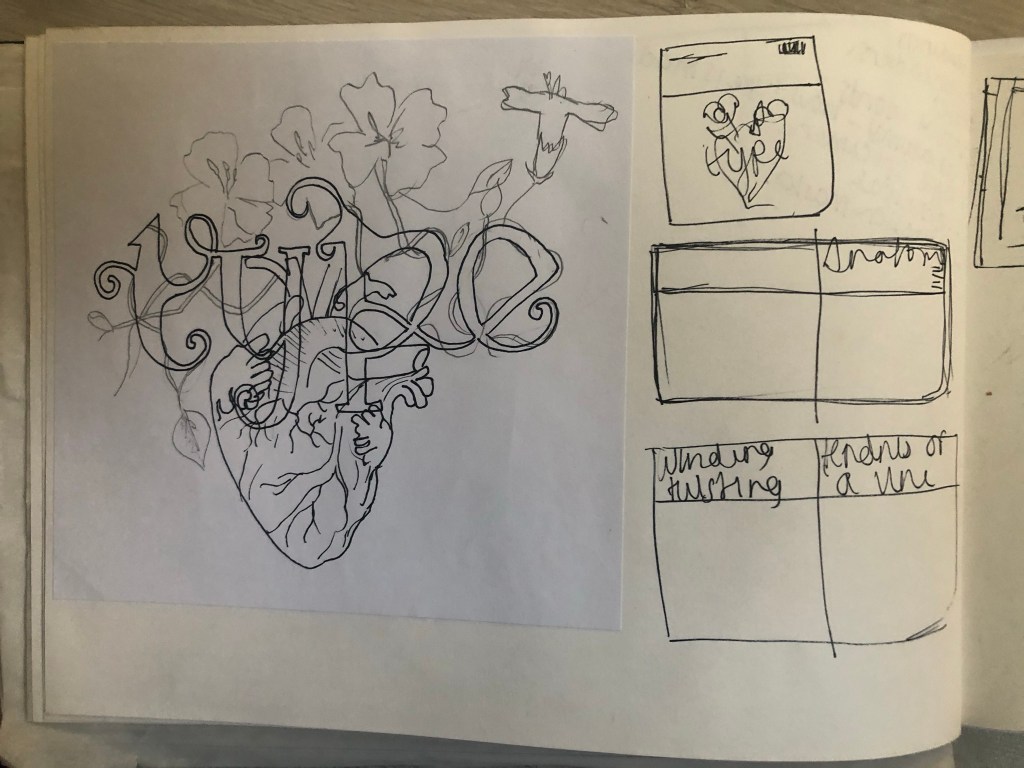
I already mentioned how I had the idea to use a drawing as the main image for my magazine cover; similar to what I achieved with my HG Wells titles that I did earlier in the course. I had the idea to create an anatomical design which links to the anatomy of type but is also similar to plant and human anatomy. Whatever design I chose to do would also have to relate back to Vine also.
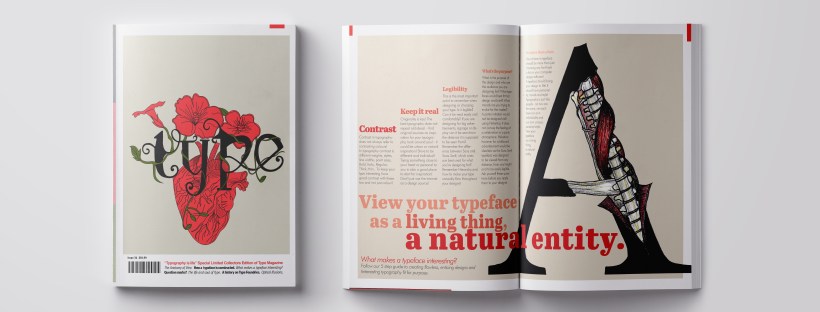
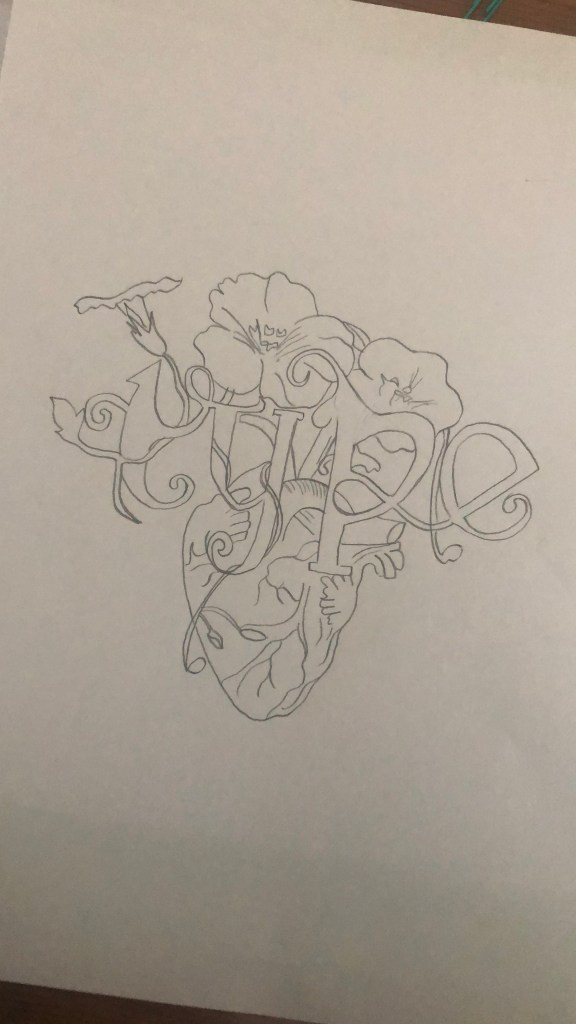
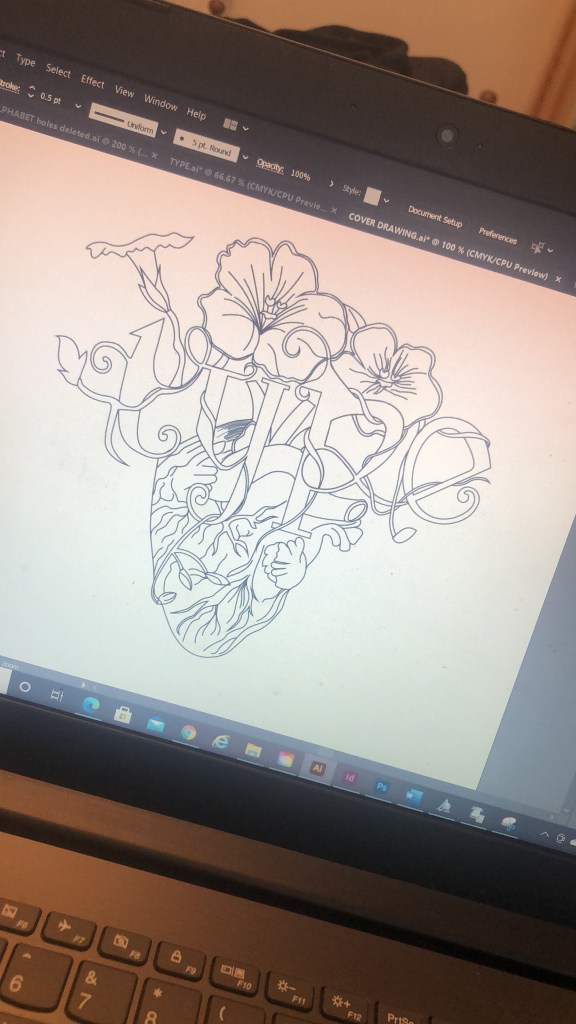
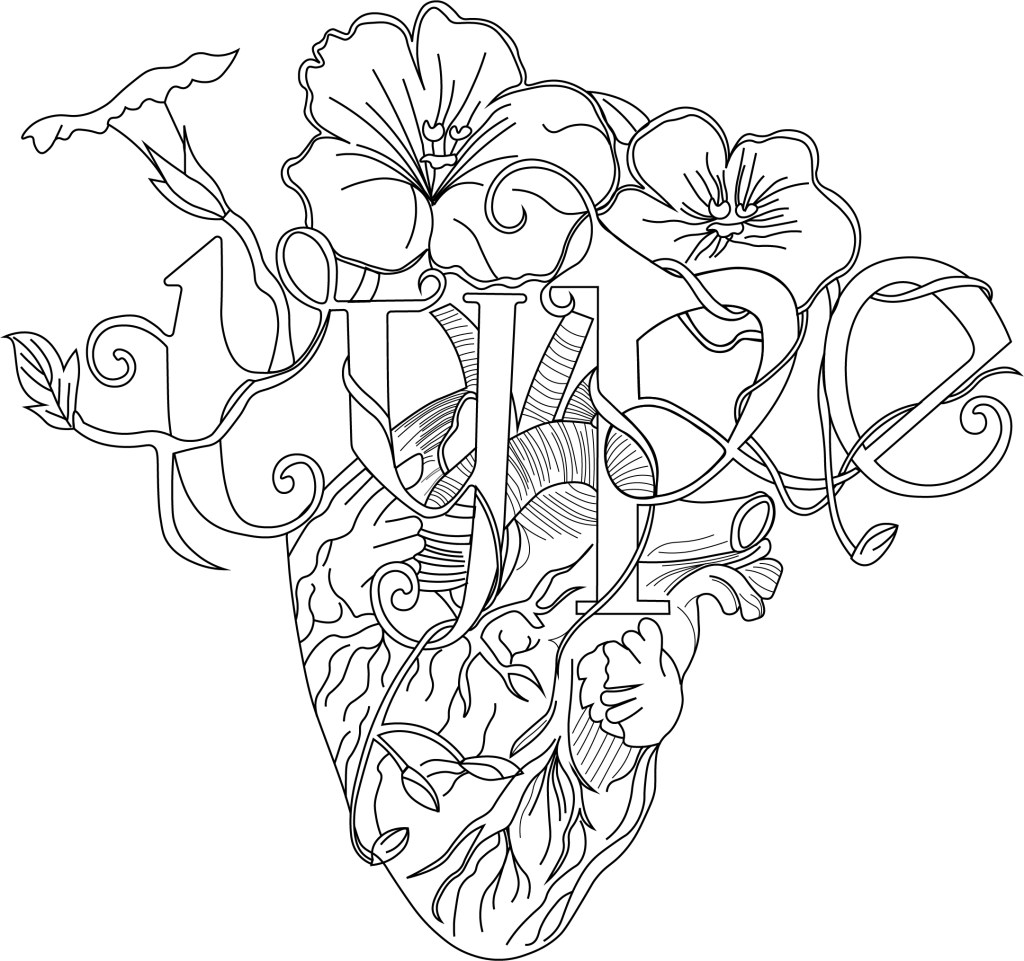
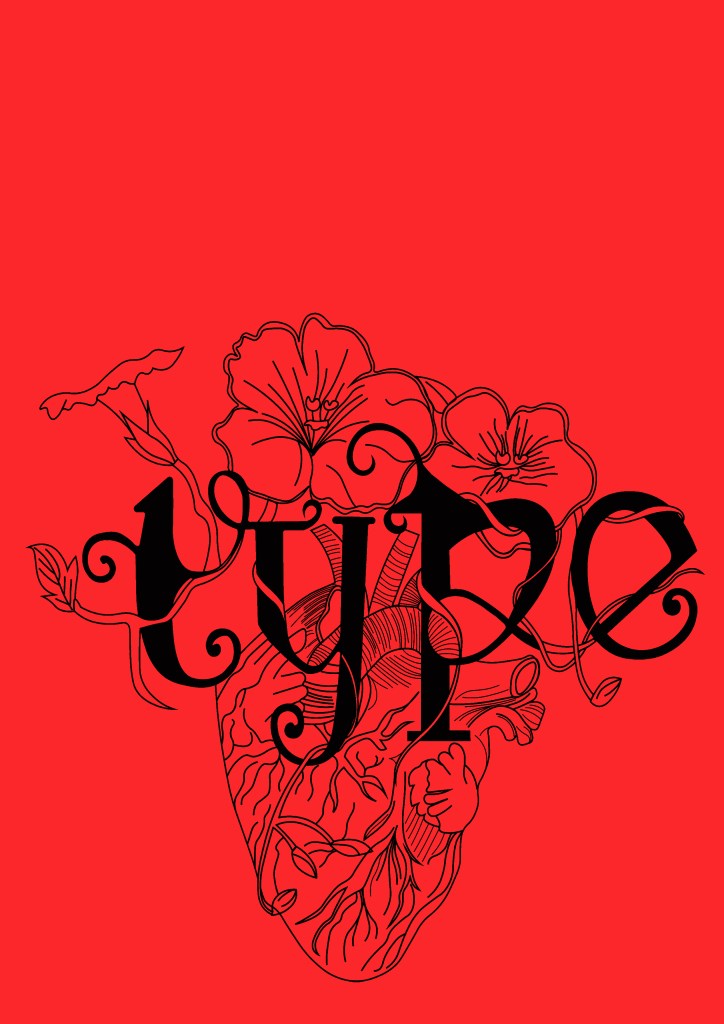
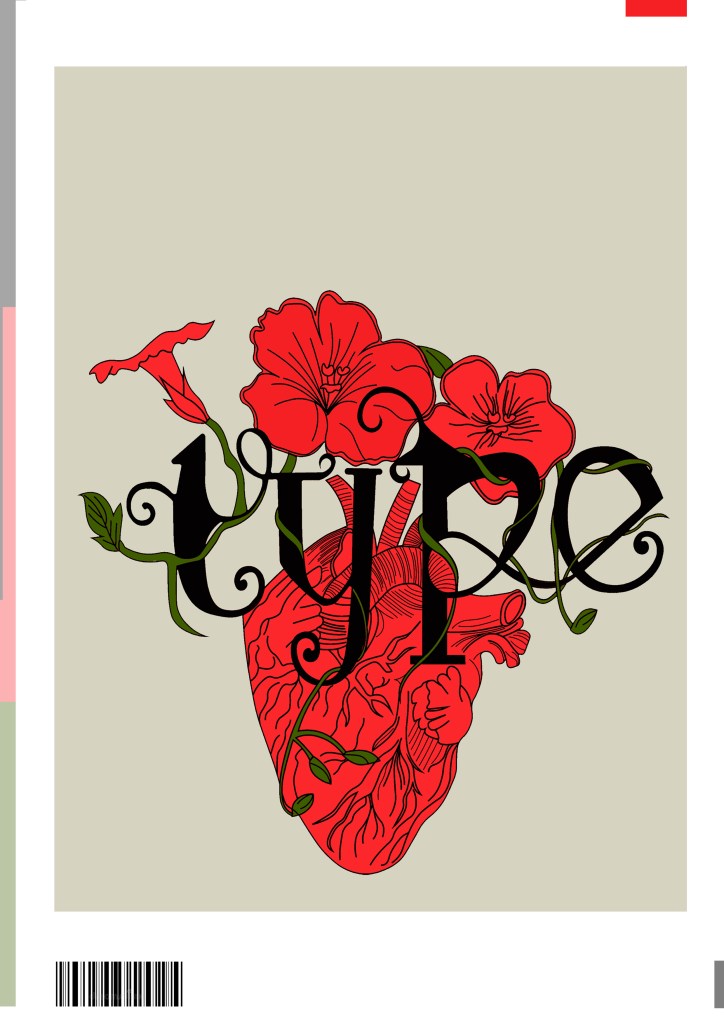
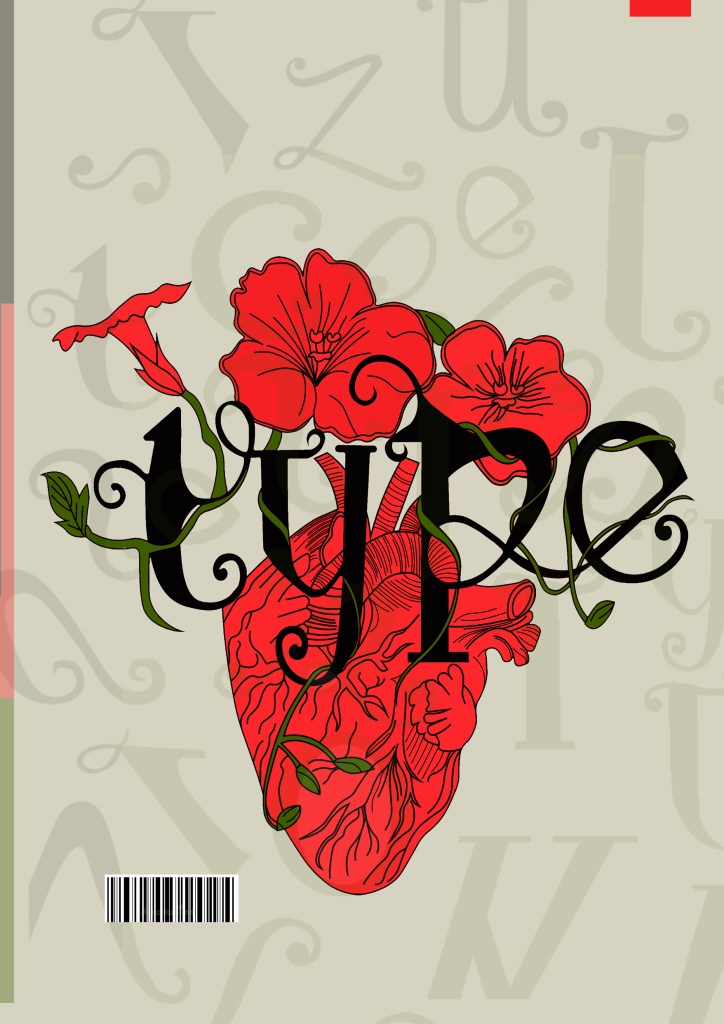
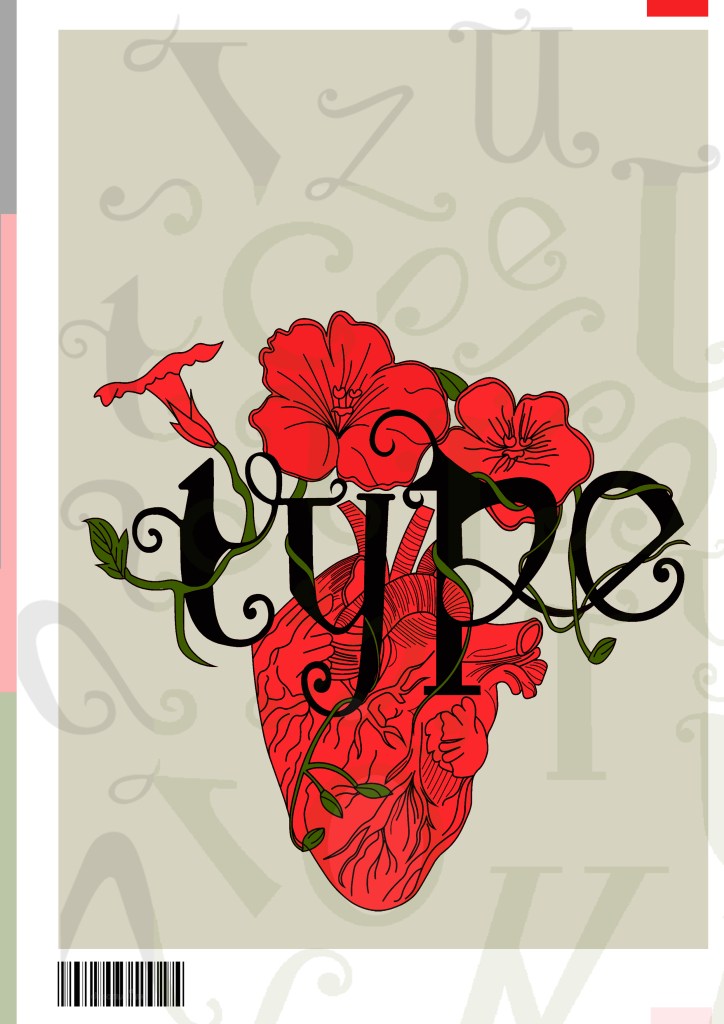
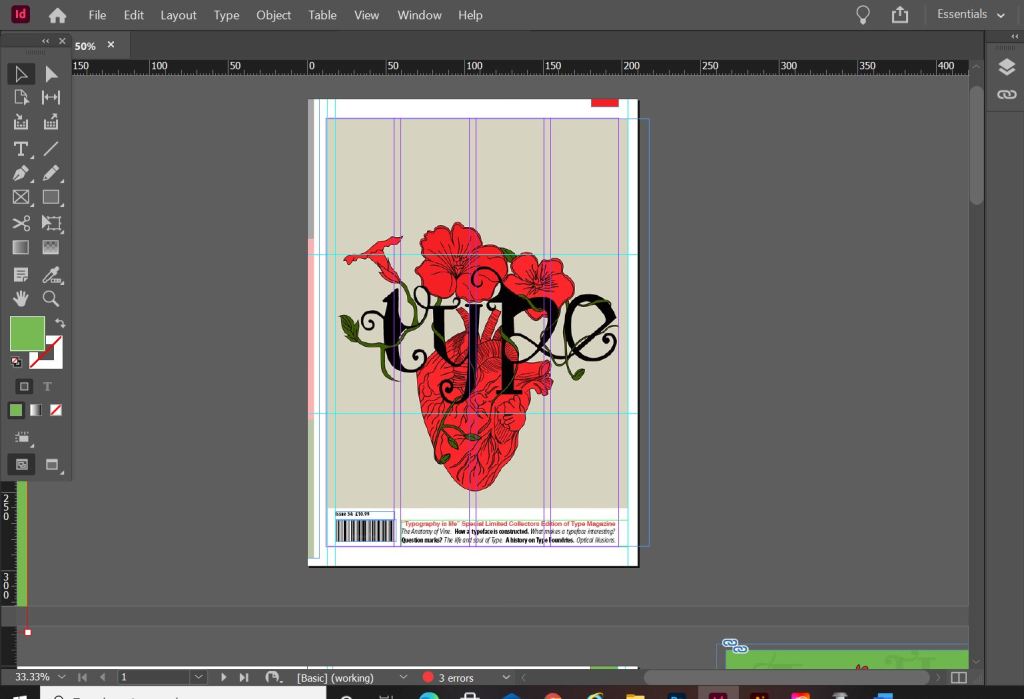
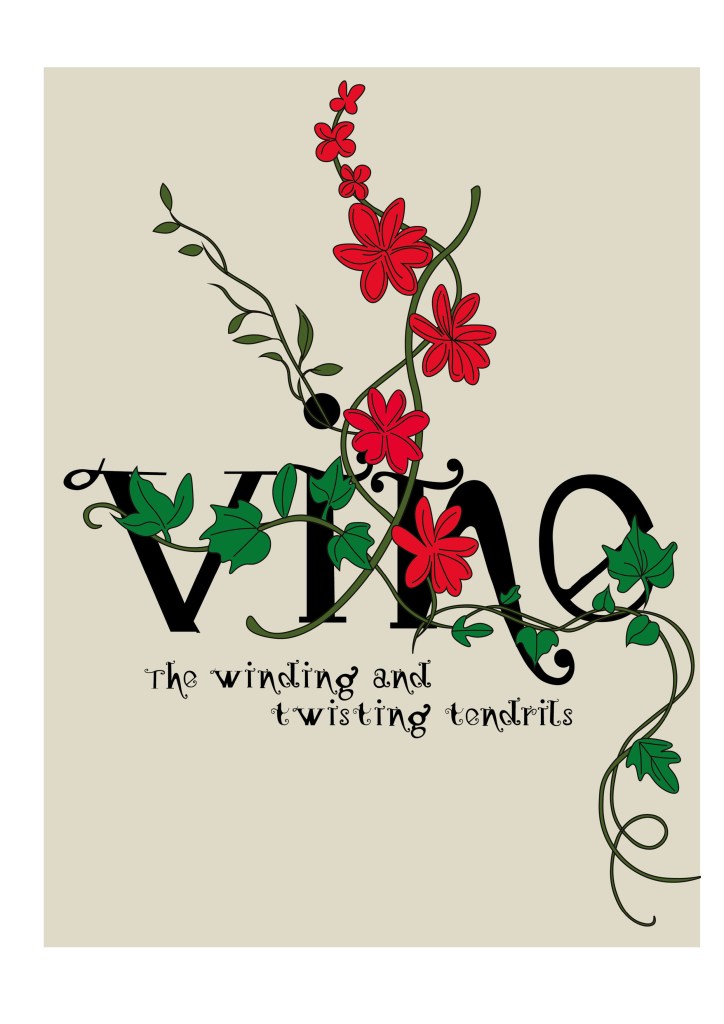
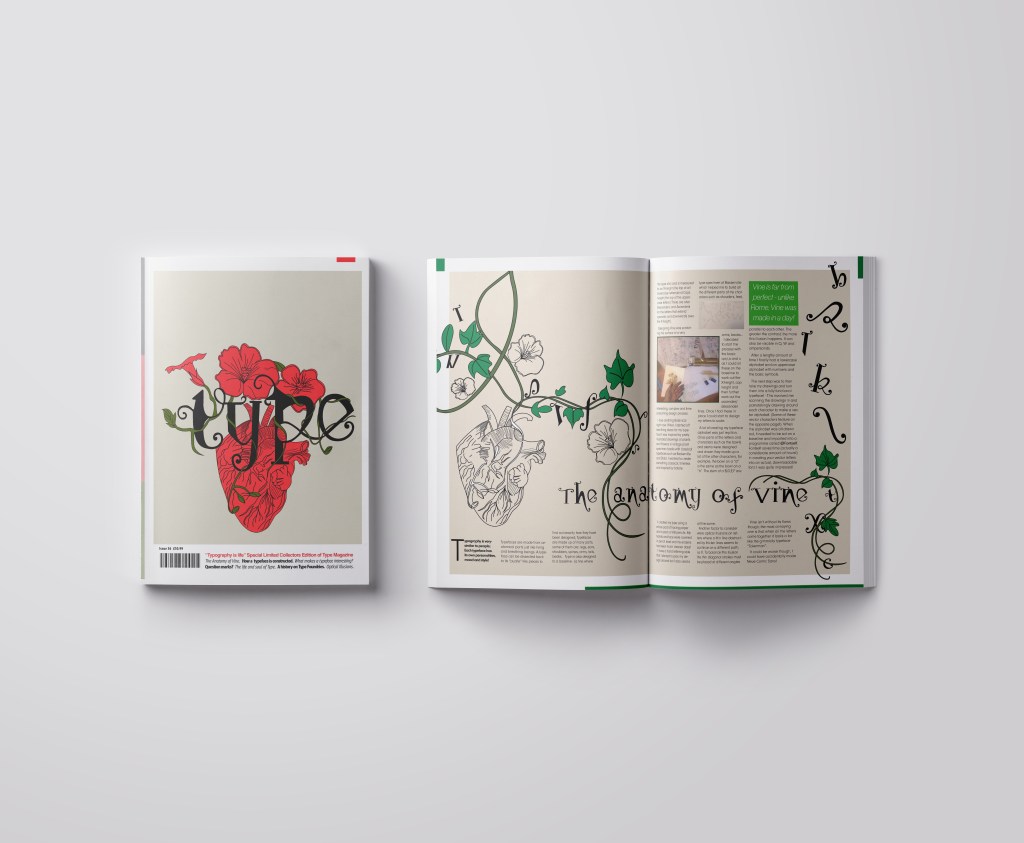
This is the design I came up with; very similar to the art I did for one of my HG Wells covers, in fact I used the drawing of the heart I used for that in this. The heart relates back to the human anatomy and the vine that is wrapped around the heart and the type represents the fact that it is also living in the same way. I also googled vine flowers and it came back with Red flowers which matched the colour scheme I was going after.
The heart I used in my HG Wells covers
Once I had drawn it up, it really did look like a good piece of vector art!
As much as I love Black and White line drawings, with vector art it just doesn’t look as good. I had the idea to do Duotones on this but none of the colour schemes I came out with really worked. I decided in the end to colour it in. Once I had it coloured it in, it gave me once again Avant Garde vibes.. like the sort of illustration you would have found on a 1920s postcard or in an illustrated Victorian style flower book. Either way, I liked it!
Now was the time to start designing the magazine cover!
Designing the magazine cover
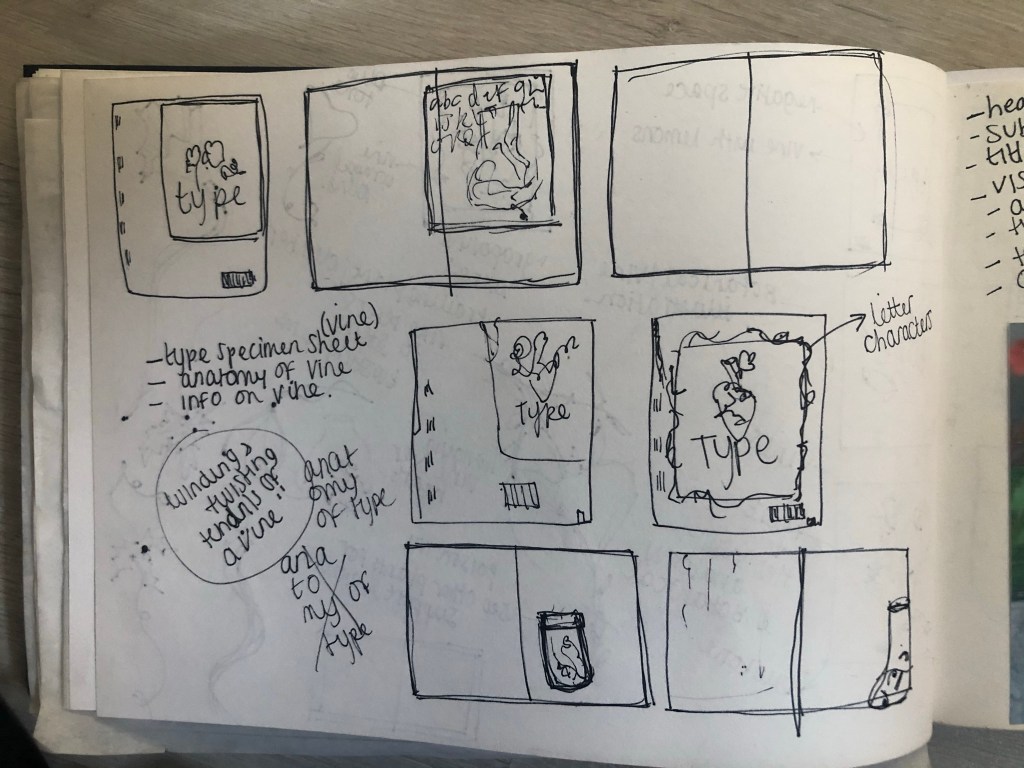
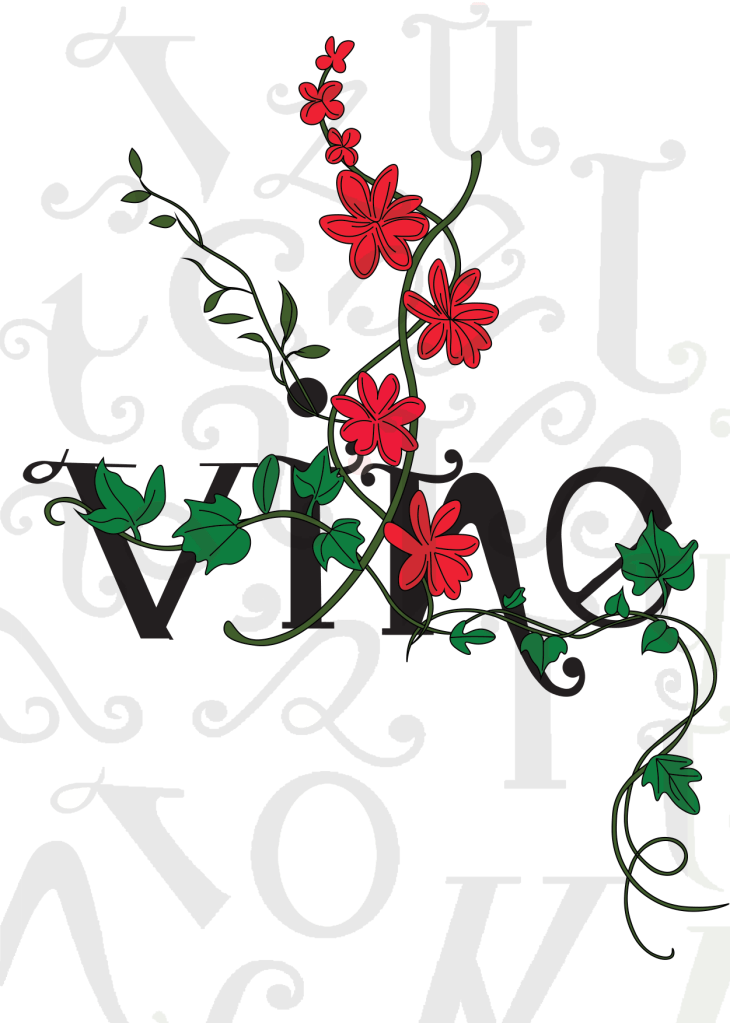
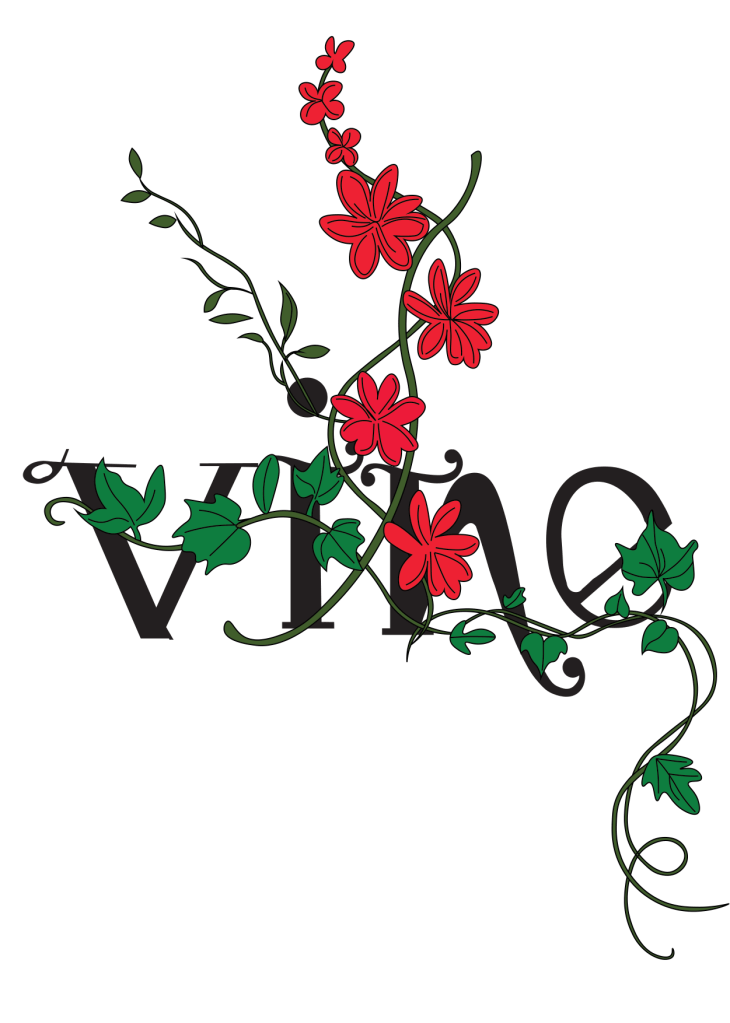
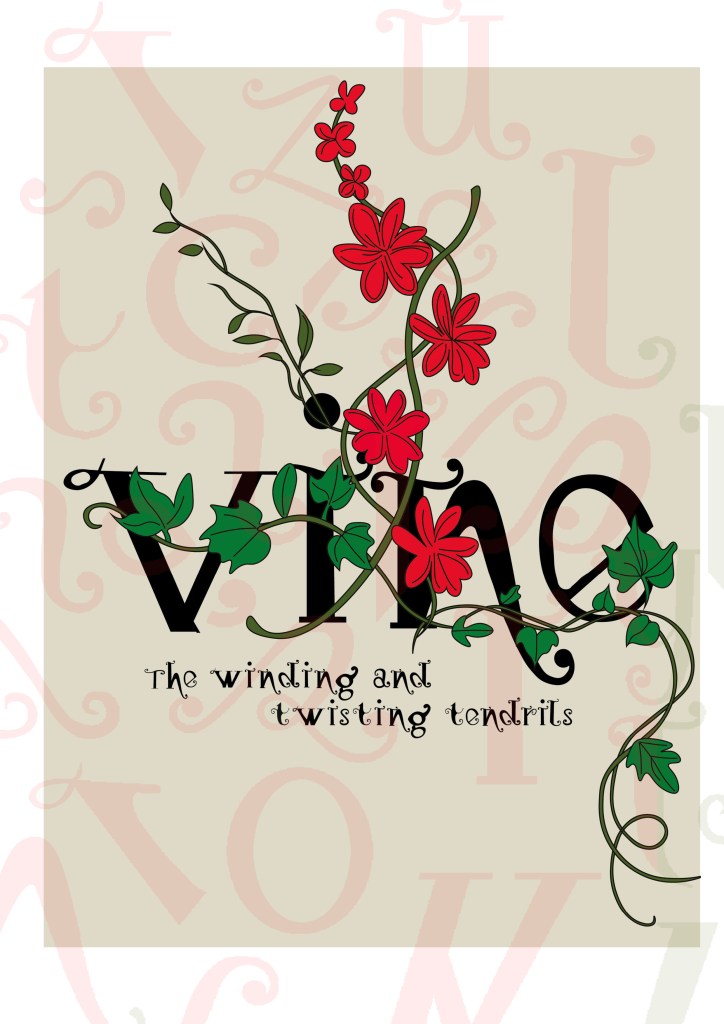
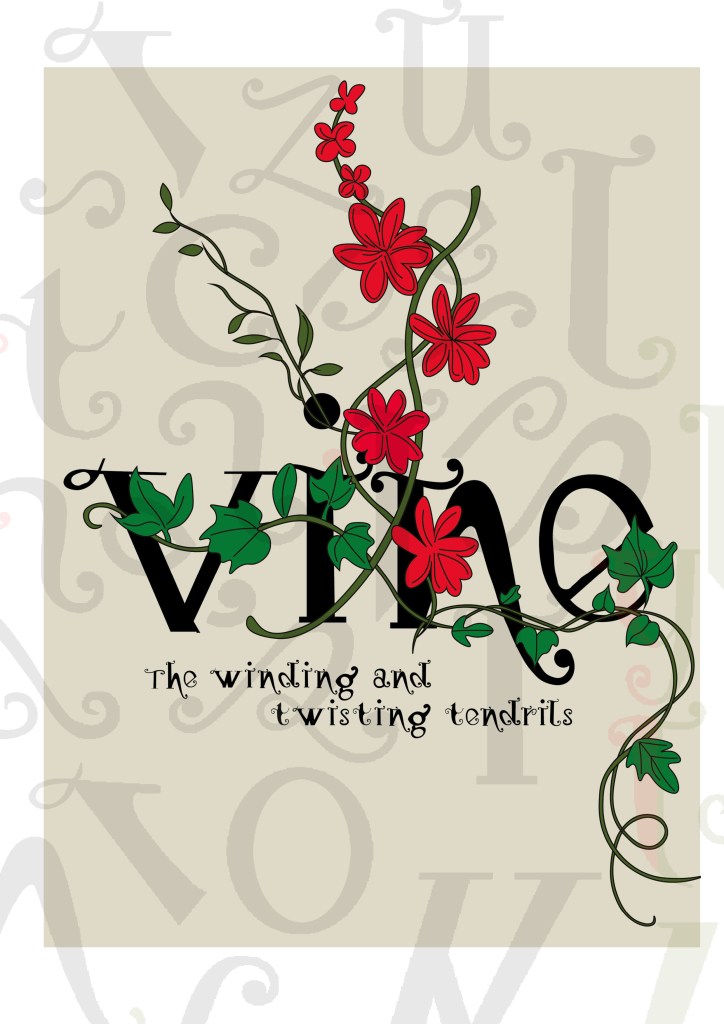
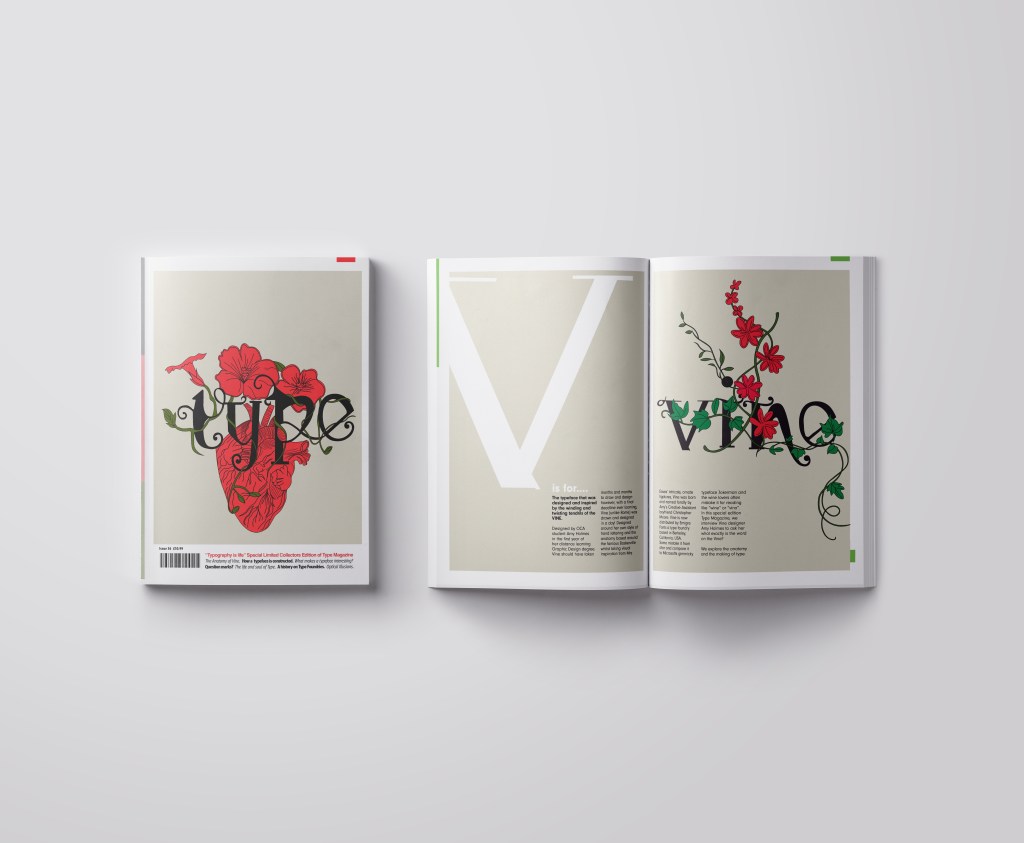
I wanted a cover with lots of negative space, to look minimalistic and to be instantly eye catching and bold to look at and these were the final contenders for my front covers. I really struggled to choose between the middle one I went with and the bottom one with the parts of the letters in the background. Everyone I asked chose the bottom design, but in the end I thought the simple plain background worked better and didn’t take the attention away from the main image. It felt like the bottom one was trying to hard to compete against itself. I did ask one of my colleagues at work (she is a Textiles teacher) and she said when she saw it, it reminded her of one of the matte expensive magazines you buy from fancy exhibitions and museums! BOOM! I met my own expectations! ;p
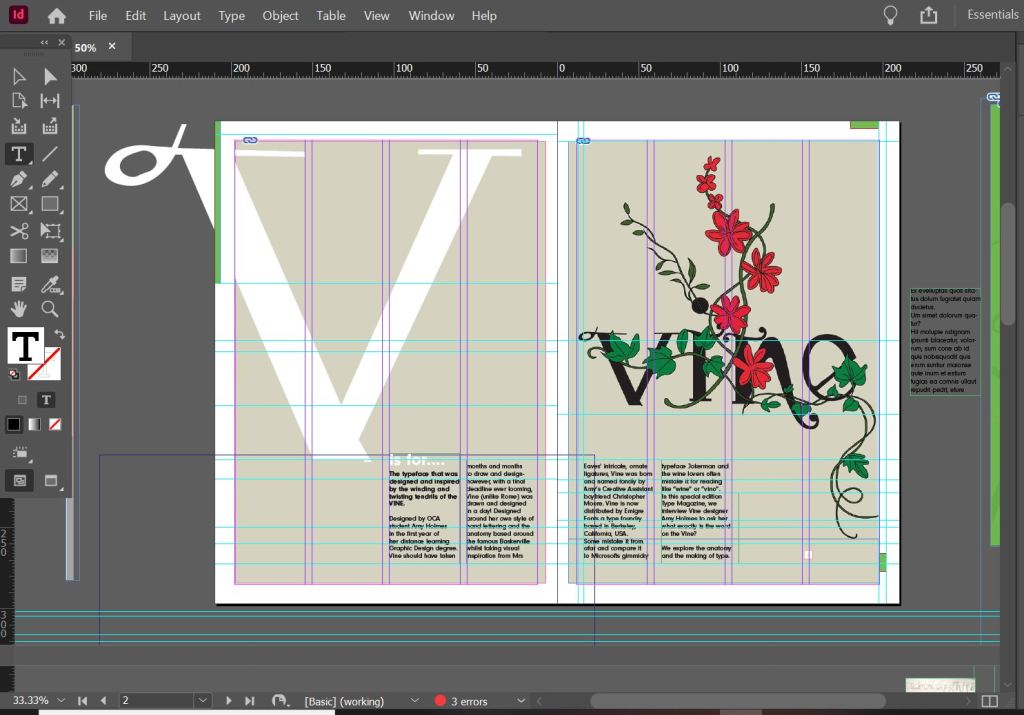
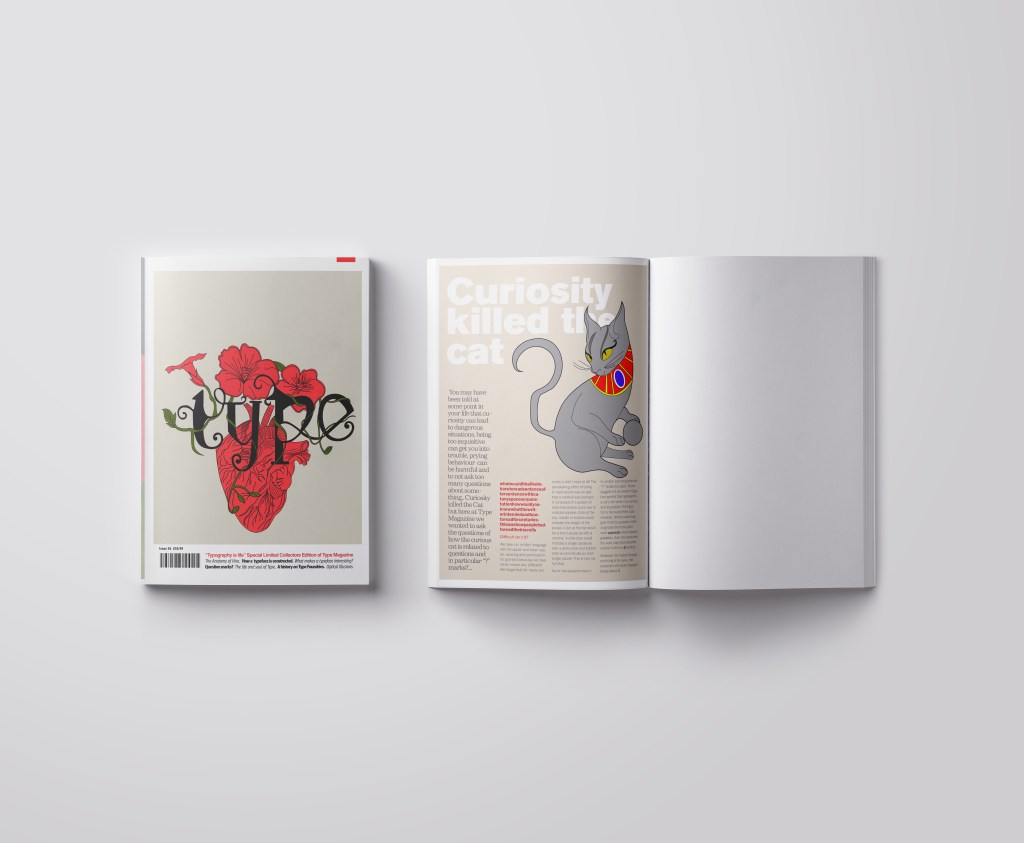
I created the illustration in Illustrator and then exported it as a PNG with a transparent background so that I could import it into InDesign and change the colour background to whatever I wanted. I worked to a 4 column grid. The typefaces I used along the bottom of the magazine were Helvetica, Meta condensed Bold and Meta condensed book italic. They all work well together and bring contrast to the layout.
Designing the introductory pages
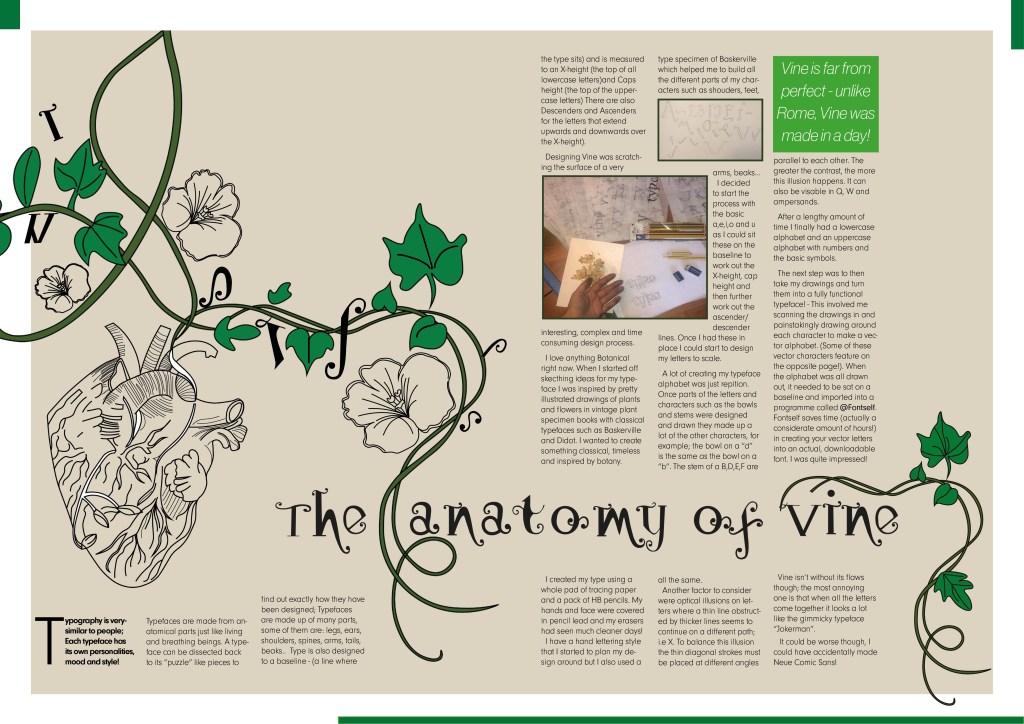
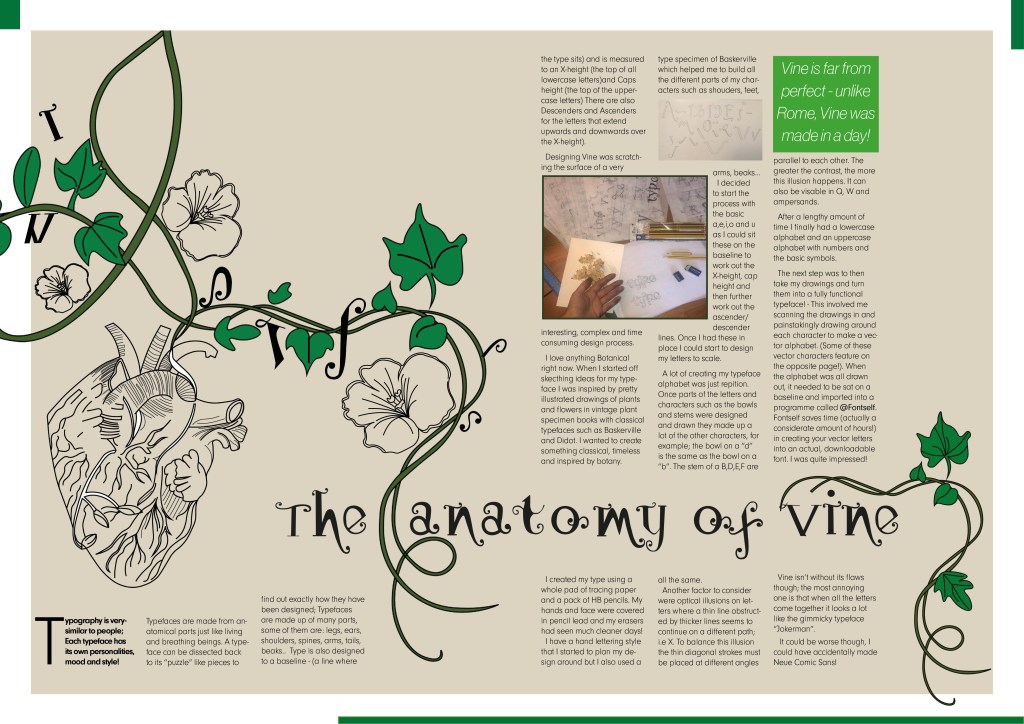
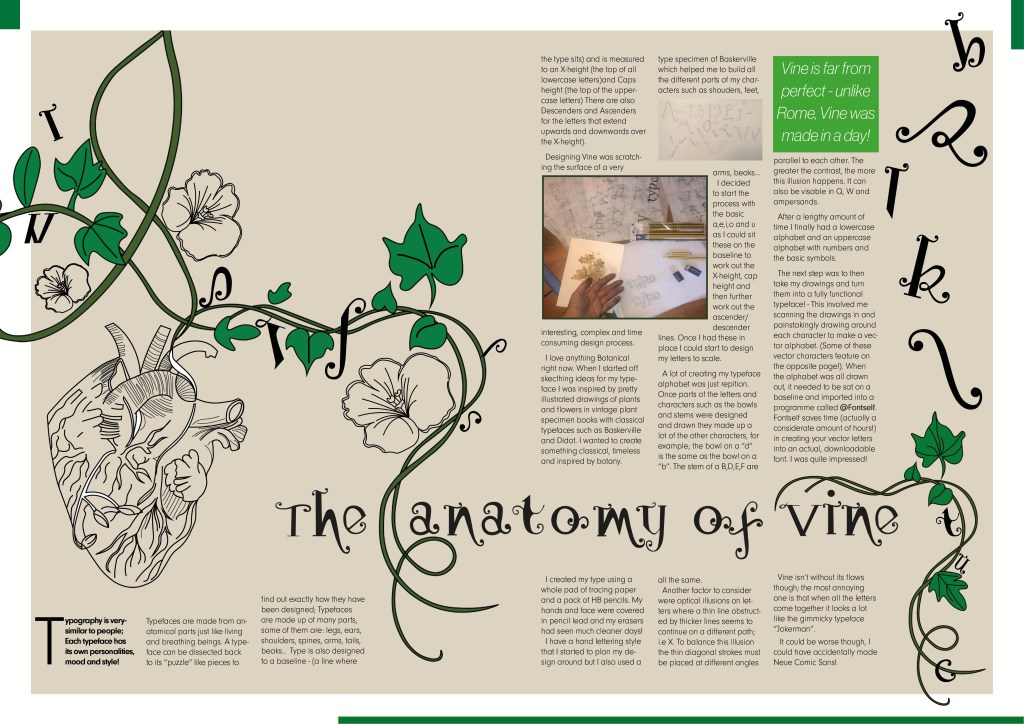
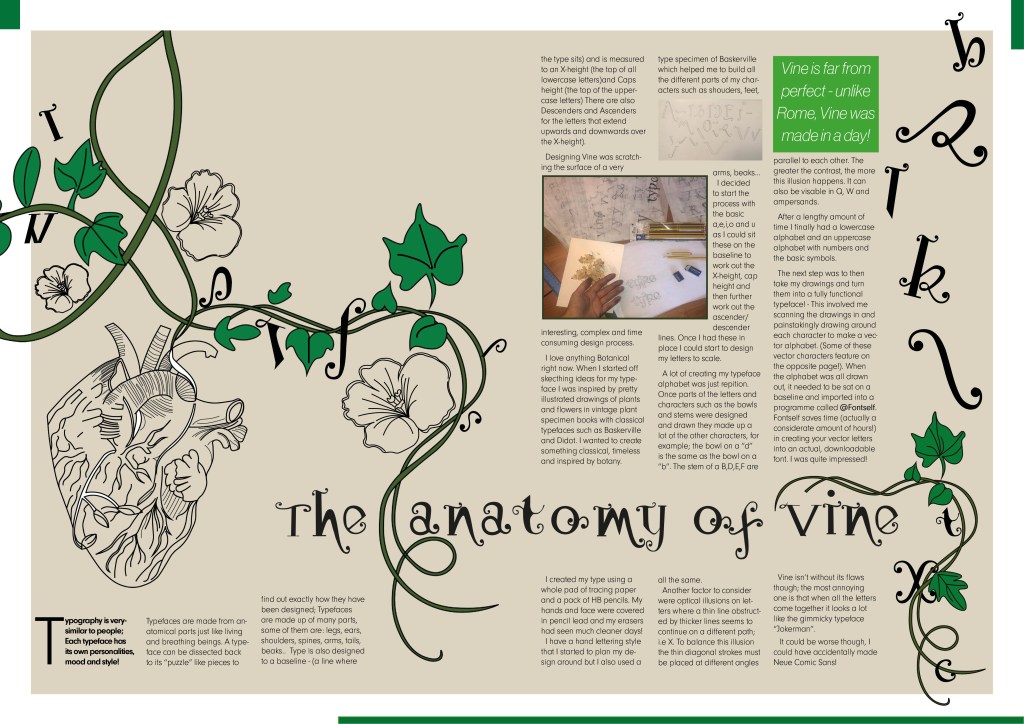
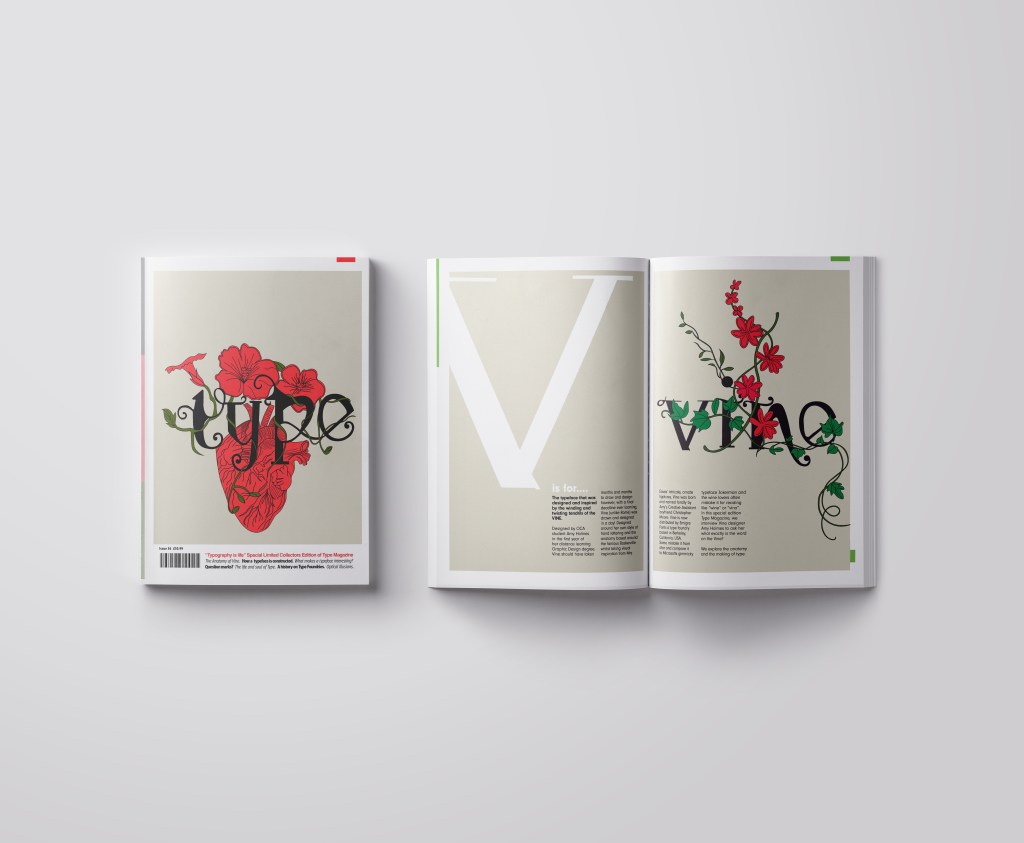
On pages 2-3 I really wanted to give an introduction on what I was going to write about rather than going straight into the article. The brief specified that I must mention the anatomy of type and write about what I have learned from how type is designed. I decided to put a twist on it and write about how I made my own typeface; I had the idea to do “The anatomy of Vine” an article telling the reader the process involved with making Vine. I would put a spin on it and make out the magazine was interviewing the designer (which would be me). To do this though it meant that I needed to keep a similar layout and theme to the front cover. I would also need to showcase my font- Vine. This particular article would be more like a type foundries publication that they would produce when they were promoting one of their typefaces (just like FS Benjamin). With this idea in mind I then created the next phase of my magazine design and drew an illustration to represent Vine.
My printer ran out of ink! (above!)
I then did exactly the same as before and turned my art into vector art. I did not need to draw around the text though as that is now an installed, useable font! ;D
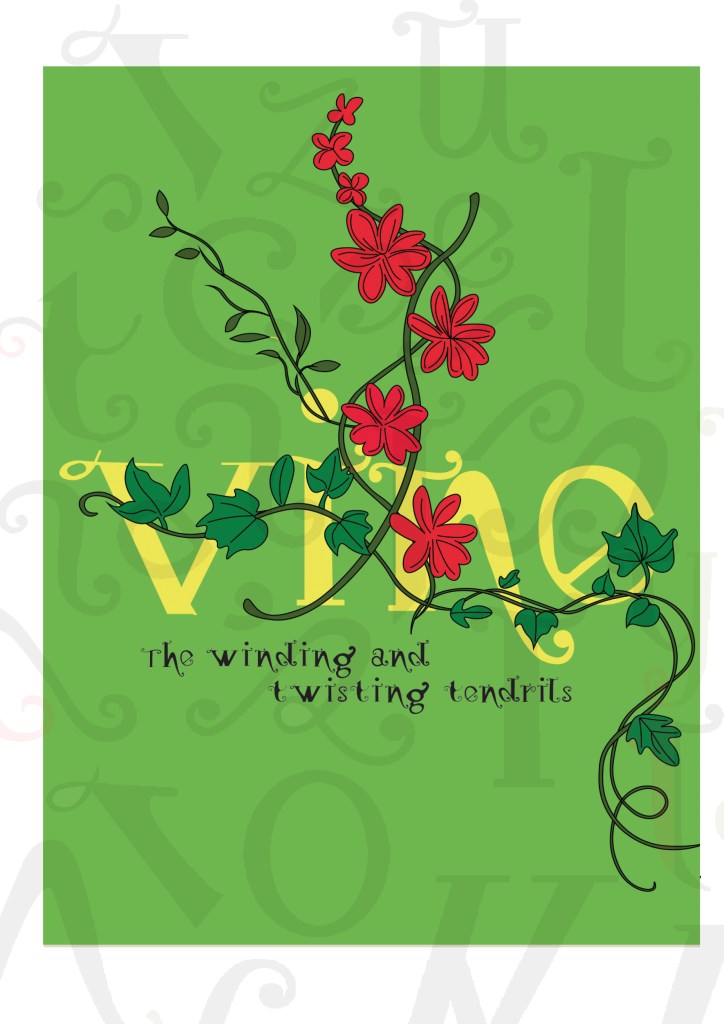
I really toyed once again with which version to go with. I really liked the contrast in colour against the bottom grey and the top left bright green and really did think that the green would have been a better option to choose because of this, but then I decided to keep the pages in repetition with the front cover and went with the grey.
I wanted my illustration to fill the whole right hand page and then have an intro on the left. The introduction is basically a blurb which says that Type Magazine is interviewing the designer of Vine and is exploring the anatomy of type. I wanted to keep negative space and not have the pages crammed full of information. I wanted to keep the clarity and cleanliness. I decided to use an enlarged V (In Vine typeface) for the left hand side and then sticking to the same 4 column grid I placed my introductory text in the 4 columns along the bottom. I made sure that the text was aligned to the baseline grid so that the text aligned along the bottom. The green boxes along the edge are just to bring some contrast ad colour into the design.
Designing the Anatomy of Type (Vine) article
I am not going to lie.. I pretty much winged this part of the assignment! I started from scratch in InDesign with no prior sketches, just an idea in my head and then kept on developing it from there!
These are all the versions of it that I tried out before I reached my final version (bottom right)
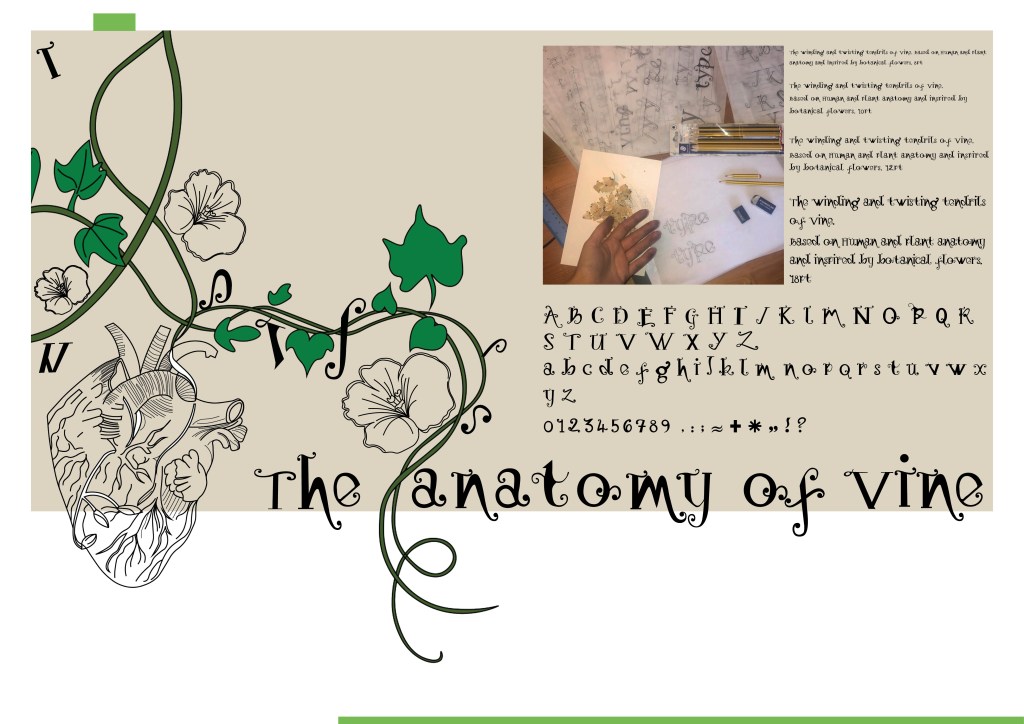
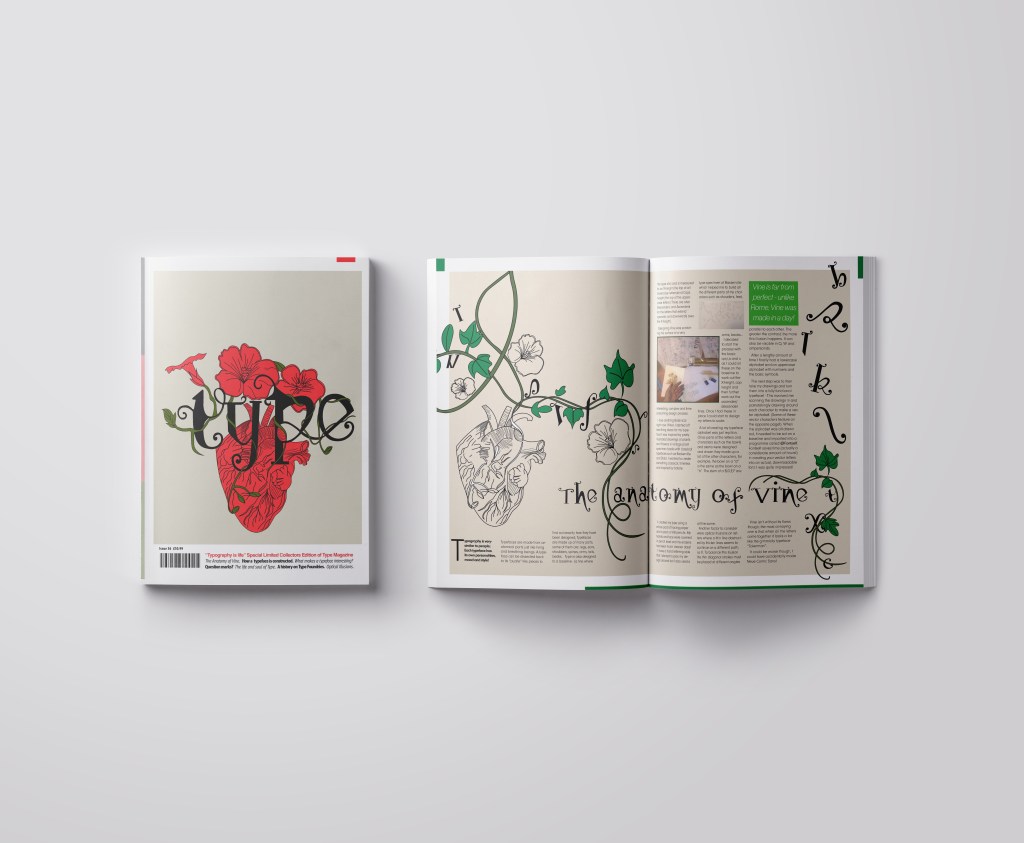
I wanted to have that illustrative element in it again to match the rest of the article so I took pieces off the illustrations I had drawn already to create a new illustration. I wanted it to also look like the Vine was alive as much as the typography so had parts of the letters growing off the vine and a heart growing from one of the branches; again, this ties in with the anatomy part.
I originally wanted the text to flow through the piece as if it were a vine; winding up the page, but with the amount of text this was impossible. The only way was to stick to a 4 column grid again and have the text flow throughout it. I used green at certain points in the design for contrast and that “pop” of colour. I used a pull quote in a green box to separate the text up and I used some photographs of where I designed the typeface.
Designing “What makes a typeface interesting?” article
I also designed this article slightly differently.. I also winged this and developed it as I went along! One thing I knew though was that I did not want to use the heading “What makes a typeface interesting?” I googled exactly what does make a typeface interesting and it came up with 5 points:
Contrast
Originality
Legibility
What is the purpose
It’s more than a font
These points made perfect sense to me and I easily wrote up an article stating what was important about all of these facts and how they helped to make great type!
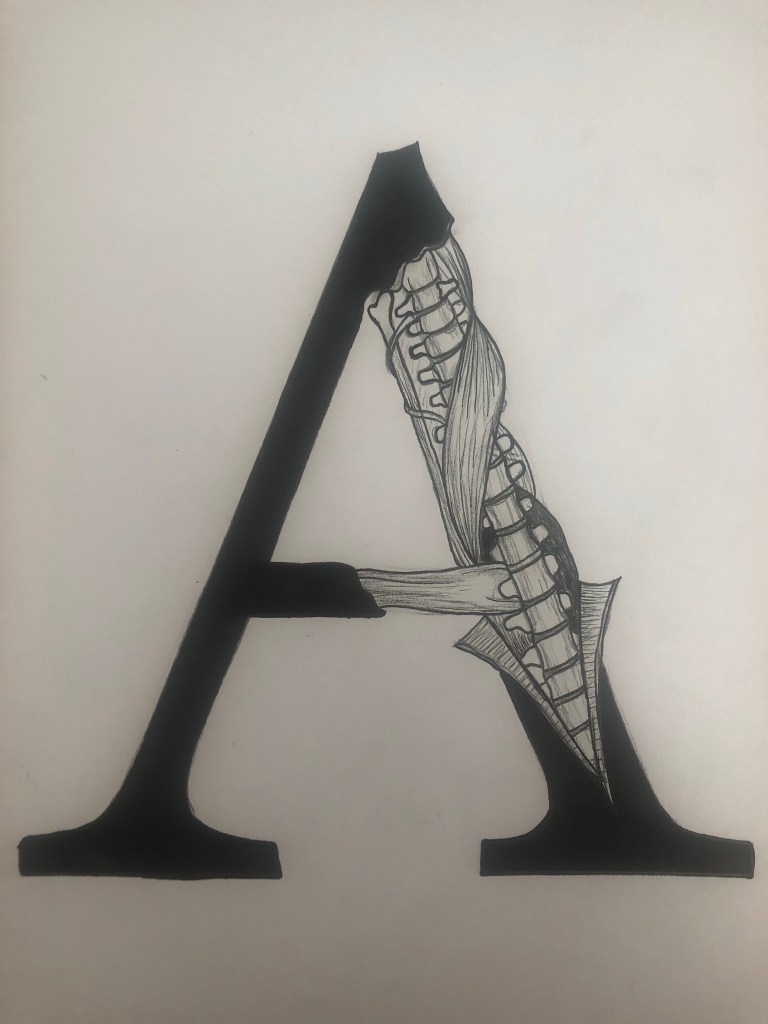
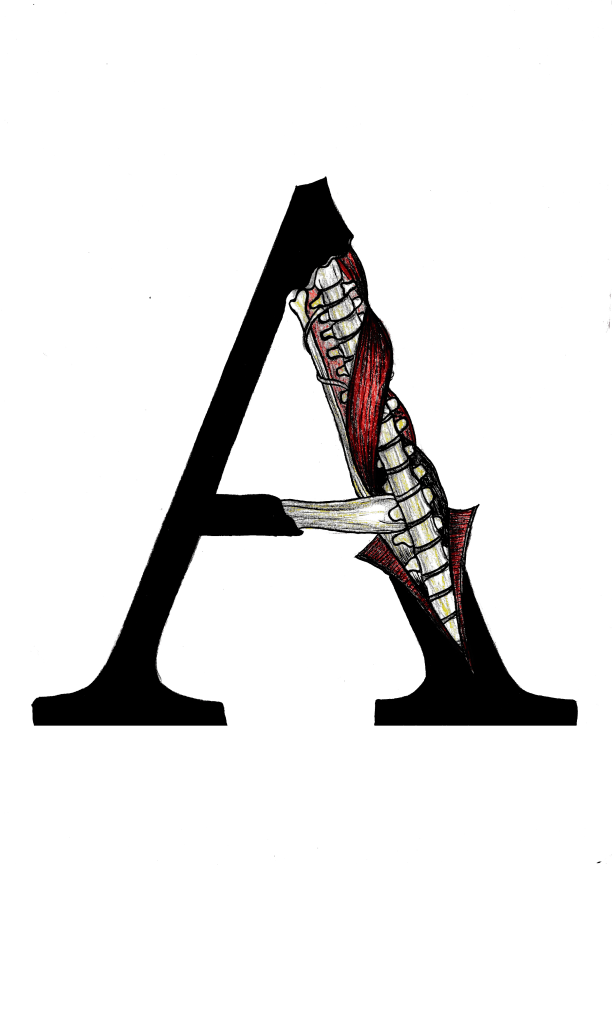
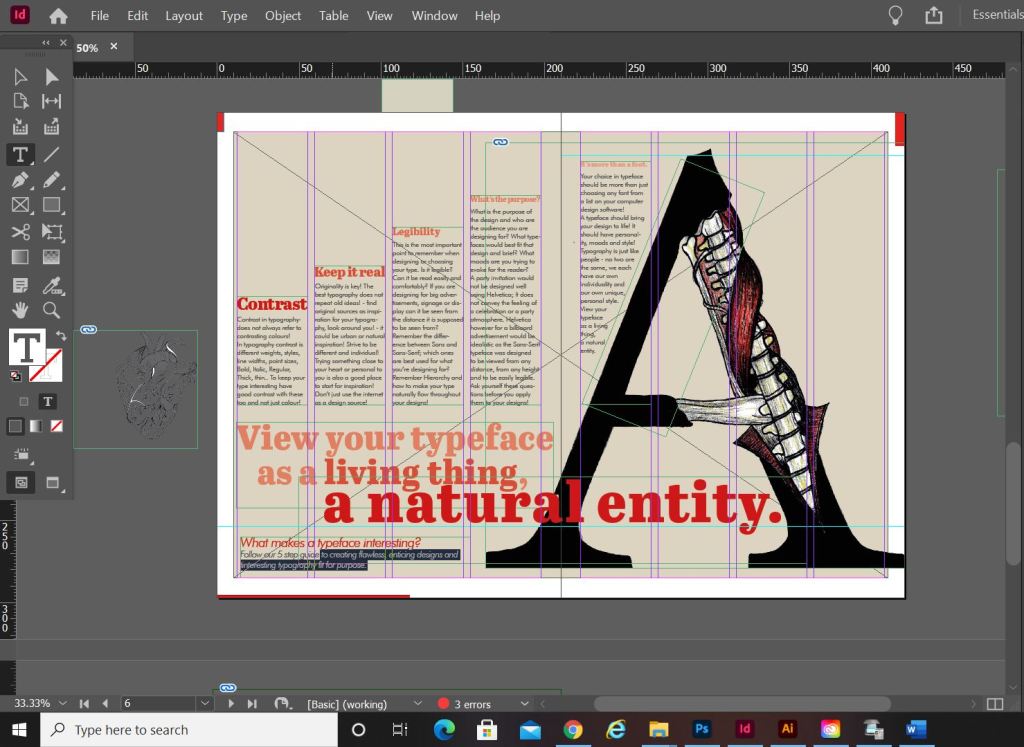
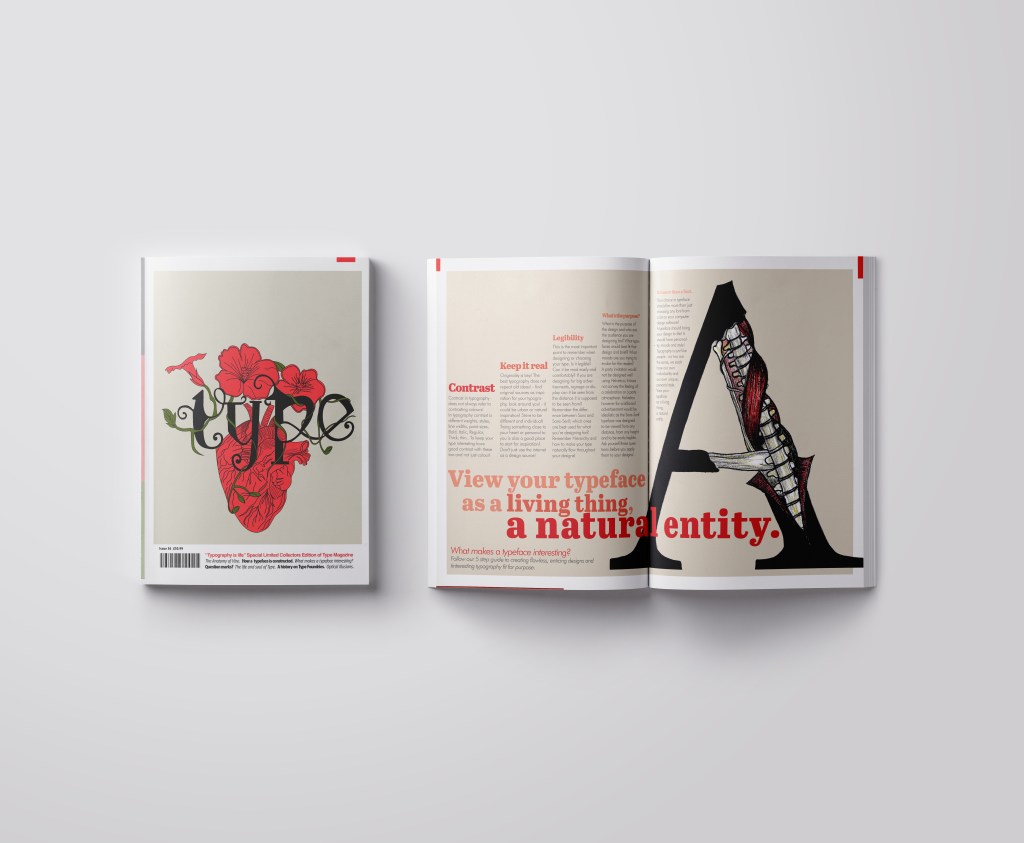
I did however read a good quote – “View your typeface as a living being, a natural entity” oohh it felt deep! I loved it! It tied in again with how I was trying to liken type to human and plant anatomy. I searched Pinterest for “Type anatomy” and there were images of type being torn apart to reveal bones and muscles. I loved this idea! I drew my own version of it on a letter A. I would use this as the main image for that article!
I drew the first version in Black and White and scanned it in and then went back to the original and added colour just so I had two versions I could choose from. Eventually I decided that the colour one was the best and I imported it into Photoshop to tweak and adjust the levels and colours etc.
I am actually quite pleased with how this double page spread turned out. I did worry for it at the beginning because I just could not get the sizing of the “A” right or get the heading to look right. In the end it worked out better when I broke the heading up into different point sizes and lowered the opacity on parts of the type. I used the quote that I found as a main heading; I felt like that would draw attention more and add more curiosity to the article than directly saying what the article is about. I kept the same 4 column grid layout but decided to place the text slightly differently; I placed the text in an upwards direction to resemble evolution. To add more depth and for that element of contrast I also used different point sizes and changed the opacity for the headings as they moved upwards.
The typefaces that I used for this layout were;
Abril Titling for the main heading
Futura light for the main body text
Futura light Italic for the sub heading along the bottom
Designing “Question marks” article
This is the section of the brief that really confused me. I was actually wondering whether it was a trick question and the answer was so simple that It was staring me in the face! However, I had a snoop at fellow students work and it seems that none of them were any the wiser! The only answer that I could think of was that the brief was asking for a history of the question mark… I mean, who did come up with that for a symbol? a squiggly weird shape! – this is where I got the idea for my final page!..
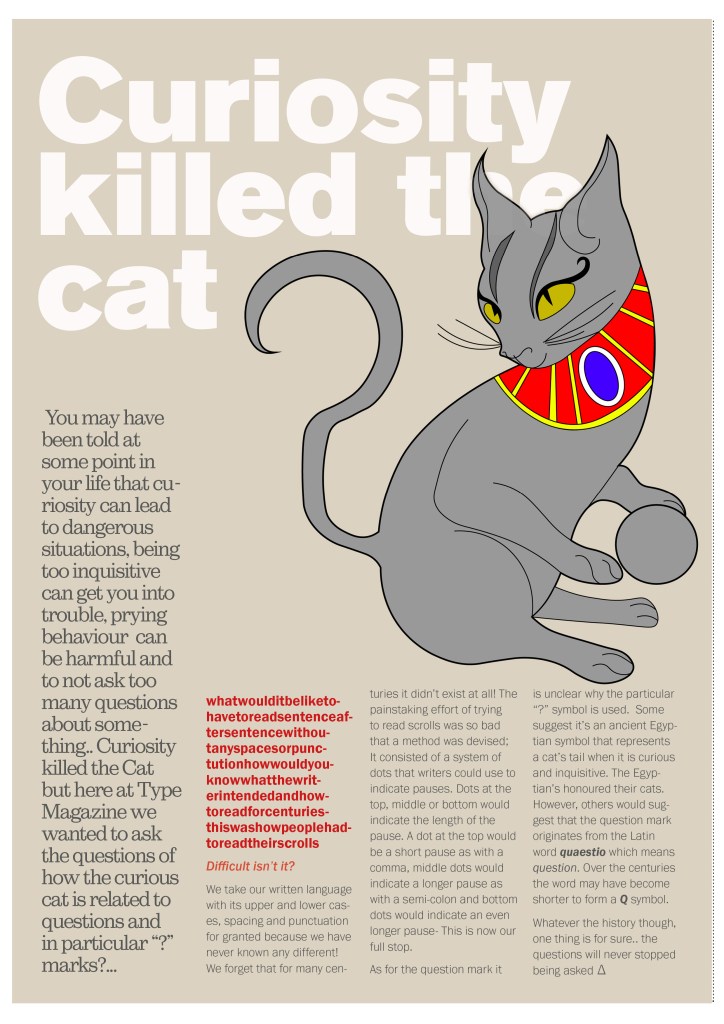
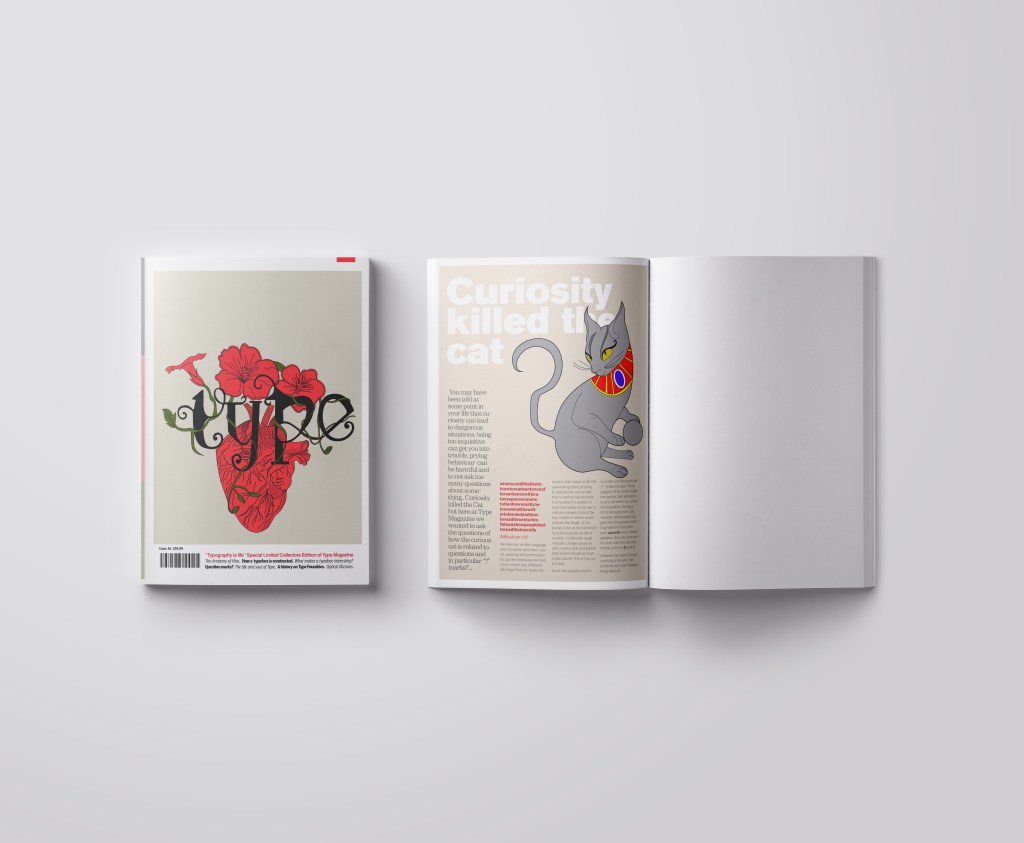
I searched on Google and found the above link, that explained to me that the question mark was possibly invented at the time of the Egyptians and the design of the question mark based on a cats curly tail! Well!.. I have heard things that make less sense! -With this in mind I thought about drawing an illustration of an Egyptian cat to use on my design and make its tail in the shape of a question mark. It also made me think of the quote “Curiosity killed the cat” – this is also where a person is curious for answers!!
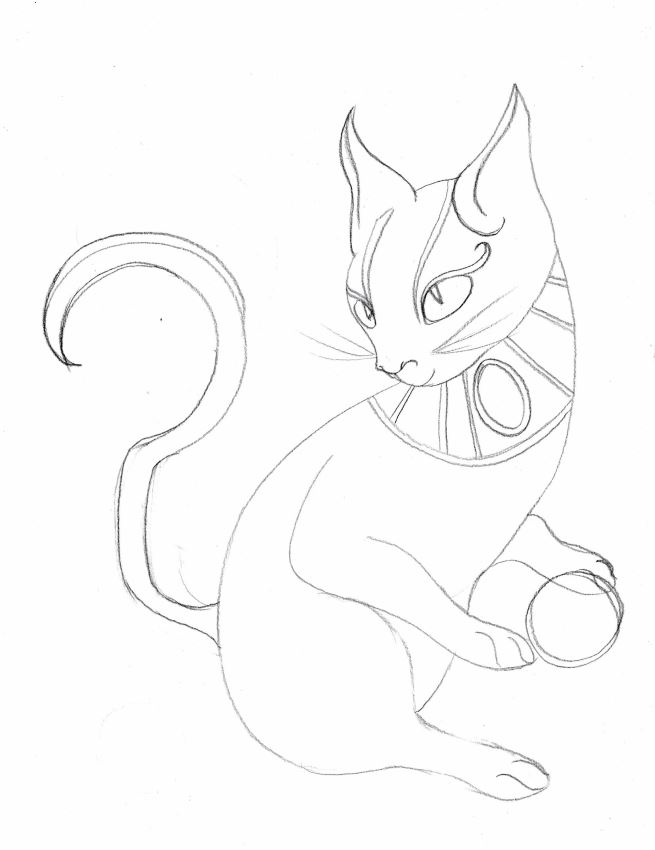
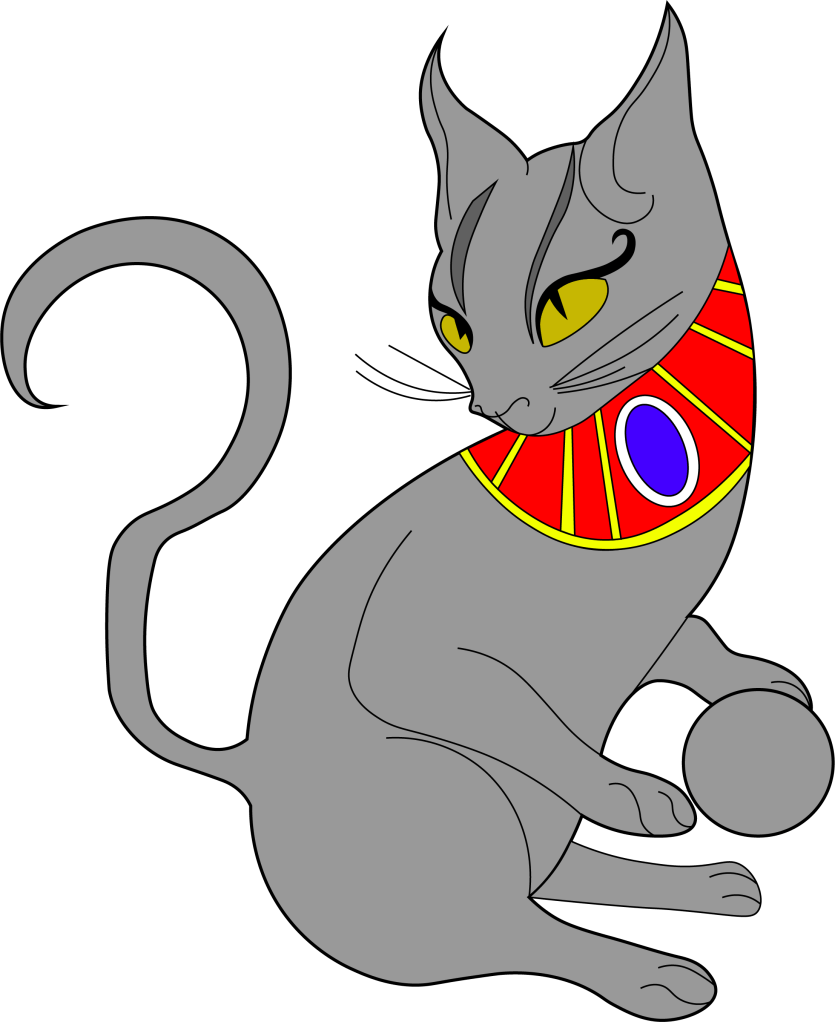
This is the drawing I ended up with! In his/her paws is a ball which makes up the lower point of the question mark on his tail! Again, I went into Illustrator and drew him/her in vector!
It was then time to work on the final page. I decided to make the final page a single page because I really did not think I would have that much information on the question mark to fill a whole double page spread.. plus also I am aware that the brief states “short” article and mine currently are like essays! :S (I wanted to get the layouts right though and not cram the information all on a double page spread!)
The typefaces I used for this page were:
Berthold Akzidenz Grotesk – the main heading
Sutro Light – for the side blurb (which is Egyptian designed)
Franklin Gothic Light – for the body text
I struggled with hyphenation in the left introduction blurb column.. I struggled to choose a point size that would fill the space but also stop the words from having hyphens. In the end I went along with it because I have seen magazines use hyphens and also because I did not want massive rivers between the text; I am still learning how to adjust the tracking/kerning accordingly. Changing some of the text to Red brought attention to that specific part of the article which is actually quite important to see why this article is as important as it is and also because of contrast again! It adds a pop of colour!
Conclusion
Overall I am pleased with how this assignment has turned out! When I started this typography unit I felt very scared and overwhelmed and now I can say that I have learned so much and I am feeling confident about using typography in my future designs from now on! I particularly love book and magazine design so really enjoyed this brief. I am becoming more familiar using InDesign now, again, I felt a little overwhelmed when I first started. I still need to improve on tracking/kerning etc to make sure that my type looks perfect on my layouts but that will come with further practise! I think I have met what the brief has asked of me, except I have possibly gone about it in a slightly different way.. The only thing I could have improved on was to make the articles “short” but I was too busy experimenting with how to lay everything out whilst still keeping negative space and making it interesting. I had a lot of information to fit on one double page spread!
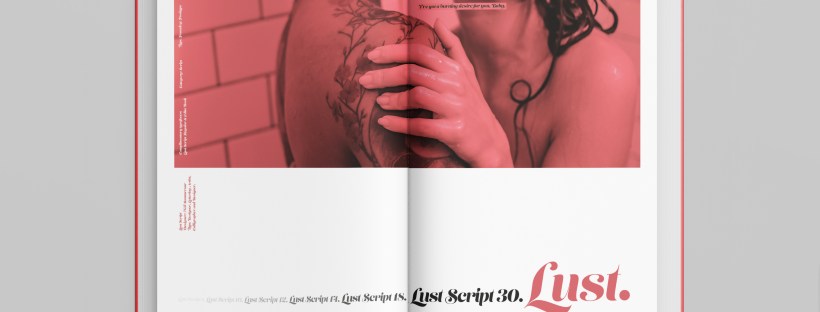
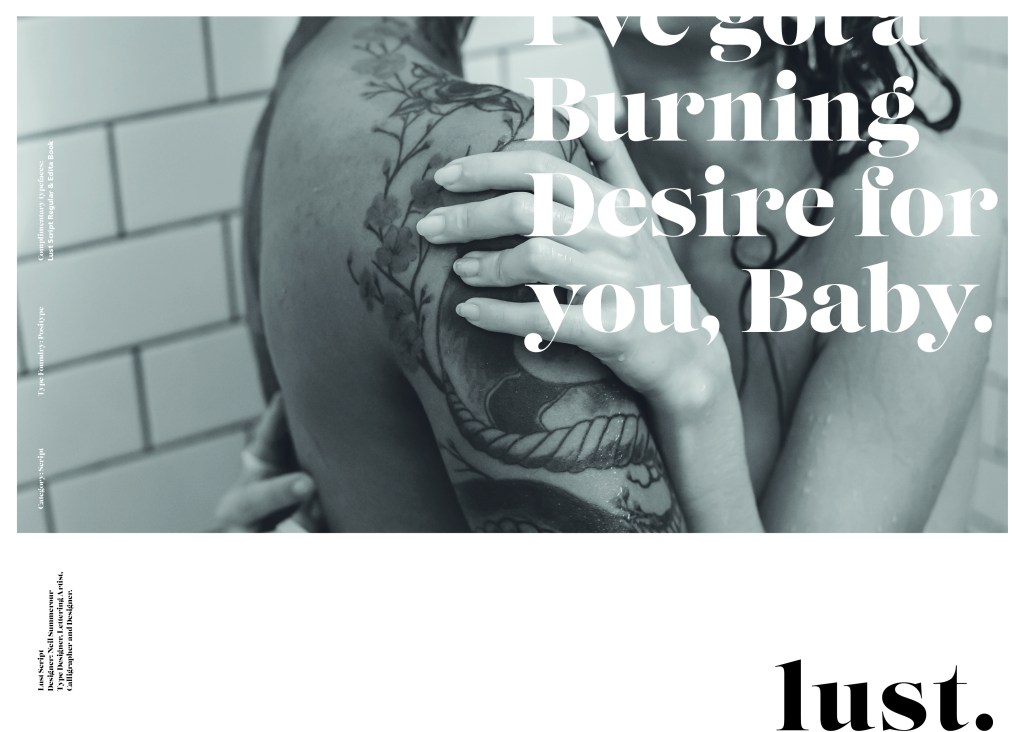
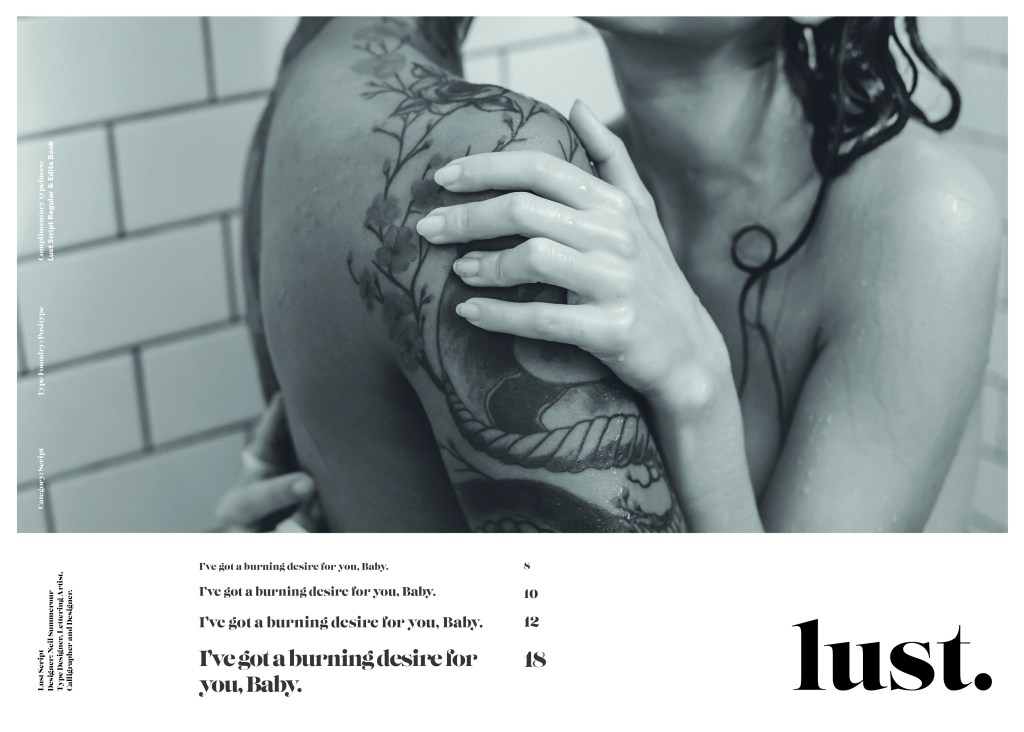
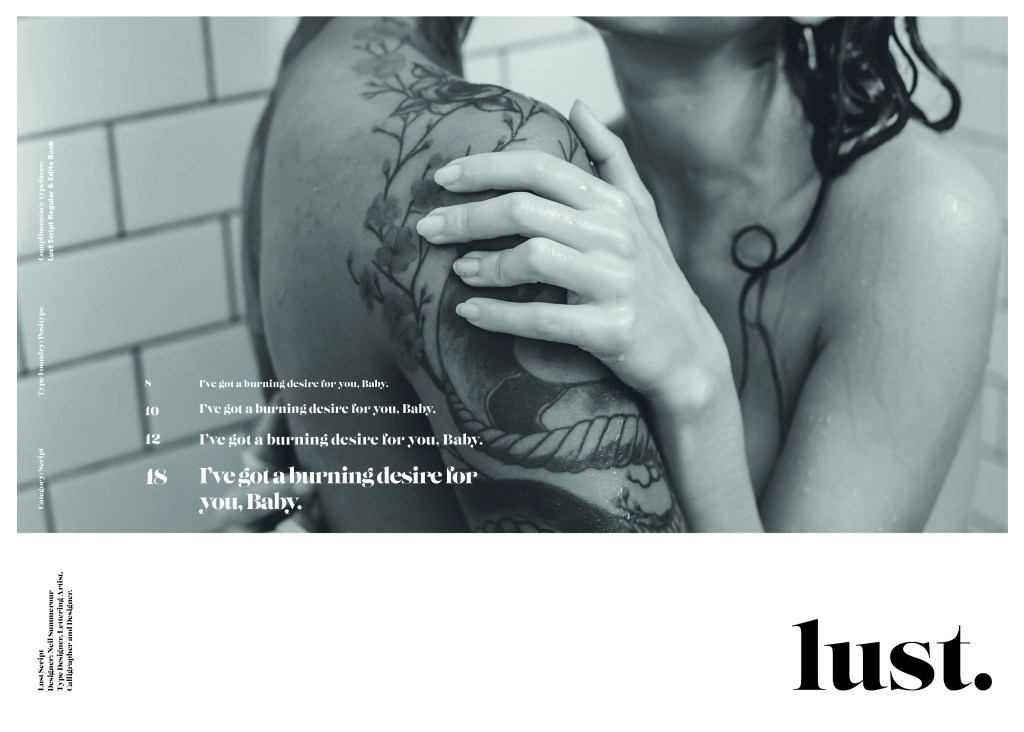
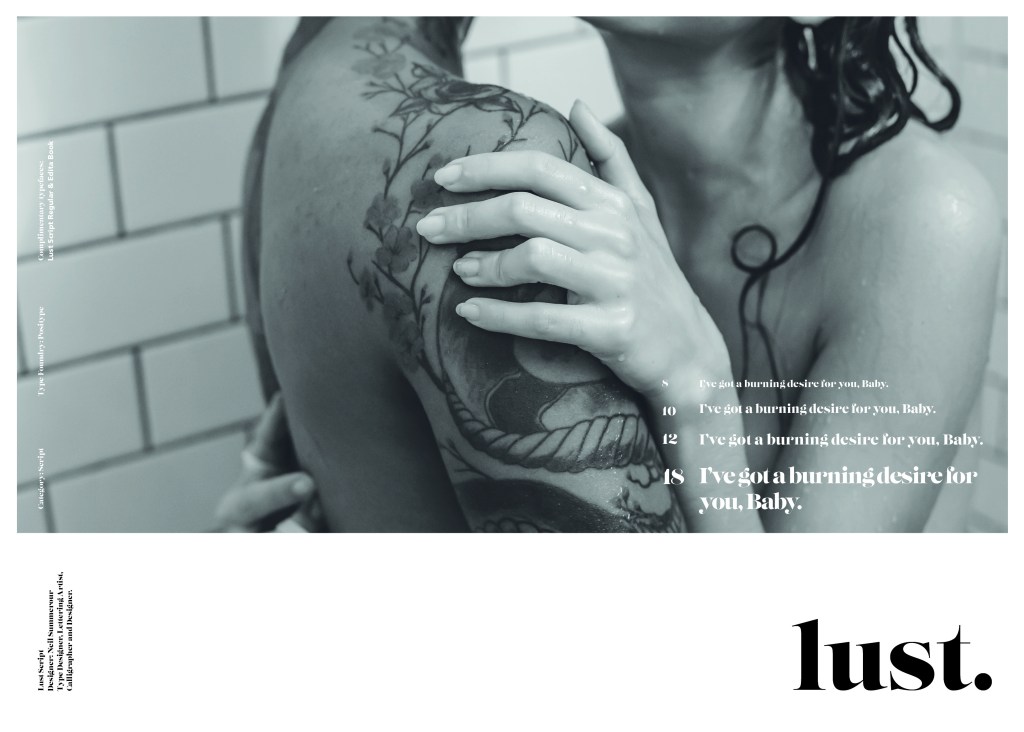
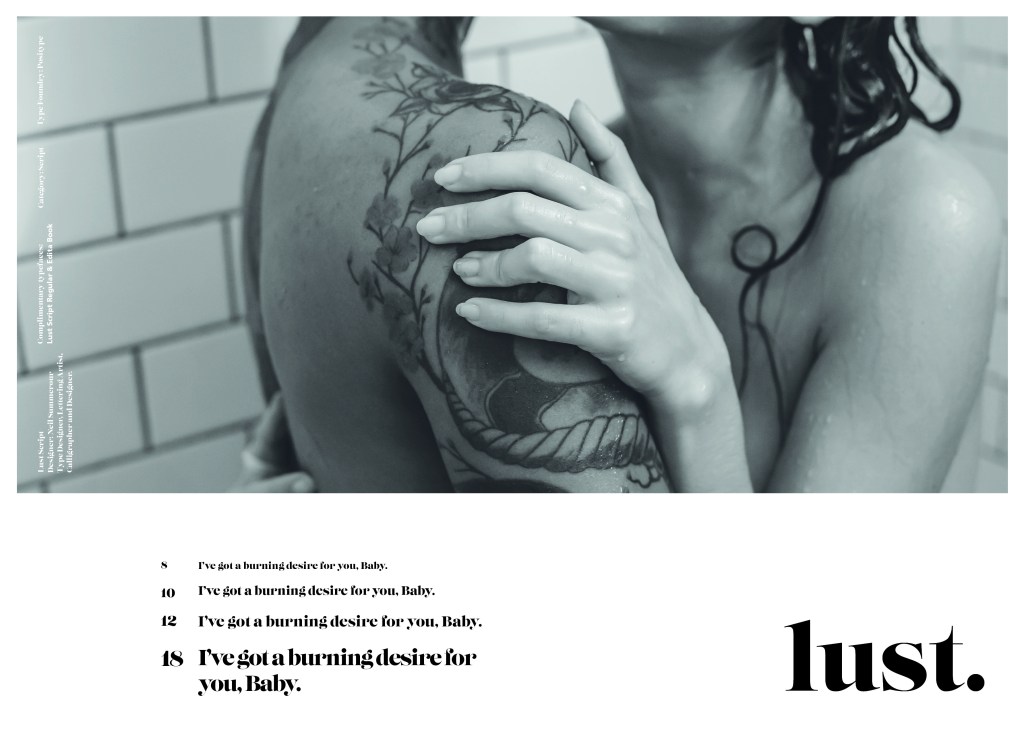
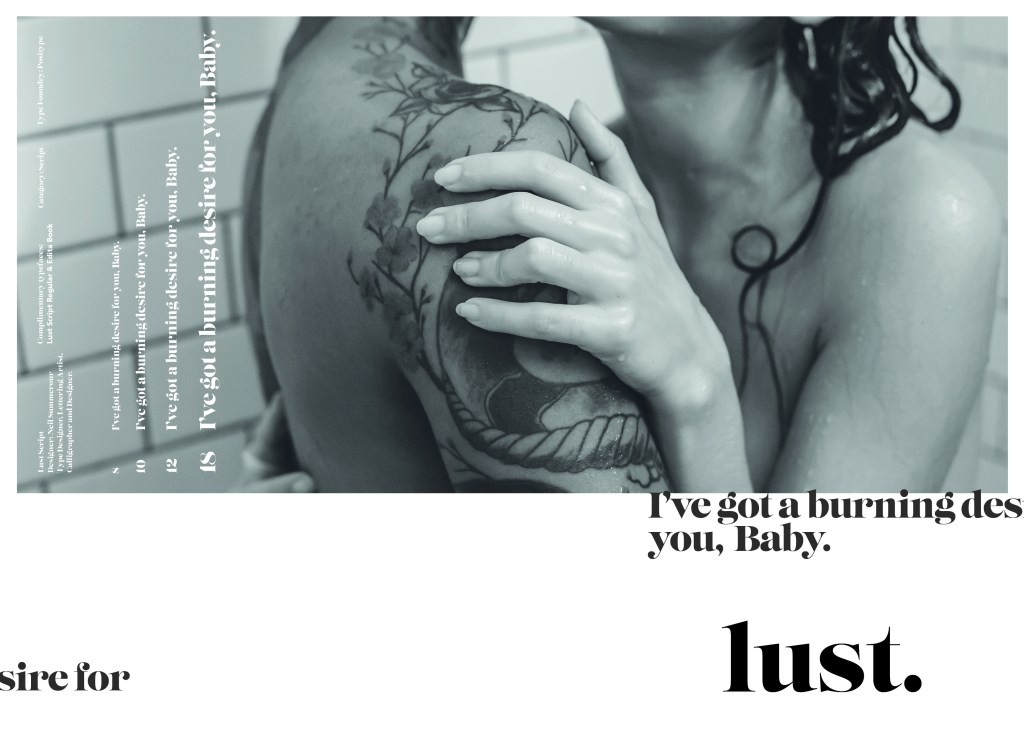
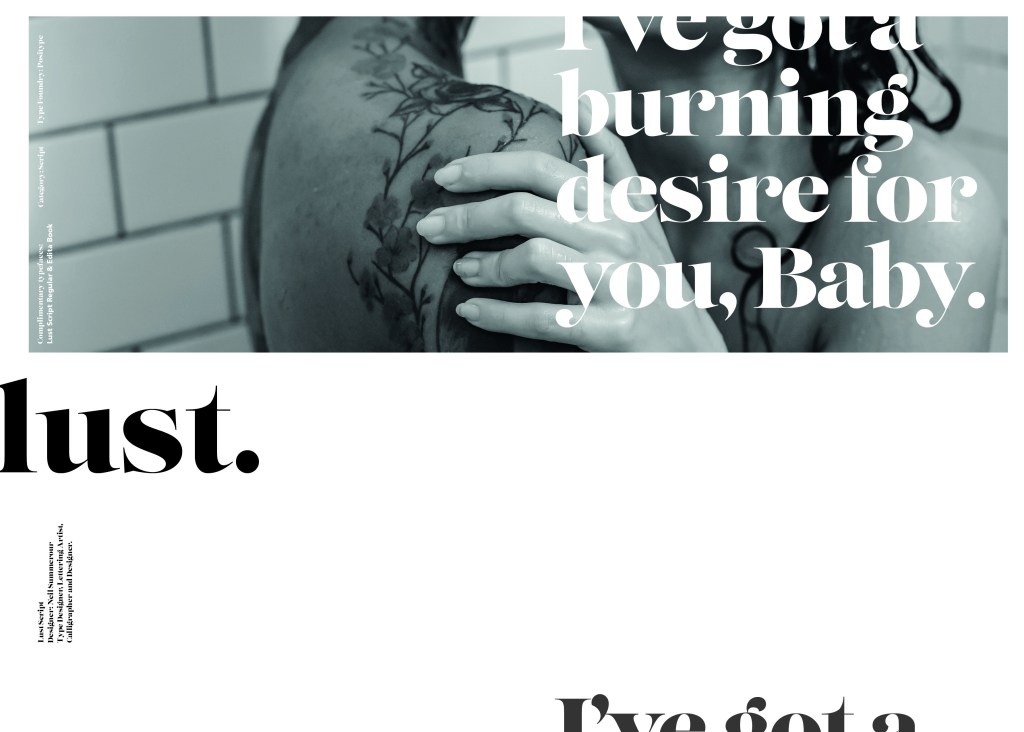
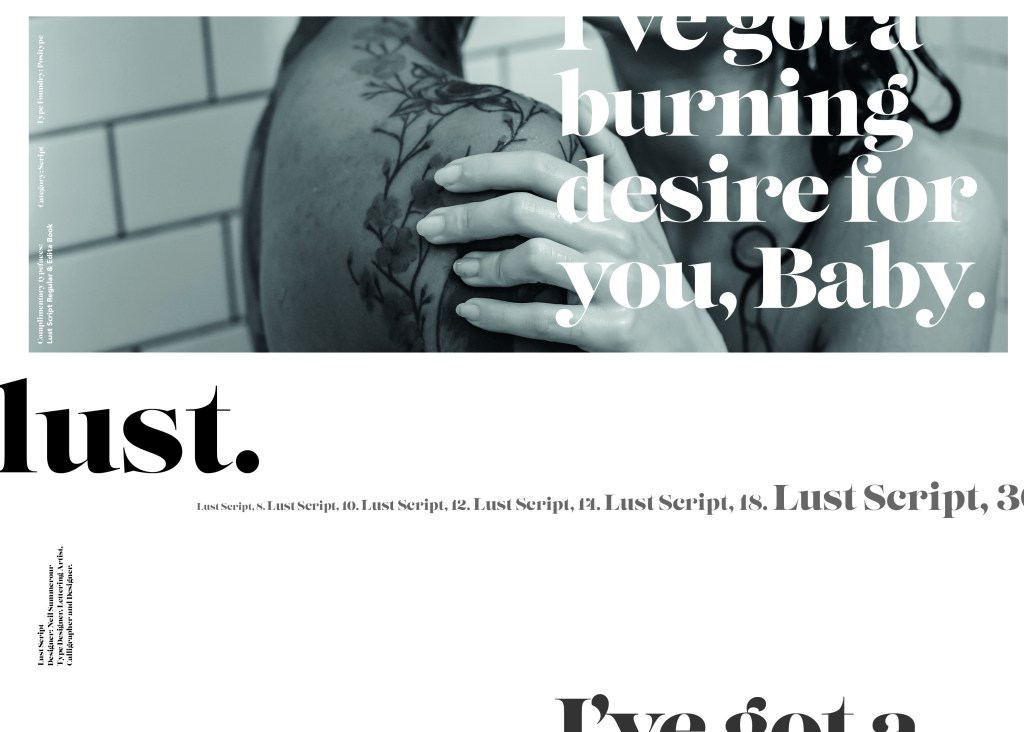
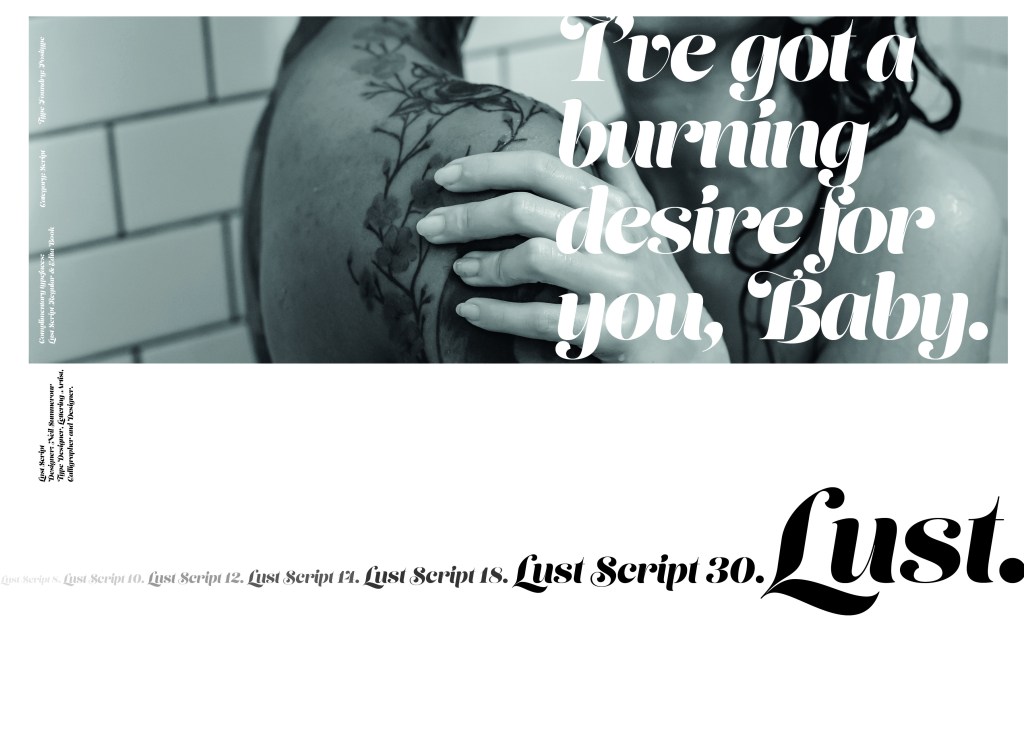
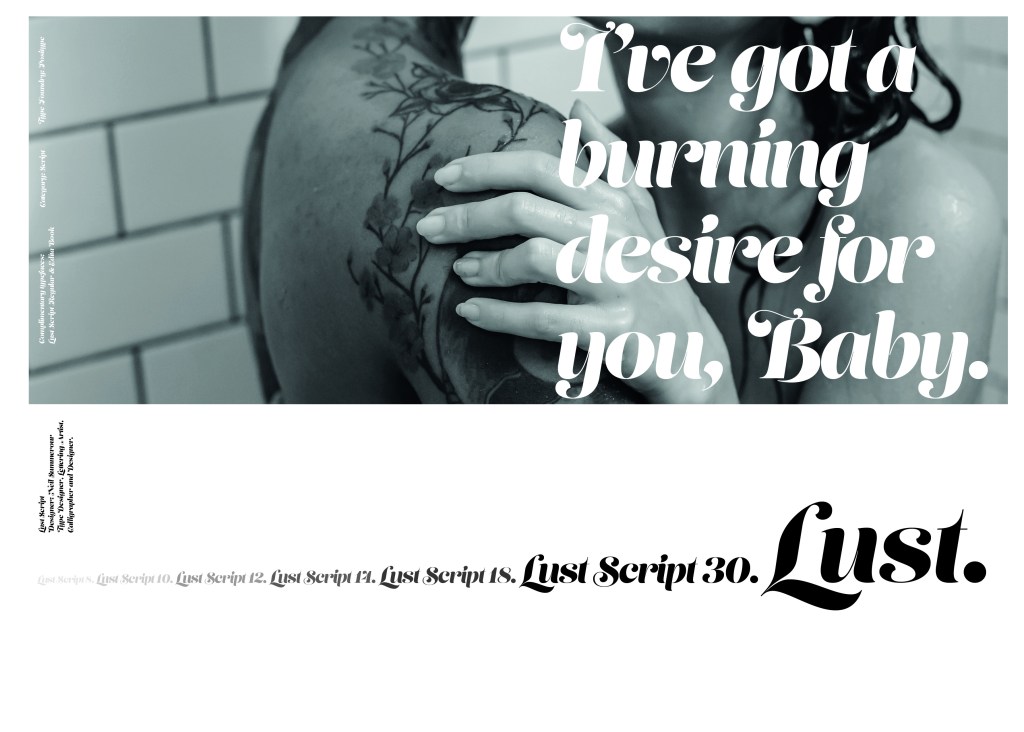
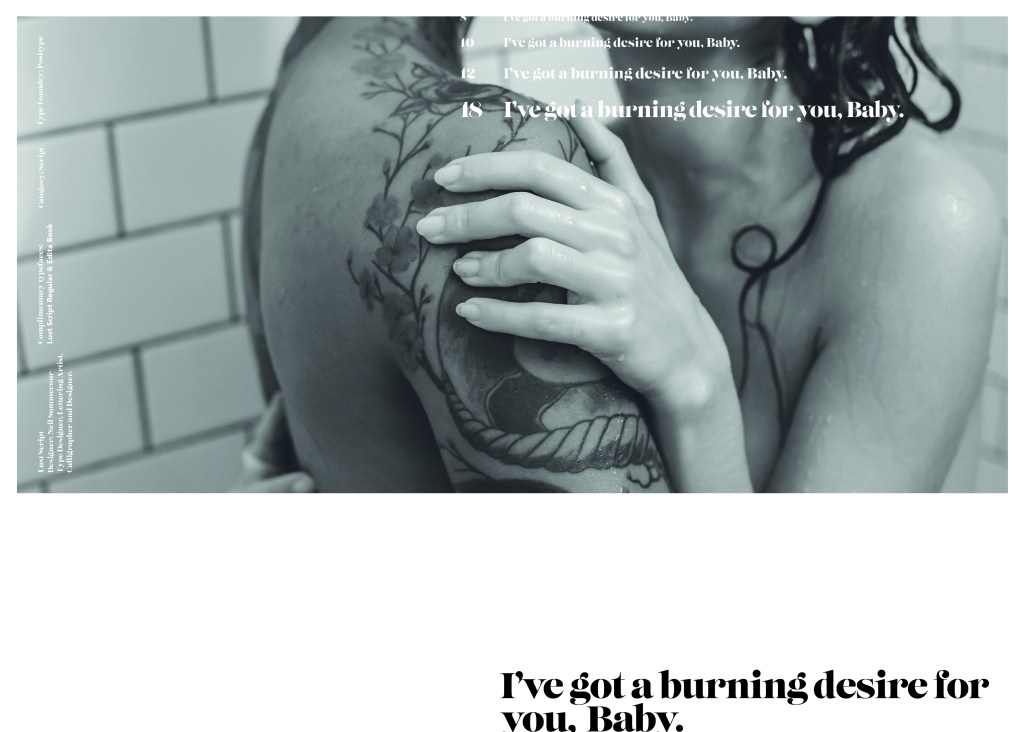
When it comes to decorative/ fun or “gimmicky” typefaces I am not very knowledgeable! In my work I mostly use Sans-Serif which is why I have made my specimen book “Sans heavy”! For this section of my specimen book I had to do my research and look into different typefaces that I could use for Script fonts. I started by looking at Adobe fonts on Typekit. I found one called Lust which attracted me the most and the name of the typeface gave me scope to use that in my design.
Lust was designed by Neil Summerour in the USA. There is limited information on this typeface other than letting the look and name of it do the talking!
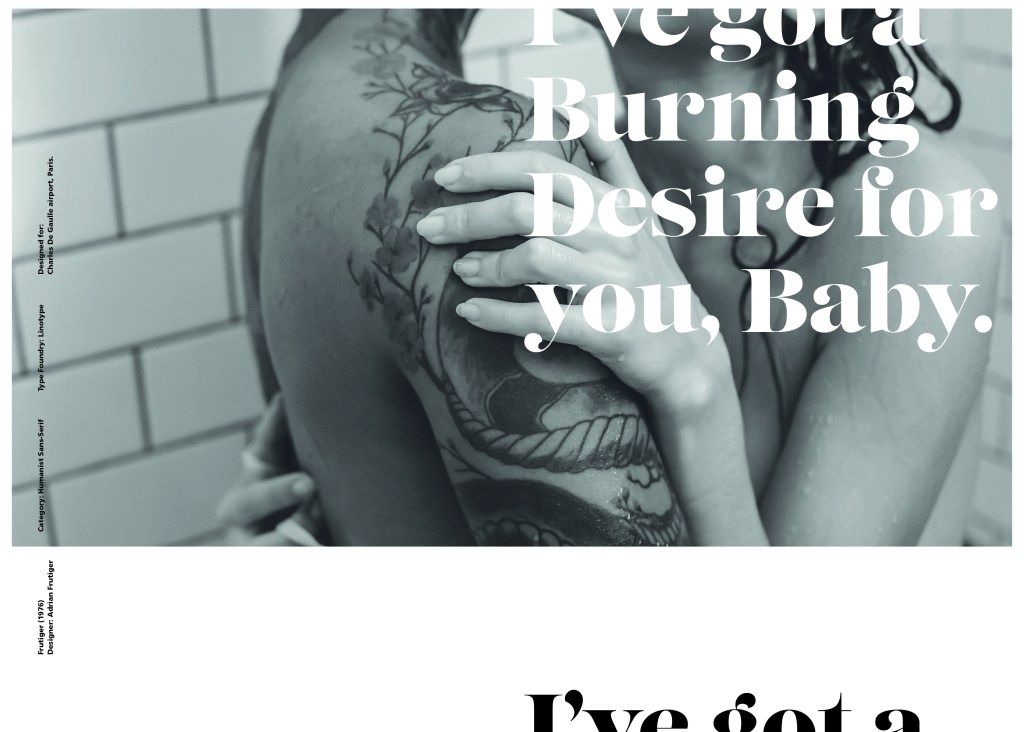
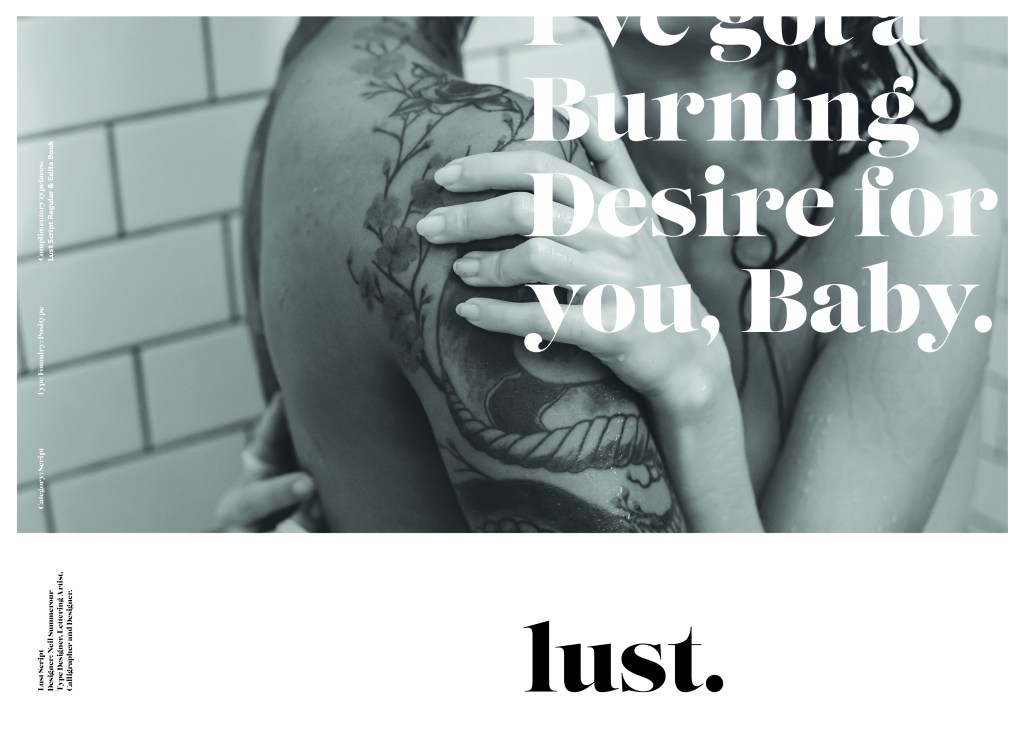
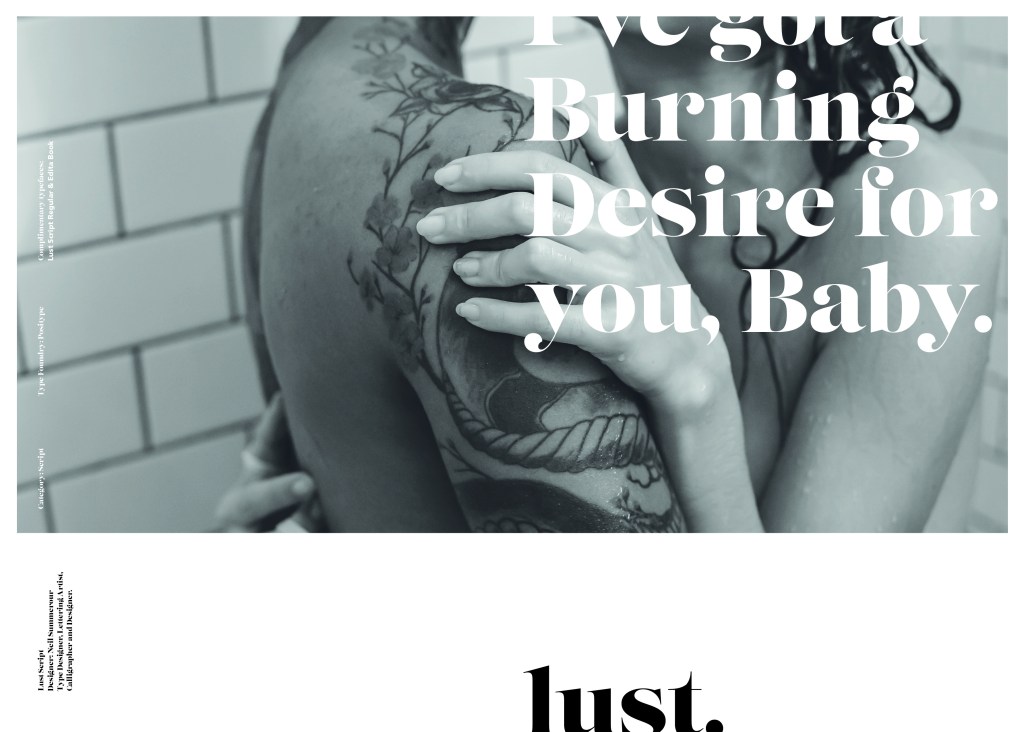
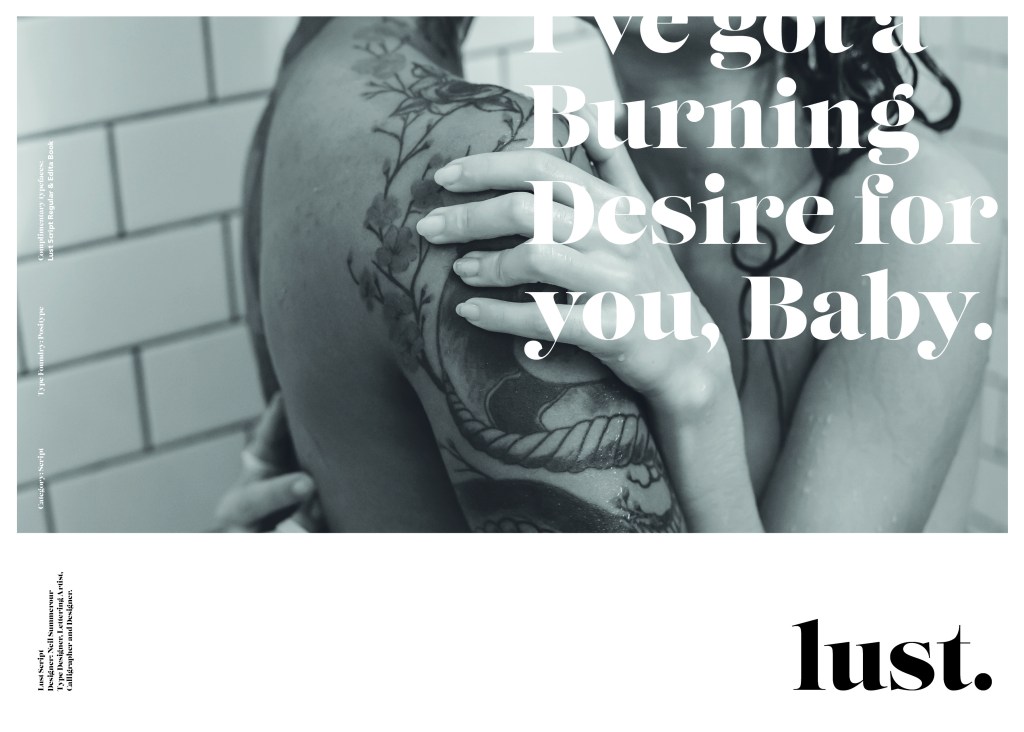
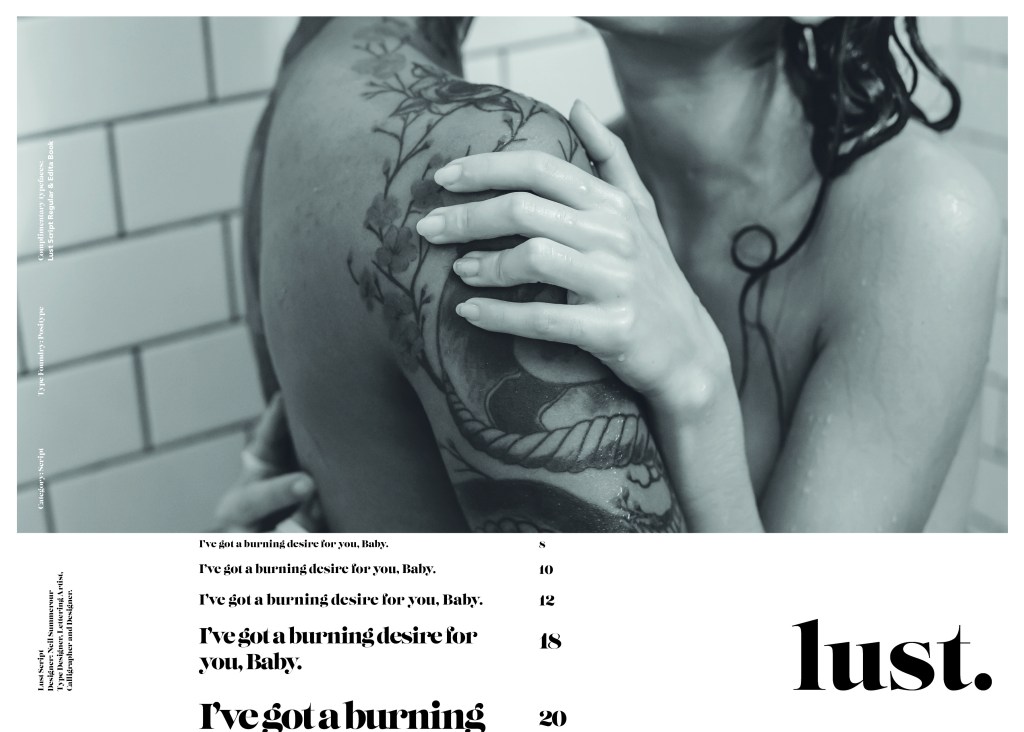
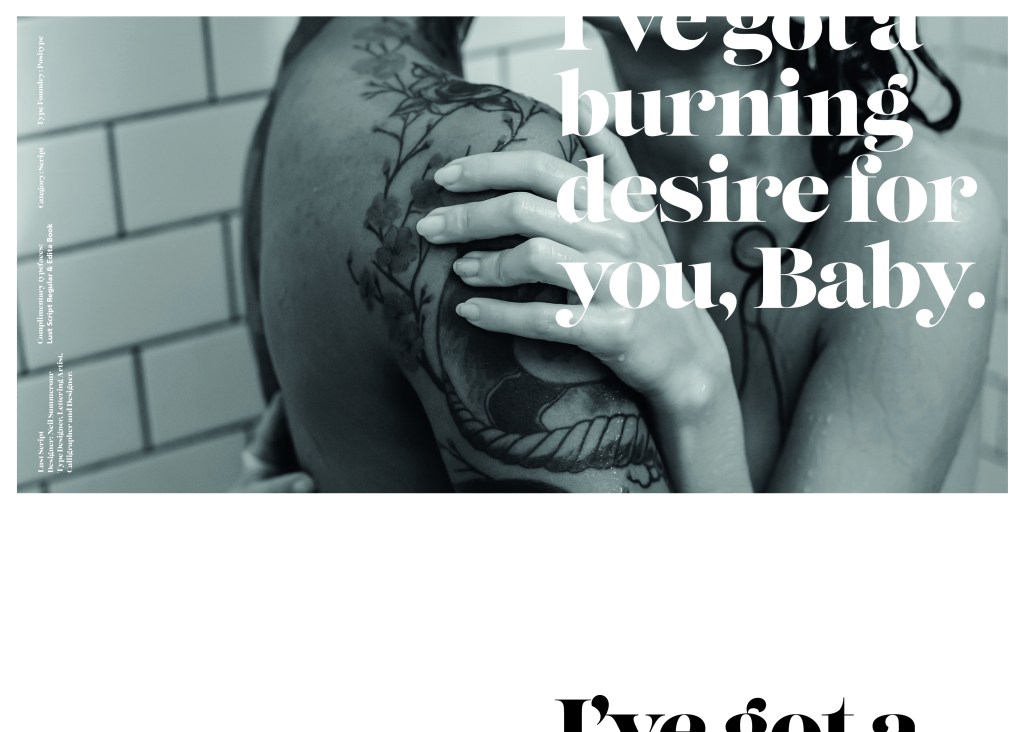
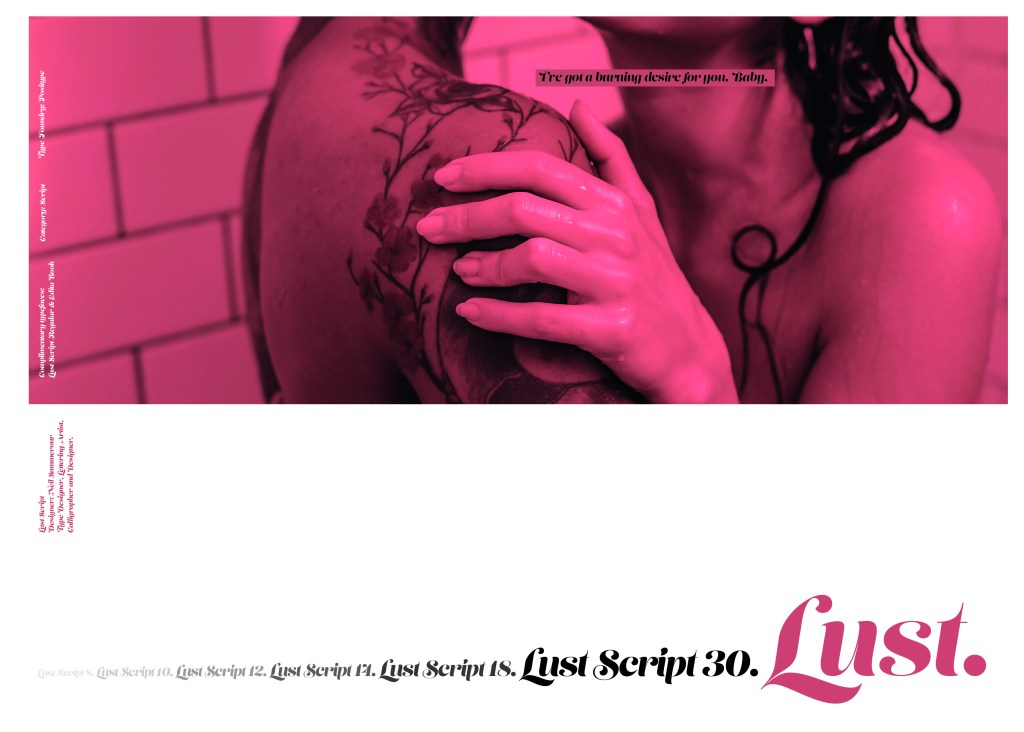
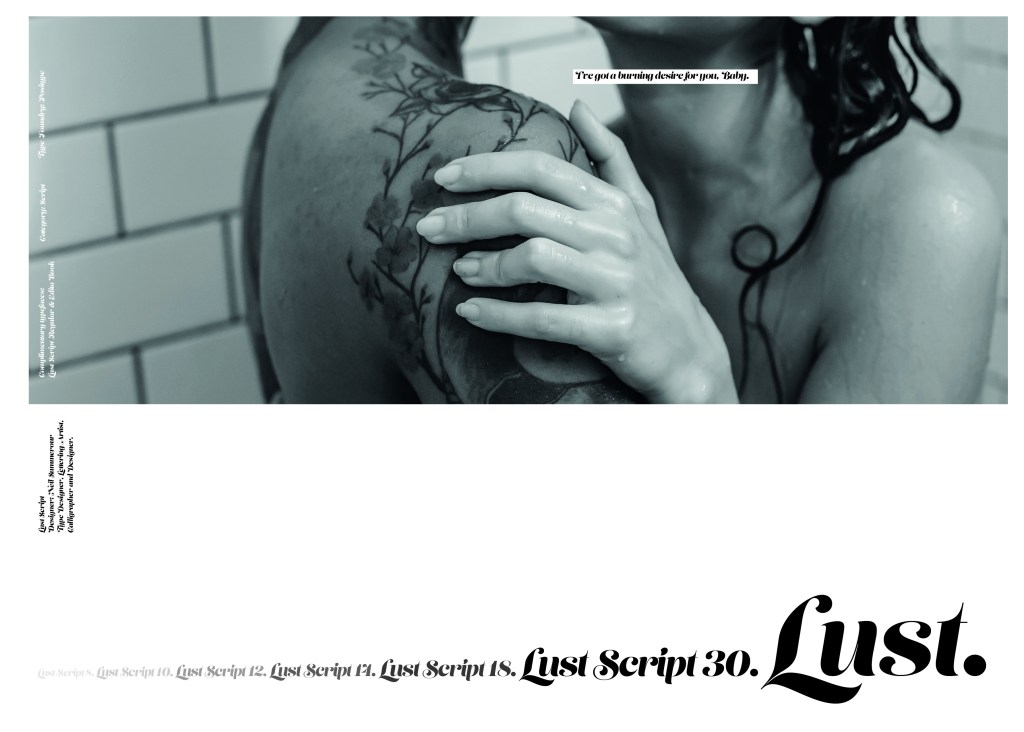
The typeface is very modern and looks very feminine to me, just like its name though it manages to lure you in with its swirls and curls and fancy serifs. I wanted to design around “lust” and my first thoughts were of a seductive image or an intimate couple. To help give me a better idea I searched Pexels.com for any relevant images I could use on my layout. I actually searched for the image I used on my final piece in my work time on my work laptop.. the image download was called “Erotic shower” (**shocked face!! – just hope my workplace does not check internet history!!) LOL!
The original “Lust” (Erotica shower.. **embarrased face!) photograph! Downloaded from Pexels.com courtesy of Tim Samuel
This design surprisingly was the most developed piece I have done; I seemed to trial many versions of this before I got to the final piece! The piece was originally in Black and White until I realised it looked very cold considering it should be about love and lust and all things warm and fuzzy! – I took the original photograph and put a reddy- pink filter on it and that improved it greatly!
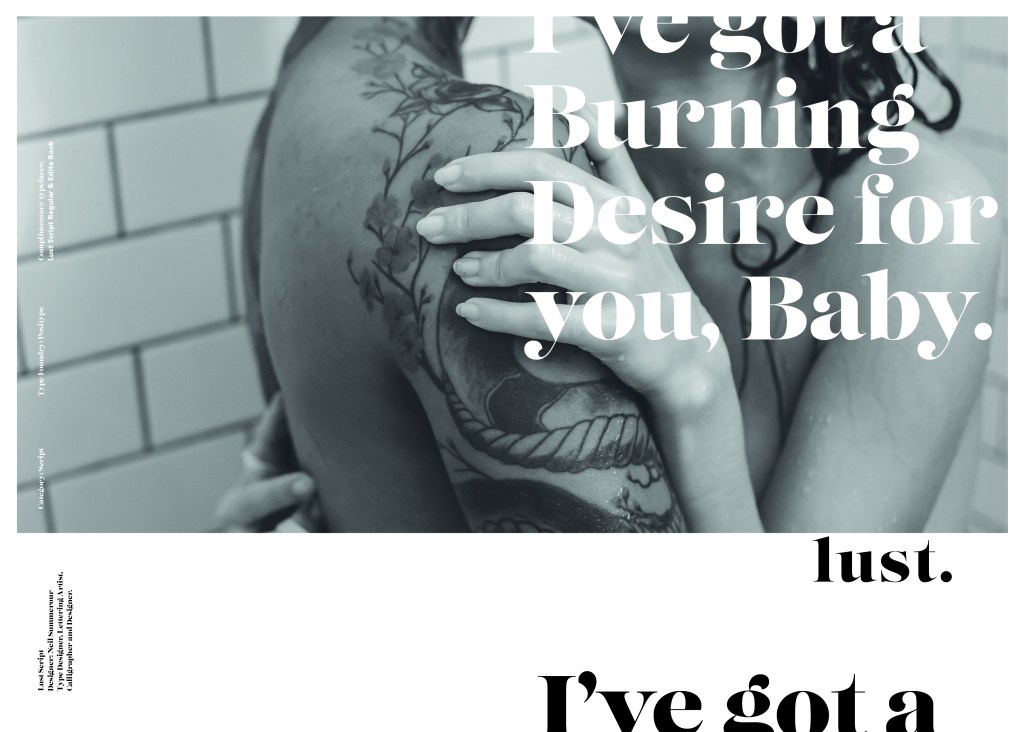
I also had the idea again to use a phrase or quote instead of “The Quick Brown Fox….” for some reason when I see this image and read “Lust” it reminds me of a Lana Del Rey song called Burning Desire, I used the chorus from that song in my early development to replace “The Quick Brown Fox” but it looked too busy, eventually I settled on having it in small inside the photograph. It seems like a little thought bubble or moment between the 2 people now with the location I have put it. It adds just another little bit of interest to the piece.
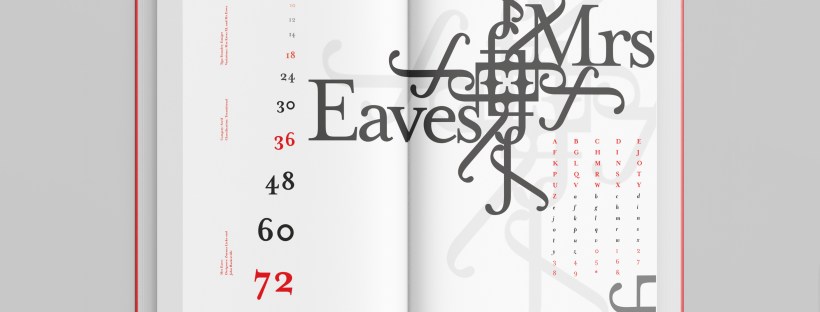
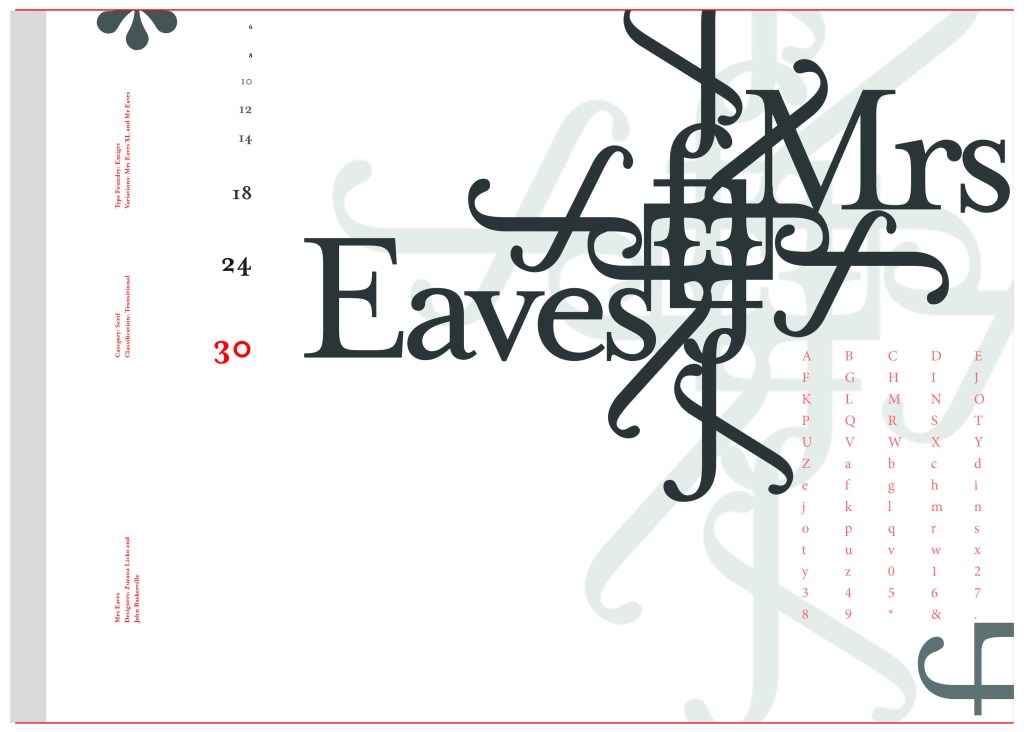
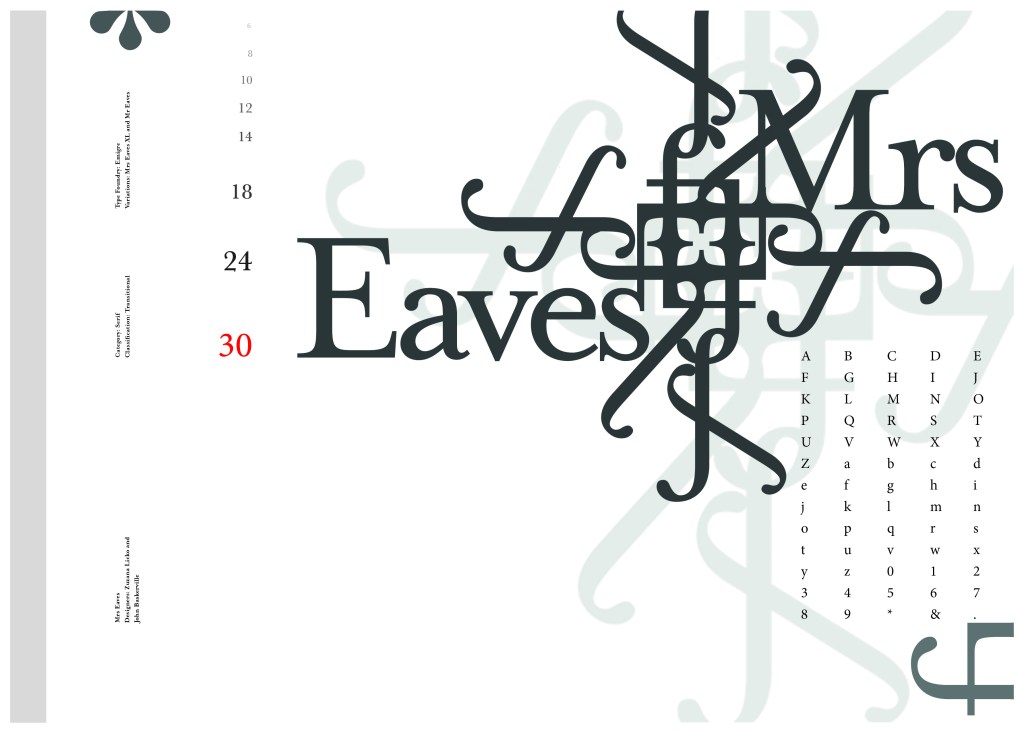
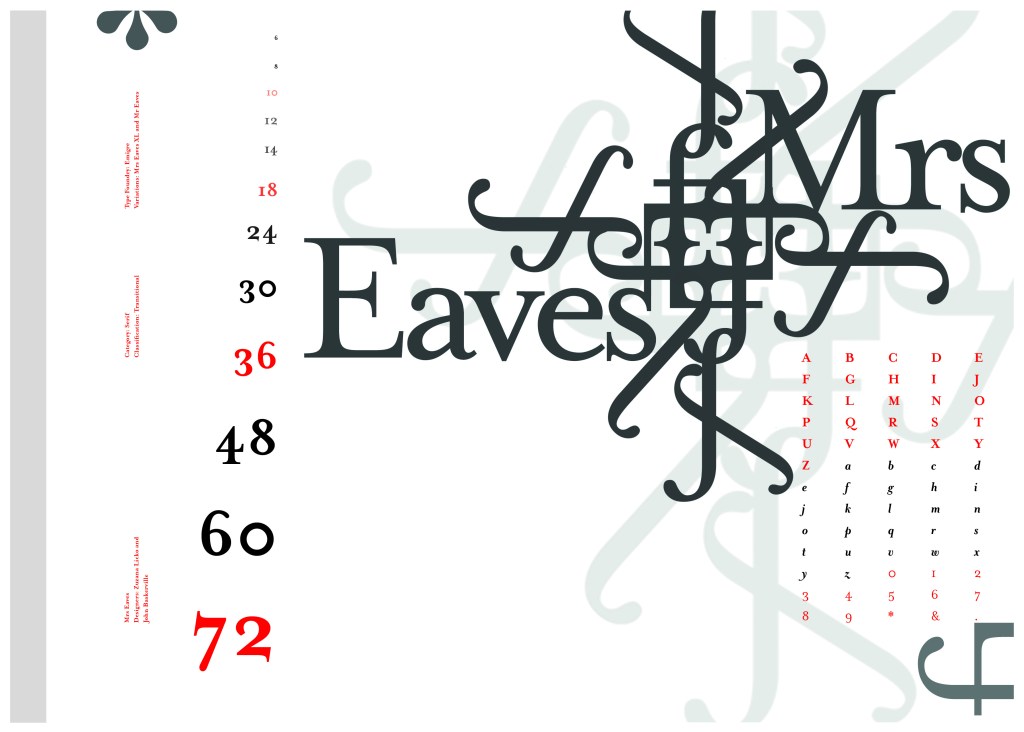
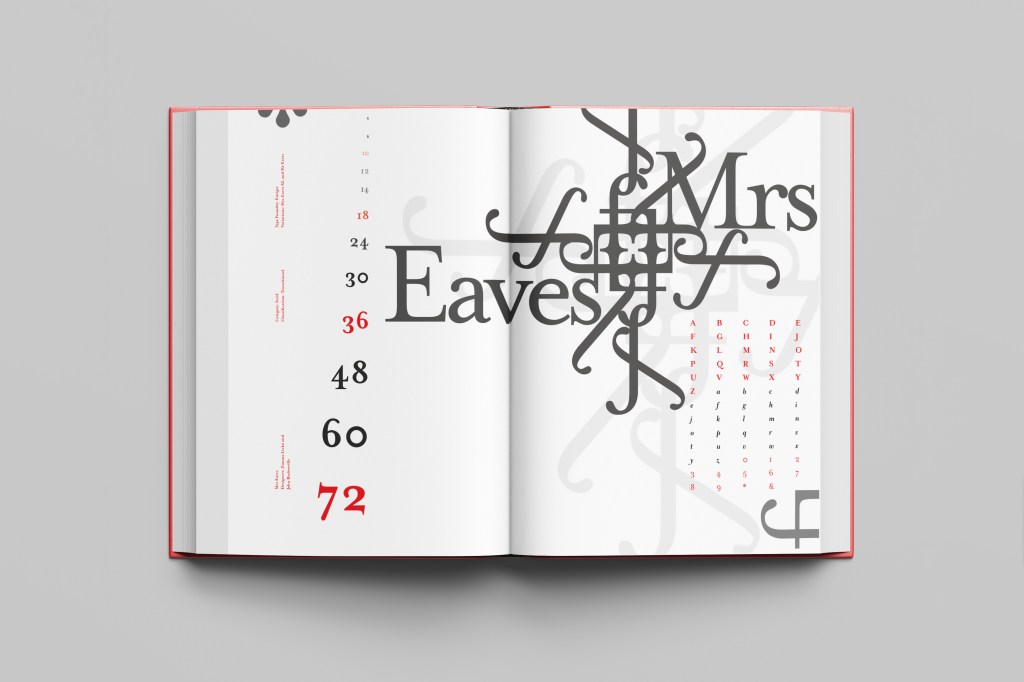
The last Serif typeface I chose was Mrs Eaves. I like the story behind this typeface and it also ties in nicely with Baskerville.
Mrs Eaves was designed in 2006 by Zuzana Licko in 1996. It is a variant of Baskerville. Baskerville is known for being absolutely perfect, stark and sometimes hard to read and Licko went out to create a version that was softer and more feminine in approach.
Mrs Eaves was named after Sarah Eaves; Baskervilles live in housekeeper who would later become his mistress and eventual wife. It was the story that drew me in to this typeface.. Sarah Eaves was John Baskervilles live in house keeper whose husband went on to leave her and her 5 children. Sarah in time became Baskervilles creative assistant and mistress and then when Sarah’s estranged husband died, they were married. Sarah Eaves was very much the woman forgotten in typography.
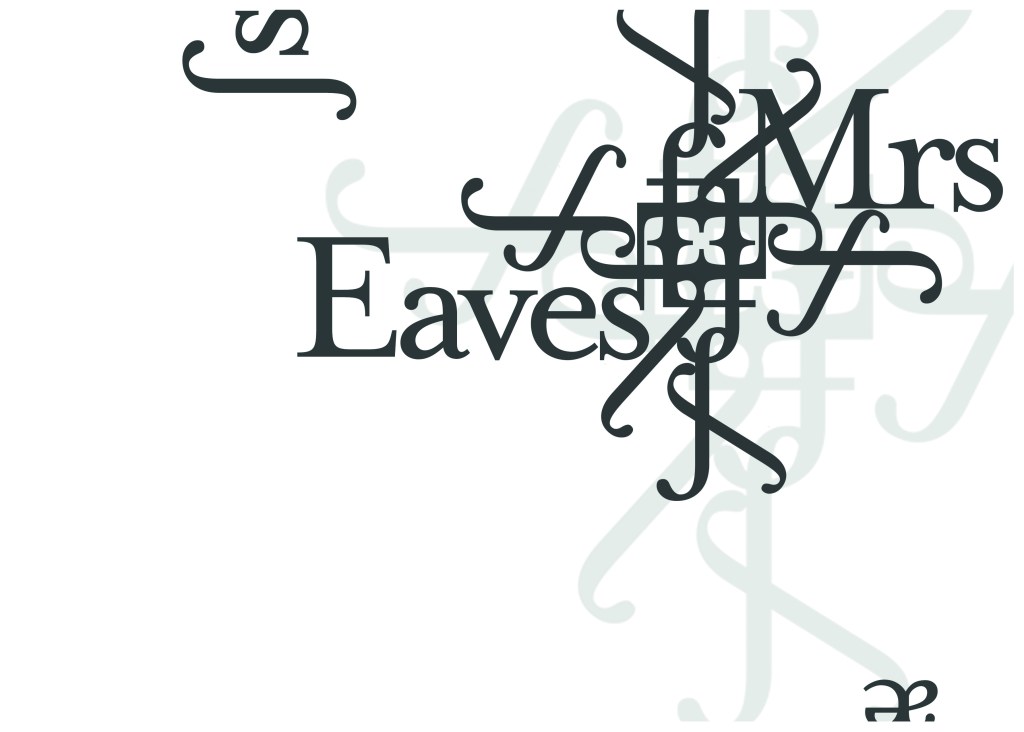
I wanted to bring an element of this story into the design; again, similar to Baskerville I had the idea to create a book design for the layout and tell the story of Mrs Eaves but then I saw that Mrs Eaves has the most beautiful ligatures and I wanted to do something with this. At college when I was 17 we had a project (similarly worded to this exercise actually!) called “create a type-FACE” or something similar where I had to create an actual face out of typefaces. I thought about creating a similar thing on my layout using just ligatures. I had the idea of a very feminine pattern and then possibly repeat printing it across the page. What I ended up with though was slightly different; I am a little bit disappointed because this is one of my least favourites looking back on it and it seemed to have so much more potential at the beginning but time was very much against me in this exercise.
I created a very similar layout to Baskerville as the 2 are related back to each other and then started messing around with the ligatures to make a feminine looking pattern. The pattern I created looks a bit like a Celtic cross, it reminds me of something that would appear in a stained glass window. It has a traditional yet modern feel to it. I tried to turn the opacity down on the design as I still think it looks a bit harsh but tuning it down just made it disappear into the backdrop.
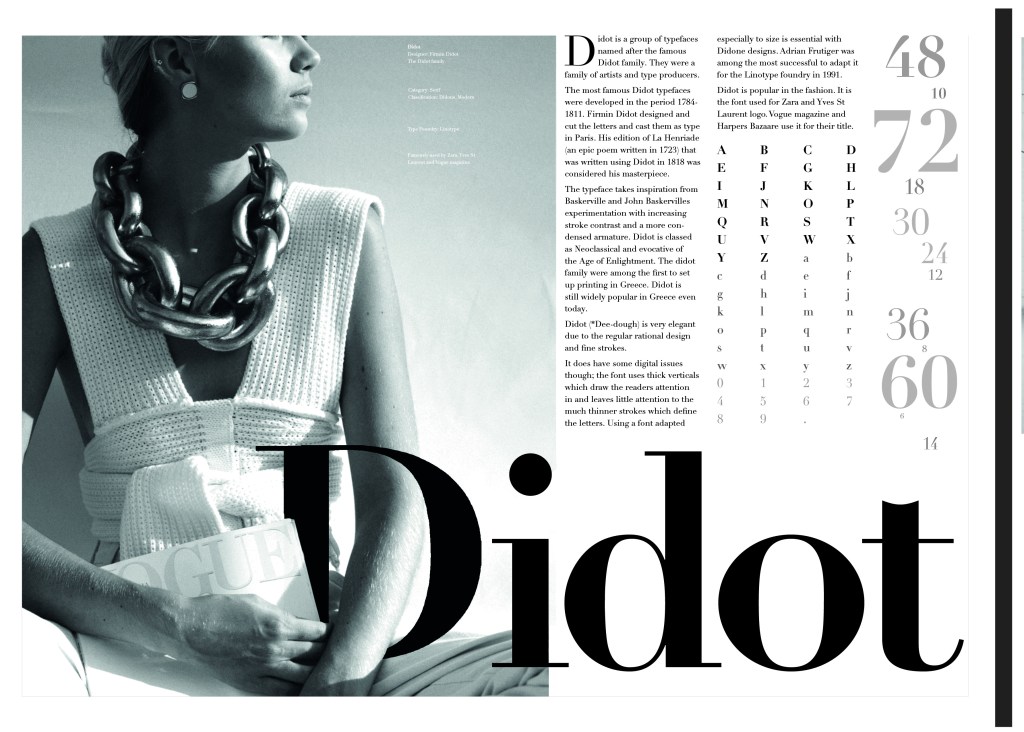
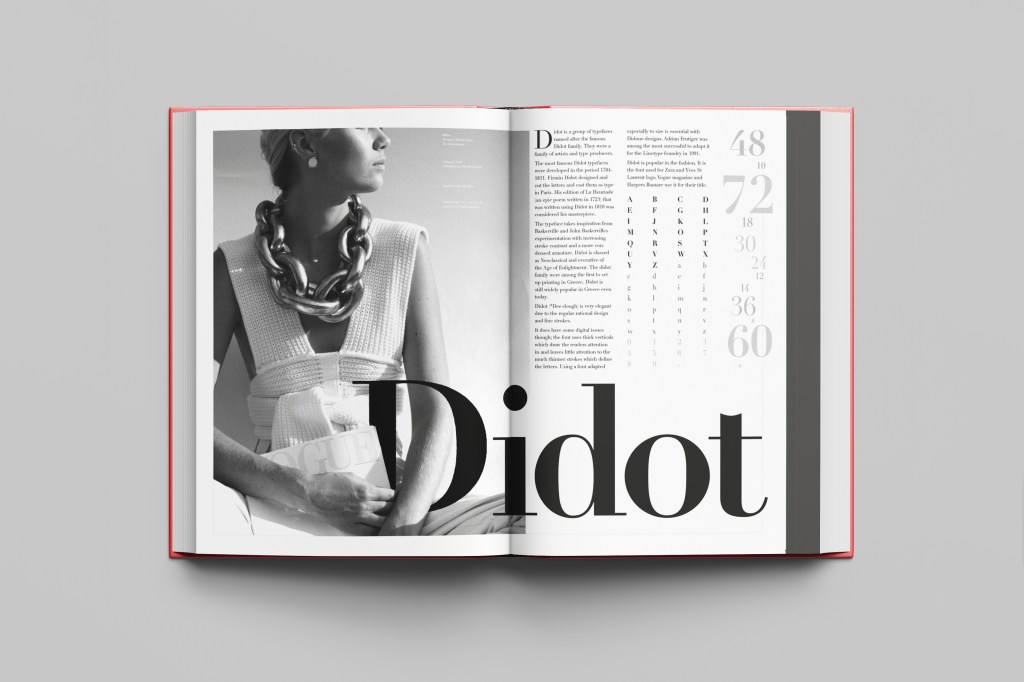
This was the typeface I was quite looking forward to designing for! Didot typeface is very elegant looking and is used in glossy, expensive fashion magazines such as Vogue and Harpers Bazaar. Didot is named after the Didot family who were artists and printers. Didot was inspired by Baskerville which is another reason why I have used it as part of my type specimen book.
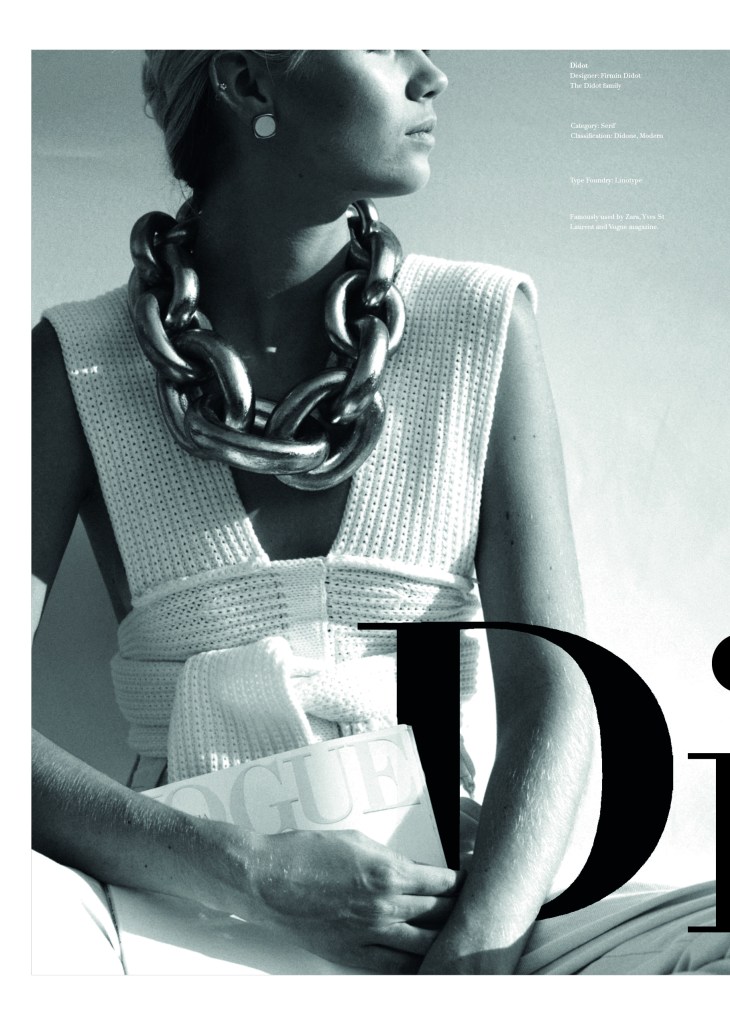
Didot is most famous for being on the cover of Vogue as “Vogue”, because of this I wanted to create a layout that represents high fashion magazines. Vogue magazine always has a celebrity or a fashion model on their cover so I wanted to include a similar thing in my layout. I went onto Pexels website and typed in “Vogue” and it came up with an image of a woman in fashionable clothing holding a Vogue magazine close to her chest. It seemed like the perfect image to use for this design!
There were a few more variations of this photograph as well which I downloaded in case I wanted to use different images on my layout:
Photographs courtesy of Dziana Hasanbekava (pexels-dziana-hasanbekava-5480694) from Pexels.com
The next step was to import the photograph into Photoshop and then adjust the colours. I wanted it to have a Sepia filter to it; Black and White photography suits High quality fashion magazines more and looks good on a layout for contrast. I wanted to put the “Didot” heading on my layout but didn’t just want to place it on the page with no creativity.. I decided to make the D part of the photograph by using layer masks again to mask part of the D out to look like she is carrying the D as an accessory in the photograph. I think it works well! I decided to do the rest of the layout in a similar style to a fashion magazine with the text in 3 columns and one column talking about the history of Didot.
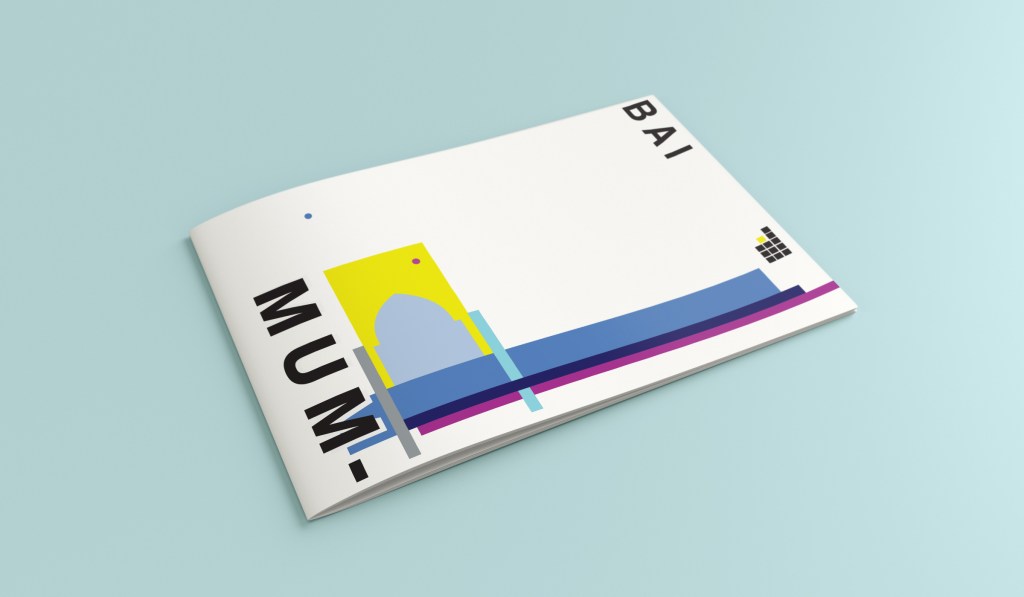
Hello and thank you for joining me on the last of my 10 city guidebook designs! 10 of 10 – Mumbai!
This is it! The end of the infamously difficult Abstract Cities exercise! I won’t lie to you and say I am not happy to see the back of this exercise! BUT! moving on to the write up of my last design!
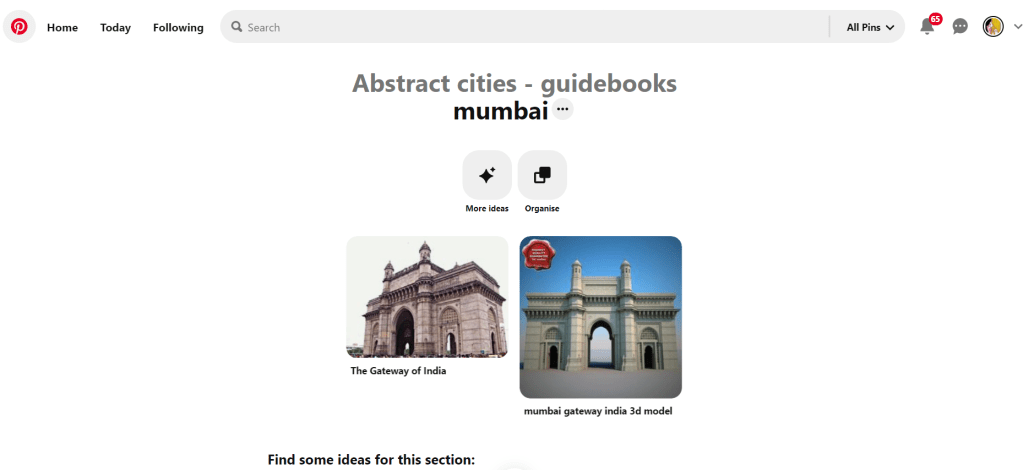
Again, my lack of geographical skills led me to question whether Mumbai was in Africa or India… India! (*eyeroll!) so I felt it best to do the normal and to search Pinterest for inspiration and ideas!
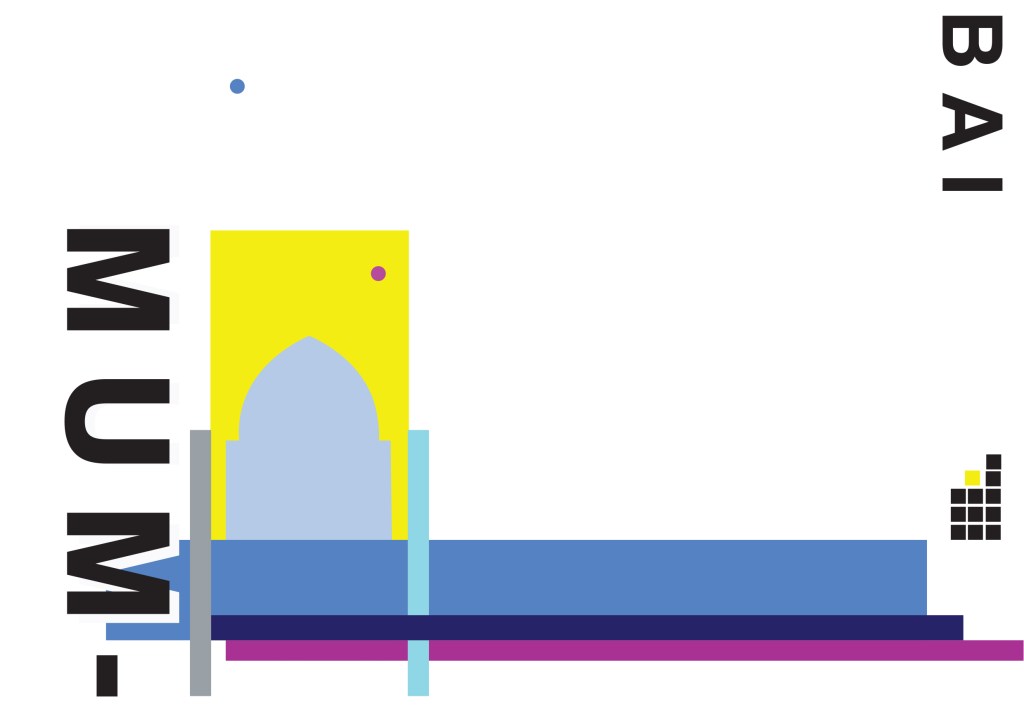
The most popular image that appeared was The Gateway to India. It reminded me a lot of the design that I had done for Marrakech, in my head I was conscious that I had to try and make this design look different.
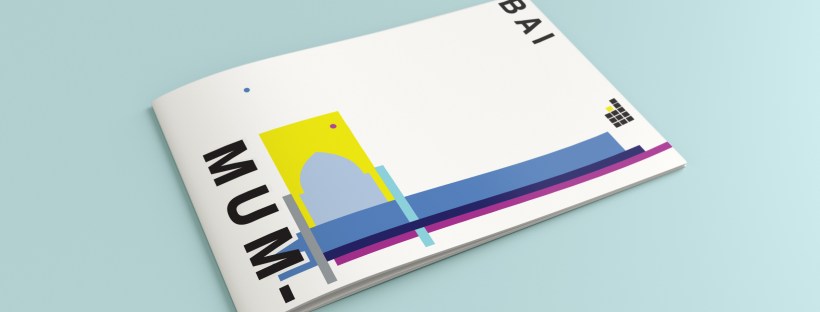
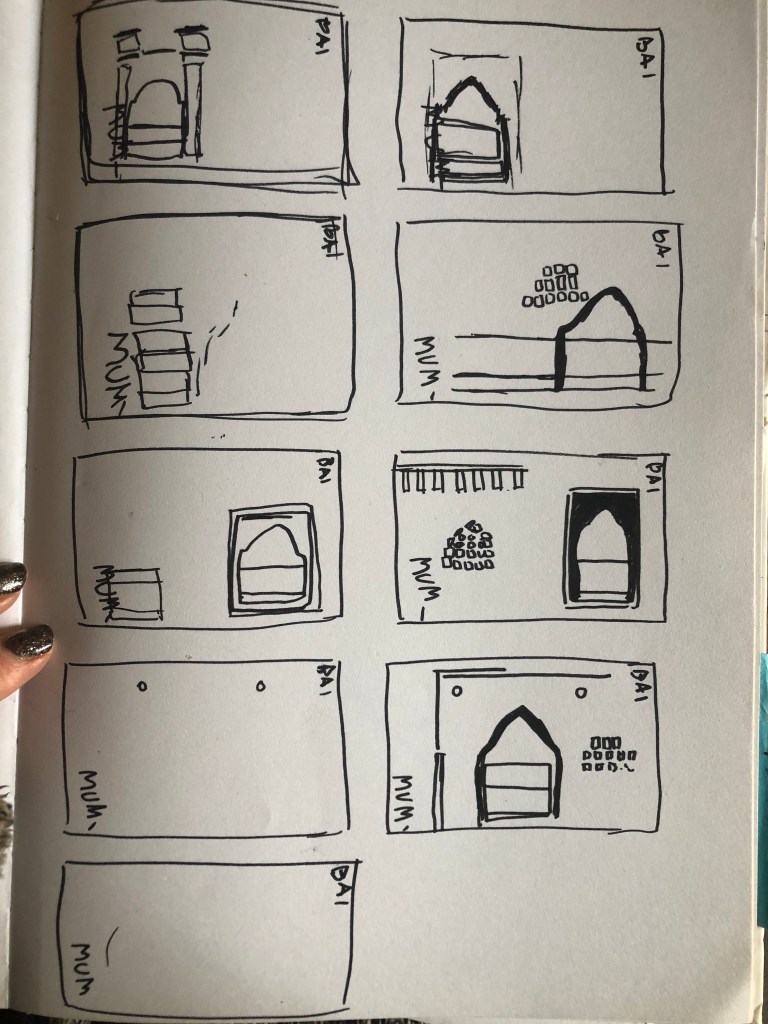
Again, I tried to pick out important features from the building which I could include in an abstract way on my design. I didn’t want to draw the building as it is on the cover because that would not be portraying it in an abstract light. If I picked out key features and then simplified the design I could place key elements of the building on my cover.
The colours of Mumbai are very similar to that of Marrakech, India is very rich in colour. Purple is the best colour to represent wealth, richness and luxury. On the photo of The Gateway of India that I found on Pinterest, it showed water in the background inside the gateway. I had a look on an aerial photograph of this and it showed that the gateway is almost on water. I included this on the design going through the gateway as it appears on the photo but then travelling it across the cover to take the eye on a journey across the design. The yellow block represents the warm sun but also acts as the actual door or gateway. The 2 circles in my design appear on the photograph in the doorway, they are decorative on the actual gateway. I have taken them and split them up over the design to keep the eye interested in all areas of the design. There is a lot of negative space in this design which I like. The design is not constrained to the edges and it has plenty of room to breathe. The black squares which bleed out over the right hand side edge are windows that appear in one of the arched windows on the photograph. I have used them to add contrast and to give a level of interest to the design. The blue is the dominant colour in this design with the yellow following closely behind as a subordinate. The accent colour is the rich purple. The layout is the same as the other 9 designs I have done in this series. They are all in keeping with each other, the repetition is there.
When I think of Montreal I think of Canada and Canadian moose’s, Mounty’s and all things stereotypical!
Brushing my naive knowledge of Canada to one side I decided to do the usual search on Pinterest to get ideas and inspiration for this one!
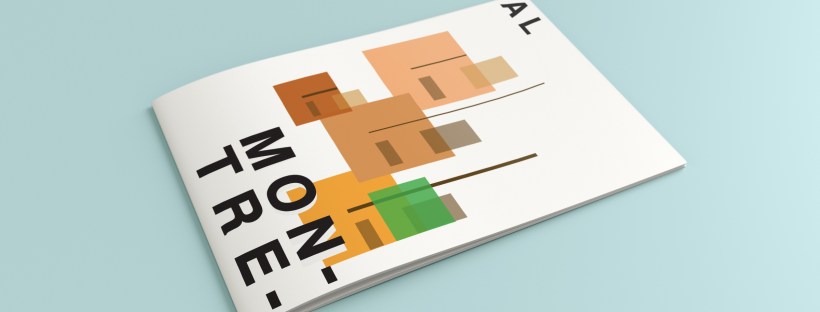
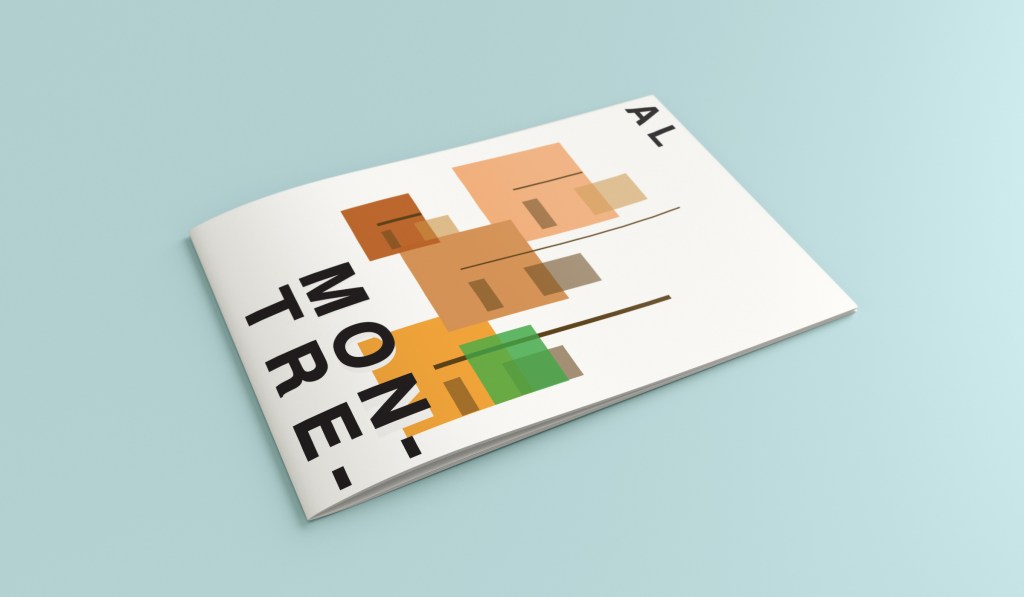
What appeared and grabbed my attention more than most was the Habitat 67 development. This housing complex is abstract in itself! It met the brief and it seemed like the perfect choice to feature on my cover!
In March 2012, Habitat 67 won an online Lego Architecture poll and is a candidate to be added to the list of famous buildings that inspire a special replica Lego set. Lego bricks were actually used in the initial planning. Initial models of the project were built using Lego bricks and subsequent iterations were also built with Lego bricks.
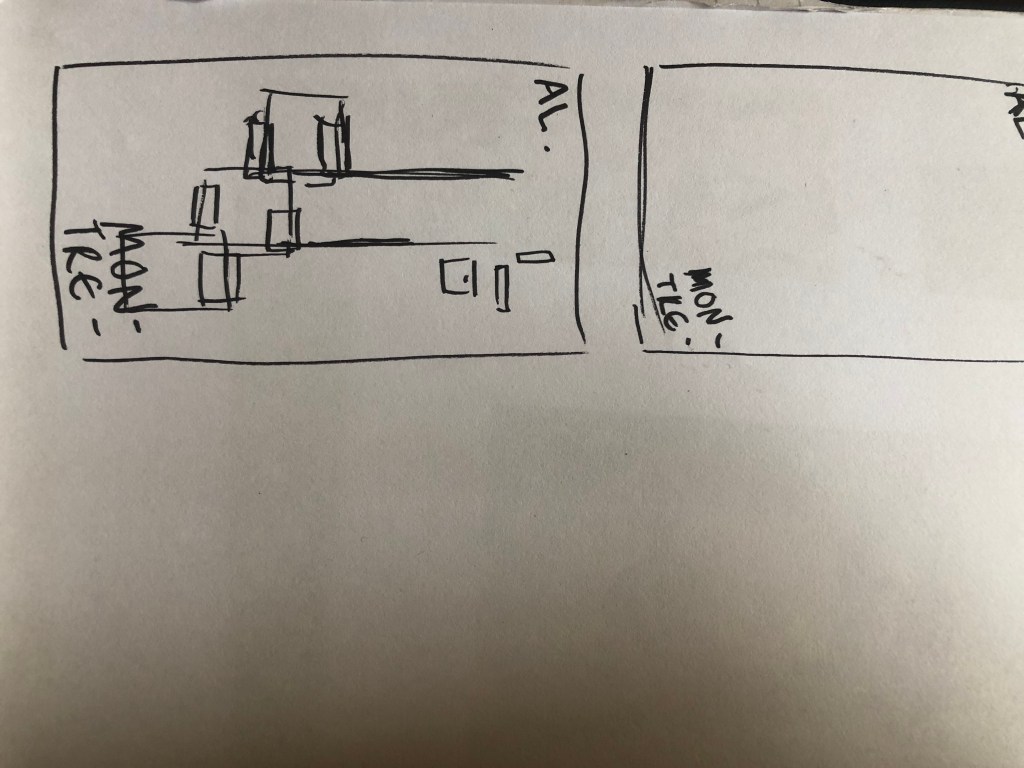
I didn’t actually do a lot of sketching for this one because I knew I just wanted it to be comprised of blocks of colour to represent Habitat 67. I knew that I could develop it as I went along in Illustrator.
I started from the bottom of the design and added a pop of green for the accent colour which represents the tree at the bottom of the complex. I then wanted to work my way from the bottom left to the top right so that the eye flows naturally ad comfortably up and across the design. I wanted negative space so kept the bottom right free for this. I created several blocks of squares and rectangles with overlapping colours to best represent Habitat 67. I think this is the most abstract design in the 10 that I have done, it works put quite nicely because this is the city in my eyes with the most abstract landscape. I used different weights in the blocks and line to create a contrast. There is repetition in my design, I tried to replicate the appearance of each apartment of Habitat 67 as they appear in reality.






















































































































 pinkangeleno.com